

Build & manage your agenda
Use submissions to build your event schedule. A session can be a submission you have accepted or any other event day scheduled times you want to show to your attendees (i.e., Lunch, Networking Hour, Registration Open).
Video transcript
Sessions and the agenda. Most of your sessions arrive through the form we built two chapters ago. This chapter is about the rest, the ones you add yourself, the keynote, the welcome reception, the sessions that need a subsession underneath, and then turning all of it into a schedule.
Program, Sessions. Every session in the event, one row each. The tabs across the top are the statuses, all, accepted, the accept queue, pending, the decline queue, declined, withdrawn and drafts. Same statuses we set up in Program Settings, and the Source column tells you whether a session came in through a form or was added by hand.
Add Session, top right. Two tabs. Details is the session itself, title and status are the only two you must fill, then description, start and end, capacity, credits, and the vocabulary, format, language, level, track, tags, and a location. Participants is who’s on it, speakers, chairpersons, moderators, the submitter, sponsors and exhibitors. One thing to know, if you search a speaker here and they don’t come up, they don’t exist yet. Create them in Contacts first, then come back.
Let’s open one that exists. The pencil on any row opens the session in a drawer, and the tabs across the top are everything about it. Details, notes, participants, files, media, connections, reviews, messages, activity. Search fields at the top finds any field on the page, and your custom fields sit at the bottom of Details. Click a value to edit it in place.
Connections is where subsessions live. A parent session is the block on your agenda, a subsession is a segment inside it, three papers in one poster session, five talks in a lightning round. Create Subsession makes one from scratch, and it has to fall inside the parent’s time. Convert Submissions turns a batch of accepted abstracts into subsessions in one step, which is how the medical and scientific programs do it. Speakers on a subsession are added to the parent too, so the parent always knows who’s in the room.
Before we look at the agenda, its settings. Program, Settings, Agenda. Day start, day end and the interval shape the grid. Agenda content decides whether sessions, abstracts, or both show up. And Program Statuses is the one people miss, by default only accepted sessions appear on the agenda. Add pending here if you want to schedule before you’ve decided.
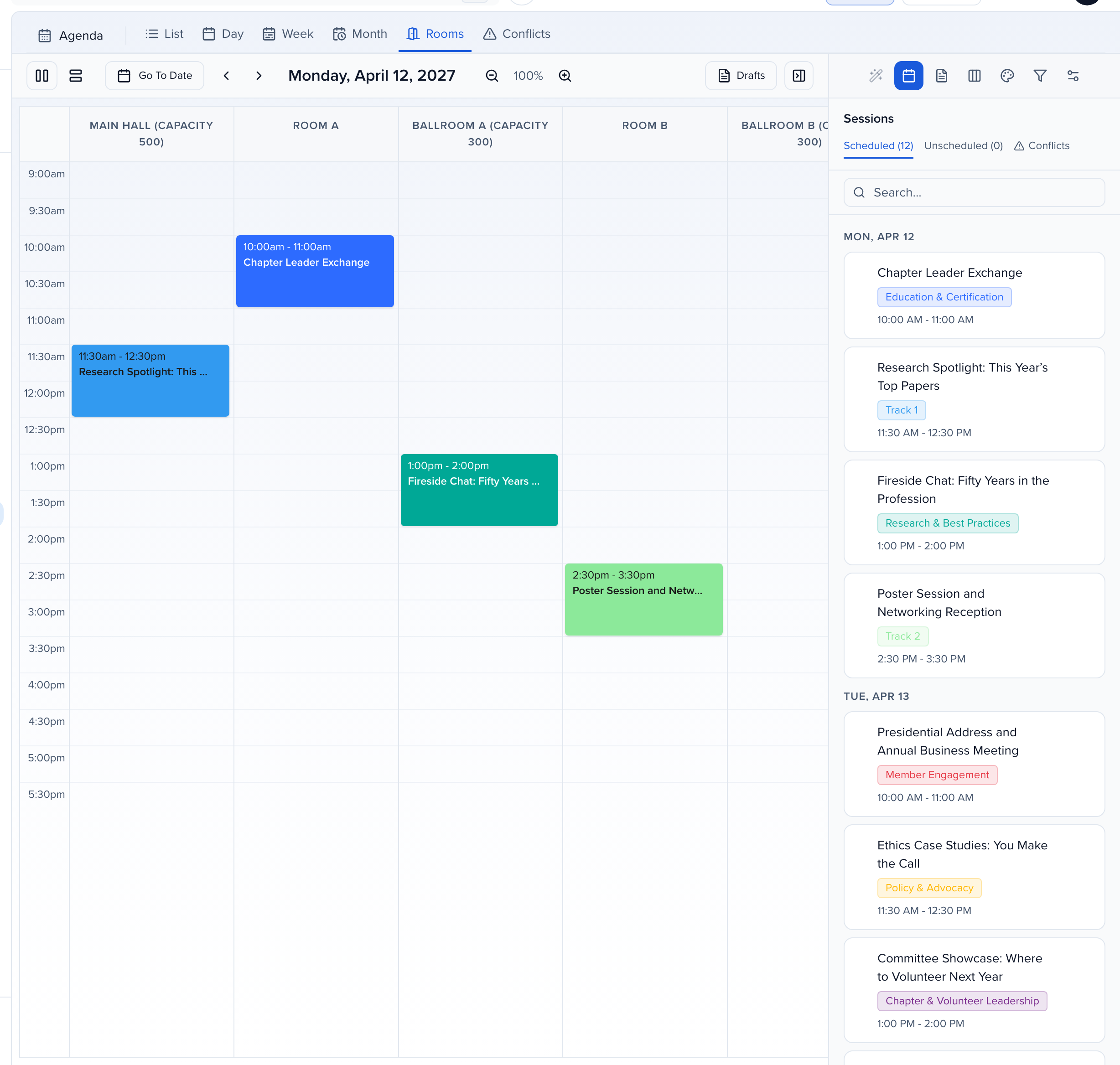
Program, Agenda. Five ways to look at the same schedule. List is the table. Day and week are the calendar, and the colour of each block is its track, so you can see at a glance whether Tuesday morning is all research. Month is the overview, no colours there. And Rooms puts every room side by side so you can spot an empty slot in Room A.
The right-hand panel is your to-do list, scheduled and unscheduled. Drag a session from unscheduled onto the grid and it’s scheduled, drag it again to move it, drag it into a room in the rooms view to assign the room. Each drag saves, and if submission change notifications are on for the speaker’s portal, the speaker hears about it. Turn that off while you’re still shuffling, and back on when the schedule is close to final.
Conflicts. Two rules are always on and can’t be turned off, two sessions in the same room at the same time, and the same speaker, chair or moderator in overlapping sessions. Below those you write your own rules in plain English, no two keynotes on the same day, no workshop before ten, and mark each one enforced, which blocks the agenda, or warning, which just flags it. Anything that breaks a rule is listed here, with a red dot on the agenda block.
That’s the program, made, connected and scheduled. The part that comes before all of this in real life, deciding what gets accepted, is the Review and evaluation chapter. Accept and decline queues, evaluation plans, and what your reviewers see. The Help Center article for this one is Agenda, with Create a session and Create a subsession alongside it.
Why use it
Section titled “Why use it”The agenda is where accepted sessions get a room and a time. Building it in Sessionboard means speaker and room conflicts are flagged as you schedule, and the same schedule feeds the speaker portal, your embeds and the integrations that publish it.
Before you schedule
Section titled “Before you schedule”The agenda reads its defaults from Program → Settings → Agenda: the day start and end times, the drag interval, which statuses are schedulable, default durations per format (used to build Agenda Drafts), and which rooms show. Set those first — see Program settings → Agenda.
The agenda views
Section titled “The agenda views”Open Program → Agenda. Six tabs across the top look at the same schedule.
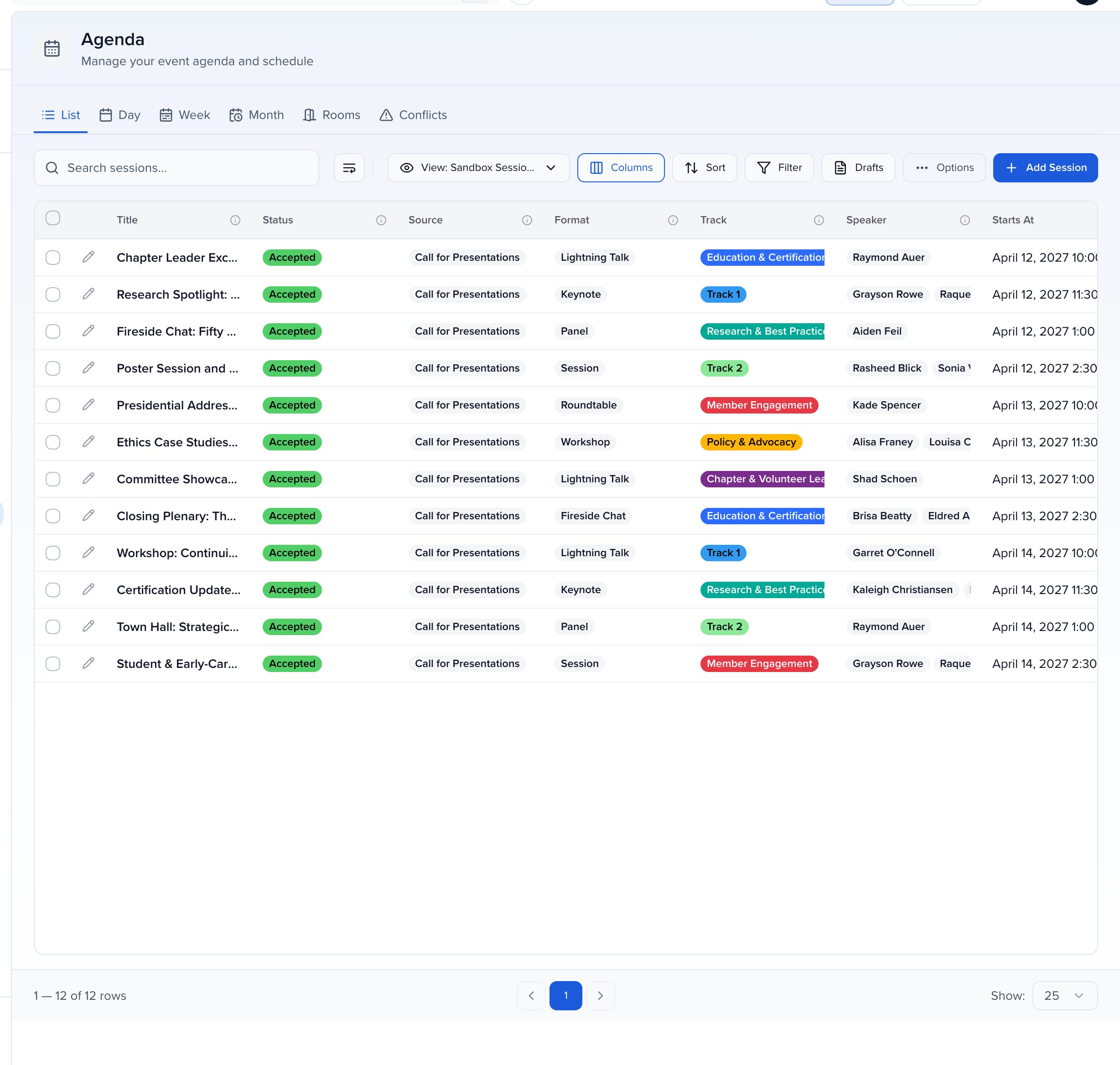
| View | What it’s for |
|---|---|
| List | The table. Same columns, filters, and bulk actions as the Sessions list, plus Import and Add Session. |
| Day | One day as a calendar. Drag to schedule, move, or resize. |
| Week | The event’s days side by side as a calendar (up to seven at a time). |
| Month | The overview. Cards aren’t colored here. |
| Rooms | Every room side by side, so you can spot the empty slot in Room A. Switch between Vertical layout and Horizontal layout, and Zoom Out to see every room without scrolling. |
| Conflicts | The rules the agenda checks and everything that currently breaks one. |
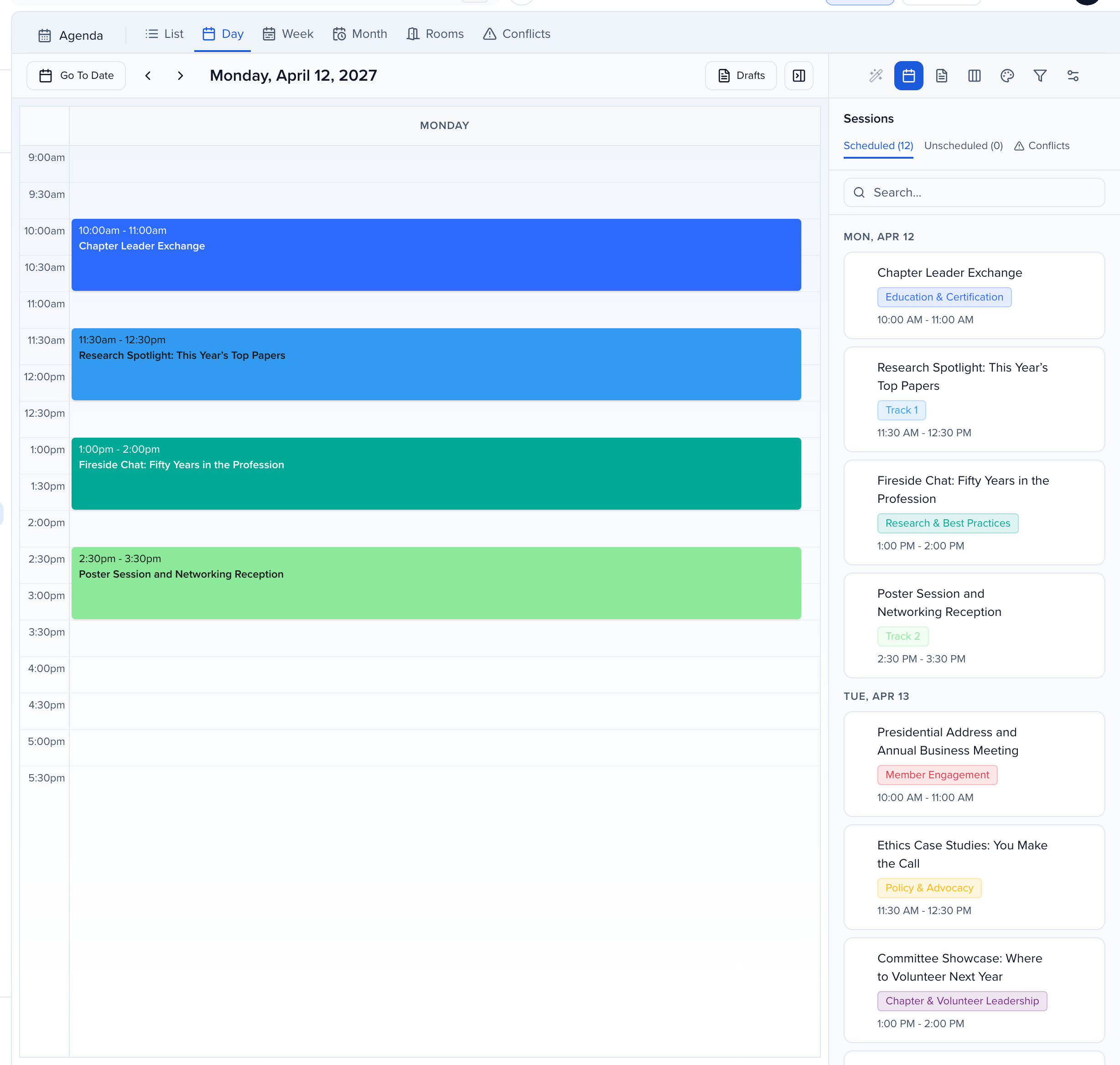
Go To Date, Today, Event Start, and Event End move the calendar; the event’s dates are marked so you don’t schedule outside them.
Event days only
Section titled “Event days only”When the event has dates (under Event Settings), the calendar shows only the event’s days, counted in the event time zone rather than your computer’s. Day and Rooms show one event day and the arrows stop at the first and last day. Week shows exactly the event’s days, so a three-day meeting is three columns; a longer event pages seven days at a time. Month greys out the days outside the event.
Click Event days only next to the date to turn this off and page through any date. Your choice is remembered for this event in this browser. Going to a date outside the event from Go To Date or Today turns it off for you.
If any scheduled session falls on a day outside the event, a bar above the calendar says how many (for example, 1 scheduled session is outside the event dates). Click Show all dates on the bar to see them. Events without dates work as before.
The Sessions panel
Section titled “The Sessions panel”The panel on the right is your to-do list. Scheduled and Unscheduled split the sessions that have a time from those that don’t, and Conflicts lists the ones that break a rule. Drag a session from Unscheduled onto the grid to schedule it, drag it again to move it, and drag it into a room in the Rooms view to assign the room. Each drag saves.
To schedule without dragging, use Schedule… on a session in the panel. Pick the Day, Start time, Length (minutes) and Room (or No room), then click Schedule. Day lists the event’s days first; choose Another date… to pick any other day. Times are in the event time zone. It saves the same way a drag does.
The icons above the panel switch it to other tools: Filters & Views (saved views and active filters), Card Colors, Card Display (which fields show on a calendar card, up to three extra; see Card display), Agenda Settings, and Agenda Drafts.
While a filter is applied, Day, Week, Month and Rooms show a bar above the calendar that reads Only showing sessions that match filters, with the number of filters. Click Clear on the bar to remove the calendar’s filters and show every session. The List tab keeps its own filters.
Card display
Section titled “Card display”Open Card Display in the agenda panel to choose what a calendar card shows under its title and time. Title, Start Time and End Time are always on. Under Additional Fields, add up to three more: any session field, or Participants by role. Remove one with the × on its tag. Your choice is saved in your browser, so it does not change the agenda for the rest of your team.
Participants by role
Section titled “Participants by role”Participants by role puts each session’s people on its card, for example Dr. Ana Ruiz, CMO, Acme; Bo Li, CTO, Beta. Once it is added, choose what follows each name under With each participant:
- Job title: the contact’s Job Title.
- Company or session affiliation: the affiliations chosen for the person on this session when the session has them, otherwise the contact’s Company.
- Salutation and honorific: the contact’s Salutation before the name (Dr.) and Honorific after it (MD).
People are grouped by role (speakers, chairpersons, moderators and your custom roles) and listed in the session’s participant order. When a session has more than one role, each group is named on the card: Speaker: … · Moderator: ….
A card has room for one line, so a long list is cut short. Hover over the card, or move to it with Tab, to see everyone: one line per person with their role and details. Press Esc to close it. Contact fields hidden from your role don’t appear, and people outside the contacts your role may see read Restricted.
Card colors
Section titled “Card colors”Open Card Colors in the agenda panel to choose what the session cards are colored by. Under Color By, pick Track (the default), Status, Room, Format, Level, or Tags. The Color Key below lists each value with its color. Your choice is saved in your browser, so it does not change the agenda for the rest of your team.
For every option except Tags, the whole card is filled with the value’s color.
Color by tags
Section titled “Color by tags”A session can carry several tags, so Tags works differently: cards stay white with black text, and each tag appears as a small colored square in the bottom-left corner of the card.
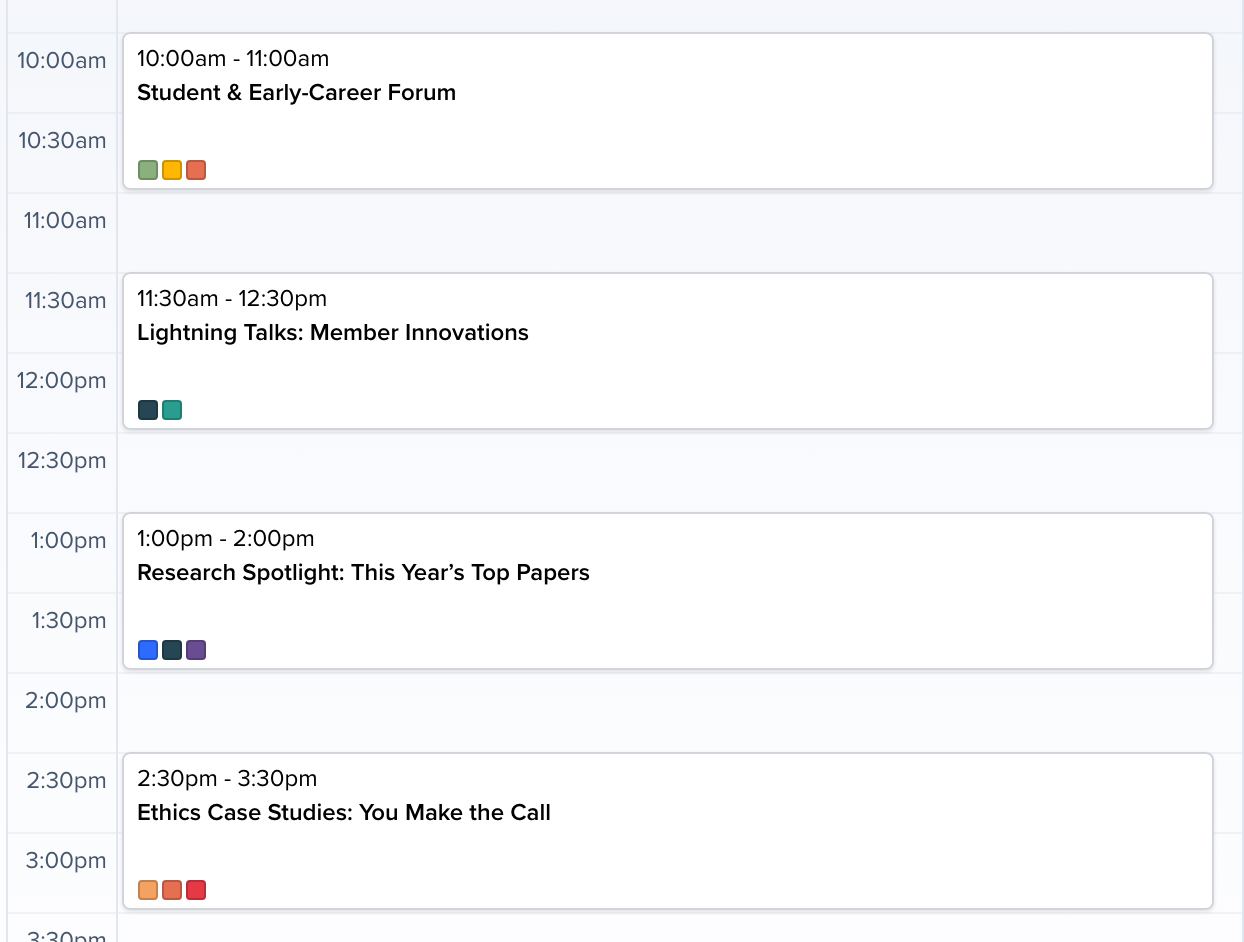
- When a card is too short for its own row of squares, the squares sit at the start of the title line instead.
- When a session has more tags than fit, the last square is replaced by +N. Hover over it to see the names of the hidden tags; hover over any square to see its tag name.
- A tag with no color shows as a gray square. Give it one in program settings.
- The unscheduled cards in the panel and the card you drag onto the calendar use the same white card and tag squares.
Conflicts
Section titled “Conflicts”The Conflicts tab is where the agenda tells you what’s wrong.
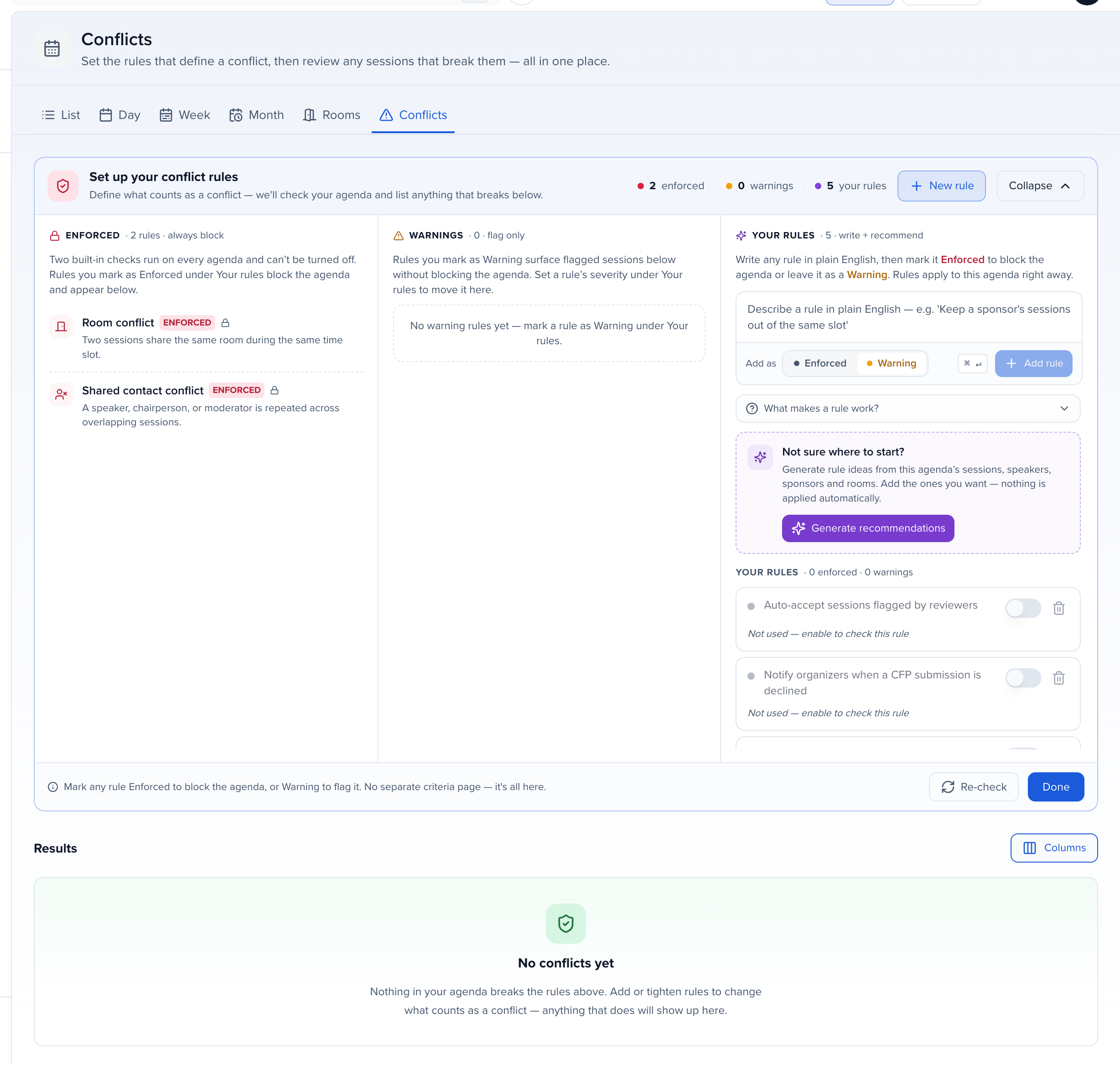
Two rules are always on and can’t be turned off:
- Room conflict — two sessions share the same room during the same time slot.
- Shared contact conflict — a speaker, chairperson, or moderator is repeated across overlapping sessions.
Under Your rules you write your own in plain English — “no two keynotes on the same day”, “keep a sponsor’s sessions out of the same slot” — and choose whether each is Enforced (blocks the agenda) or a Warning (flags only). Generate recommendations suggests rules from your program if you’d rather start from a list.
Results underneath lists every session that breaks a rule, with the rule it broke. Open takes you to the session editor to move it; Dismiss hides a conflict you’ve decided to live with (Show dismissed (…) brings it back). Sessions with a conflict carry a red dot on the calendar. Conflicts refresh when you reload the page or click Refreshed.
Common questions
Section titled “Common questions”Why is a session missing from the agenda?
By default the agenda shows only sessions whose status is Accepted. A session that is pending, declined, in a custom status, or still a draft does not appear until you accept it or add its status under Program → Settings → Agenda → Program Statuses. See program settings.
Can we build the agenda with pending or custom statuses, not only accepted sessions?
Yes. Program Statuses in the agenda settings chooses which statuses are schedulable, so you can block out a draft schedule while decisions are still open. Custom statuses are created under program settings; each one belongs to a standard category (pending, accept queue, accepted, decline queue, declined) that drives portals, emails, and integrations.
Can we filter, color, and customize how the agenda displays?
Tracks color sessions in the day, week, and rooms views by default; switch to status, room, format, level, or tags under card colors. Rooms, tracks, tags, formats, levels, and languages all come from program settings and are the filters available on the agenda and in the Sessions table. Columns and saved table views control which fields appear in the list, and what speakers and the public see is set separately in the portal and the agenda embed.
How do we avoid double-booking speakers and rooms?
Program → Agenda → Conflicts lists every overlap: two sessions in one room at the same time, or a speaker, moderator, or chairperson scheduled twice. Sessions with a conflict carry a red dot in the agenda; Open takes you to the session editor to move it. See conflicts.
How do we schedule many sessions at once — import, bulk edit, or copy from last year?
Import creates or updates sessions with dates, times, and rooms from a spreadsheet, including an import to update flow for existing records. Bulk edit changes one field across many selected sessions, such as moving a track to a new room. Copy sessions from another event reuses last year’s program, and clone a session duplicates one. Drag and drop in any agenda view saves the new time and room.
How do panels, workshops with parts, and multi-speaker sessions work?
A session can hold several participants, each with a role: speaker, moderator, chairperson, or a custom role. Add them from the session’s Participants (create a session, add a moderator and chairperson). For a block with parts (a symposium with individual talks), create the block as the parent and its parts as subsessions; viewing subsessions within the agenda explains how they display; check each app article for how subsessions are handled in a sync (Cvent, for example, has a Sync Subsessions to Session Programs setting).
Why does a session I drag onto the calendar land as a one-hour block?
A session dropped from Unscheduled keeps the length it already has, and an unscheduled session has none, so it gets one hour. The format’s default duration is not applied when you drag. Drag the bottom edge of the block to the right length; it snaps to the Interval from the agenda settings. A session you move that already has a start and end time keeps its length.
To place many sessions at their format’s length, build an Agenda Draft instead — it starts from the Program Format Durations — or give sessions their start and end times by import.
What decides the order of sessions side by side?
In the Rooms view, the columns follow each room’s Display Order under Program settings → Rooms, lowest first, then name; sessions without a room come last. In the Day and Week views, overlapping sessions sit side by side by start time, then the longest first, then title. Track has no effect on the order — to see sessions grouped by track, color the cards by Track or use the Rooms view.
Are speakers told when we move their session?
Yes, when Submission change notifications is on for their portal. Dragging a session to a new time or room saves immediately and emails the participants. See notify speakers of submission changes.