

Add a moderator or chairperson
Speakers usually arrive through the submission form. Moderators and chairpersons are different: the program team decides who chairs a panel or moderates a track, so an admin adds them. They are ordinary contacts — the same record type as a speaker — attached to a session in a different role, which means they get their own portal tasks, appear in the agenda under their role, and can be emailed as a group from CRM > Moderators or CRM > Chairpersons.
1. Make sure the person is a contact
Section titled “1. Make sure the person is a contact”If they have spoken or chaired for you before, they already exist — find them rather than creating a duplicate. In the event, open CRM > All Contacts, click Add Contact and search by name or email; tick anyone listed under in organization and click Add to Event. If the search is empty, click Add new contact, fill in First Name, Last Name and Email (the only required fields) and click Create Contact. Details are in Add & delete a contact.
2. Add them to the session
Section titled “2. Add them to the session”- Open Program > Sessions and click the pencil on the session’s row.
- Open the Participants tab. There is a block for each role your program uses — Speakers, Chairpersons, Moderators, the Submitter, and Sponsors and Exhibitors where those are enabled.
- Click Add on the Chairpersons or Moderators block and pick the contact from the search.
- Click Save Changes at the bottom of the panel.
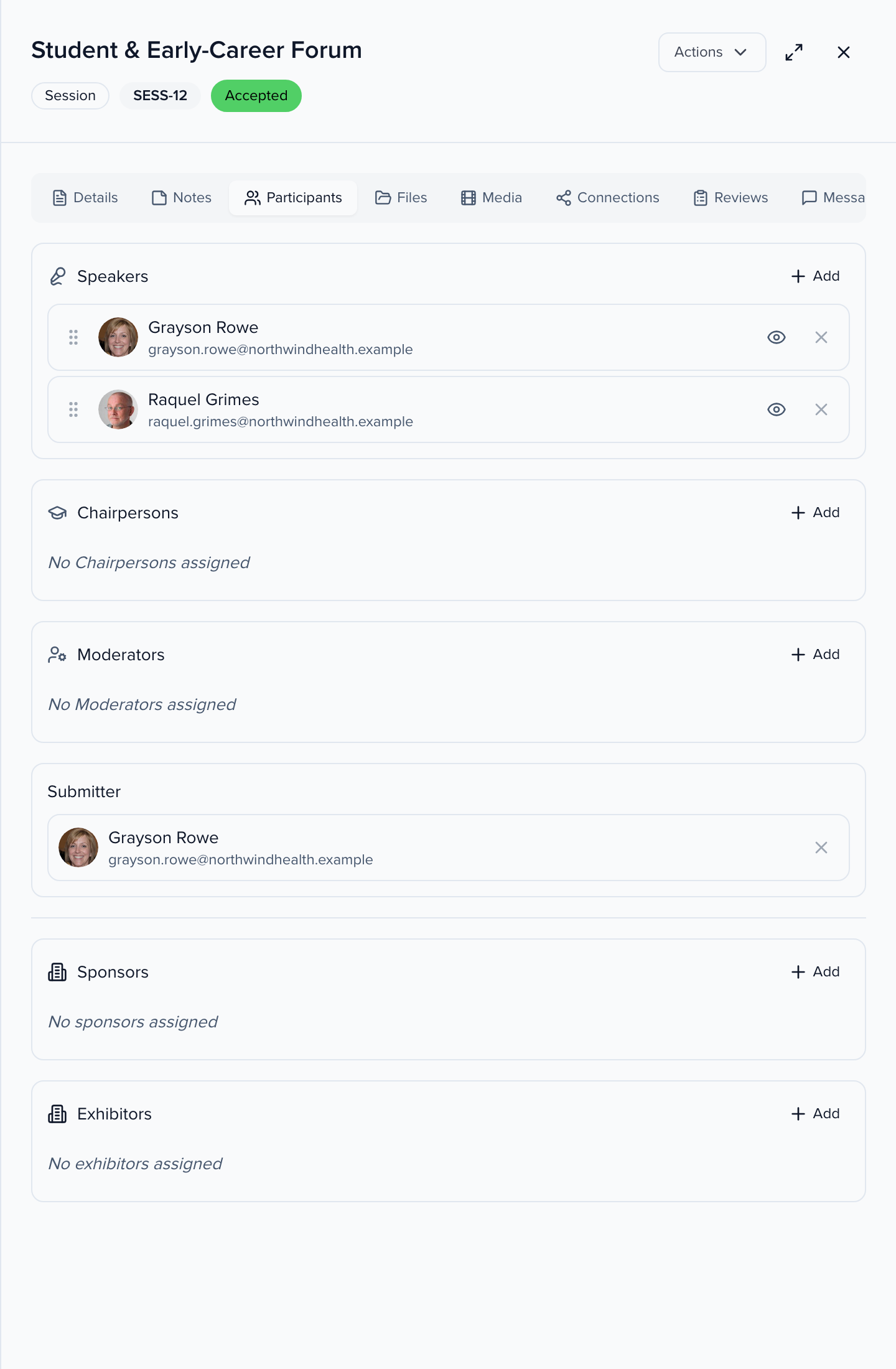
Each participant row has controls for their status on the session (Pending, Accepted, Declined), the eye icon to hide them from public surfaces (Make private), and Remove. The drag handle reorders people within a block, which sets the order the agenda and speaker pages show them in.
From the Contacts list
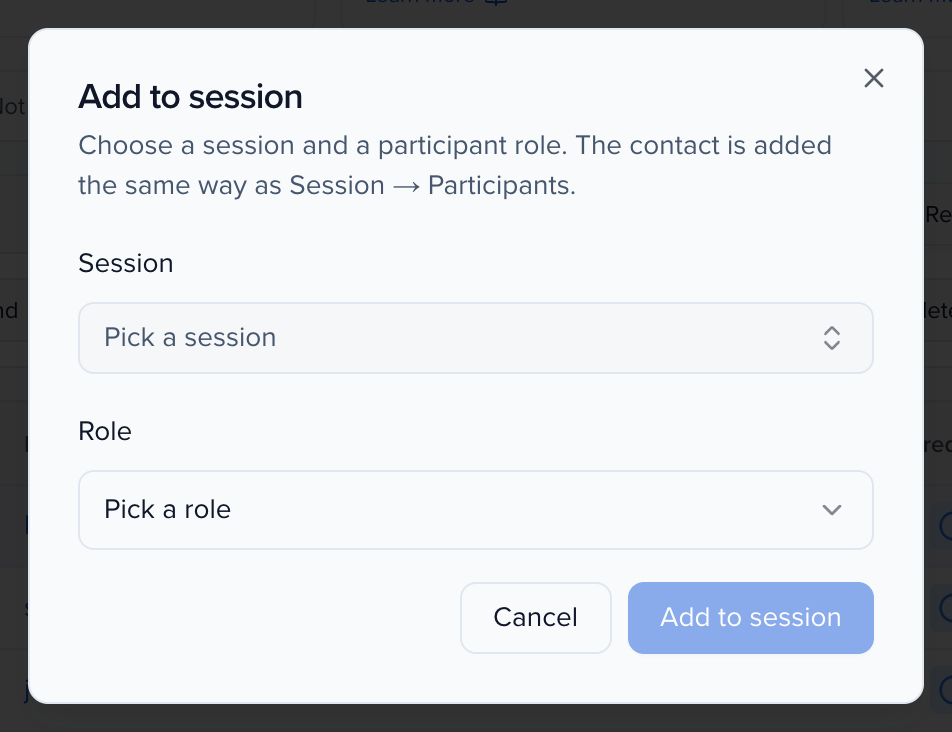
Section titled “From the Contacts list”To add one or more people at once, tick them in CRM > All Contacts and click Add to session in the selection bar. Pick the Session and the Role, then click Add to session. The list only offers sessions in the event you are in.
Related
Section titled “Related”- Create a session — the same Participants tab when the session is new
- Create & assign a session submitter
- Participant inventory — per-role minimums and maximums on a session