

Create & assign a session submitter
Every session has one Submitter: the person who completed the submission form. Often that is the speaker, but not always — an executive assistant submitting for their team, an agency contact entering a sponsor’s session, a program committee member adding a talk on a speaker’s behalf. The submitter is not a speaker role; it is a pointer to the contact who owns the submission.
Being the submitter matters in the portal. The session appears in the submitter’s My Participation, they can edit it while the form allows, and they receive submission-change notifications along with the session’s participants. Sessions an admin adds by hand have no submitter until you set one.
Set or change the submitter
Section titled “Set or change the submitter”The submitter has to exist as a contact first — find them with Add Contact on CRM > All Contacts, or create them there (Add & delete a contact).
- Open Program > Sessions and click the pencil on the session’s row.
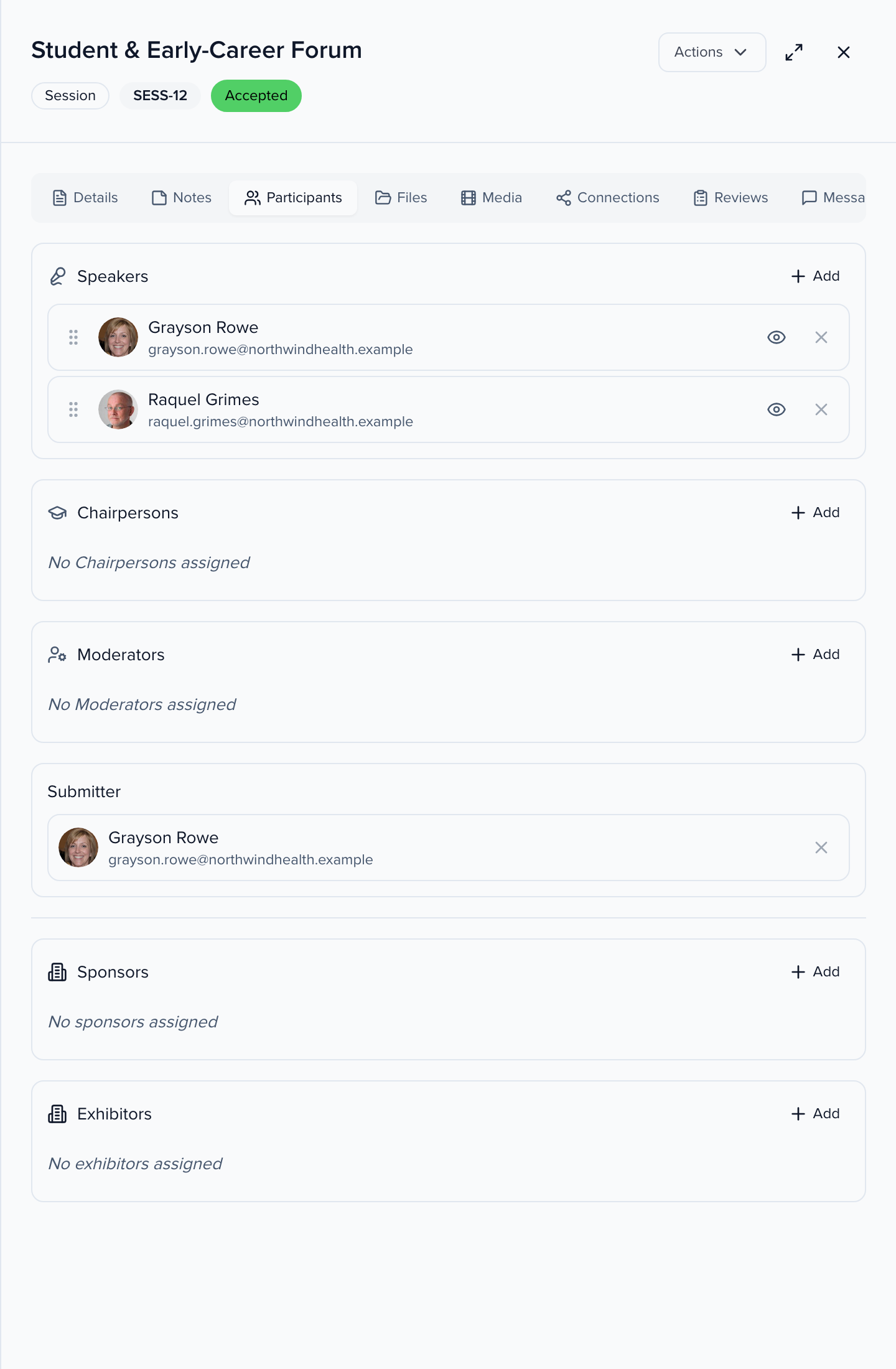
- Open the Participants tab and find the Submitter block, below the speaker roles.
- If a submitter is set, click × (Clear submitter) on their row. Click Add, search for the contact and pick them.
- Click Save Changes at the bottom of the panel.
Where else the submitter shows up
Section titled “Where else the submitter shows up”- CRM > Submitters lists every contact who is the submitter of at least one session in the event — useful for a “thank you for submitting” email that should go to the assistant, not the speaker.
- Session change emails (submission change notifications) go to the submitter as well as the participants.
- The Withdrawn and Drafts tabs on the Sessions list are the submitter’s actions: pulling a submission or saving one without sending it (draft submissions).