

Draft submissions
Submitters rarely have everything on hand the first time they open your form. Save as draft lets them start, leave, and come back — and every draft is visible to your team from the moment it is saved, so you can see who is part-way through before the deadline lands.
For the submitter’s side — saving, resuming and discarding a draft — see Save a submission as a draft.
Why use it
Section titled “Why use it”Drafts show you the proposals that were started but not finished, so you can nudge the right people before a deadline instead of discovering the gap afterwards. When a submitter resumes a draft, the form takes them to the first step that is still incomplete, so a required field they skipped never turns into a dead-end error at Submit.
Where drafts appear
Section titled “Where drafts appear”A draft is a submission still in the submitter’s hands, so it is kept out of your working lists: it does not count toward All Submissions, does not go to evaluators, and is not shown on the agenda, in embeds, or through the API. You find drafts in three places.
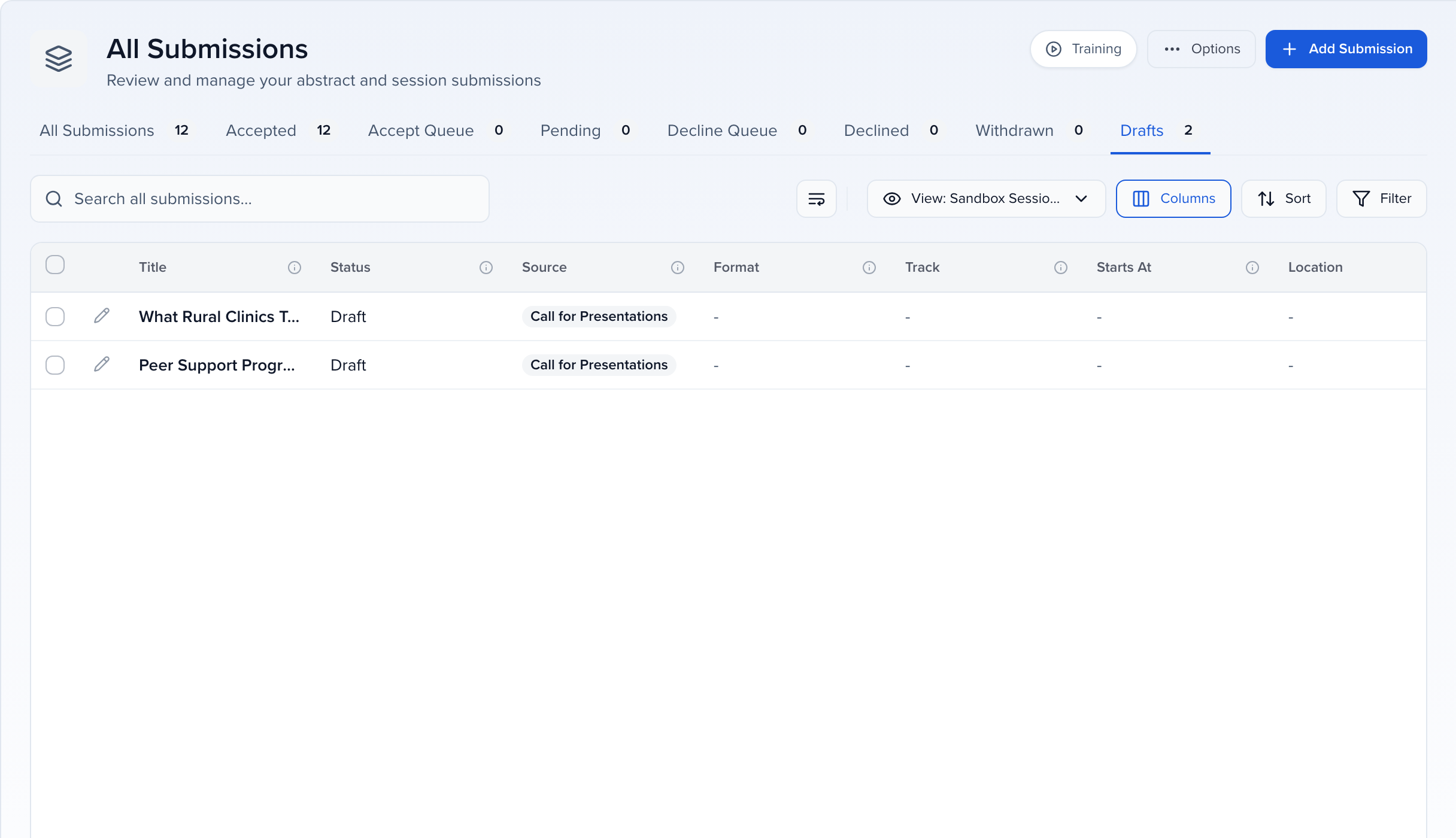
The Drafts tab. Go to Program → View All (or Sessions) and select Drafts. Each row shows the title so far, a Draft status, and the Source form it is being written on. Because a draft has only the answers the submitter has typed, columns such as format, track and time are often still empty.
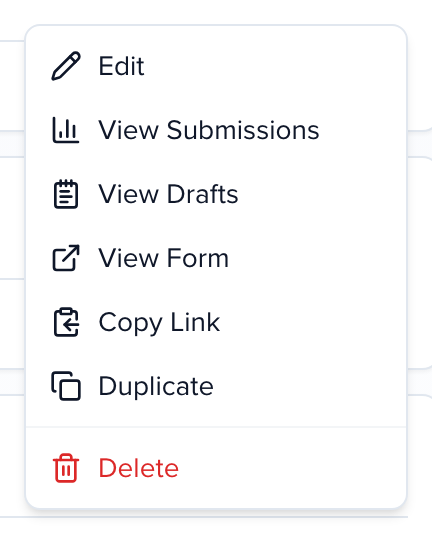
Per form. On Program → Forms, each card counts the submissions and drafts that came through it. Open the form’s ⋯ menu and choose View Drafts to see the Drafts tab filtered to that form.
The Dashboard. The Submissions card on the event Dashboard shows a Drafts count with a View draft session submissions link that opens the same tab.
Open a draft
Section titled “Open a draft”Click the pencil on a draft row to open it in the session editor. You see exactly what the submitter has entered so far — description, participants, files — and can add notes or read it ahead of the deadline. The record stays a draft until the submitter returns and clicks Submit; at that point it moves to the status your form assigns new submissions and appears in All Submissions.
Export or email drafts
Section titled “Export or email drafts”The Drafts tab works like the other tabs, so you can list, export and email the people part-way through.
- Open the Drafts tab (or View Drafts on one form).
- Click Columns and add Submitter, plus any other fields you want in the file.
- Choose Export .CSV or Export .XLSX from the Options menu at the top right. The export takes the tab you’re on and the columns you’re showing.
- To write to them, tick the drafts, click Send Emails in the bar above the table, and choose Session Submitters under Who should receive this email?.
Form settings that affect drafts
Section titled “Form settings that affect drafts”Open the form (Program → Forms → ⋯ → Edit) and go to Form Settings.
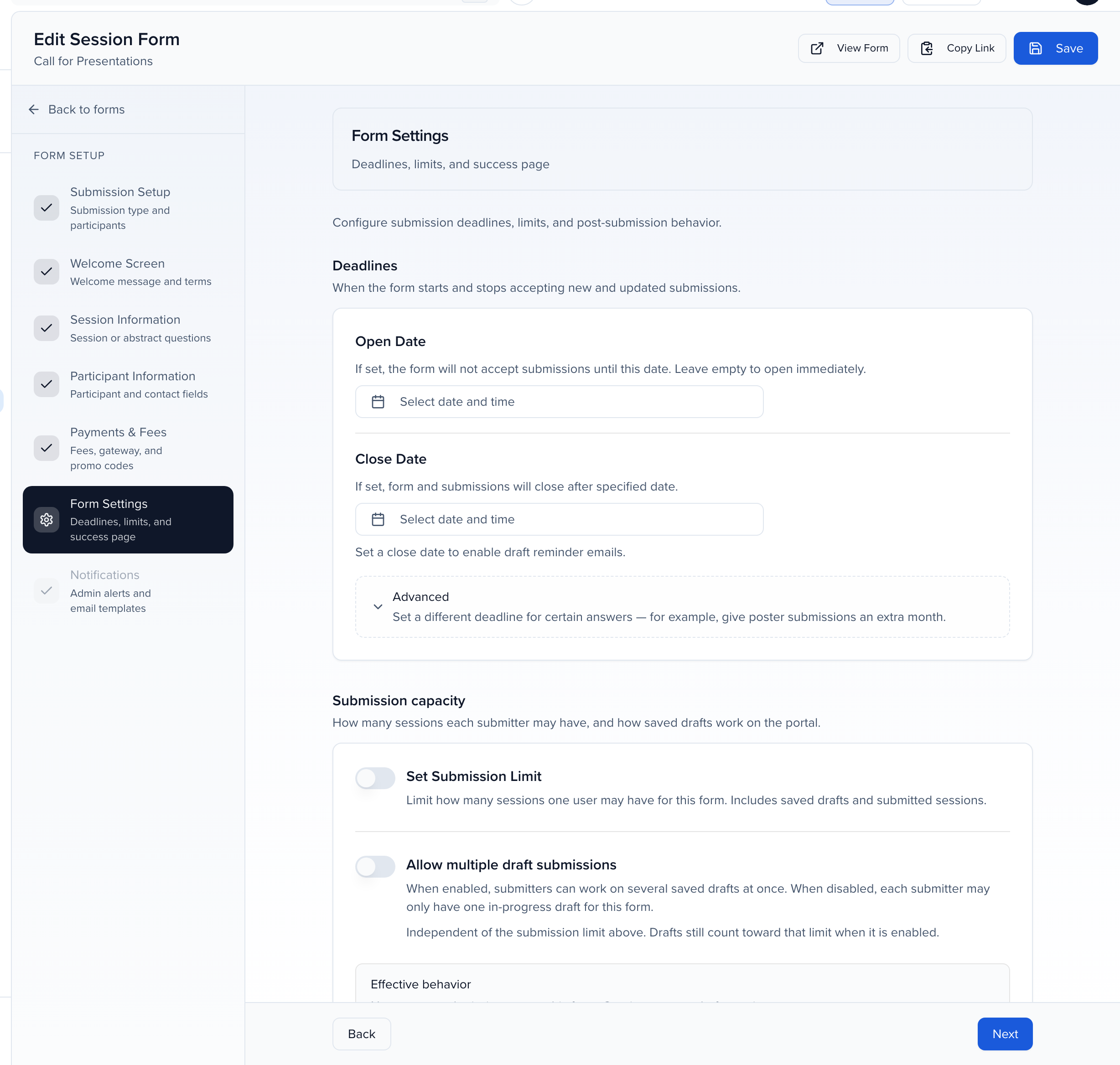
- Allow multiple draft submissions — off by default, so each submitter has one in-progress draft per form and the account step offers Resume draft. Switch it on and submitters can keep several drafts going; the account step then shows Start new submission plus a list of their drafts. The Effective behavior box under the switches spells out how the limit and draft settings combine.
- Close Date — once set, the form (and the drafts on it) stop accepting changes after that moment, and it unlocks the reminder switch below.
Send reminder emails
Section titled “Send reminder emails”Under Deadlines, set a Close Date and turn on Send Reminder Email. Sessionboard then emails everyone who has a saved draft on the form but has not submitted, five days and again one day before the close date.
- The two emails use the Session Form - Five Days Reminder and Session Form - One Day Reminder templates. Edit their wording under Settings → Email Templates — see Email templates. They cannot be deleted.
- Reminders are unavailable while the form has conditional deadlines under Advanced, because a single reminder cannot state the right date for every submitter. The switch tells you when that is the case.
- Sent reminders are listed with the rest of the event’s mail under Communications → History — see History.
To nudge the draft holders again at a moment of your choosing — the deadline moved, or a batch of drafts started after the one-day reminder went out — use Email draft holders under the same Deadlines card. See Email everyone with an unsubmitted draft.
Frequently asked questions
Section titled “Frequently asked questions”What happens to unfinished drafts when the form closes?
They stay where they are, but the submitter can no longer open or finish them: once the Close Date passes, the form stops accepting changes. Drafts are never submitted automatically and never move into All Submissions on their own — you still see them on the Drafts tab and under View Drafts. To let someone finish, move the Close Date later (or adjust the conditional deadline that applies to them under Advanced), and set it back once they have submitted.
Can a submitted session be sent back to draft?
No. Once a submitter clicks Submit, the session leaves the draft state for good and there is no action that returns it to them as a draft. If a proposal needs changes, edit it yourself in the session editor, or add a custom status such as “Needs Revision” under Program settings → Statuses so your team can track which submissions are waiting on the submitter.