Save a submission as a draft
When submitting a session proposal, you may not always have all the required information on hand. The Save as Draft feature allows you to begin your submission and return to complete it later—without losing any progress.
Save a draft submission
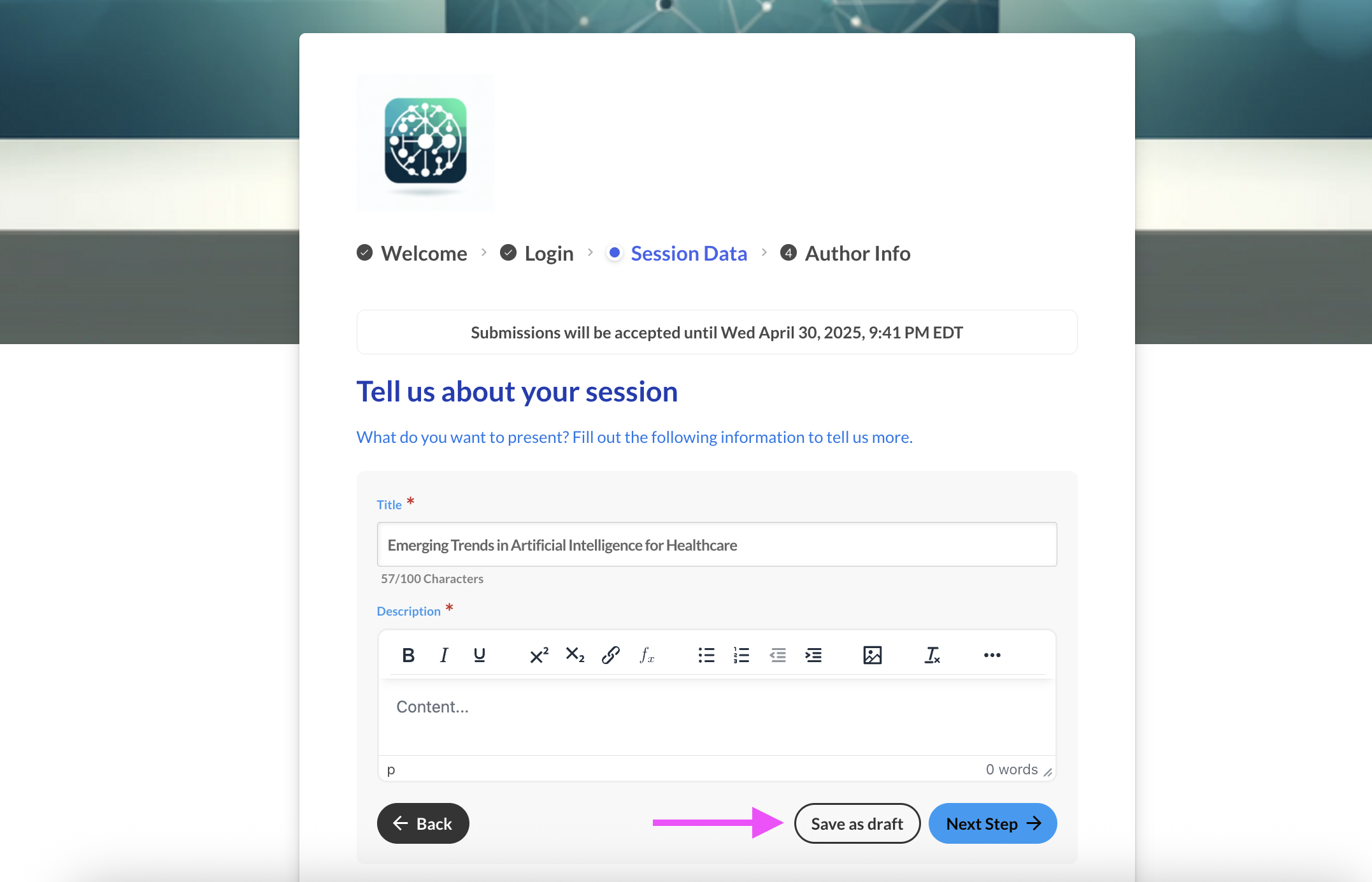
Section titled “Save a draft submission”To save your submission as a draft ensure your proposed submission has at least a Title and select the button “Save as draft” in the bottom right-hand corner of the form.
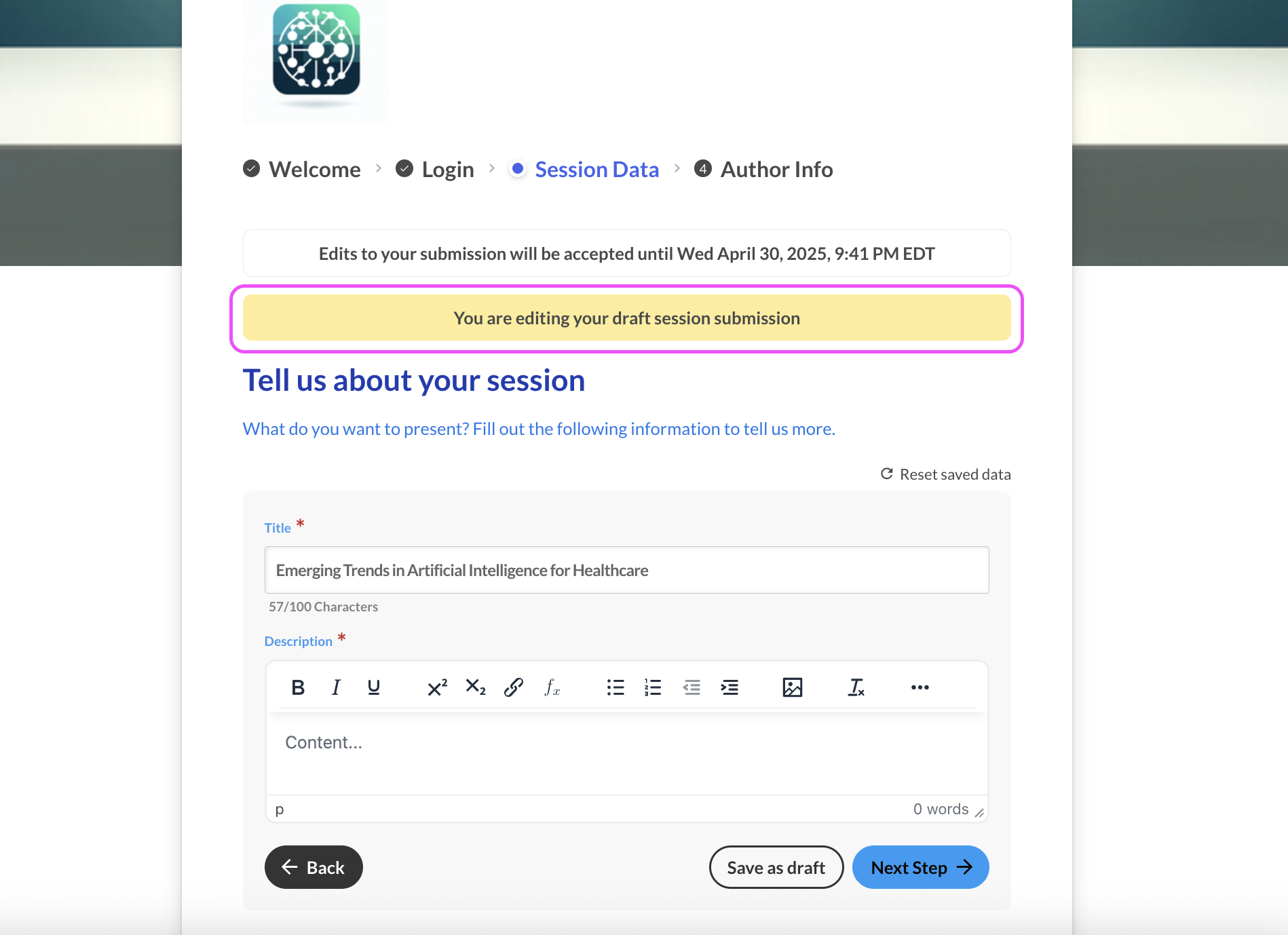
Once your submission is saved as a draft, a banner will appear at the top of the submission highlighting that you are editing a draft submission.
Access a saved draft
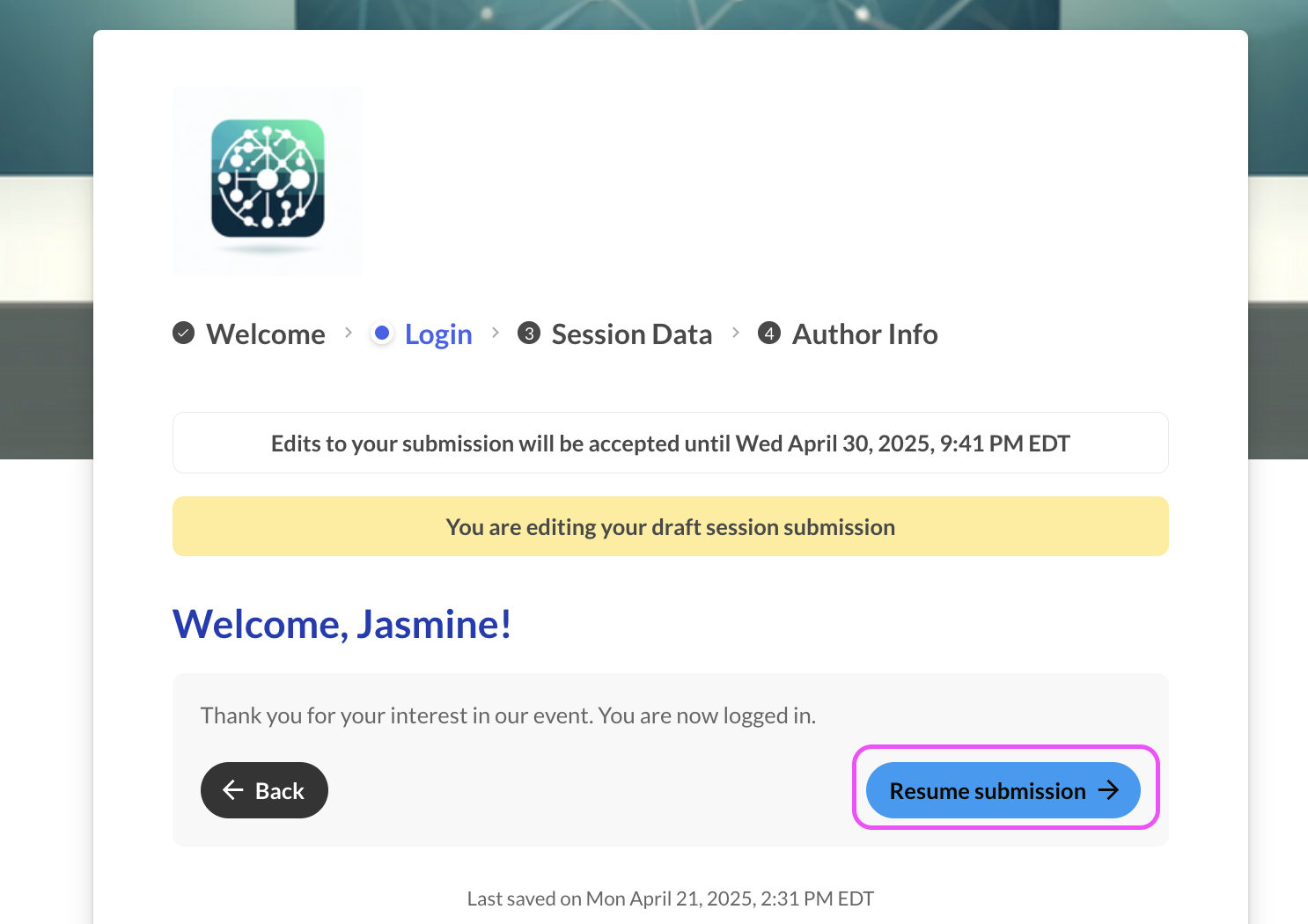
Section titled “Access a saved draft”When you access the submission form link and log back in, the system will prompt you to resume your draft submission.
If the form says “Trial mode”
Section titled “If the form says “Trial mode””A Trial mode banner means the organizer is still setting up their event, and the form is a preview. You can fill it in and save a draft, but the Submit button is turned off and no payment is taken. On an event website, the same banner runs along the bottom of every page, and award, request and registration forms can’t be submitted or paid either.
Your draft is kept. Once the organizer finishes setting up, the banner goes away and you can submit. If a deadline is close and the banner is still showing, contact the organizer.
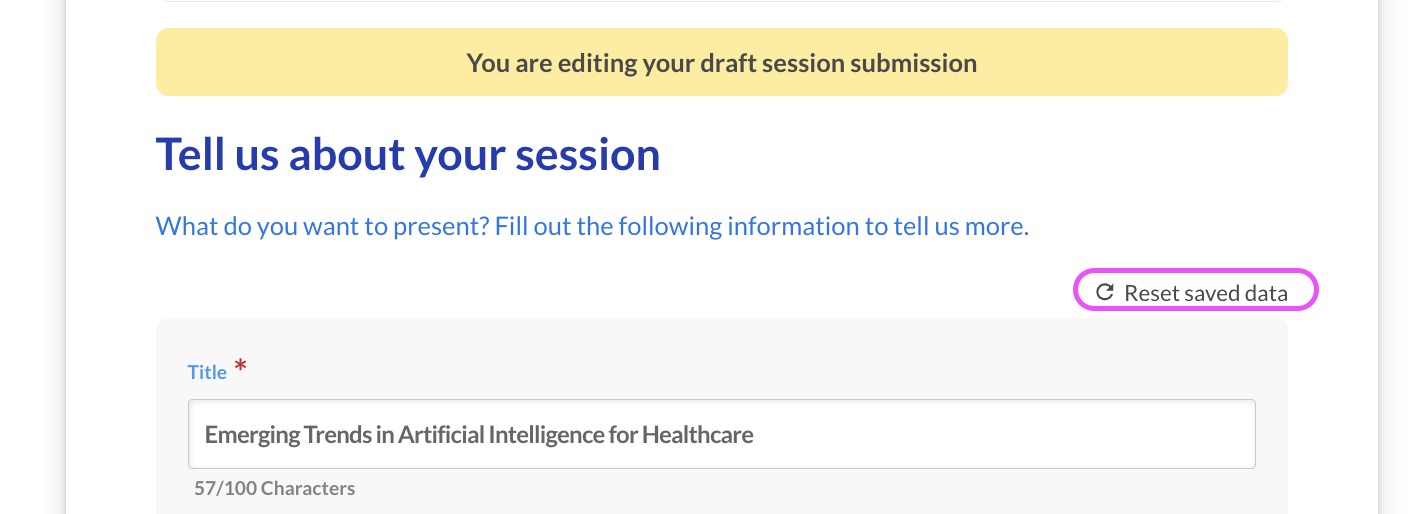
Discard a Saved Draft
Section titled “Discard a Saved Draft”To discard your saved draft submission select “Reset saved data” to the right of your screen.