

Microsoft Teams Webinars
Connect Microsoft Teams Webinars with your Microsoft 365 work account, and run your webinars from Program → Webinars: Sessionboard creates the webinar in Teams, adds your speakers as presenters, registers people, and after it ends brings back attendance, reactions, raised hands and the recording. See Run webinars from Sessionboard for the webinar side.
Why use it
Section titled “Why use it”Teams webinars are already where many organizations meet their members and customers. Connected to Sessionboard, the people who register and attend land on the same contact records as the rest of your program, and the recording turns into clips, posts and personal recaps.
What syncs
Section titled “What syncs”| Microsoft Teams Webinars | |
|---|---|
| Create and update the webinar in Teams | Yes. Town halls can be imported but are not created from Sessionboard |
| Speakers as presenters | Yes |
| Registrants to Teams | Yes. Teams emails each registrant their personal join link |
| Registrants from Teams | As Teams reports each new registration; anyone it missed is added from attendance after the webinar |
| Attendance and minutes | Yes |
| Reactions and raised hands | Yes |
| Poll answers, Q&A, chat, CTA clicks, ratings | No, Microsoft Graph does not provide them |
| Recordings into Media | Yes. Media → Discover also lists recordings of your 50 most recent ended webinars and town halls |
Before you connect
Section titled “Before you connect”Your Microsoft 365 admin must approve Sessionboard for your organization first. Until they do, Microsoft shows Need admin approval and nobody can connect. Ask your admin to sign in from the Microsoft Teams Webinars app in Sessionboard once and accept on behalf of your organization.
What the admin approves:
- Reading your profile and staying signed in.
- Reading and writing Teams webinars (virtual events).
- Reading meeting artifacts and recordings.
- To register people from your Sessionboard page, Microsoft also needs the application permission
VirtualEventRegistration-Anon.ReadWrite.All, granted by an admin. Without it, keep registration on the Teams page.
Only Microsoft 365 work or school accounts can connect.
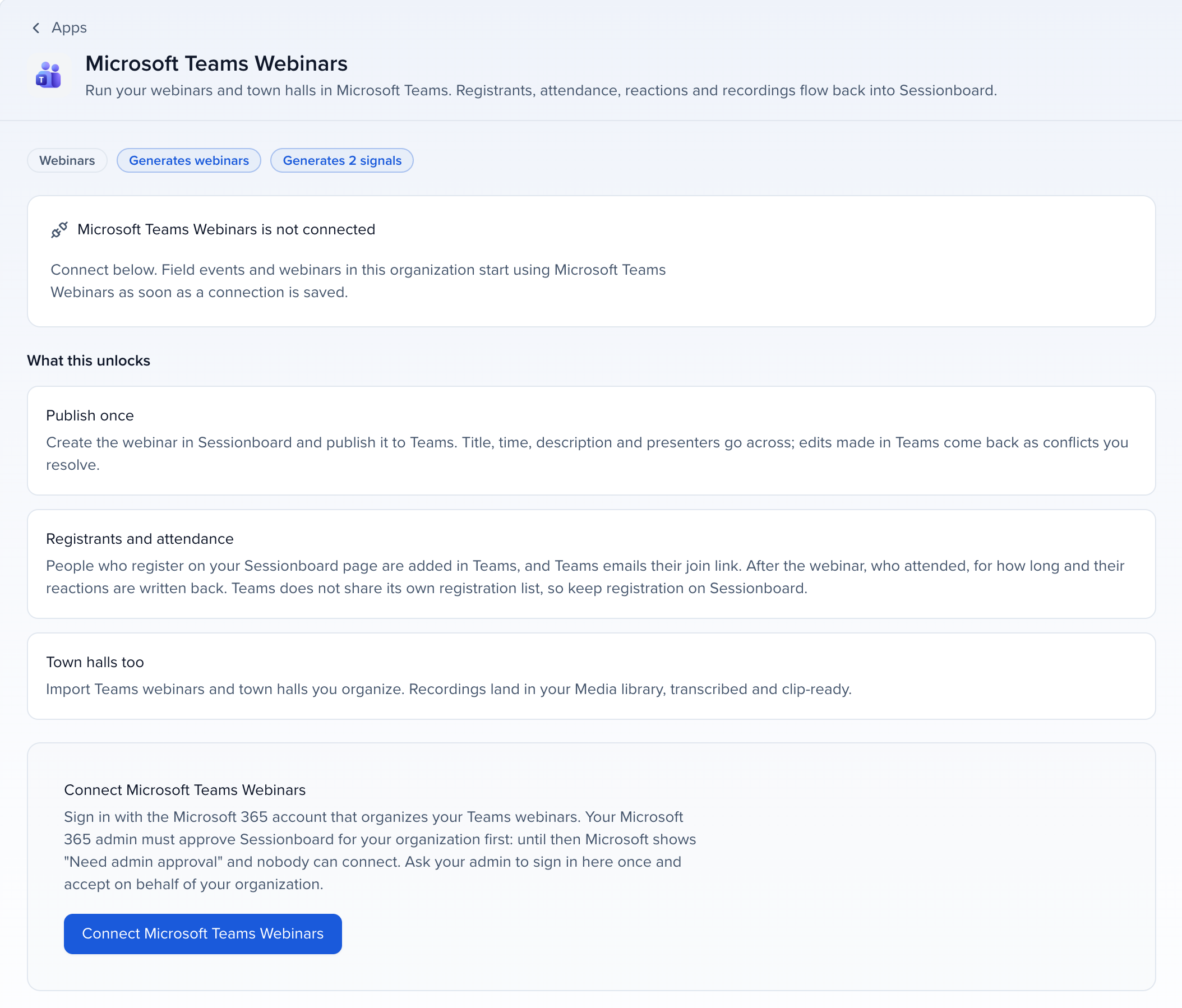
Connect Microsoft Teams Webinars
Section titled “Connect Microsoft Teams Webinars”Get admin approval
Have your Microsoft 365 admin approve Sessionboard for the organization, as above.
Open the app
Open Apps in the organization sidebar, go to the Webinars category and click Microsoft Teams Webinars.
Sign in with Microsoft
Click Connect and sign in with the work account that runs your webinars.
How it stays in sync
Section titled “How it stays in sync”Microsoft sends Sessionboard notices when a webinar changes, someone registers, a session runs and attendance is ready. Sessionboard also checks every published webinar every 15 minutes, from 90 days before it starts until two days after it ends, and you can click Sync now any time.
Limits
Section titled “Limits”These are also shown on the webinar’s provider card:
- Registration list: Teams does not let apps read its registration list. People who register on the Teams page appear as Teams reports each new registration, and anyone it missed is added from attendance after the webinar. Registration on the Sessionboard page is the most complete.
- Join links: Teams emails each registrant their personal join link; Microsoft Graph does not return it.
- Engagement: Teams reports reactions and raised hands per attendee. Q&A, polls, chat, CTA clicks and ratings are not available from Microsoft Graph.
- Options: Q&A, practice session, registrant approval and automatic recording are set in Teams; Microsoft Graph has no API for them.
Troubleshooting
Section titled “Troubleshooting”- Need admin approval: your Microsoft 365 admin has not approved Sessionboard yet. See Before you connect.
- A Microsoft 365 admin must grant Sessionboard the “VirtualEventRegistration-Anon.ReadWrite.All” permission: registration from your Sessionboard page needs that permission. Ask your admin to grant it, or keep registration on the Teams page.
- Sign-in expired: Microsoft stopped accepting the saved sign-in, for example after a password change or a revoked approval. Click Reconnect on the webinar or in Apps and sign in again.