

Bulk-apply permissions across events
Org Settings > Bulk Permissions copies your permission setup from one template event to many other events in your organization. Set up a role once, preview exactly what changes in each event, and apply it everywhere without redoing it event by event.
You can copy three things, in any combination:
- Roles and their permissions — the template event’s custom roles, with their permission sets.
- Field visibility and locking — which fields are hidden or locked for the roles you pick (field permissions).
- Team role assignments — add team members to a role, or remove them from it, in every target event.
Why use it
Section titled “Why use it”If your organization runs many events with the same team structure, setting up roles and field permissions in each one is slow and easy to get wrong. Set them up once in a template event, then copy them to as many as 250 events, with a preview of what changes in each before anything is applied. It also works when a teammate needs the same role in every event.
Who can use it
Section titled “Who can use it”You need to be an active member of the organization, and your organization role needs the Can manage permissions permission. The standard organization Admin role has it; Admin Lite does not. Event-level admins who are not organization members do not see Bulk Permissions.
Every event you copy from or to must belong to the same organization.
Copy permissions to other events
Section titled “Copy permissions to other events”Pick the template event
Open Org Settings > Bulk Permissions. Under Template event, choose the event whose setup you want to copy.
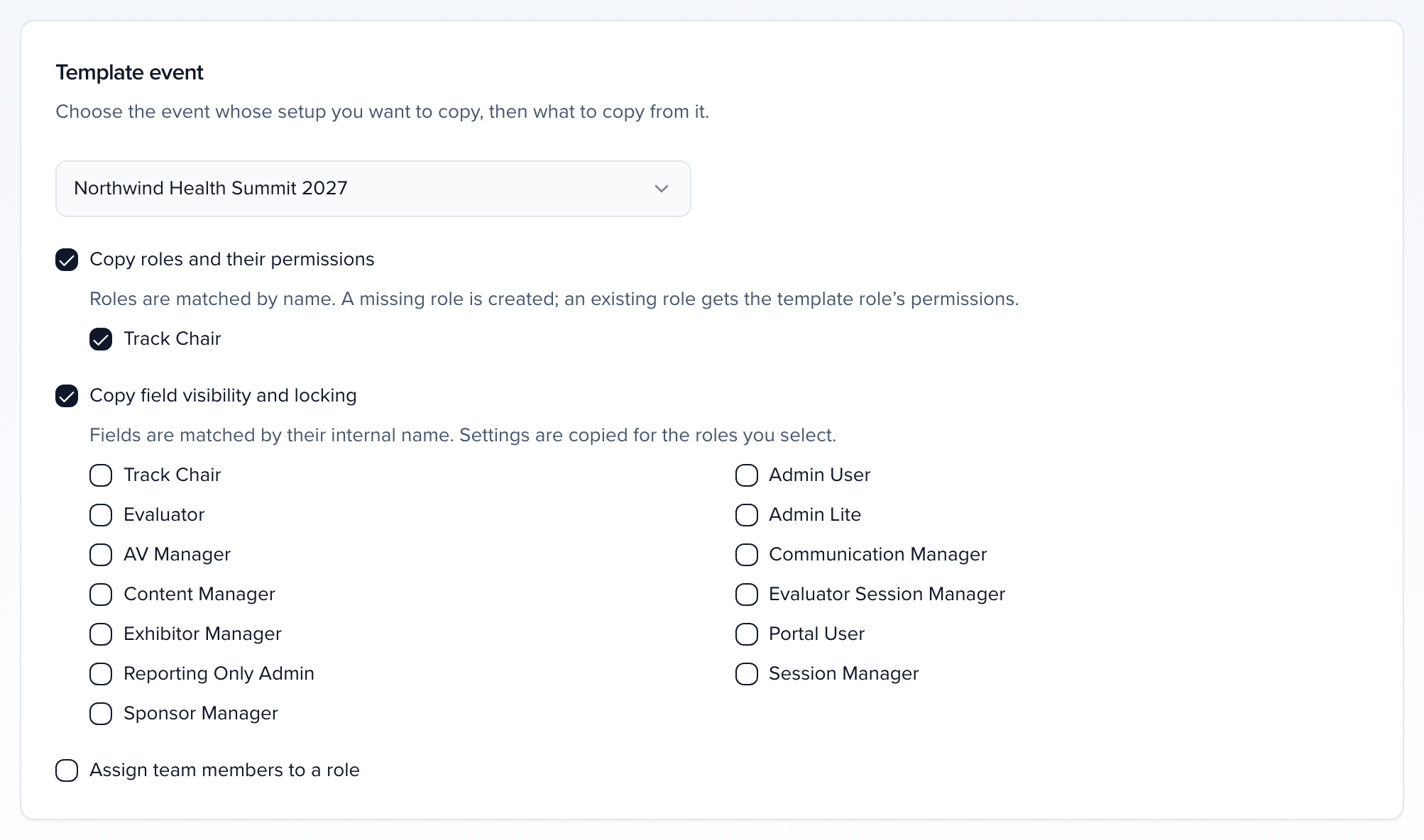
Choose what to copy
Tick one or more options:
- Copy roles and their permissions, then pick the custom roles to copy. Roles are matched by name, ignoring capitals and extra spaces. A role that is missing in a target event is created; a role that already exists there gets the template role’s permissions.
- Copy field visibility and locking, then pick the roles whose field settings you want to copy. Fields are matched by their internal name, so a custom field copied between events matches its copy.
- Copy statuses and their role restrictions, then pick the roles whose status restrictions you want to copy. Custom statuses are matched by name: a status the target event is missing is created, and statuses it already has are never renamed or deleted. Each selected role then gets the template role’s status restrictions, pointed at the target event’s own statuses. The preview shows lines such as Create status “Needs Revision” and “Track Chair” can set 3 statuses. The Admin role is skipped, because it can always set any status.
- Assign team members to a role, then choose Add to role or Remove from role, the role, and the team members. Adding someone who already holds a different role in a target event moves them to the new role; removing someone only takes effect where they hold that role.
Pick the target events
Under Target events, search or filter by All events, Upcoming or Past, then tick the events to update — up to 250 per run. Select all shown ticks every event in the current list. The template event is never a target.
Preview the changes
Click Preview changes. Nothing is saved yet. The preview lists every target event with its changes, for example Create role “Track Chair” with 12 permissions, Hide for “Session Manager”: Honorarium, or Add Alex Kim as “Track Chair”. Events that already match the template show No changes.
Warnings explain anything the run will skip in that event — see What is not copied.
Apply
Click Apply changes and confirm. The update runs in the background and keeps going if you leave the page. While you stay, the results table shows each event as Updated, No changes or Failed, with a running count of events processed.
If you change any selection after previewing, the preview is cleared and you preview again before you can apply.
How the update runs
Section titled “How the update runs”- Each event is updated on its own. One event failing does not undo or stop the others. Temporary database errors are retried automatically; an event that still fails is marked Failed and the rest carry on.
- A stale preview is refused. If anything in the target events changed between your preview and clicking Apply changes — someone edited a role, a field, or the team — the run does not start. You see Something changed since you previewed; click Preview changes again and review the new preview before applying.
- Running it again is safe. Events that already match the template plan as No changes, so to retry failed events, preview and apply the same selection again and only the events that still differ are touched.
- Every change is in History. Each target event’s History > Audit log records the role, permission, field, status and team changes, attributed to the person who applied them.
What is not copied
Section titled “What is not copied”- Standard roles are not copied. Only custom roles are copied. A custom role whose name matches a standard role in the target event is skipped.
- Ambiguous names are skipped. If a target event has more than one role with the same name, that role is skipped there.
- Assignments need the role to exist. Team members are added to or removed from a role only in events that have a role with that name — copy the role in the same run if it is new.
- Record-specific permissions stay behind. Permissions a role holds on one particular record are specific to that event and are not copied; the preview counts how many were left out.
- Missing fields are skipped. A field setting is copied only where the target event has a field with the same internal name.
- Removals only touch that role. Removing someone who holds a different role in a target event leaves them in that role, with a warning.
- No invitation emails. Adding team members to a role through Bulk Permissions does not email them. Send an invite from Event Team if they need one.
- Status restrictions are copied only when you ask. Which session statuses a role may set (limit which statuses a role can set) stays as it is in each event unless you tick Copy statuses and their role restrictions. That option only adds statuses; it never renames or removes one.
- Portal User cannot be assigned here — portal access comes from Contacts.