

Reset password (user instructions)
Forgot your password? You can reset it yourself from the sign-in page — no admin needed.
-
Go to app.sessionboard.com and click Forgot password?, to the right of the Password label. (The old
/forgotaddress still works and brings you to the same place.)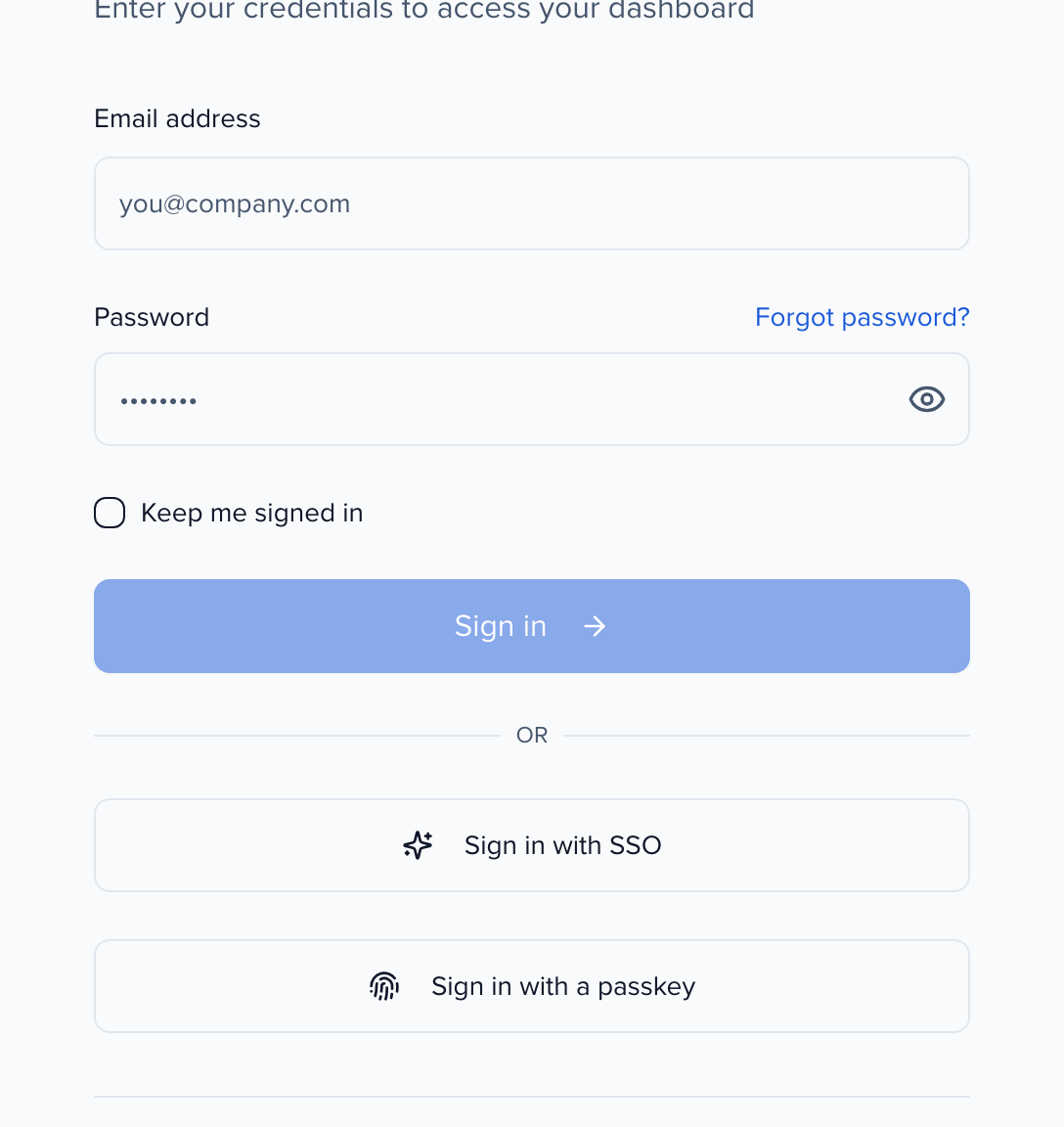
-
The card switches to Reset Password. Enter the email address your Sessionboard account is under and click Send Reset Link.
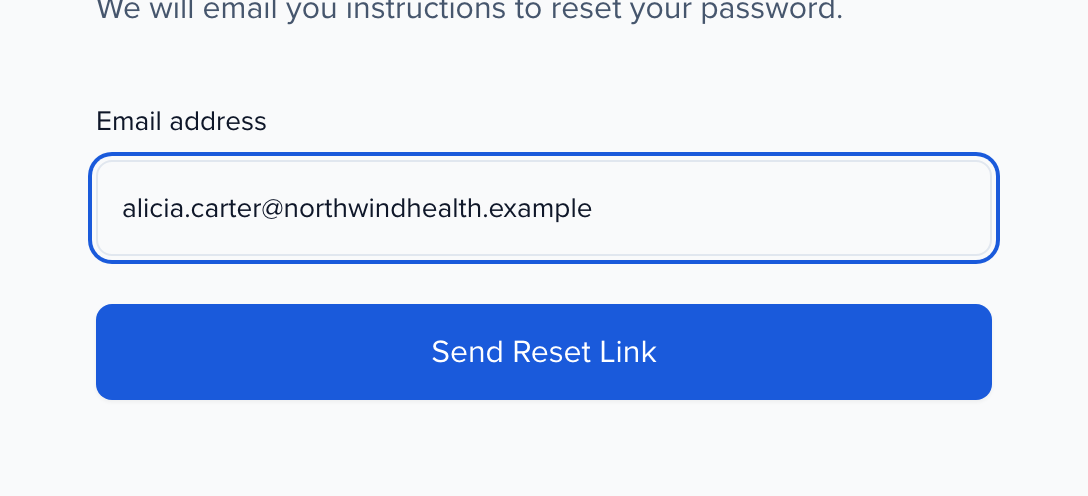
-
The page confirms: If you entered a valid email address, we’ve sent you an email with a link to reset your password. Open the email — subject [Sessionboard] Reset your password — and click Reset your password. Choose a new password and sign in with it.
Forgot password, or no account at all?
Section titled “Forgot password, or no account at all?”The two look alike, because the page confirms the reset email whether or not the address has an account.
- You were invited to an event team. You already have an account once you’ve finished the Almost there… page. If you never did, there is no password yet: ask the admin to open Event Team and choose Resend invite. See New user login.
- You’re a speaker, sponsor, exhibitor or reviewer. You don’t sign in to the admin app. You use the portal or Program Site, and how you sign in depends on the login methods your organizer turned on. See portal login methods.
- The reset email never arrives. Try the other email addresses you may have used, and check spam. If none work, the address probably has no account.