

New user login instructions
Once an admin has added you to an event team — as an admin, evaluator, or any other role — you sign in to Sessionboard to work on that event. What happens first depends on whether you already have a Sessionboard account.
New to Sessionboard
Section titled “New to Sessionboard”You receive an email with the subject [Sessionboard] Join the <event name> Team. It comes from the person who invited you, shown as <their name> (via Sessionboard), and it contains a Join your event team button plus the same link written out underneath in case the button does not work in your mail client.
The link opens an Almost there… page where you confirm your first and last name, create a password and accept the Terms of Service and Privacy Policy. Passwords need at least 8 characters, including a capital letter, a number and a special character. Click Continue, then sign in with your email address and the password you just created.
Already have a Sessionboard account
Section titled “Already have a Sessionboard account”If you already use Sessionboard — for another event or another organization — you receive <inviter’s name> has invited you to join Sessionboard instead. It tells you which event you were added to and includes a View my events button and a reminder of the email address your account is under. There is no new password to create: sign in as usual and the event appears on your dashboard.
Signing in
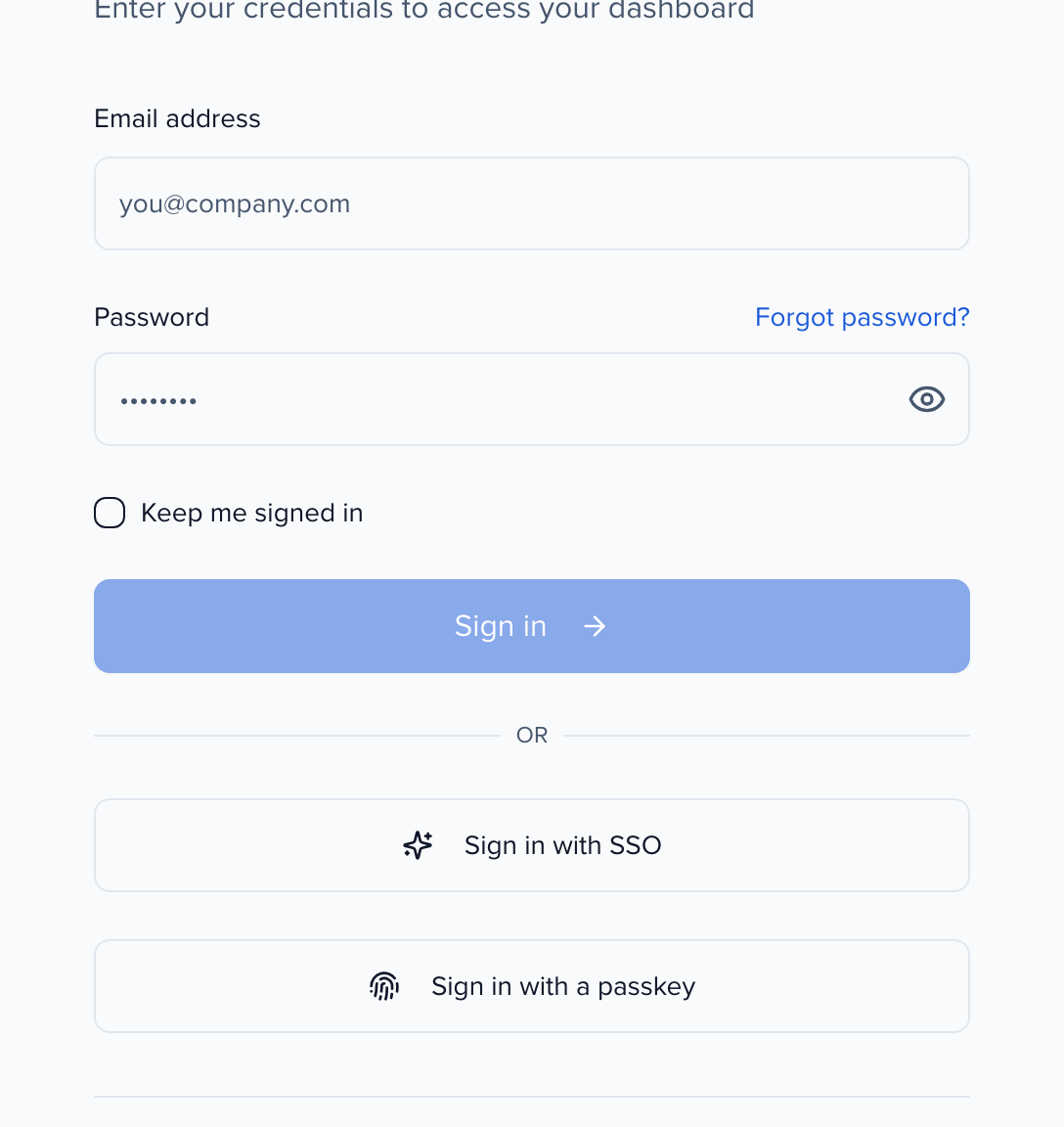
Section titled “Signing in”Go to app.sessionboard.com and enter your email address and password. Keep me signed in keeps you logged in on that browser. Organizations that use single sign-on can choose Sign in with SSO instead, and if you have set up a passkey, Sign in with a passkey is also available. If your organization’s data is hosted in Europe, switch Data host region at the bottom of the form before signing in.
After signing in you land on your dashboard, which lists every event you have access to. Click an event name to open it.