

Slides
Title slides are the slides shown on stage before and between sessions. Instead of building one per session by hand, design a title slide once in Sessionboard — start from a branded design, choose which participants appear and in what order — and generate a slide for every session from the data you already have. The output is a normal, editable .pptx (or a paper-size page for PDF covers), so text stays editable on site. You can also stitch the title slide into the presentations speakers upload, and Sessionboard tells you when a generated slide has fallen behind the session it was made from.
Video transcript
A title slide is the slide on the screen in each room before a session starts. Title, time, the speakers and their headshots. Building one per session by hand is a day of work for someone on the production team, and it goes stale the moment a speaker changes. Slides builds them for you from the session data you already have, in your brand kit’s colours and fonts, so set the brand kit first. Three tabs. Templates, Generate, Jobs.
A template is a design you build right here, no PowerPoint file needed. This event has one. The card shows a live preview, the layout and how many people a slide can hold. Generate and Edit sit on the card, and More actions has Edit, Duplicate and Delete. Deleting a template keeps any slides already generated, so you can tidy up without losing output.
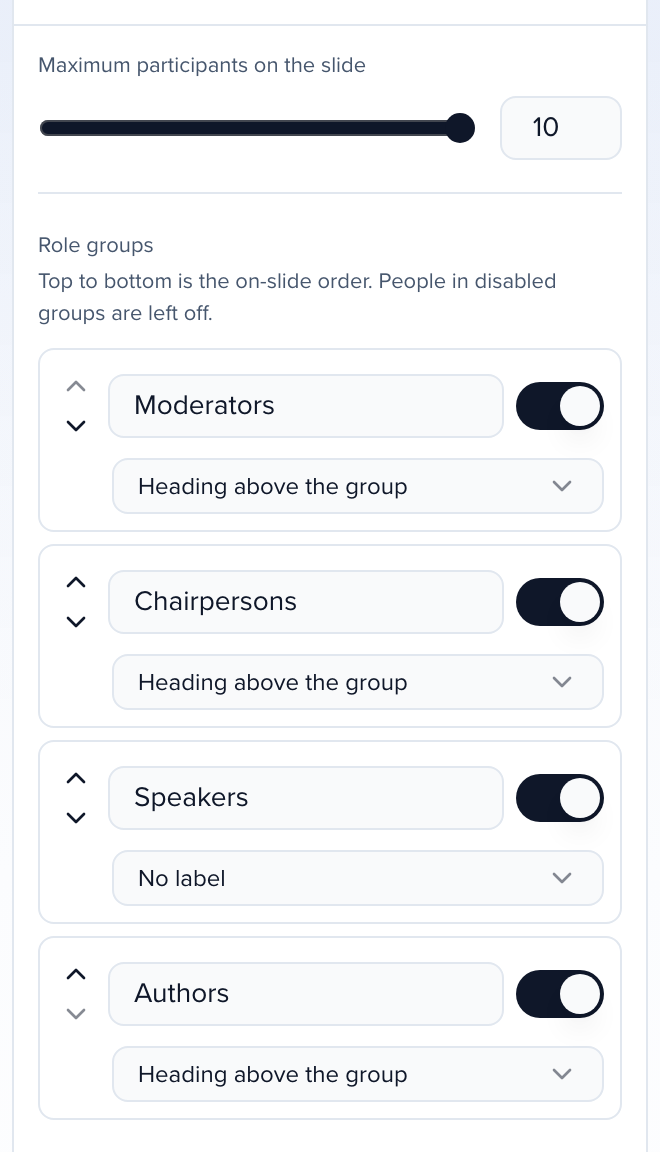
Participants is where you decide who appears. A maximum, one to ten. Then one group per session role, moderators, chairs, speakers, and top to bottom is the order on the slide, so move moderators up and they come first. Switch a group off to leave those people off. Under each name, rows like job title and company, and headshots in a circle or a square. When a session has more people than fit, shrink to fit makes everyone smaller, or show plus N more lists the first few and a count.
Preview with session fills the design with one of your real sessions, exactly as the generated slide will look. Check the title fits, the time reads right, the names line up. Flip between the title slide and the end slide, and between sixteen by nine for the screen and Letter or A4 for a PDF cover page. The same design re-flows for each, so one template covers the screen and the handout.
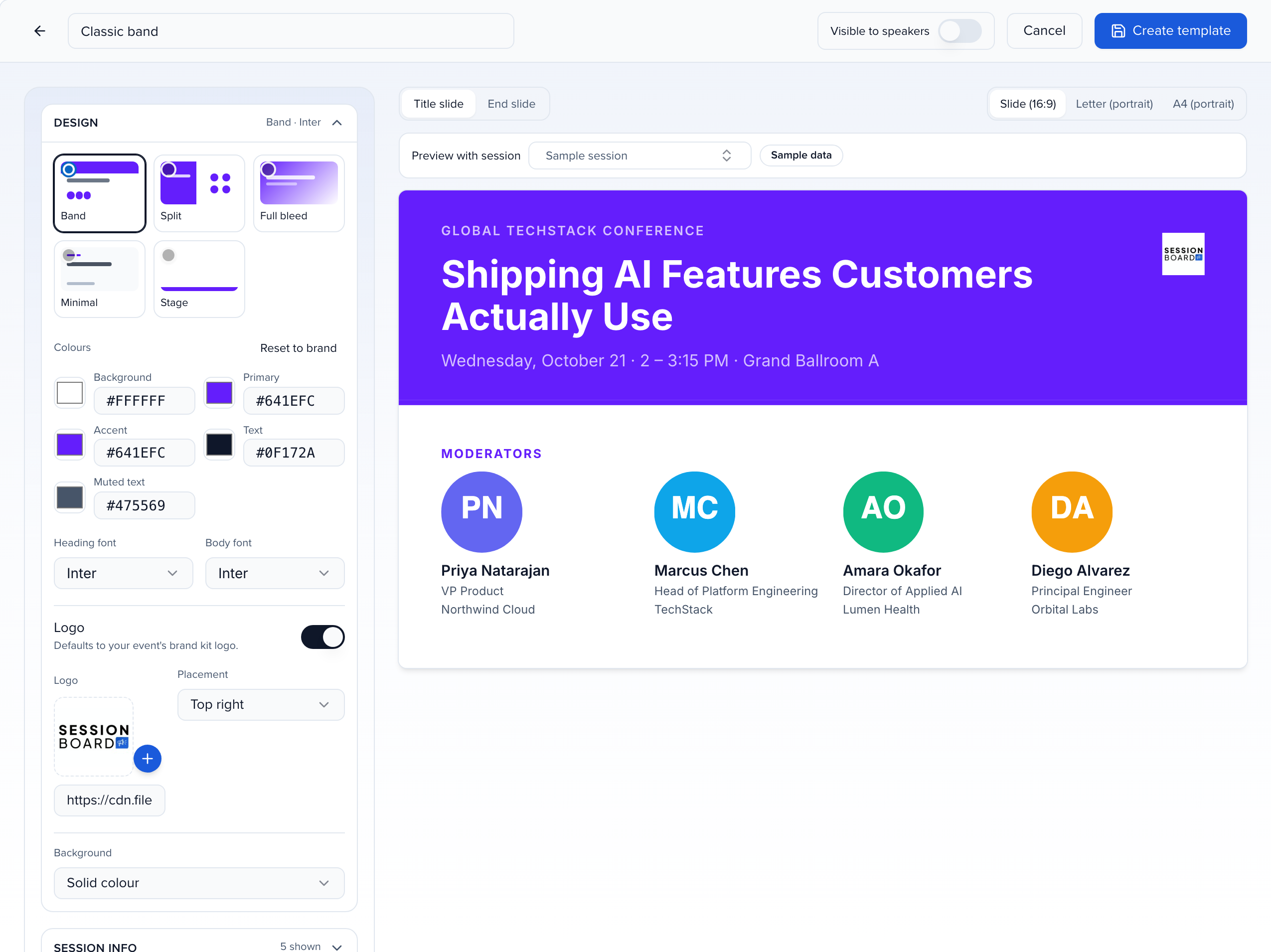
Edit reopens the designer. Settings on the left, the live preview on the right, and every change re-renders it. Design is the layout, colours, fonts, the logo and the background. Session info is which facts show, room, track, time, and up to three custom fields. And one switch that matters, Visible to speakers. Turn it on and each speaker can download their own title slide from the portal.
New template starts from a gallery. Six starter designs, drawn with your brand kit and the roles on your event, classic band, split panel, full bleed, minimal, dark stage and clinical. Use this design, or start blank with just your colours and logo, then fine tune it in the designer and Create template. Nothing is locked by the starter you picked.
Generate is a short wizard. Choose the template. Then which sessions. All of them, a selection you pick here, or the filter you had open on the sessions list, because you can also start this from the sessions list with Create, then Slides.
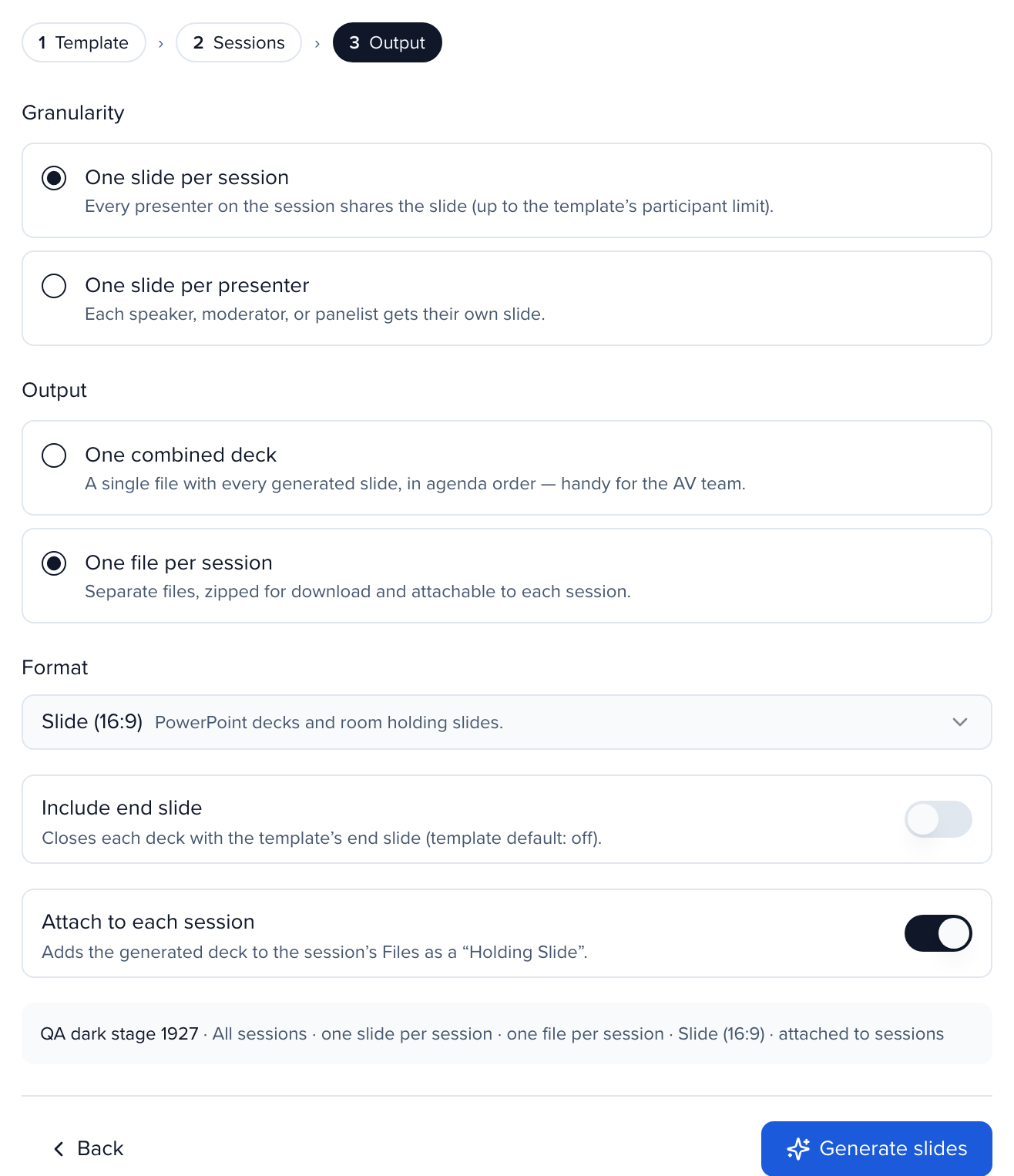
Output is the part worth slowing down on. One slide per session, where every presenter shares the slide, or one slide per presenter, so a panel of four gives you four. Then one combined deck in agenda order, which the AV team usually wants, or one file per session, zipped. The format, and whether to add the end slide. Attach to each session is on by default, so each slide is saved to its session’s files the moment the run finishes. The summary line reads back the whole choice before you commit.
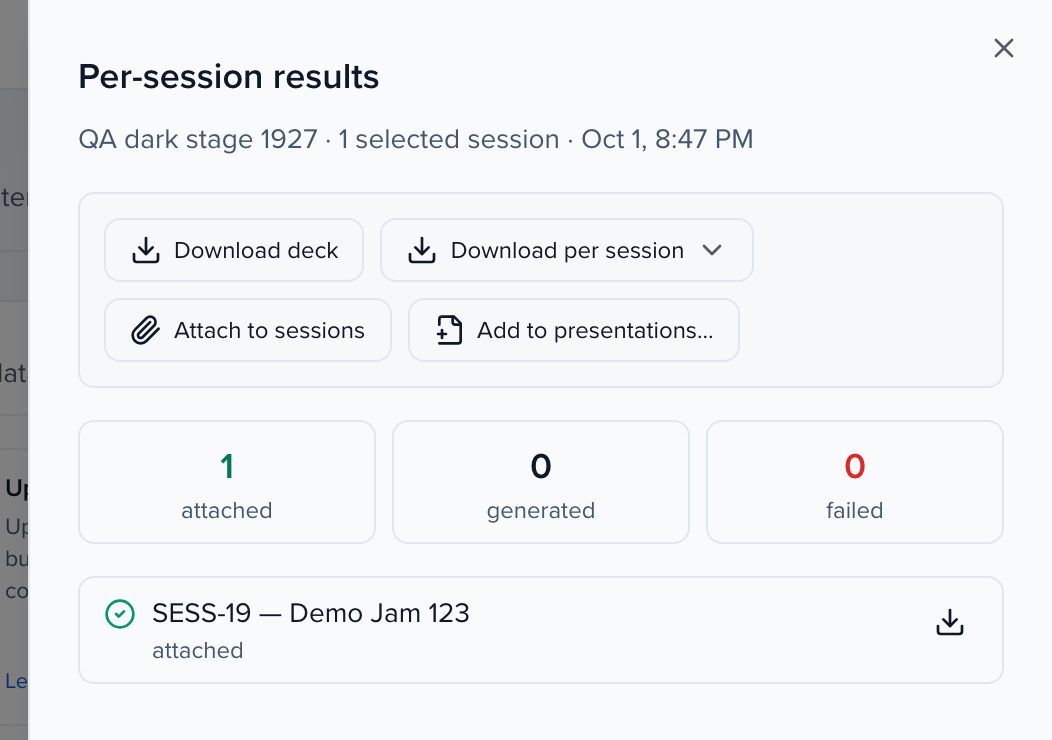
Every run lands on Jobs. Big runs finish in the background, you get a notification and an email with the link, and this table shows the status. Open the per session results to download the deck, or just one session’s, attach a run you generated download only, or add the title slide to the presentations speakers already uploaded. Regenerate re-runs the job with the same settings after you fix a speaker or a time.
Attached, the slide sits on each session’s Files tab, labelled Title slide. It shows in the Live Transcribe Console and in the public API, and it never uses up a speaker’s upload slots. Regenerating makes the new slide the current version rather than adding a second, and the file keeps its id, so anything downstream keeps working. And when a speaker or a time changes afterwards, the slide is marked out of date, so you regenerate the few that moved.
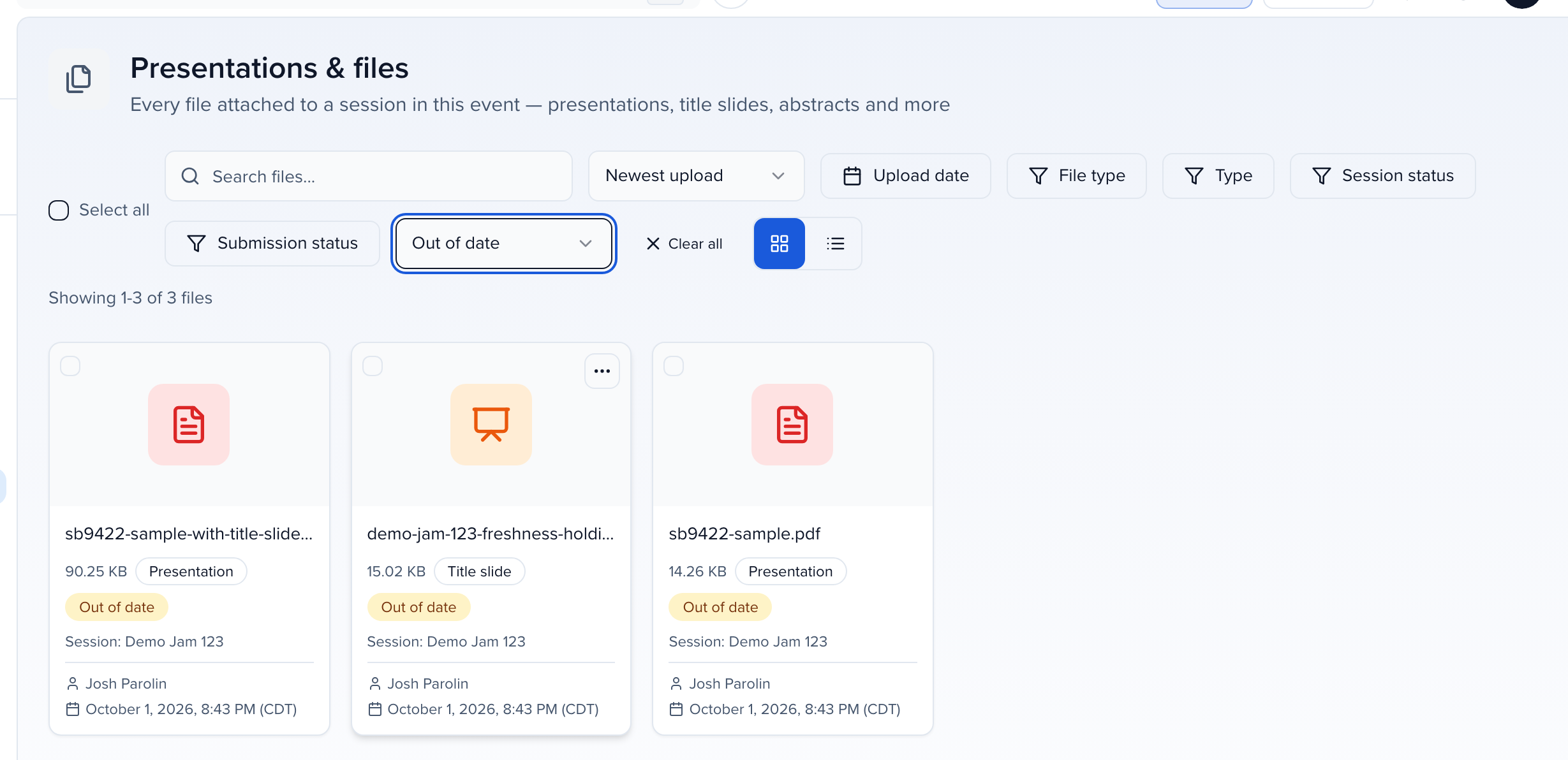
That’s Slides. One design, every room covered, and when the agenda shifts you regenerate instead of rebuilding. The day before the event, filter Presentations and files to out of date, and you know every room’s opener is right. The Help Center article is Slides.
Why use it
Section titled “Why use it”One branded design becomes a correct, editable title slide for every room, built from the session data you already keep — participants in the order you choose, headshots, times and tracks — and attached to each session the moment the run finishes. When a speaker changes, Sessionboard flags the slide as out of date so you regenerate the handful that moved instead of rebuilding the deck, and the exports put every room’s opener in one Title slides folder for the production team.
Before you start
Section titled “Before you start”- Sessions with participants, headshots and times filled in. Empty fields are left off the slide rather than shown as blank labels.
- Your event’s Brand kit (logo, colours, fonts). Every starter design is built from it, so set the brand kit first and the slides match out of the box.
Create a template
Section titled “Create a template”Pick a starter design
On the Templates tab, click New template. Six starter designs are drawn with your brand kit and the session roles on your event — Classic band, Split panel, Full-bleed brand, Minimal light, Dark stage and Clinical. Your brand kit’s heading font wins, so Minimal light and Clinical use a serif title only when the brand kit sets no heading font. When the event has more than one role, every role group starts with a heading, Speakers included. Click Use this design, or Start blank for the default layout with just your colours and logo.Fine-tune in the designer
Settings sit on the left, the live preview on the right. Every change re-renders the preview; nothing is locked by the starter you chose.Preview with a real session
Use Preview with session to render the design with one of your own sessions, exactly as the generated slide will look. Switch between Title slide and End slide, and between Slide (16:9), Letter (portrait) and A4 (portrait).Save
Name the template, decide whether it is Visible to speakers, and click Create template. A template needs a name; a blank one shows Name is required.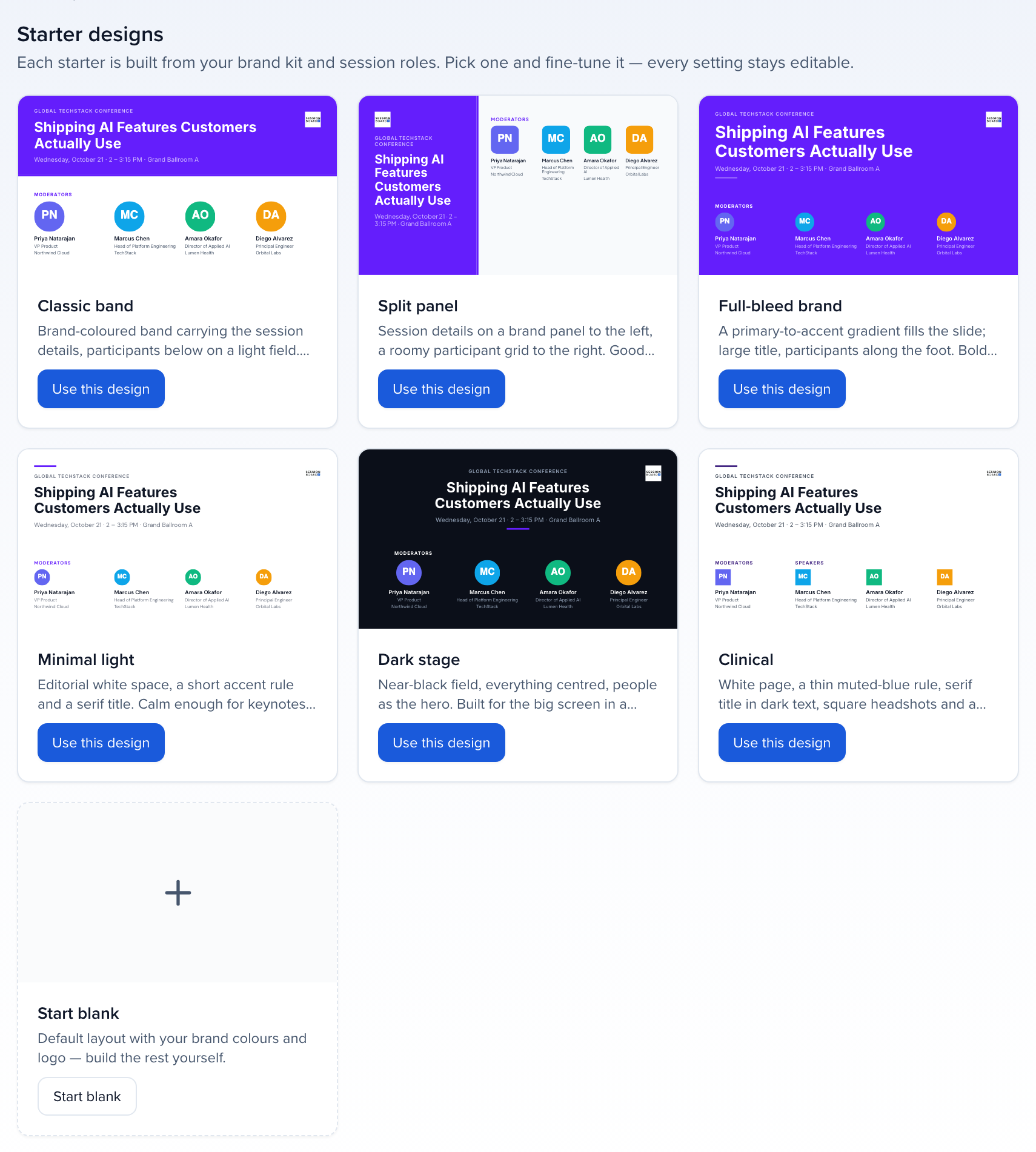
Design
Section titled “Design”- Layout — Band, Split, Full bleed, Minimal or Stage.
- Colours — background, primary, accent, text and muted text. Reset to brand restores your brand kit colours.
- Heading and body fonts, the logo and its placement (any of the four corners, on every layout), and the background (solid colour, gradient or a photo). A photo has an Overlay that tints it with the background colour. From 50% overlay up, Sessionboard keeps the text readable on that colour and may darken or lighten a colour that would not show. Below 50% the photo shows through, so the slide uses your text, muted and accent colours exactly as you set them: on a dark photo with no overlay, set them to white or another light colour.
Session info
Section titled “Session info”Switch on the session facts to show — event name, session title, date, time, room, track and session type — plus up to three custom session fields, and choose the date and time formats.
Participants
Section titled “Participants”This is where you control who appears on the slide.
- Maximum participants on the slide — 1 to 10. People beyond the limit are handled by the overflow rule below.
- Role groups — one group per session role on your event (Moderators, Chairpersons, Speakers, Authors…). Switch a group off to leave those people off the slide. Top to bottom is the on-slide order, so move Moderators above Speakers to show them first. Each group can have a heading above it, its label inline with each name, or no label. A group with no label that follows a headed group gets a thin divider, so its people never read as part of the group above.
- Rows under each person — the name is always first; add up to two more from job title, company, role or any contact field. Job title and company come from the contact’s own Job Title and Company Name fields.
- Headshots — on or off, and circle, rounded-square or square.
- When more people than fit — Shrink to fit makes every headshot smaller so everyone fits, or Show “+N more” shows the first participants and a chip with the count of everyone left out. With a maximum of 10 and 11 people, the slide shows 10 people and +1 more. Shrink to fit ignores the 1–10 maximum and shows everyone up to 18, on up to three rows (three columns in portrait formats); only past 18 does a +N more chip appear. The panel’s summary reads Up to 18 while Shrink to fit is selected.
Sponsor logos
Section titled “Sponsor logos”Turn on Sponsor logos to show each session’s sponsors on its title slide. Choose the Position (bottom left, centre or right), the Logo size (small, medium or large) and a Label above the logos — Sponsored by by default, up to 40 characters, or empty for logos only. Each slide uses its own session’s sponsors, in the order they are on the session; a session with no sponsors shows nothing there. In the preview, the sample session shows placeholder logos, and picking a sponsored session shows its real ones. Turning the section off keeps your choices for next time.
End slide
Section titled “End slide”Turn on Add an end slide to close each generated deck with a headline, optional body text (a thank-you, hashtag, or where to find recordings) and your logo. You can also switch it on or off per run when generating.
Formats
Section titled “Formats”| Format | Size | Use it for |
|---|---|---|
| Slide (16:9) | 10 × 5.625 in | PowerPoint decks and the screen in the room |
| Letter (portrait) | 8.5 × 11 in | A cover page for US-letter PDFs, such as the front of a session handout |
| A4 (portrait) | 8.27 × 11.69 in | A cover page for A4 PDFs |
The same design re-flows for each format, so one template covers the screen and the handout.
Generate slides
Section titled “Generate slides”From the Generate tab, or from the sessions list (select sessions → Create → Slides):
- Choose the template.
- Choose the sessions: All sessions, Selected sessions, or the Current sessions filter you had applied on the sessions list (up to 2,000 sessions per run). All sessions and the filter leave out drafts (unsubmitted submissions), so the count matches the sessions list; abstracts and subsessions are included.
- Choose One slide per session or One slide per presenter.
- Choose One combined deck (a single file in agenda order, handy for the AV team) or One file per session (separate files, zipped).
- Choose the Format and whether to Include end slide.
- Attach to each session is on by default, so each session’s slide is saved as a session file as soon as the run finishes — no second step. Turn it off for a download-only run.
Large runs finish in the background. You get an in-app notification and an email with the download link, and the Jobs tab shows progress, per-session results and a Regenerate action that re-runs a job with the same settings after you fix a speaker or a time. The list shows the newest 50 runs; Load more reaches older ones.
After a run: download per session, attach, add to presentations
Section titled “After a run: download per session, attach, add to presentations”Every run keeps one deck per session, so you do not have to decide everything up front. On the Jobs tab, open a finished run’s per-session results:
- Download deck / Download zip — the combined output you chose.
- Download per session — pick one session and download just its deck.
- Attach to sessions — save the decks from this run as session files, for all sessions in the run or a selection, without generating again. Attaching replaces the session’s previous title slide rather than adding a second.
- Add to presentations… — stitch the title slide into the presentations already uploaded to those sessions (see Add a title slide to uploaded presentations).
Edit, duplicate and delete templates
Section titled “Edit, duplicate and delete templates”Open a template card’s More actions to Edit (reopens the designer), Duplicate or Delete. Deleting a template keeps any slides already generated and attached to sessions.
Attached slides
Section titled “Attached slides”Attached slides appear on each session’s Files tab labelled Title slide, in the Live Transcribe Console, and in the public API (GET /v1/sessions/:id/files?type=holding_slide). Speakers see them in the portal’s session Files tab, labelled Title slide and download-only, when the template’s Visible to speakers switch was on at the time the slide was generated. Flip the switch and regenerate to change what speakers see. Organizers always see title slides on the session’s Files tab, whichever way the switch is set.
Title slides and -with-title-slide merged copies never use up a speaker’s upload slots. A session limited to one file still lets the speaker upload their own deck.
Regenerating or re-attaching makes the new slide the current version of that session’s title slide instead of adding a duplicate. The previous slide stays in the file’s version history, and the file keeps the same id, so integrations reading session files keep working.
When you export session files — Download Files from the sessions list, or a download bundle — each session’s title slide sits in its own Title slides folder next to the session’s uploads, so production finds every room’s opener in one place. Only the current slide is exported; superseded versions stay in the file’s history.
Presentations & files
Section titled “Presentations & files”Program → Submissions → Submission files opens Presentations & files: every file attached to a session in the event, with filters built for the run-up to show day.
- Type — presentation, abstract, poster, handout, title slide or CFP submission PDF.
- Session status — the statuses on your event, core and custom, exactly as they appear on the sessions list.
- Submission status — draft, submitted, pending review, accepted or declined, from the session’s latest organization-portal submission. Sessions with no organization submission get a status from the session itself: Draft for an unsubmitted draft, Submitted for a session that came in through a call for papers.
- Title slide — Attached, Missing (sessions whose files have no title slide yet), Out of date or Merged copy.
Each card or row shows the file type, the session it belongs to and a title-slide badge. Select files to act on them together: Generate title slides opens the Generate wizard scoped to the selected sessions, and Add title slide to presentations… stitches the title slide into the selected presentations.
Add a title slide to uploaded presentations
Section titled “Add a title slide to uploaded presentations”When speakers upload their own decks, you can put the branded title slide on the front (and the end slide on the back) without opening each file.
Choose the presentations
In Presentations & files, select the presentations (PDF or PowerPoint) and click Add title slide to presentations…. From the Jobs tab, Add to presentations… on a finished run picks the presentations of that run’s sessions — only original uploads, never the title slides or earlier merged copies — and defaults to that run’s template.Choose the template and position
Pick the template, then Start (title slide before the first page), Start + end (title slide first, end slide last) or End. The slide is laid out for the file’s own shape — 16:9 or 4:3 to match a PowerPoint deck or landscape PDF, Letter or A4 to match a portrait PDF — so it is never stretched.Add
Each presentation gets a new copy named<file>-with-title-slide.<ext> next to the original; the original is never changed. Leave Replace existing merged copies on so re-running refreshes the same copy instead of adding another.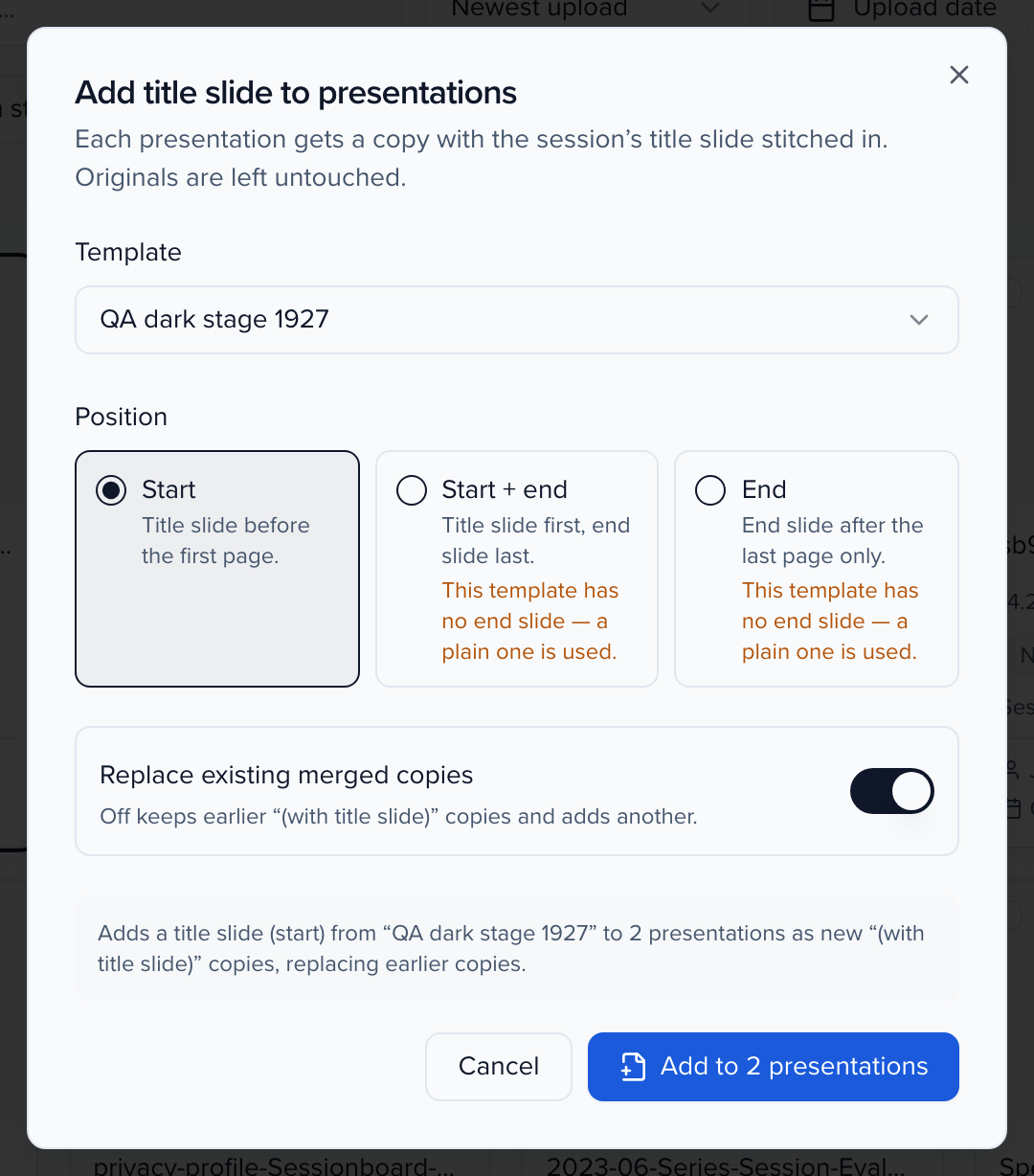
Merged copies are ordinary session files: they show in the session’s Files tab with a Merged copy badge, in the speaker portal when the file is visible, and in the public API. Only PDF and PowerPoint files up to 200 MB can be merged; anything else is reported as skipped with the reason. Title slides and earlier merged copies are skipped as sources, and a password-protected PDF is skipped with This PDF is password-protected. Remove the password and upload it again. A damaged file that cannot be opened is skipped too, with This file could not be read; re-export it from PowerPoint or your PDF tool and upload it again.
Keep title slides up to date
Section titled “Keep title slides up to date”Sessionboard remembers what each title slide and merged copy was built from — the title, date, time, room, participants and their details, the custom fields on the slide, and the template design. When any of those change afterwards, the file shows Out of date with the reasons (for example Title changed, Participants changed, Template changed) in the session’s Files tab and in Presentations & files.
- Filter Presentations & files by Title slide → Out of date to see everything that needs a refresh before the event.
- Click Regenerate on a file’s out-of-date badge to rebuild that file with the same template, format and position as before. The other files on the session are left alone. The file keeps its id. A file that fails is retried; if it still fails, the message names it so you can regenerate it again.
- If the template a slide was made from has been deleted, the badge says so instead of offering Regenerate, and no regenerate ever rebuilds it from another template. Generate the session again from another template with Attach to each session on.
- To refresh many at once, select the sessions’ files and use Generate title slides with Attach to each session on, or Add title slide to presentations… with Replace existing merged copies on.
Can I edit the generated slides in PowerPoint?
Yes. Every slide is built from native text boxes, shapes and pictures, so titles, names and colours stay editable in PowerPoint, Keynote or Google Slides.
Why did a long title shrink?
Sessionboard sizes the title to fit its box so it never spills over the participants. The preview shows the same size the generated slide uses.
A session has more people than the maximum
The overflow rule in the Participants panel decides: Shrink to fit fits everyone with smaller headshots, Show “+N more” shows the first participants plus a count. Groups are applied in order first, so with Moderators above Speakers the moderators always make the cut.
Why is one participant missing?
Their session role is in a group that is switched off, or they fall past the maximum. Check the Role groups list and the maximum in the Participants panel.
Does adding a title slide change the speaker's file?
No. The merge always writes a new -with-title-slide copy next to the original. Delete the copy if you do not want it; the original is untouched either way.
A file says Out of date but nothing important changed
Any change to what is printed on the slide counts — including a room swap, a speaker’s job title, or an edit to the template. Hover the badge to see the reasons; if they do not matter for this session, you can leave it as is.
A participant shows initials instead of their photo
Sessionboard draws the initials disc when a headshot link is broken or the picture is hosted outside Sessionboard, in the preview and in every export alike. Fix the contact’s headshot and regenerate. Initials use the first letter of each name part and skip quotes and punctuation.
Why is the text white on my brand colour?
Text on a brand-coloured band or panel is set to white or near-black, whichever reads better, so the event name, date and title stay legible on a projector.
Who can use Slides?
Anyone with access to the event’s session files. Creating templates, generating slides, attaching and merging use the same permissions as adding session files.