

Community: ideas, roadmap and what's new
Community is where you tell us what to build next and watch it happen. You can vote for the ideas that matter to your team, suggest new ones, follow what is planned and in progress, and read what just shipped.
Video transcript
One more place in the sidebar, and it isn’t about your event. Community, down in the footer, in your organization and inside any event. It’s where you tell us what to build next, and watch it happen. Vote for the ideas your team needs, suggest your own, follow what’s planned and in progress, and read what just shipped. It replaced our old feedback board, and everything from there came across, so votes your team cast years ago still count. Three tabs, Ideas, Roadmap, and What’s New.
Ideas is every suggestion from Sessionboard customers, with its vote count on the left, its status and its category. Top puts the most voted first, Trending what’s moving now, Newest what just came in. Categories down the side narrow it to an area, communication, portals, agenda and scheduling. And the status row, open, under review, planned, in progress, shipped, follows an idea from suggestion to delivery.
The row above that is about you. We submitted, ideas from anyone in your organization. We voted, the ones your colleagues backed. And my org is on it, anything you submitted, voted for or commented on. Submitted by your org on a card means someone down the hall already asked for it, so you don’t ask twice.
Open one. The details, the comments underneath, and the vote button top left. If your team would use this, vote, and the count goes up. Votes are how we weigh what to build, so vote for everything you’d use, not just your favourite. Comments are for the how, the specific case that makes an idea concrete. Voting again takes it back.
Nothing covers it? Search ideas first, because a vote on an existing idea carries more weight than a second copy. Then Submit Idea. A title, the details, and a category. Describe the problem you’re trying to solve, not only the button you want, that’s what lets other customers find it and vote for it. We’ll cancel this one, the board’s real.
Here’s one my organization submitted. Under review, with an official response from the Sessionboard team right under the details. That’s where we say what we’re doing with it, and the status above tells you where it sits. You can keep the conversation going in the comments.
Roadmap is the ideas we’ve committed to, in columns by how far along they are. Under review, planned, in progress, shipped. Everything shows the whole board, my org’s asks narrows it to the ideas your organization submitted or voted for, so you can see your own requests moving across.
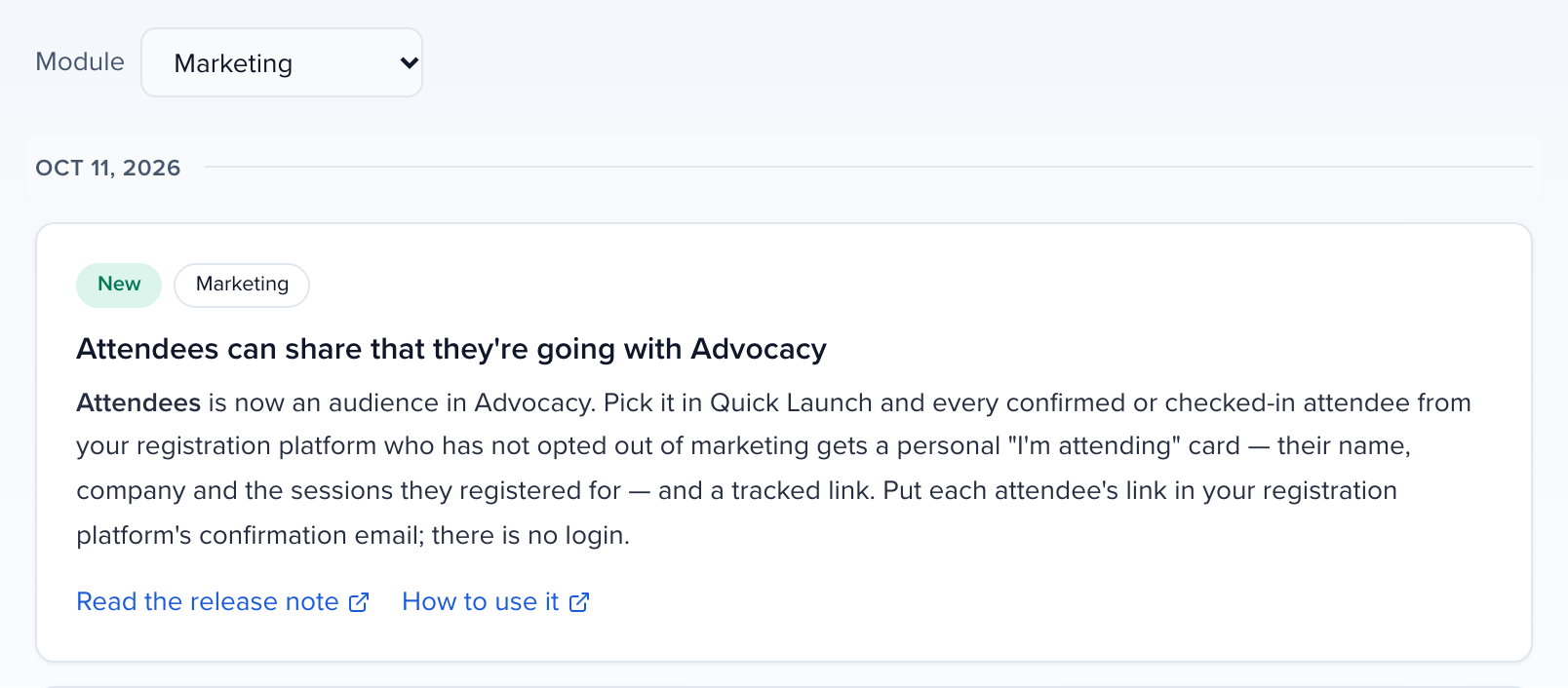
What’s New is the product update feed, newest first. The Module menu above it narrows the feed to one part of the product, Program, say, or Marketing. A red dot on the tab means there’s something you haven’t read. Each update says where to find the feature and why it matters, and the same updates are in the Help Center release notes, with a link to the guide for each one.
When an idea you voted for changes status, gets an official response, or ships in an update, we can tell you, in Sessionboard and by email. Clicking the notification opens the idea, or What’s New for a product update. And the Help menu up here gets you to any tab in one click, release notes, product roadmap, submit feedback.
So that’s Community. Vote for what you’d use, suggest what’s missing, follow the roadmap and read what shipped. The Help Center has this under Help, Community, alongside the release notes and Early Access, where you can try features before they’re on for everyone.
It replaces our old feedback board at feedback.sessionboard.com. Every idea, vote, comment and product update from that board moved into Community, so your earlier votes still count.
Why use it
Section titled “Why use it”Community is where you ask for the changes your team needs and follow them through to release. When a workaround keeps costing your team time, vote for an idea someone already raised or submit your own, then watch it move across Roadmap and into What’s New when it ships. If you voted for an idea, you get a notification when its status changes.
Open Community
Section titled “Open Community”Click Community in the sidebar footer, either in your organization or inside any event. It opens on Ideas.
The Help menu in the header goes straight to a tab:
| Help menu entry | Opens |
|---|---|
| Release Notes | What’s New |
| Product Roadmap | Roadmap |
| Submit Feedback | Ideas |
Ideas lists every suggestion from Sessionboard customers, with its vote count and status. It opens on Open ideas. Sort by Top, Trending or Newest, filter by status (Open, Under Review, Planned, In Progress, Shipped, or All statuses), or narrow to your own organization’s ideas: We submitted, We voted, or My org is on it for anything your organization submitted, voted for or commented on. The counts beside each category follow whatever filters are active, so the number in the sidebar always matches the list.
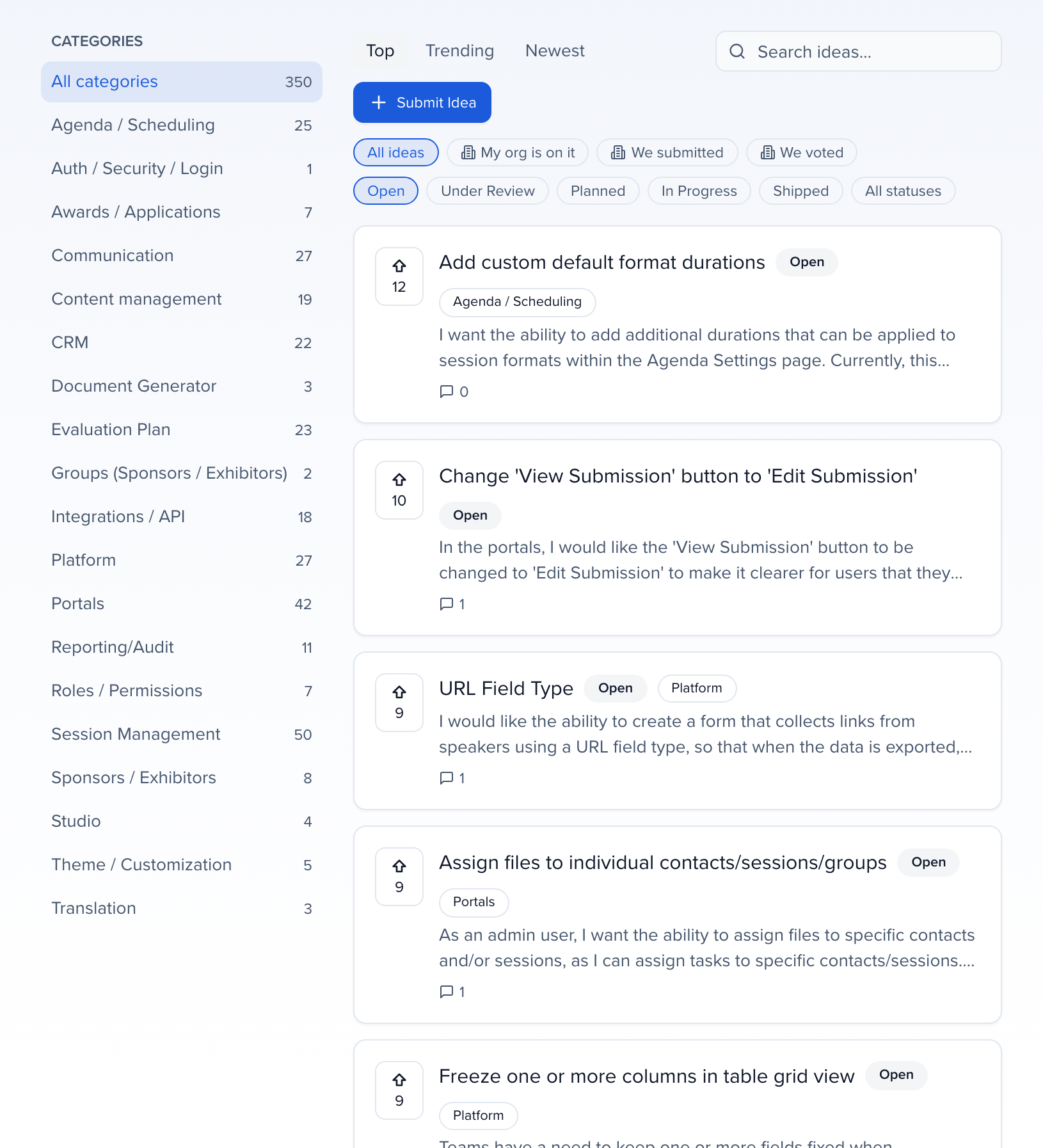
- Vote for an idea to tell us you want it. Votes are how we weigh what to build, so vote for everything your team would use, not just your top pick.
- Open an idea to read the details and comments, add your own comment, and see whether we have posted an official response.
- Click Submit Idea when nothing on the list covers it. Describe the problem you are trying to solve, not only the button you want. That makes it easier for other customers to find and vote for it.
Roadmap
Section titled “Roadmap”Roadmap shows what is on the way and what just landed, in three columns:
- Beta: features our team turns on with you. Click Request access to ask.
- Preview: features you can turn on yourself from Early Access. Click Turn it on.
- Released: the newest features that are live for everyone, each linking to its release note and listing the Community ideas it delivered.
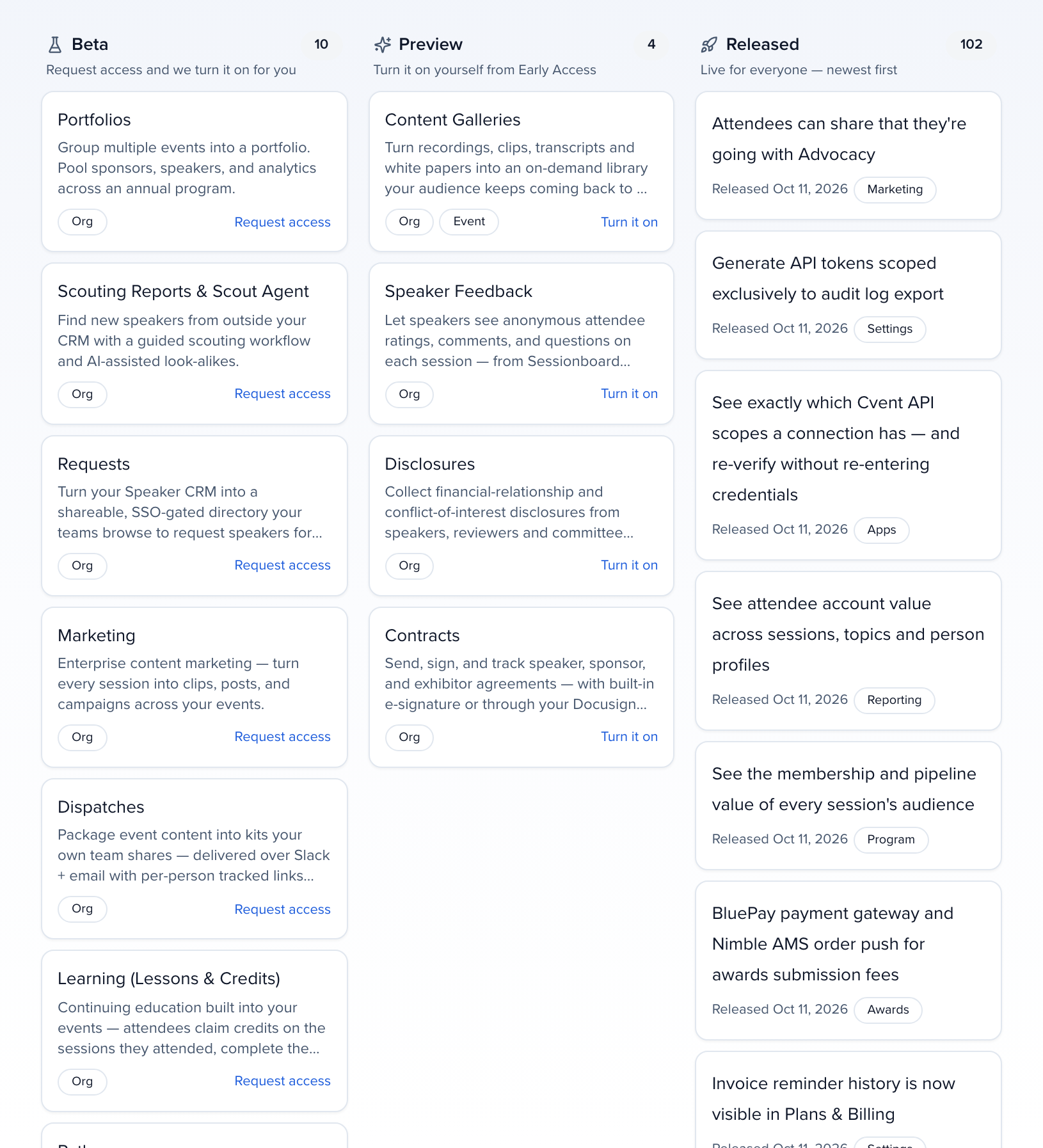
When an idea you voted for ships, it appears under the release that delivered it, and the idea itself shows Shipped in with a link to that release note.
What’s New
Section titled “What’s New”What’s New is the product update feed, grouped by the day each change went live (Today, Yesterday, then the date). A New since your last visit line marks where you left off.
To see updates for one part of the product, pick it in the Module menu above the feed, such as Program or Marketing. The menu lists only modules that have updates; All modules shows everything again.
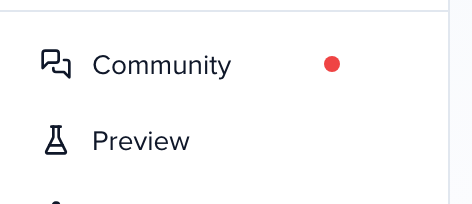
A red dot next to Community in the sidebar means something has gone live since you last looked. While the dot is showing, clicking Community opens straight onto What’s New; once you have read it, the dot clears and Community opens on Ideas again.
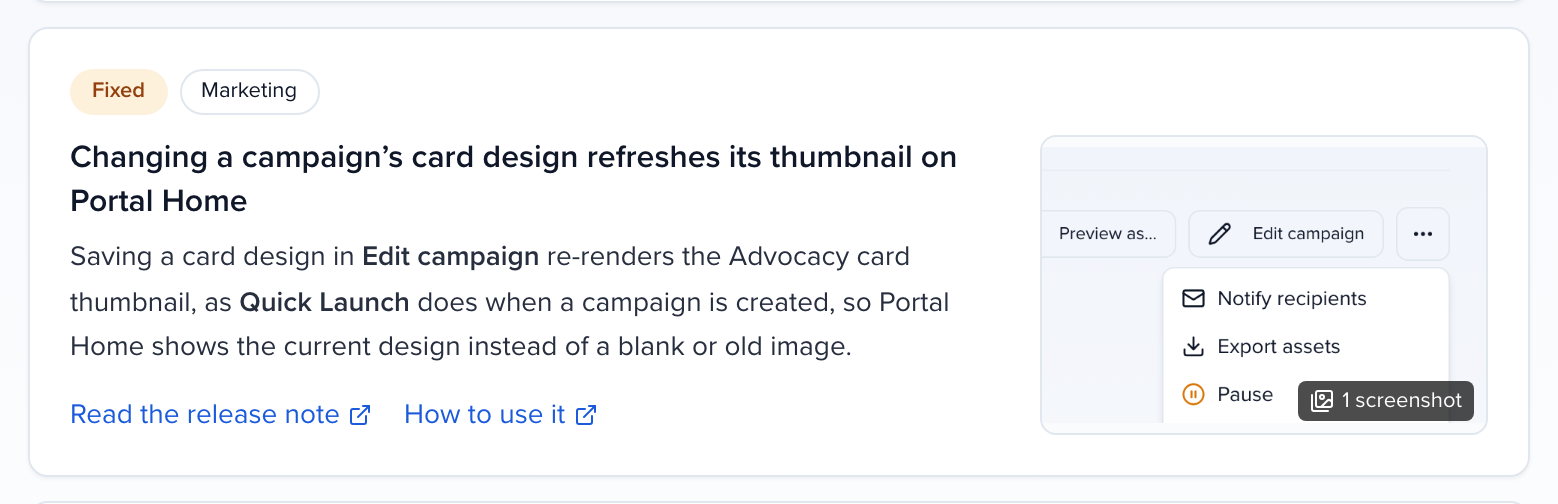
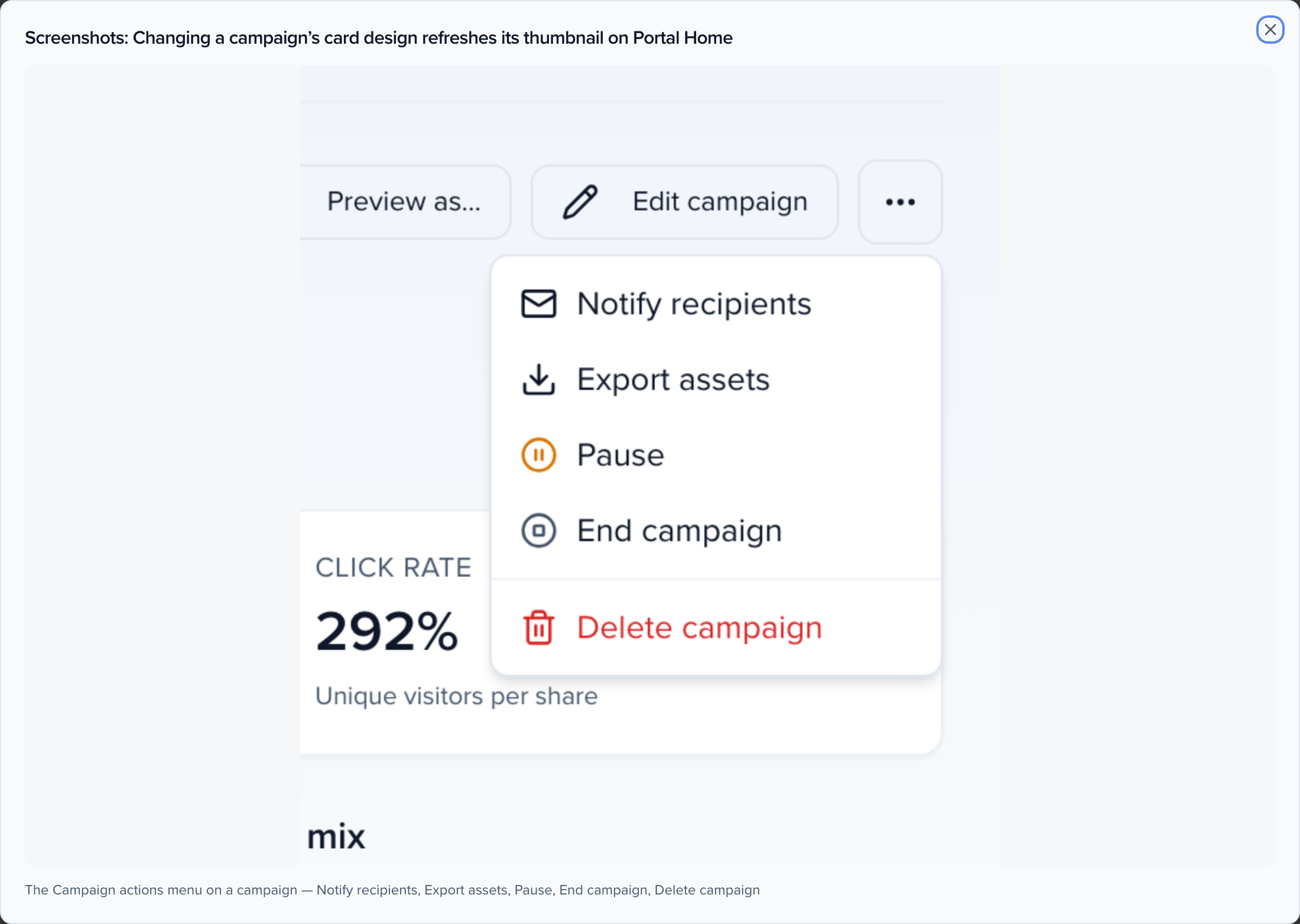
Each card shows what changed, the area of the product it belongs to, and two links: Read the release note opens the entry in the Help Center release notes, and How to use it opens the guide for that feature. When a change comes with screenshots or a video, a thumbnail sits on the right of the card. Click it to open them full size and step through with the arrows.
Release notes by email
Section titled “Release notes by email”If you would rather not check What’s New, have the release notes come to you. The email is a short digest sent on the days something new goes live: one line per change, each with a link to its release note. Nothing is sent on days with no changes, there is no marketing in it, and every email has a one-click unsubscribe link.
Turn it on in Sessionboard
Section titled “Turn it on in Sessionboard”At the top of What’s New, switch on Release notes by email. The digest goes to the email address on your Sessionboard account, and only to a company address: for an account on a personal mailbox such as Gmail or Outlook, the switch is turned off and the card says why.

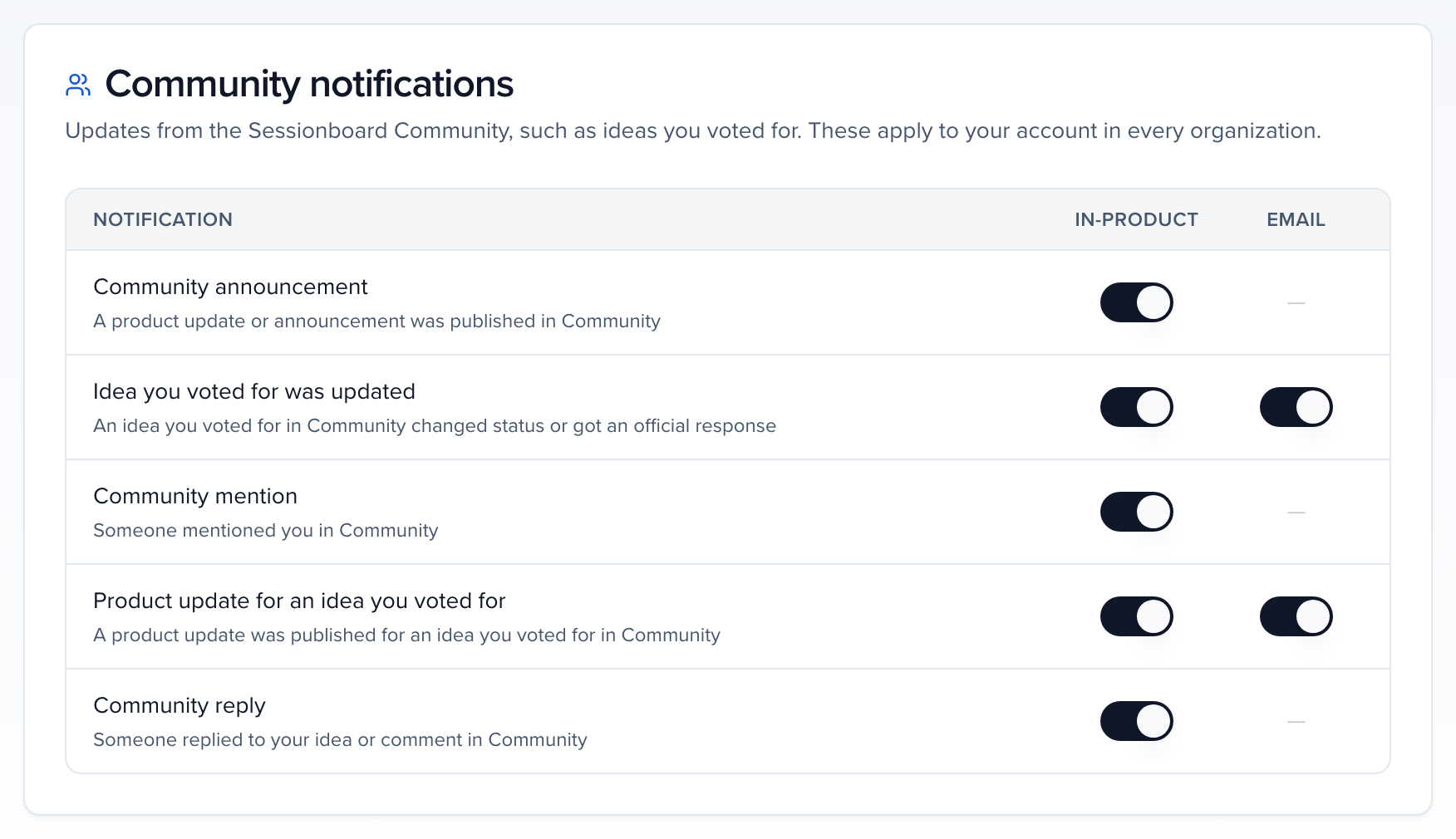
The same switch is in your account settings, under Community notifications, so you can turn it off from either place. It is one setting for your account, not per organization.

Choose which updates you get
Section titled “Choose which updates you get”Once Release notes by email is on, the card shows two filters. Under Modules, pick the parts of Sessionboard you work in, for example Awards or Program. Under Update types, tick New, Improved or Fixed. The two work together: with Awards and New ticked, the email lists only new Awards features. Your choices save as you change them. Leave a filter empty to get every update, which is also what happens if you never set one. On a day when nothing matches your filters, no email is sent to you.
Subscribe from the Help Center
Section titled “Subscribe from the Help Center”Anyone can subscribe without signing in, for example a colleague who does not have a Sessionboard login yet. Use the Get release notes by email form on the release notes page or the Help Center home page, or click Get updates in the Help Center header, next to Contact support.

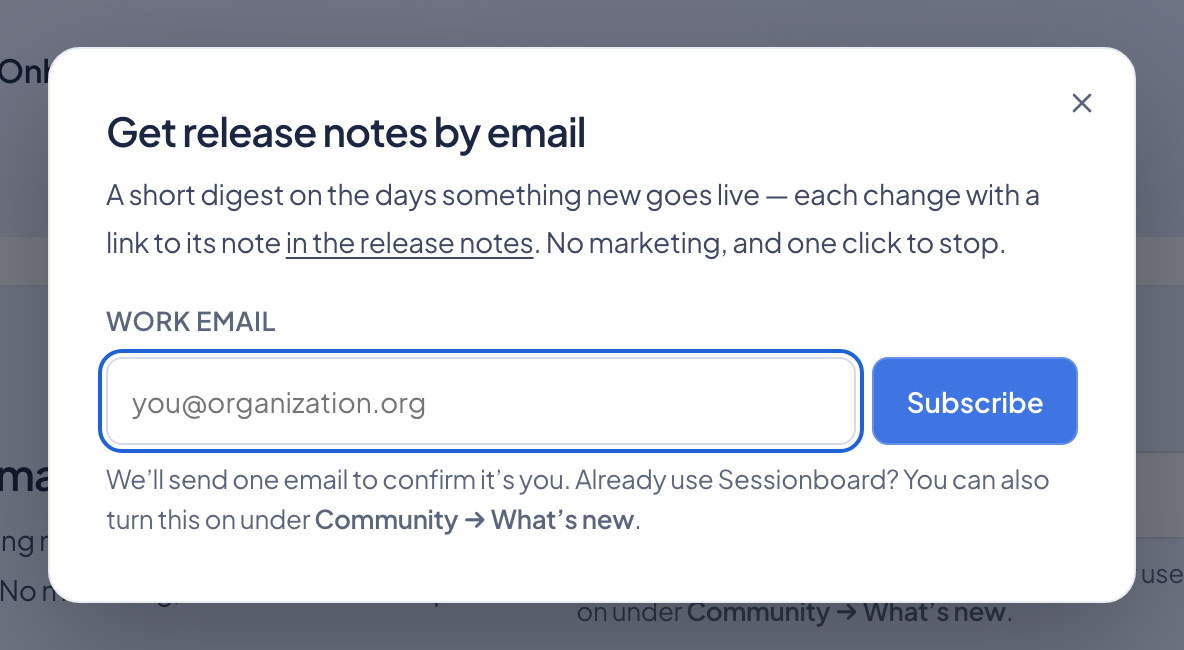
Enter a work email and click Subscribe. We send one email to confirm it is you; the digest only starts after you click the link in it. If you turned the switch on inside Sessionboard, you are already on the list and do not need to subscribe again here.
Updates on ideas you voted for
Section titled “Updates on ideas you voted for”When we change the status of an idea you voted for, post an official response on it, or ship it in a product update, we can notify you in Sessionboard and by email. Clicking the notification opens the idea, or What’s New for a product update.
To turn these off, open your account settings and find Community notifications. Switch off In-product or Email for Idea you voted for was updated or Product update for an idea you voted for. The Manage notification preferences link at the bottom of every Community email opens the same card. These choices belong to your account, so they apply in every organization you belong to.
Related
Section titled “Related”- Release notes
- Early Access: try features before they are on for everyone