

Collect documents with file requests
A file request is a task that needs an upload: a signed speaker agreement, a sponsor ad, a commercial video. It works like any other task — create it in the library, assign it to a portal, track it as a column — with a review step on top: every upload waits for you to approve or deny it, and the person can upload a new version if you send it back.
Video transcript
Files come up in three places, and they do different jobs. Under Portals, Portal files is what you hand out: the programme PDF, the exhibitor manual, a venue map, or a link to a page somewhere else. Each one downloads from the portal home. This event already keeps its speaker brief and slide template here, alongside links for the venue and the code of conduct.
Add, then Add File. Type is either Upload File, for a document up to five gigabytes, or External URL for a link. Give it the title the portal will show and one line of description underneath. That is the whole form. Replace the file in this library later and every portal that carries it serves the new version.
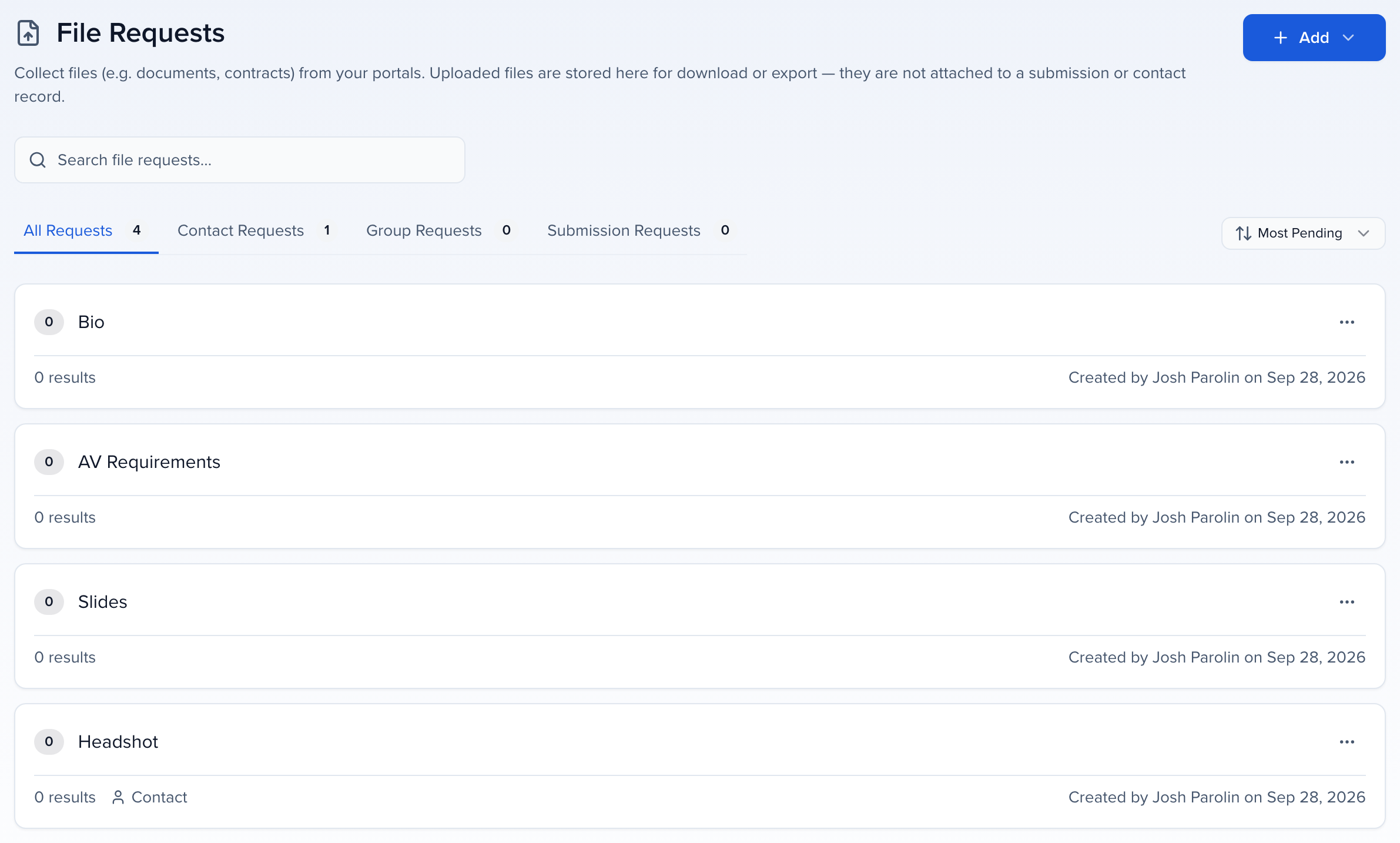
File Requests is the other direction: something you collect. A file request is a task that needs an upload, a signed speaker agreement, a sponsor ad, a commercial video, with a review step on top. The tabs filter by who the request is for. Each card shows how many uploads are waiting for you, and how many results it has in total. Headshot has two waiting.
Add, then Add File Request. Title is the name of the task on the portal. Type decides who it goes to: Contacts for one person, Groups for a sponsor or exhibitor company, Submissions for each session. Instructions is where you say what good looks like, format, dimensions, deadline. You can attach sample files people download before they upload their own. Default status for new submissions is where uploads start, Pending in your review queue, or Approved straight away. One thing to know: a request takes one file per person; a replacement becomes a new revision.
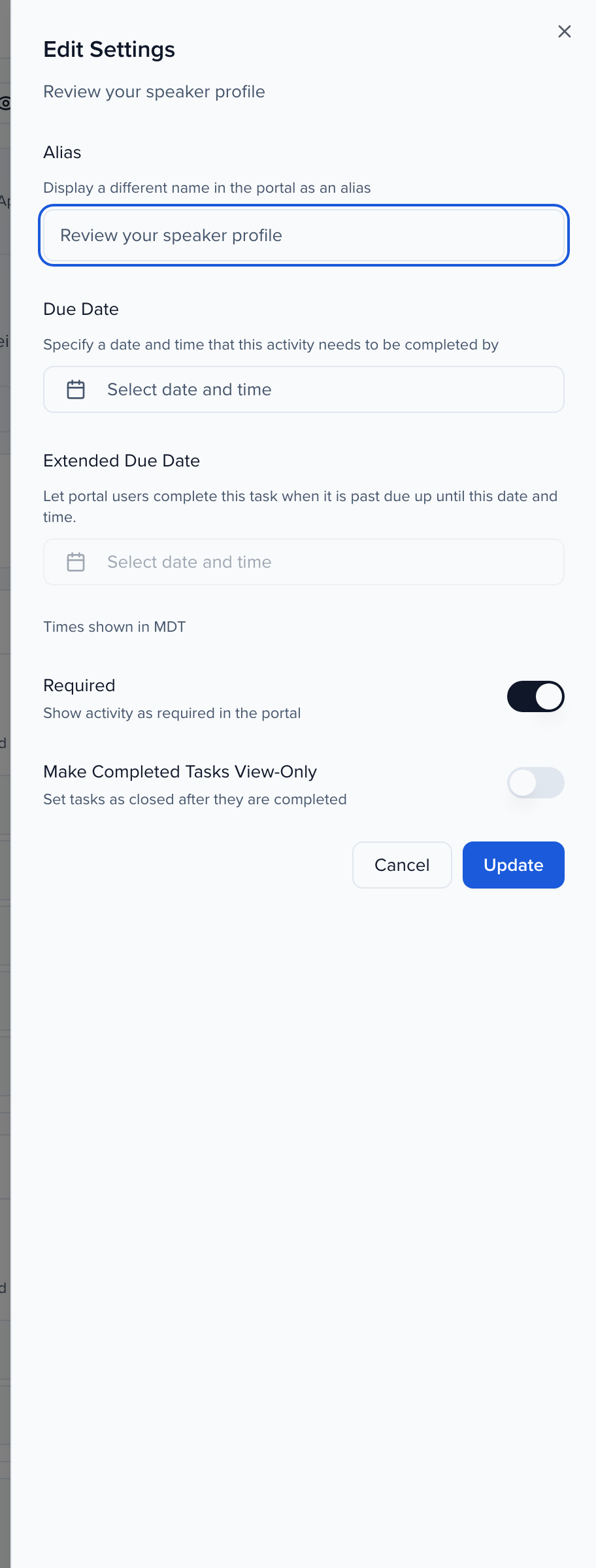
A request reaches people through a portal, like any task. On the portal card, the menu, then Edit Tasks. In Assign portal content, the File Requests section lists what this portal asks for; Add picks more from the library, and the pencil under Actions sets an alias, a due date, an extended due date, and whether it is required. The Files section further down works the same way for what you hand out. Headshot is already on the Speaker Portal and marked required.
Here is that request from the speaker’s side, viewed as one of our speakers who has already uploaded. Under My Tasks, Headshot reads Submitted, Pending Feedback, because nobody has acted on it yet. If you deny it, it reads Denied and they can upload a new revision; approve it and it is Completed. The Files section at the bottom is where the speaker brief and slide template land.
Back on File Requests, the card menu has View Submissions. The Results table lists everyone who has uploaded, with the status, the revision count and when it came in. Last Submitted By names who uploaded the latest revision, and reads Admin when someone on your team uploaded it for them. It’s in the default columns and in the export. The tabs split the table into Pending, Approved and Denied.
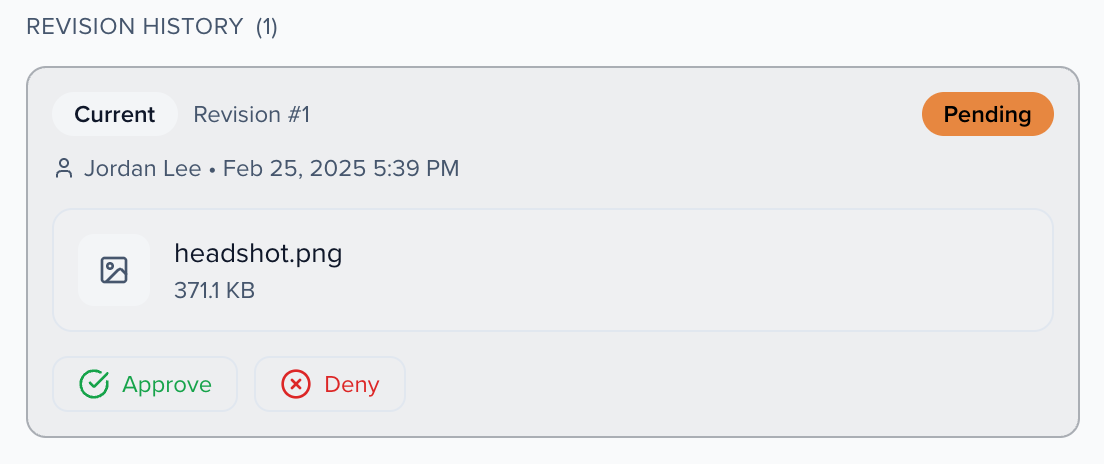
The pencil opens the submission: who sent it, when, the criteria you wrote, and the Revision History, newest marked Current. Each revision says who uploaded it, with their email, and the top of the panel names the most recent uploader. Approve or Deny sits on that revision. Made a mistake? Revert to Pending puts it back in the queue, and Add Revision lets you upload on their behalf.
Denying a file does not email anyone, so use the Messages tab. Anything your team writes here emails the person, and anything they write back emails the admins who have Document request comment switched on in their notification preferences. Messaging has to be enabled on the portal for them to reply.
When the uploads are in, Options. Download All Files builds a zip of the current revision from every submission, and Group files by decides how the folders are organised. Download bundle with other sources adds the files collected through forms and sessions to the same export. Export Comments and the CSV and Excel exports cover the table itself.
A request attached to sessions reads a little differently. Submission Requests, then the same View Submissions. Open one, and instead of Submitted By there’s a Session row that links straight to the session. This revision reads Uploaded by admin, because someone on the event team uploaded it for the speakers.
Presentations have a third home: the session itself. Speakers upload slides and handouts to their sessions from the portal once you turn that on, under Program Settings, Files. Enable File Upload is the switch; File Requests decides what you ask. Use upload slots off, it is one due date, one file limit and one list of file types for every session. On, it is a list of slots, Poster, Presentation, Handout, each with its own deadline, accepted types and sessions. A poster gallery needs a Poster slot. I am leaving uploads off for this event.
Admins can always upload from the session. Edit the session and open the Files tab. Drag files onto the drop zone, or pick an existing file under New version of to replace it while keeping the earlier version in its history. Each file shows its latest version, when it arrived, its size and type. Show Comments opens the thread speakers and admins share, and Copy link puts a direct link to the current version on your clipboard.
Program, Submission files lists every file in the event with the session it belongs to, who uploaded it and when. Select all, then Download Files. Group files by decides the folder structure of the zip, any order of Content Type, Session Date, Room and Session, and the tree underneath previews the folders. Generate Download builds it in the background, and an email with the subject Your file is ready brings the link. Only the latest version of each file goes in.
So: portal Files for what you hand out, File Requests for what you collect and review, session files for the decks. A file request is also a column you can add to Contacts, Speakers, Sponsors or Exhibitors, with an icon per status, so the people who have not uploaded yet are one filter away. Everything a request or a file lands on is a portal, and the speaker portal has its own walkthrough.
Why use it
Section titled “Why use it”Chasing files by email means attachments scattered across inboxes, versions nobody can tell apart, and no record of who still owes you something. A file request puts the ask in each contact’s portal, keeps every upload and revision with the contact, shows you at a glance who has and hasn’t submitted, and tells you when files come in — one notification row per request rather than one per upload — so a busy request doesn’t bury everything else.
Create a file request
Section titled “Create a file request”Open the File Requests library
Go to Program → Portals → File Requests and click Add → Add File Request. The tabs — All Requests, Contact Requests, Group Requests, Submission Requests — filter by who the request is for.
Fill in the request
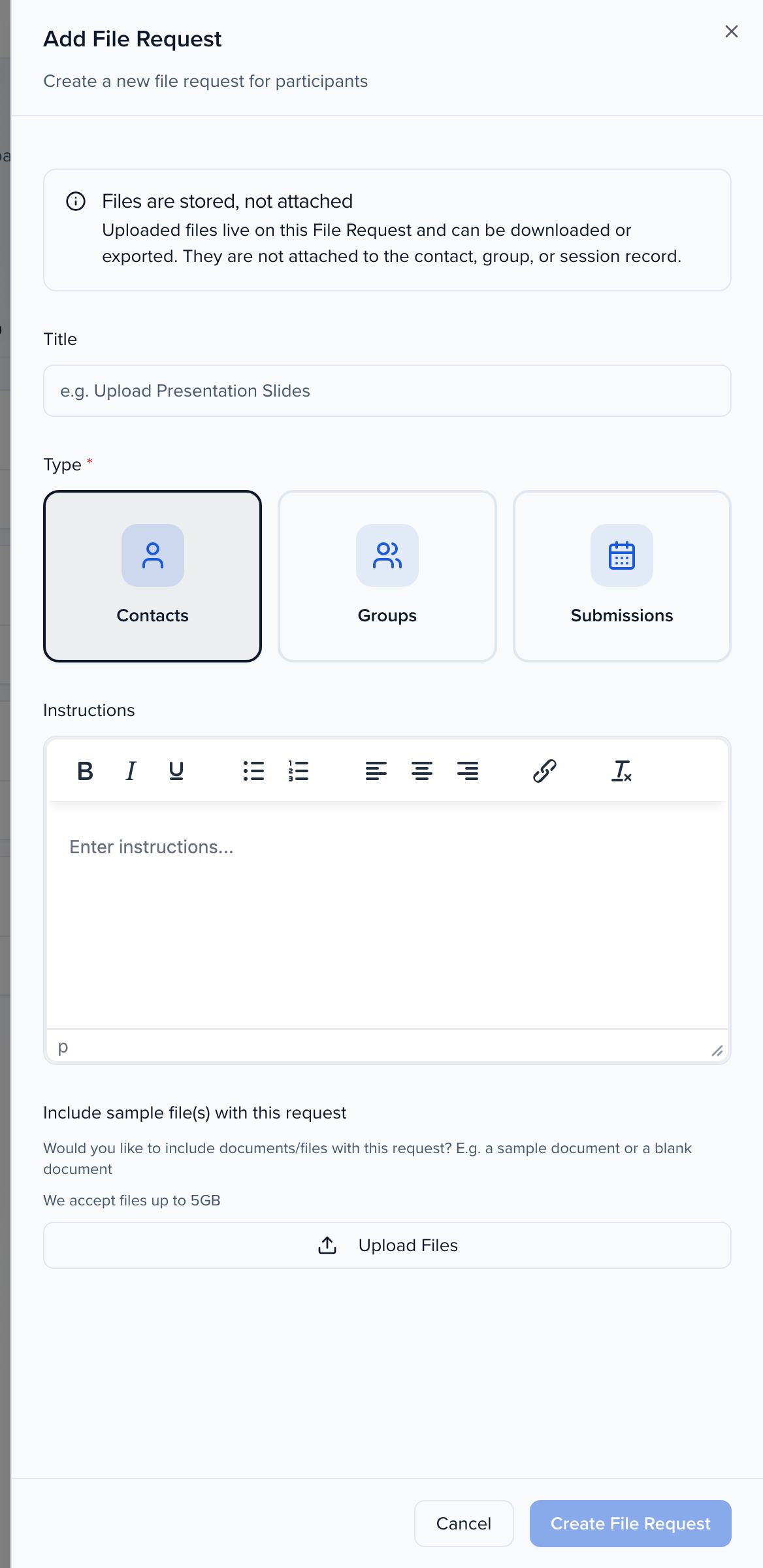
| Field | What it does |
|---|---|
| Title | The name of the task on the portal. |
| Type | Contacts (one person), Groups (a sponsor or exhibitor company), or Submissions (each session). |
| Instructions | What to upload and what good looks like — format, dimensions, deadline context. |
| Include sample file(s) with this request | Attach an example the person can download before they upload their own. |
| Default status for new submissions | The status every new upload starts in, including a new revision: Pending (default) puts it in your review queue, while Approved or Denied set it straight away. Duplicating the request keeps this setting. |
Click Create File Request. You can change the default later from the request’s Edit panel; uploads already received keep their status.
Assign it to a portal
Section titled “Assign it to a portal”Open the ⋯ menu on the portal card and choose Edit Tasks. In the File Requests section of the Assign Items step click Add, tick the request, and click Add Selected. Then use the pencil under Actions to set its Alias, Due Date, Extended Due Date, Required, Make Completed Tasks View-Only, Due date relative to assignment and — for Submissions requests — Assign By Filter. These settings are the same as for a task; see Create & assign tasks.
A file request can also go to a few people without a portal: select them in Contacts, then Assign → File Requests — see Assign tasks (including bulk).
What the person sees
Section titled “What the person sees”On the portal the request is a task with an upload. After they upload, the task reads Submitted - Pending Feedback until you act on it. If you deny it, it reads Denied and they can upload a new revision; if you approve it, it is Completed.
Review and approve
Section titled “Review and approve”Open the results
On Program → Portals → File Requests, open the request’s ⋯ menu and choose View Submissions. The Results table lists everyone who has uploaded, with the file, status and date. Last Submitted By names who uploaded the latest revision, marked Admin when someone on your team uploaded it for them; it is in the default columns and the export. A saved view you made before this column existed does not show it until you add it from Columns and save the view.
Open a submission
Click a row to open Submission Details. The Details tab shows who submitted, when, the Criteria you wrote, and the Revision History — every version they have uploaded, newest marked Current. Each revision says who uploaded it, with their email, and reads Uploaded by admin when someone on your event team uploaded it for them; Last uploaded by at the top names the most recent uploader and when. Every date in the panel is in the event’s timezone, with the zone named. For a request attached to sessions, a Session row links to the session. On the Results table, the Last Submitted By column carries the same name into sorting, filtering and the CSV and Excel exports.
Approve, deny, or revert
Use Approve or Deny on the current revision. Made a mistake? Revert to Pending puts it back in the queue. You can also click Add Revision to upload a file on the person’s behalf.
Approving or denying can also email the person who uploaded the file. The two emails, File request approved and File request denied, are off until you turn them on: in the event, open Settings → Email Templates → System and turn on each one you want (see Automated emails). When one is on, the person who uploaded the file gets it; when you uploaded it for them, it goes to the portal users of the contact the request is for. When it is off, nobody is emailed.
See who has finished
Section titled “See who has finished”The request is a column in Contacts, Speakers, Sponsors or Exhibitors — add it with Columns and save the view (Dashboard views).
| Icon | Status | Meaning |
|---|---|---|
| Green file-check | Approved | Reviewed and accepted. |
| Yellow clock | Pending Approval | Uploaded, waiting for you. |
| Red file-x | Rejected | Denied; the person can upload a new revision. |
| Blue file-clock | Assigned Via Portal | Reached them through a portal; nothing uploaded yet. |
| Amber clipboard | Manually Assigned | Assigned to this record directly; nothing uploaded yet. |
| Grey file-question | Not Assigned | Click to assign to this one record. |
Get notified when a file comes in
Section titled “Get notified when a file comes in”Each upload (and each new revision) can reach the event team as a bell notification and an email with the subject <Contact Name> submitted a file for "<Task Name>" in <Event Name>. The person who uploaded is never notified about their own upload.
In the bell and the notifications inbox, uploads to the same file request share one row while it is unread: the row shows the latest upload, a running count, and moves back to the top. Once you have read it, the next upload starts a new row. Uploads to a different file request get their own row.
File Request Submitted starts off, because a busy request can mean one email per upload. To turn it on for yourself, open Notifications → Preferences and switch on the in-app and/or email column for File Request Submitted. Preferences are per person; if you would rather have one digest a day, set Email frequency to Daily summary on the same page. The daily summary lists each file request once, with a count such as (3 submissions), however many uploads came in since the last summary. See Notifications.
Download the files
Section titled “Download the files”On the Results page, Download All Files builds a bundle of the current revision from every submission; choose Group files by to decide how the zip is organised. Download bundle (with other sources)… adds files collected through forms and sessions to the same export. For one file, open the submission and click View File or Download File.
The ⋯ menu on the same page has Export Comments and Export .CSV / .XLSX for the table itself.
Messages on a file request
Section titled “Messages on a file request”Each submission has a Messages tab. Anything your team writes there emails the person (<Admin Name> sent a message about "<Task Name>" in <Event Name>); anything they write back emails every admin on the event with Document request comment switched on under Notifications → Preferences. Messaging has to be enabled on the portal — Configuration → Enable messaging — for them to reply; see Portals 101.