

Email moderators and chairpersons
Moderators and chairpersons can be emailed from two places. Which one you pick decides what the email can say.
| Start from | Best for | Session merge tags |
|---|---|---|
| Sessions | “Here are the details of the panel you are moderating” | Yes — title, date, room, and the roster tags below |
| Contacts | “Here is your portal login” or anything not tied to one session | No |
Why use it
Section titled “Why use it”Moderators and chairpersons need different details from speakers: which panels they are running, when, and who is on them. Sending from the right place means each person gets their own sessions merged into one email, with only the columns you want them to see, rather than a generic message they have to cross-check against the program.
From the Sessions module
Section titled “From the Sessions module”- Open Program → Sessions and tick the sessions whose moderators or chairpersons you want to reach — filter first (by track, date, or status) and use Select all to take the whole result.
- In the bar above the table click Send Emails.
- Under Who should receive this email? choose the role: Moderators, Chairpersons, or any custom role your event has. All Participants covers every role at once, and Select Individual Contacts lets you hand-pick from the people on those sessions.
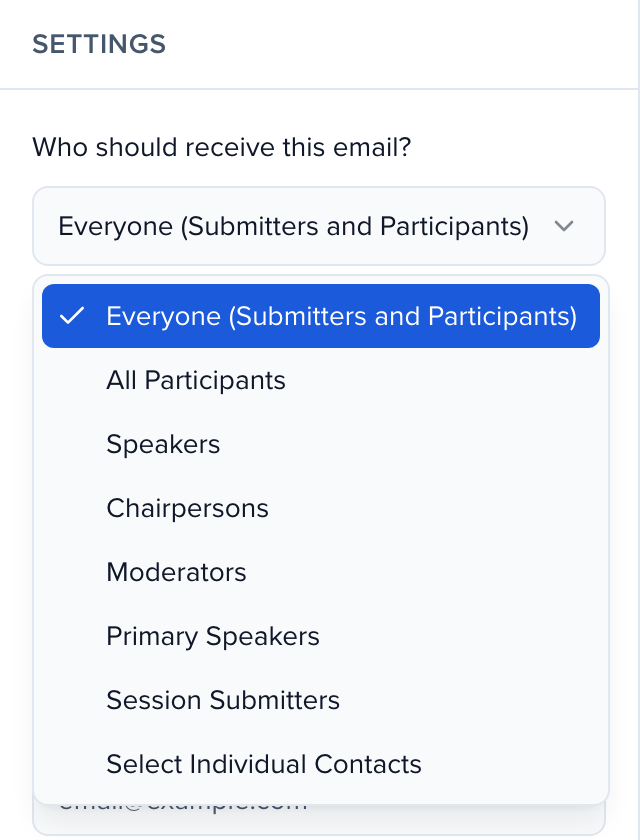
- Write the message — or click Template to load one whose type is Sessions — then Review and send. Each person gets one email per session they hold that role on, personalized with that session’s details. Full walkthrough: Create & send emails.
Naming them in the message body
Section titled “Naming them in the message body”Emails sent from the Sessions module can also list a session’s moderators or chairpersons inside the message itself, so one email can cover a panel without you typing the names. Open Merge Tags and look under Session Roles:
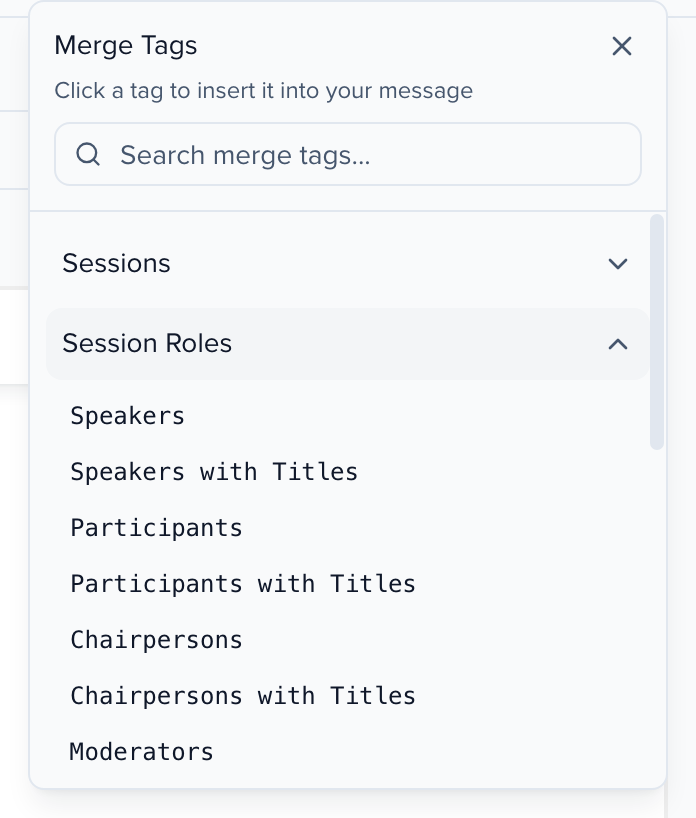
| Merge tag | Renders |
|---|---|
{{{moderators}}} | Ada Lovelace, Grace Hopper |
{{{moderators_with_titles}}} | Ada Lovelace, Engineer, Analytical Ltd; Grace Hopper |
{{{chairpersons}}} / {{{chairpersons_with_titles}}} | the same, for chairpersons |
{{{participants}}} / {{{participants_with_titles}}} | everyone on the session, whatever their role |
Anyone with no job title or company renders as just their name. Every role your event has — including roles you created yourself — gets its own pair of tags named after the role, so a role called Panel Chairs gives you {{{panel_chairs}}} and {{{panel_chairs_with_titles}}}.
A moderator on several sessions
Section titled “A moderator on several sessions”Someone who moderates more than one session is on more than one panel’s email, and that is intended. Tick Send one email per session and each session sends a single message with everyone on it addressed together, so a moderator across three panels is on all three, each carrying its own session’s details. In an Email Campaign, Bundle session participants onto one email does the same with the primary speaker on To and the rest on CC.
If you would rather send one message covering everything, email them from Contacts instead and insert the Sessions Summary merge tag (below).
From the Contacts module
Section titled “From the Contacts module”- Open CRM → Contacts and filter to the people you want — see Filter contacts by session status.
- Tick the rows and click Send → Send Emails.
- Compose and send.
What Contacts sends do offer is Sessions Summary ({{{sessions_summary}}}): a table of every session the contact is on as a speaker, moderator, chairperson, or other participant, with each session’s ID, status, title, start and end times, and speakers. For a moderator on three panels, that is one email listing all three.
You can choose the table’s columns by adding options to the tag:
{{{sessions_summary:exclude=status,session_id}}}leaves out the status and session ID columns.{{{sessions_summary:include=title,starts_at,track}}}shows exactly those columns, in that order.
The columns are session_id, status, title, starts_at, ends_at, speakers, track, format, level, language, location and tags, and you can also name any Sessions field by its label. Names the tag does not recognize are ignored, and an include that names nothing it recognizes shows the default table. The full reference is in Sessions summary.
Point them at the portal
Section titled “Point them at the portal”The most reliable place for a moderator to see everything they are on is their portal: My Participation lists every session with its time, room, and co-participants, and the Participants tab on each session shows the rest of the panel. See Portals 101.
To send them there, insert the Portal Login Link (Hyperlink) merge tag (or Portal Login Link (Raw URL)) rather than pasting a URL — it signs each person in to their own portal. See Inviting users to the portal.