

Upload & share portal files
A portal file is something you hand out, not something you collect: the programme PDF, the exhibitor manual, a venue map, or a link to a page elsewhere. It downloads from the portal home. To collect a file from someone, use a file request; to share content you will keep editing, use a resource page.
Why use it
Section titled “Why use it”Speakers, exhibitors and sponsors ask for the same handful of documents every year. Put each one on the portal they already log in to and nobody has to dig through email for it. A file lives once in the library: put it on as many portals as you like, replace it there, and every portal serves the new version, so nobody downloads last year’s manual.
Add a file
Section titled “Add a file”Open Files
Go to Program → Portals → Portal files and click Add → Add File.
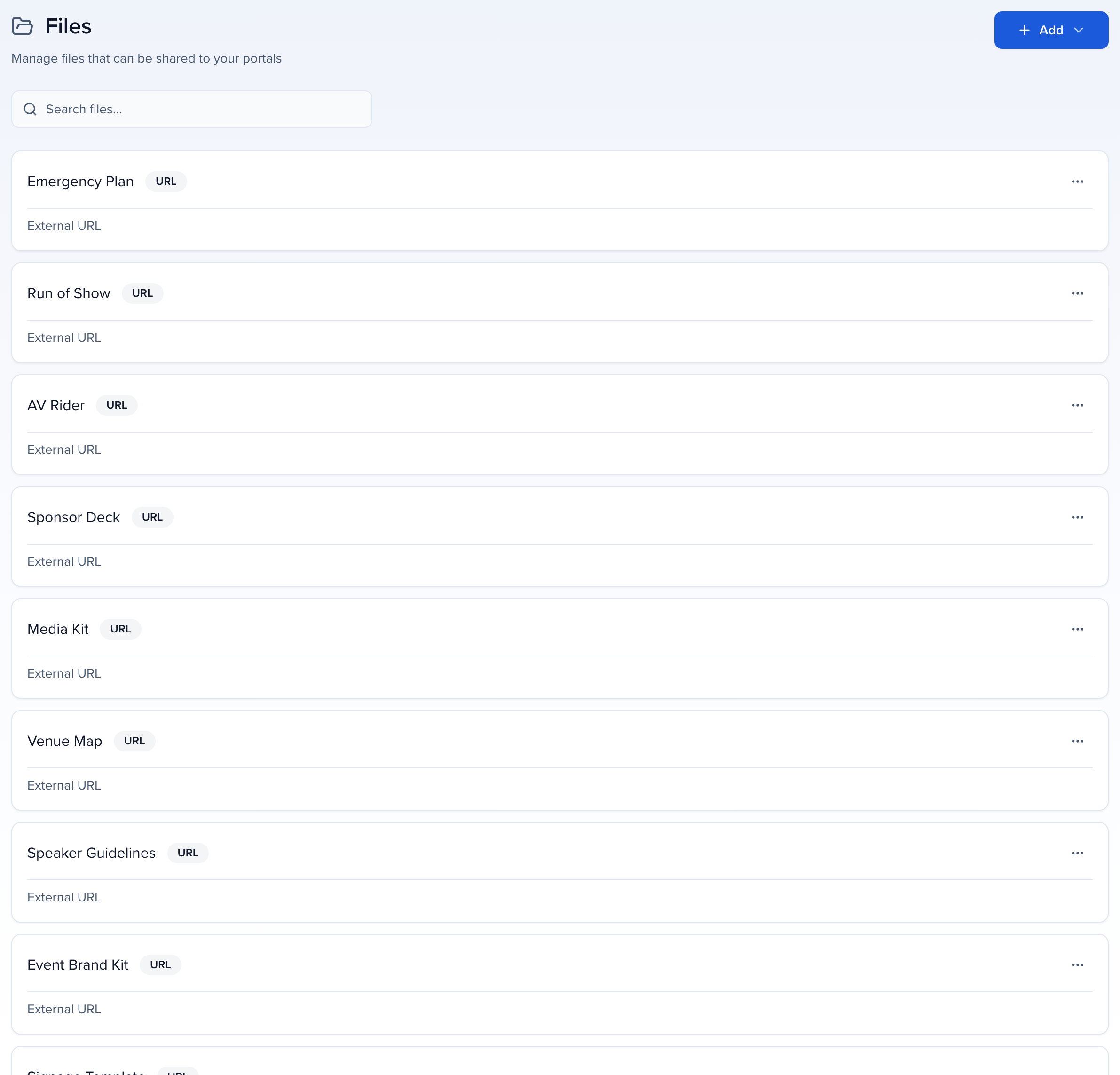
Files appear in the portal in the library’s order. Drag a file by its handle, or use Move up and Move down; the order saves at once and applies to every portal of the event.
Upload it, or link it
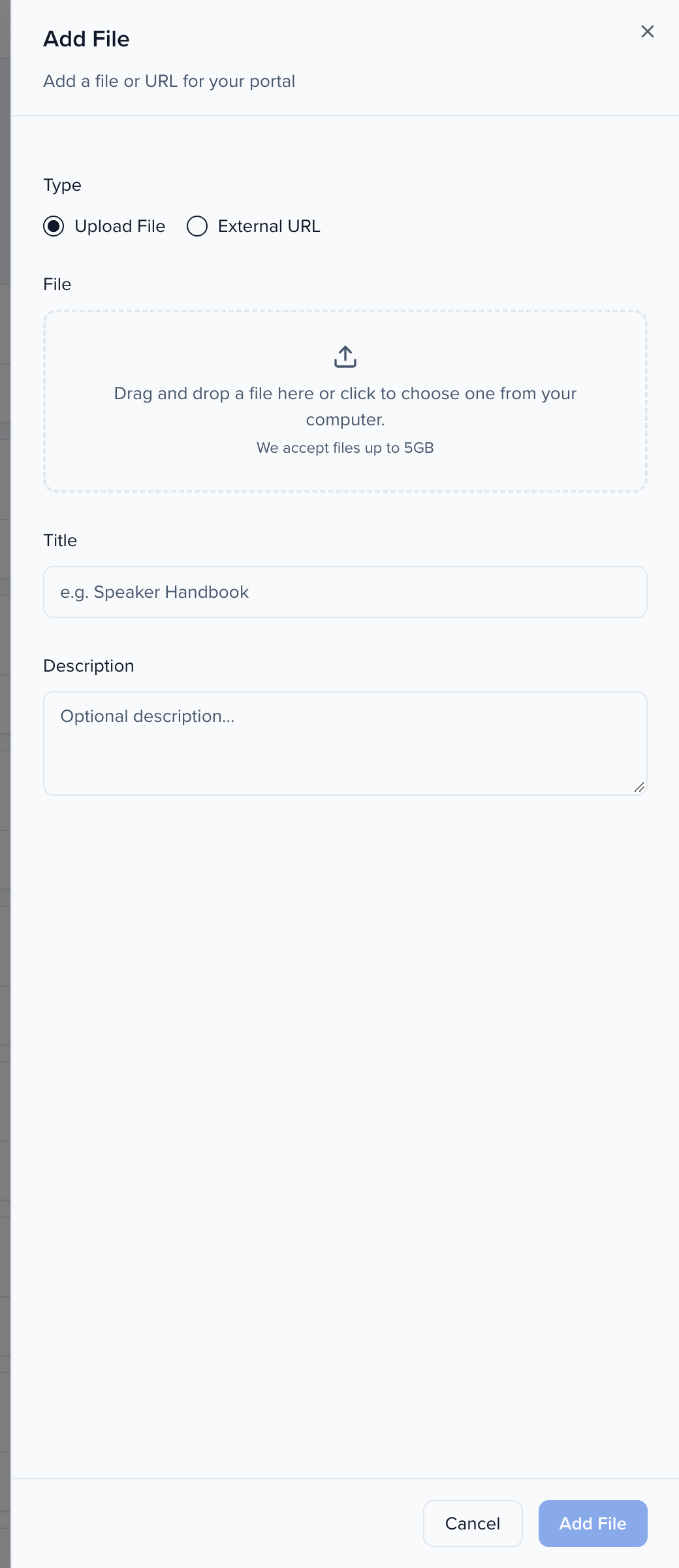
| Field | What it does |
|---|---|
| Type | Upload File for a document (up to 5 GB), or External URL for a link. |
| Title | The name shown on the portal. |
| Description | One line of context under the title. |
Click Add → Add File.
Assign the file to a portal
Section titled “Assign the file to a portal”Open the ⋯ menu on the portal card and choose Edit Tasks. In the Files section of the Assign Items step click Add, tick the file, and click Add Selected. The pencil under Actions opens Edit Settings, where you can switch on Open in New Tab. Everyone in the portal sees the file; to show it to some people as well, assign it to them, or put it on a custom portal for them.
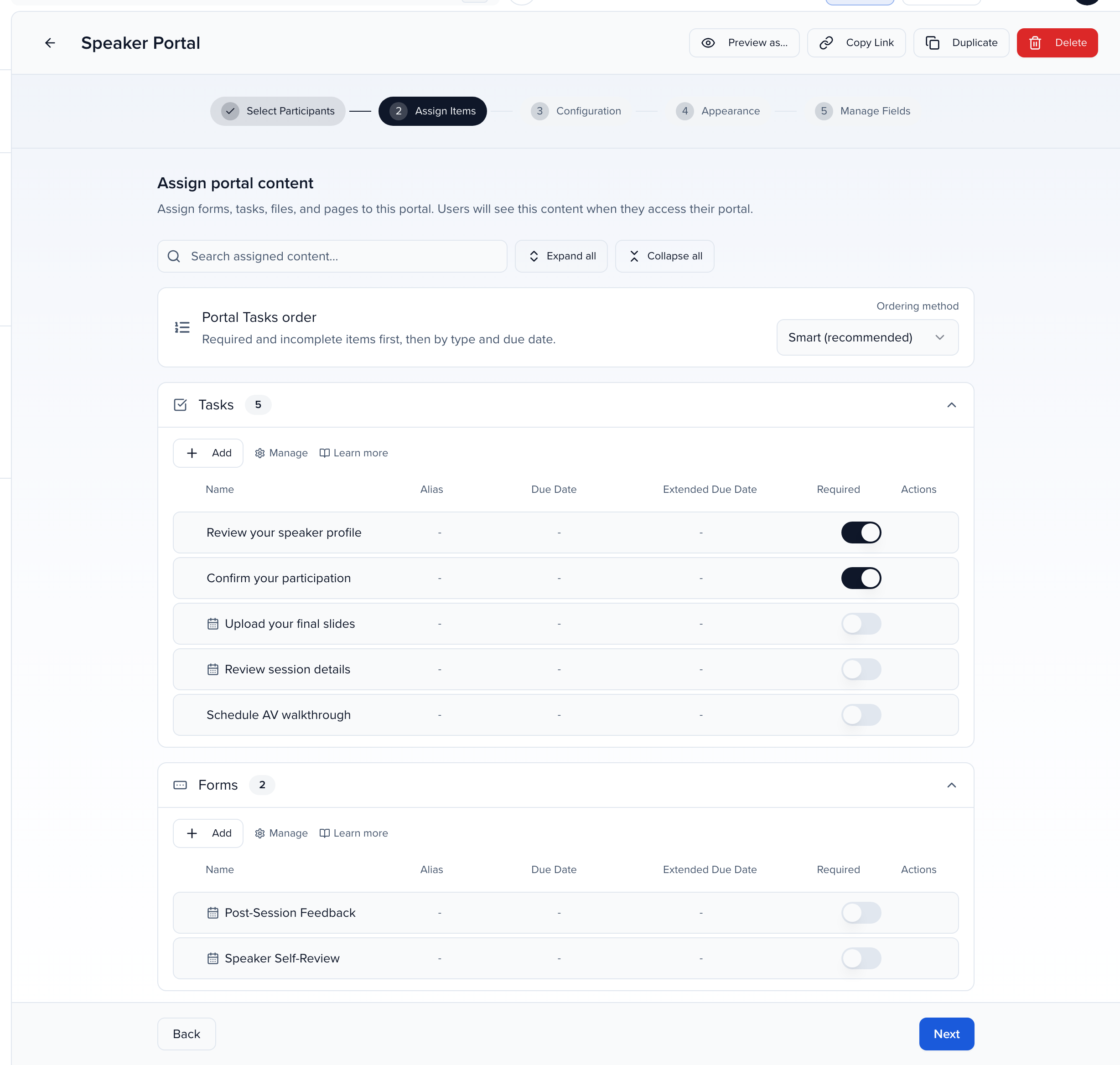
A file can sit on as many portals as you like. Replace the file in the library and every portal serves the new version.
Assign a file to contacts, sessions or groups
Section titled “Assign a file to contacts, sessions or groups”Each file in Program → Portals → Portal files carries a badge: Everyone when it is not assigned to anyone individually, or N assigned when it is. To hand a file to particular people, tick it (or several), click Assign to contacts, sessions or groups, pick the Contacts, Sessions (every participant of the session) or Groups (every member of the group) on the dialog’s tabs, and click Assign.
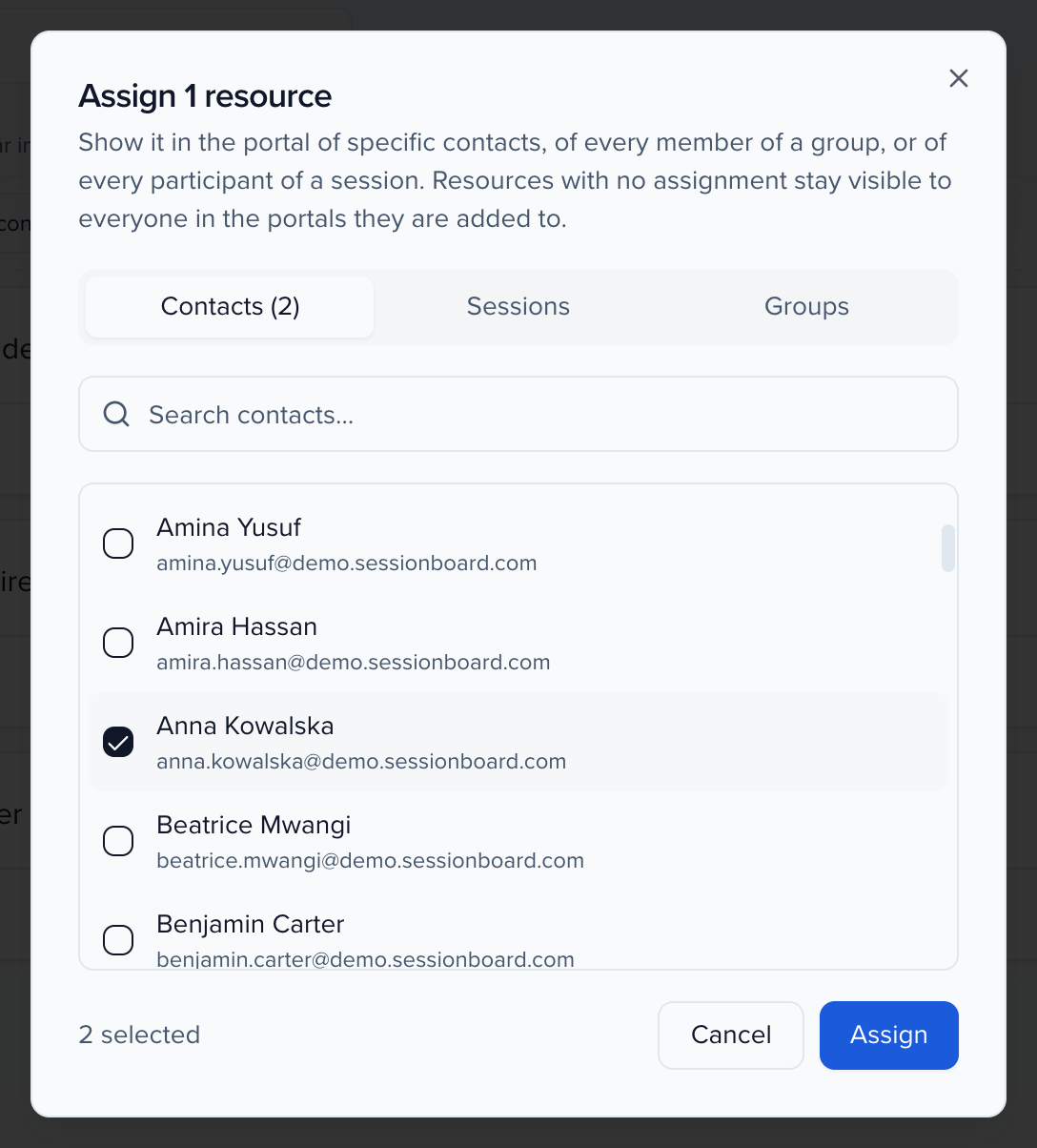
The assigned people see the file in their portal in addition to the files the portal shows everyone, the same way a manually assigned task adds to a portal. Selecting and assigning needs permission to update portal tasks; the badges show for everyone who can open Files. The row’s ⋯ menu → Assigned to… lists who has it and removes an assignment, as for resource pages.