

What is Sessionboard Marketing?
Marketing turns your event into content and demand. Sessions are captured as they happen, catalogued into a searchable library attributed to the speakers who delivered them, and distributed through the people with the most credible reach — your speakers, sponsors, and your own team.
Video transcript
Every event you run produces a year of material. Forty sessions, a hundred speakers, quotes worth repeating, and then it all sits in a recording folder nobody opens. Marketing is the part of Sessionboard that turns that into content and demand. Sessions are captured as they happen, catalogued into one library attributed to the people who said them, and distributed through the people with the most credible reach, your speakers, your sponsors, and your own team. This is the module’s home page, and I want to show you how to read it.
Marketing is its own module in the event sidebar. Overview, up top, is the home. Then Promote, the distribution side, Advocacy on every event, with your own team’s campaigns inside it, and Plan with the Marketing beta. Then Source and produce, where content comes from. Transcribe, Media, Create and Slides are on for everyone, and Voices, Posts, Quotes, Clips and Brand join them with the beta. One rule. A page that’s turned off for your organization is left out of the sidebar and off this page. What you see here is what you have.
The buttons across the top are the jobs, one each. Capture a session, Upload media, Create content, Plan a month, Send a dispatch, which starts a team campaign for your own staff, and Launch advocacy. Each one opens the page where that work happens, and both sharing buttons open the Advocacy campaigns list. Hover over one and a short card tells you what it’s for before you commit to the click. Above them, the API reference, and Live Transcribe settings for your capture setup.
Content Journey is the one glance answer to, is anything moving. Sessions captured is how many sessions have a transcript. Media items is the size of the library. Then Shares, Clicks and Conversions, which come straight from Advocacy. The numbers are live, so when a campaign goes out you’ll see this strip change without opening anything else.
The Review queue is everything the AI generated for this event that still needs a human decision. Recaps and reports that are generating, failed or in draft, each with its status. Approve moves a draft on, and once it’s approved, Publish makes it live for attendees. All recaps opens the full list. On the right, the newest Create drafts and clips. If nothing is waiting on you, this whole block disappears, so an empty page here is good news.
Below that is the map of the whole module, one card per page, grouped the same way as the sidebar. Source and produce, every session becomes content. Distribute, your people carry it to market. Each card has a line on what the page does, and clicking a card opens exactly the same page as the sidebar entry. I’ll open Plan to show you. Same page, same place in the sidebar. Back to the overview.
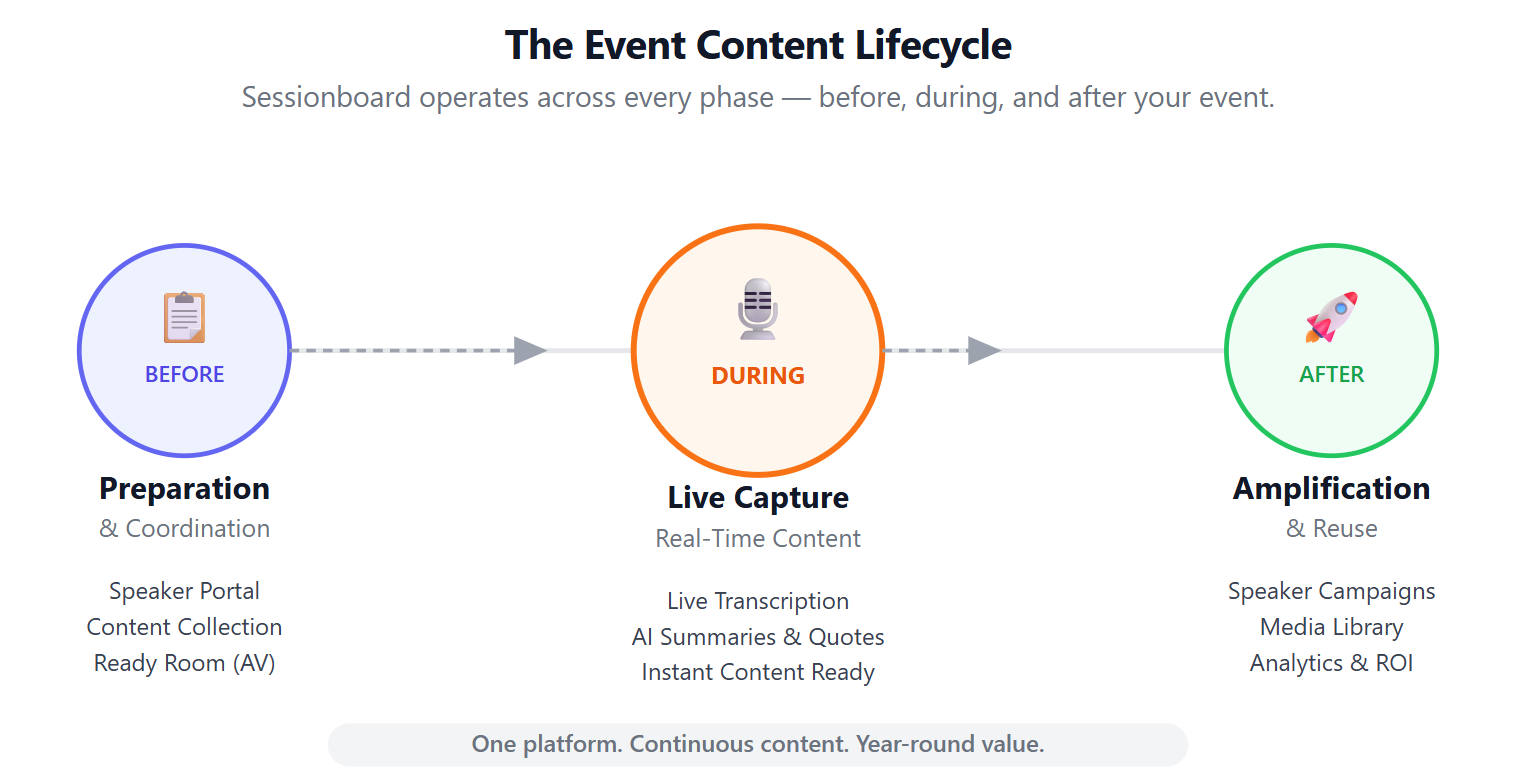
The way to think about the module is the three phases of your event feeding each other. Before, speakers submit bios and materials through their portal, and your AV team gets what they need through the Live Transcribe Console without an account. During, Live Transcribe captures each session from the soundboard and has a speaker attributed transcript, a summary and themes minutes after it ends. After, the Media library holds all of it, Create drafts from it, Advocacy puts it in your speakers’ hands with tracked links, and last year’s content promotes next year’s event.
What makes this different from a shared drive is attribution. Every transcript, quote, clip and share links back to the speaker who delivered it. Over time that becomes a record of who spoke on what, how it performed, and who your most effective advocates are, searchable across your whole event history rather than trapped in one event’s folder.
Now the same page one level up. In the organization sidebar, Marketing, Overview is the cross event picture. The loop again, Source and produce, then Distribute, and the line that every result feeds the next cycle. Then four totals across all your events. Media items, Hours of content, Speakers attributed, which is speakers with content attached to them in the library, and Creators activated, advocates who’ve published from their share page. Live Transcribe is marked Per event, because capture only happens inside an event. The Advocacy card opens the roll up.
And this is that roll up. Campaigns are always created inside an event, so this page is for reporting across a season. How many campaigns are active across how many events. At a glance, advocates activated of assigned, shares, unique clicks, each with a thirty day sparkline. The funnel from assigned to clicked with the drop off between stages. Channel mix. Top advocates across every event, sorted by clicks then shares, with Export CSV. Geography. And By campaign at the bottom, every campaign tagged with its event.
If your sidebar shows the shorter list, the rest of the module lives behind the Early Access row at the bottom of the organization sidebar. Marketing is a Beta there, so the card has Request access rather than a toggle, and once you’ve asked, our team sets it up with you. The Help Center article is What is Sessionboard Marketing. The Advocacy chapter goes deep on the product every event already has, the team campaigns chapter covers your own staff, and the Content plan chapter turns one session into a month of posts.
It isn’t a separate distribution tool bolted on the side. It runs on the same speaker, session, and event data you already manage in Sessionboard, which is why a clip knows who said it and a share link knows which speaker it belongs to.
The event overview
Section titled “The event overview”Marketing > Overview is the module home for one event. Its sidebar groups the pages by what they do: Promote (Advocacy, which holds your team campaigns too, and Plan with the Marketing beta), Source & produce (Transcribe, Media, Create, Slides, plus Voices, Posts, Quotes, Clips and Brand with the beta). A page that is turned off for your organization is left out of the sidebar and the overview alike, so what you see here is what you have.
The page itself has four parts, top to bottom:
- Quick actions — one button per job: Capture a session, Upload media, Create content, Plan a month, Send a dispatch, Launch advocacy. Each opens the page where that work happens (both sharing buttons open the Advocacy Campaigns list); hovering one shows a short card explaining what it is for. API reference and Live Transcribe settings sit above them.
- Content Journey — live counts for this event: Sessions captured (sessions with a transcript), Media items (the library), then Shares, Clicks and Conversions from Advocacy. It is the one-glance answer to “is anything moving?”.
- Review queue — everything AI generated for this event that still needs a decision. Recaps and reports that are generating, failed or in draft are listed with their status; Approve moves a draft on, Publish makes an approved recap live for attendees, and All recaps opens the full list. Beside them are the event’s newest Create drafts and clips. The queue only appears when there is something in it.
- The surface map — a card for every page in the module, grouped Source & produce and Distribute, with a one-line description of what each does. A card opens the same page as its sidebar entry.
Training videos for the Marketing module sit at the foot of the page.
The organization overview
Section titled “The organization overview”Marketing > Overview at the organization level is the cross-event picture. It repeats the loop — Source & produce, then Distribute, and the line that every result feeds the next cycle — and gives four totals across all your events: Media items, Hours of content, Speakers attributed (speakers with content attached to them in the library) and Creators activated (advocates who have published from their share page).
The cards below are the organization-wide pages. Live Transcribe is marked Per event because capture only happens inside an event; Advocacy opens the organization roll-up of every event’s campaigns (see Across events). Advocacy, including team campaigns for your own staff, is available to every organization. The other pages — Media, Create, Posts, Quotes, Clips, Brand and Plan — appear once your organization has the Marketing beta and the organization-wide Media library, each behind its own switch.
Source and produce
Section titled “Source and produce”Live Transcribe
Capture sessions live and get transcripts, summaries, and insights.
Live Transcribe Console
Magic-link access for AV crews — schedules, files, and transcription controls.
Media
Every recording in one searchable, speaker-attributed library.
Quotes
Pull quotable lines from transcripts and turn them into posts and cards.
Clips
Cut short, captioned videos built for social feeds.
Create
Draft posts, blogs, white papers, and carousels grounded in your sessions.
Distribute
Section titled “Distribute”Advocacy
Personalized share cards and tracked links for participants, sponsors, exhibitors and attendees.
Team campaigns
Scheduled posts for your own team, delivered by Slack, Microsoft Teams and email, with a leaderboard.
Plan
Turn one session into a scheduled, LinkedIn-anchored content calendar.
Posts
Everything you’ve drafted, in one place.
Set up
Section titled “Set up”Brand kits
Colors, fonts, logos, and an AI-learned voice, applied to every output.
Speaker CRM
The profile layer that makes content attributable across every event.
How it fits together
Section titled “How it fits together”The three phases of an event each feed the next.
Before — speakers submit bios and materials through their portal, and your AV team gets everything they need in the Live Transcribe Console without needing accounts.
During — Live Transcribe captures each session from the soundboard and produces a speaker-attributed transcript, an AI summary, and extracted themes within minutes of the session ending.
After — the Media library holds everything, searchable by topic, speaker, or keyword. Create drafts content from it, Advocacy puts it in your speakers’ hands with tracked links, and last year’s content promotes next year’s event.
Where content is attributed
Section titled “Where content is attributed”Every transcript, quote, clip, and share links back to the speaker who delivered it. Over time that builds an institutional record of who spoke on what, how it performed, and who your most effective advocates are — searchable across your whole event history rather than trapped in one event’s folder.
- Engagement tracking: who shared what and how it performed
- Subject-matter expert discovery by topic across your speaker network
- Cross-event content attribution per speaker
Common situations
Section titled “Common situations”“Our event ended three weeks ago and we still haven’t published anything.” Transcripts and summaries are ready minutes after each session. Clips and quotes come out of the library rather than an edit queue, and Advocacy campaigns launch in days.
“On event day the AV team asks for speaker files ten minutes before each session.” The Live Transcribe Console gives them assets, schedules, and transcription controls through a magic link — no accounts, no onboarding.
“We run four events a year and the content ends up in a Dropbox folder nobody revisits.” The Media library centralizes everything, searchable by topic and speaker, so past content promotes future events.
“We want speakers to share but we never know whether they did.” Advocacy gives each speaker a personal tracked link, so shares and clicks attribute to the individual rather than disappearing.
Integrations
Section titled “Integrations”Marketing is the content layer, not a replacement for your marketing stack.
| Integration | Type | Notes |
|---|---|---|
| Claude, ChatGPT, Gemini | MCP / AI | Query Sessionboard data from your AI tool of choice, no manual exports |
| Goldcast, Zoom, and other webinar platforms | Video ingest | Import recordings and transcripts into the Media library |
| Cvent | Event management | Event data connected and continuously enriched |
| Gleanin & Snöball | Distribution | For organizations with existing contracts; Advocacy replaces these long term |
Claude, ChatGPT, and Gemini connect by signing in (OAuth), not with an API token. The assistant sees what your role and the scopes you grant allow, personal data included. Writes work only when you approve them on the consent screen. See Connect AI assistants.
Related
Section titled “Related”- Agents — draft the agenda, evaluate submissions, and package content with supervised AI agents
- Print agendas — program books and schedules from live event data
- Build a report — custom reports with AI assistance