

Generating API tokens
Why use it
Section titled “Why use it”An API token lets your own systems read and update Sessionboard directly, so data moves on a schedule instead of through spreadsheet exports. Use one to feed sessions and speakers to a website or app, pull reports into a BI tool, keep Awards programs and submissions in step with your association management system, or automate a job your team repeats every event. Scopes keep each token to exactly what that integration needs.
What you can do with an API token
Section titled “What you can do with an API token”API tokens let you:
- Sync your event data with external systems (CRMs, BI tools, custom dashboards)
- Build custom integrations using the Sessionboard Public API
- Run scheduled or programmatic reports through SbQL, including the
read:insightsscope
Where to find your Event ID and Organization ID
Section titled “Where to find your Event ID and Organization ID”Developers and integration partners ask for these alongside the token. Neither is secret, and neither is displayed on the API Tokens page — they are in the address bar.
- Event ID — the number after
/event/while you are inside the event:app.sessionboard.com/event/12345/sessions. It never changes, and it is the{eventId}in every event endpoint of the public API. - Organization ID — the long identifier after
/org/while you are in Organization Settings:app.sessionboard.com/org/a1b2c3d4-…/settings/api-tokens. It is the{orgId}in the organization endpoints.
A developer who already has a token can also list every event it can see, with its id and name, by calling GET /v1/events. For the full pre-connection checklist — order of operations, field mapping and reading the sync history — see Before you connect.
How to generate an API token
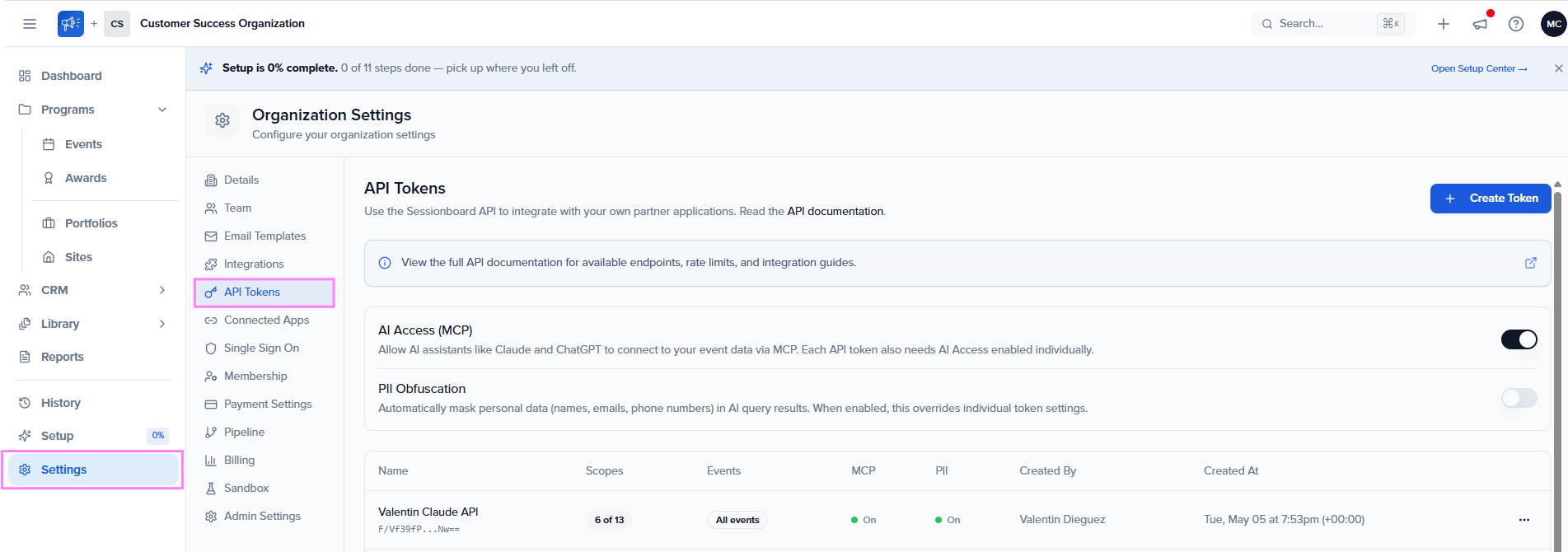
Section titled “How to generate an API token”1. Open Organization Settings
Section titled “1. Open Organization Settings”Log in to the Sessionboard admin dashboard and click Organization Settings in the sidebar.
2. Go to API Tokens
Section titled “2. Go to API Tokens”In the Organization Settings menu, select the API Tokens section.
3. Create a new token
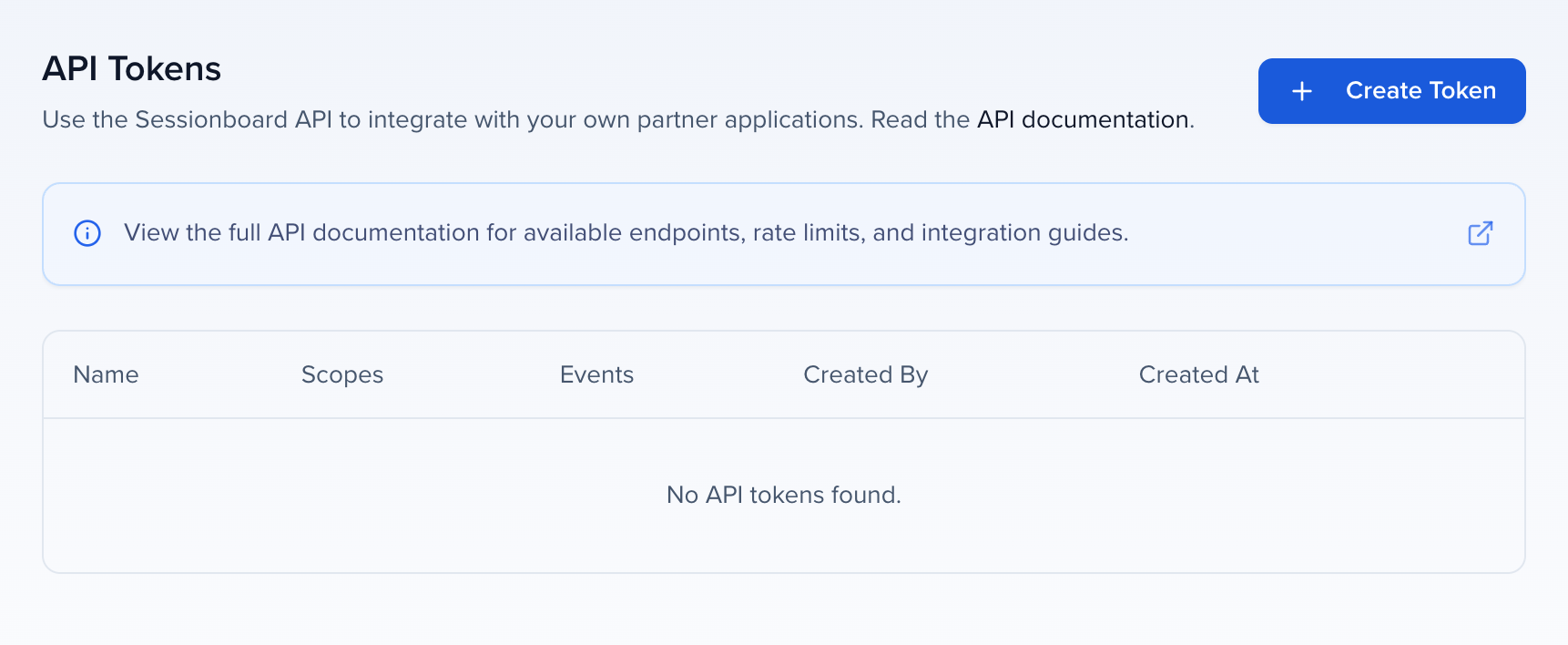
Section titled “3. Create a new token”Click Create Token. You’ll be asked for:
- A descriptive name (optional): e.g. “Tableau dashboard.” This helps you identify the token later when reviewing or revoking it.
- Permissions: see the next section.
- Event restrictions (optional): limit the token to specific events instead of your whole organization.
4. Choose token scopes
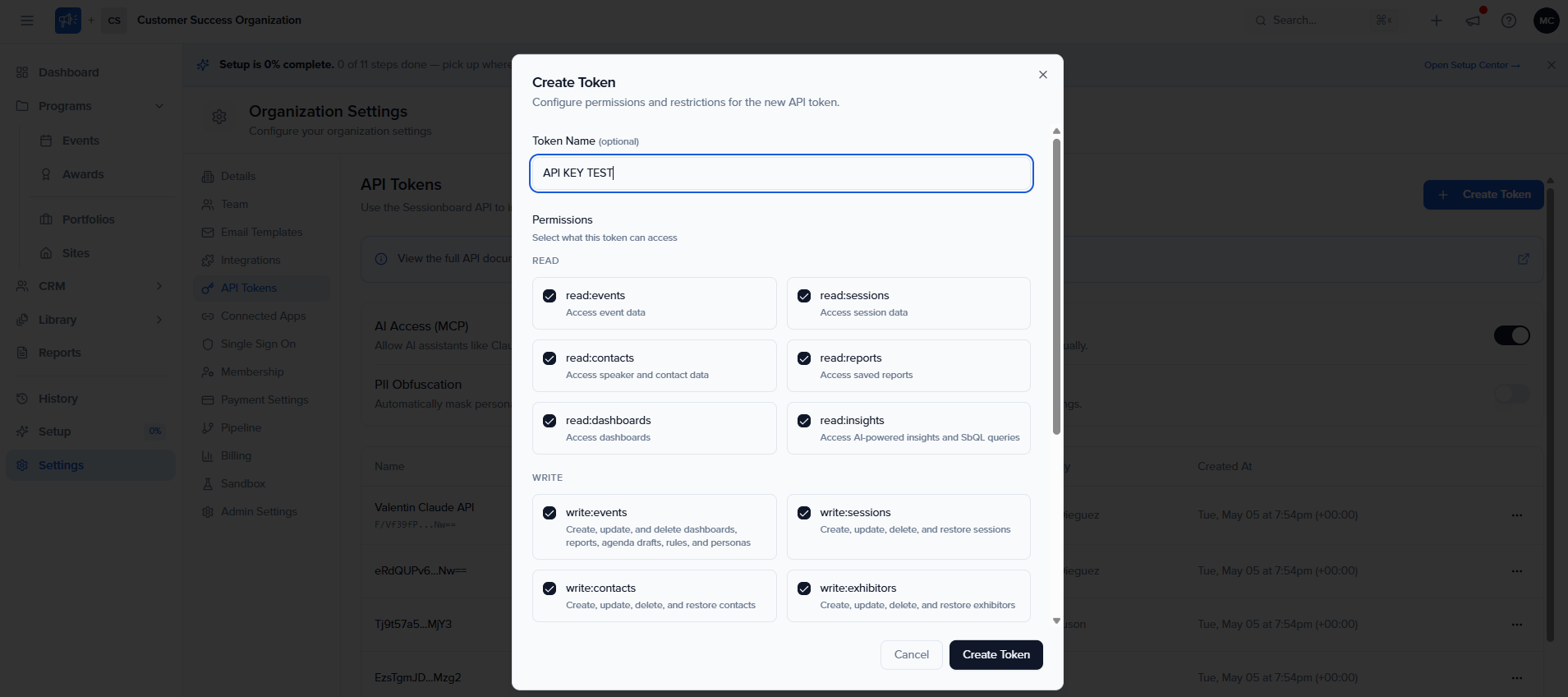
Section titled “4. Choose token scopes”API tokens use scopes to control what the token can read or write. Every scope is its own checkbox — read scopes included — so grant only what your integration actually needs.
| Read scope | What it does |
|---|---|
| read:events | Event data. |
| read:sessions | Session data. |
| read:contacts | Speaker and contact data. |
| read:reports | Saved reports. |
| read:dashboards | Dashboards. |
| read:insights | SbQL and the query APIs (/v1/insights/...). A token needs this scope to call them. Claude, ChatGPT, and the other assistants do not use a token. |
| read:transcriptions | Session transcriptions and recordings — the /transcriptions, /content and /content/documents routes that expose live transcripts, recaps and event reports. |
| read:media | Uploaded media items and their transcription status. |
| read:awards | Awards programs, categories, rounds, promo codes, submissions, and reviews. |
| Write scope | What it does |
|---|---|
| write:events | Create, update and delete dashboards, reports, agenda drafts, rules and personas. |
| write:sessions | Create, update, delete and restore sessions. |
| write:contacts | Create, update, delete and restore contacts. |
| write:exhibitors / write:sponsors | Create, update, delete and restore exhibitor and sponsor records. |
| write:fields | Create, update and delete custom fields. |
| write:metadata | Rooms, tracks, tags, formats, levels, languages and statuses. |
| write:transcriptions | Create, update and delete session transcriptions and recordings. |
| write:media | Upload media files for automatic transcription. |
| write:awards | Create, update, and delete Awards programs, categories, rounds, and promo codes, and update and delete submissions. A token created with no scopes cannot write Awards data. |
For your security team’s SIEM, check Audit log export (read:audit_logs) instead. It replaces every other scope and creates a token that only reads your organization’s logs — see Export audit logs to a SIEM.
5. Copy the token immediately
Section titled “5. Copy the token immediately”This is intentional behavior, we never store the full token in a way that can be displayed back to you, so even Sessionboard staff can’t recover it for you.
Using your token
Section titled “Using your token”Include the token in the x-access-token header on every API request. Example:
bash
curl -X GET https://public-api.sessionboard.com/v1/events -H “x-access-token: YOUR_TOKEN”
Use https://public-api.sessionboard.com for US-hosted organizations, https://public-api-eu.sessionboard.com for EU-hosted organizations, and https://public-api-me.sessionboard.com for Middle East–hosted organizations.
Where to find your Event ID and Organization ID
Section titled “Where to find your Event ID and Organization ID”Integration partners and your own developers often ask for two numbers alongside the token. Both are in the address bar:
- Event ID — open the event and read the number after
/event/in the URL, for example…sessionboard.com/event/1234/dashboard→1234. It is the sameidthe API returns fromGET /v1/events. - Organization ID — on an organization page (the Events list, Organization Settings) read the number after
/org/, for example…sessionboard.com/org/56/events→56.
The token itself is already tied to your organization, so most partners need only the Event ID. Credentials a partner issues — a client ID, secret, or their own event key — come from that partner’s admin console, not from Sessionboard; the connector pages under Apps say which ones each integration asks for.
Connecting AI assistants (Claude, ChatGPT, and other MCP clients)
Section titled “Connecting AI assistants (Claude, ChatGPT, and other MCP clients)”Claude, ChatGPT, Microsoft Copilot, and Google Gemini connect by signing you in. That is OAuth. You do not generate a token for them, and Sessionboard does not show an MCP switch on the token or the organization.
A token is for a script or integration that calls the public API directly, with the x-access-token header. To query reports and SbQL that way, include read:insights. A token created with no scopes is the older full-access form and can call those routes too. A token that lists scopes and leaves read:insights off cannot. Write scopes such as write:sessions are separate, and only matter when the caller should change data.
The hosted assistant URLs (https://mcp.sessionboard.com/mcp and the EU and Middle East hosts) accept the OAuth sign-in only. Pasting an API token into Claude or ChatGPT will not connect.
Security and best practices
Section titled “Security and best practices”- Treat responses as personal data. API responses, including report and SbQL query results, return contact details such as emails and phone numbers in full. Only give a token to an integration you trust with that data.
- Scope tokens narrowly. Generate separate tokens for separate integrations and grant only the scopes each one actually needs. A read-only Tableau dashboard doesn’t need write scopes; a sync job that only updates sessions doesn’t need write access to contacts.
- Restrict to specific events when possible. If a token only needs access to one event, scope it that way rather than giving it organization-wide access.
- Rotate tokens periodically and revoke them as soon as an integration is decommissioned. A token stops working when the person who created it is removed from the organization or set to Inactive, and works again if they are reactivated, so create integration tokens under an account that will stay.
- Never commit tokens to source control or share them in chat. If a token is compromised, revoke it immediately from the API Tokens settings page and generate a replacement.
- Audit log. All API calls are recorded with source, method, response time, and token ID. Organization administrators can review this log at any time.
Managing and revoking tokens
Section titled “Managing and revoking tokens”From the Organization Settings → API Tokens page you can:
- Rename a token
- Edit its scopes and event restrictions
- Revoke a token immediately (any integration using it will stop working)
Revoking a token cannot be undone. If you need to give the same integration access again, generate a new token and update the integration’s configuration with the new value.
Rate limits and caching
Section titled “Rate limits and caching”The Sessionboard API enforces rate limits to ensure fair usage. Build your integration to handle 429 Too Many Requests responses with exponential backoff. Some endpoints (individual session retrieval and session search) are cached for 3 minutes, so changes you make in Sessionboard may take up to 3 minutes to appear in API responses. Webhook notifications are not subject to this cache and are delivered in real time.
Need help?
Section titled “Need help?”- Full API documentation: API Docs: Introduction
- Authentication reference: API Docs: Authentication
- MCP Server reference: API Docs: MCP Server
- Rate limiting: API Docs: Rate limiting
If your integration isn’t behaving as expected after following this guide, reach out to your Sessionboard account manager or support team and include the token name (never the token value) along with the error message you’re seeing.
Frequently asked questions
Section titled “Frequently asked questions”I don't see Organization Settings or API Tokens
API Tokens appears only for people whose organization role includes Can update organization settings (under Organization Settings in the role’s permissions). The default Admin role has it; Admin Lite does not.
- Ask someone with the Admin role in your organization to open Settings > Team.
- They can change your organization role to Admin, or to a custom role with Can update organization settings switched on (custom roles are on the Permissions tab).
- Reload Sessionboard and open Settings > API Tokens.
If no one in your organization has the Admin role, email support@sessionboard.com. See Organization roles.