

Does Sessionboard offer conditional logic?
Yes. Conditional logic is called question rules in Sessionboard. A rule shows or hides a question — or a whole layout block — based on how an earlier question was answered, so one form can take in several kinds of submission.
Why use it
Section titled “Why use it”Answer rules let you show or hide individual options within a multi-select field based on what a submitter chose elsewhere in the form. Applied to Tags and Track, they guide submitters to the right topic tags for their track automatically, keeping your taxonomy clean without extra instructions. Rules are enforced both in the portal and on the server, so the saved data always reflects what was visible. Duplicated forms and cloned events carry the rules forward, remapped to the new catalog, so setup work is not lost.
Where question rules are available
Section titled “Where question rules are available”| Form | Question rules |
|---|---|
| Session submission forms | Yes |
| Portal forms (follow-up forms assigned as tasks) | Yes — on questions and on layout blocks |
| Awards submission forms | Yes |
| Sponsor and exhibitor intake forms | No |
What can trigger a rule
Section titled “What can trigger a rule”A rule reads the answer to a question that appears above the one being shown or hidden. The triggering question must be one of these field types:
- Dropdown (single or multi-select)
- Checkbox
- Number
- Country
If a question has none of these above it, the dialog says This question has no possible conditions — drag a dropdown, checkbox, number, or country question higher up the form and reopen the rule.
Set up a rule
Section titled “Set up a rule”- Add every question to the form and Save before you start writing rules.
- Hover over a question, open its ⋯ menu, and choose Use question rules.
- You can build the rule from either end of the relationship:
- On the later question — under Show this field when, pick the earlier question, choose is or is not, and tick the answers that should reveal it. For example, Provide your Member ID shows when Are you a member? is Yes.
- On the earlier question — under This question controls, click Add condition, choose is or is not, tick the answer, then pick every later question that answer should reveal. For example, Format is Workshop shows Duration, Room setup, and Maximum attendees in one step.
- Click Save in the dialog, then save the form.
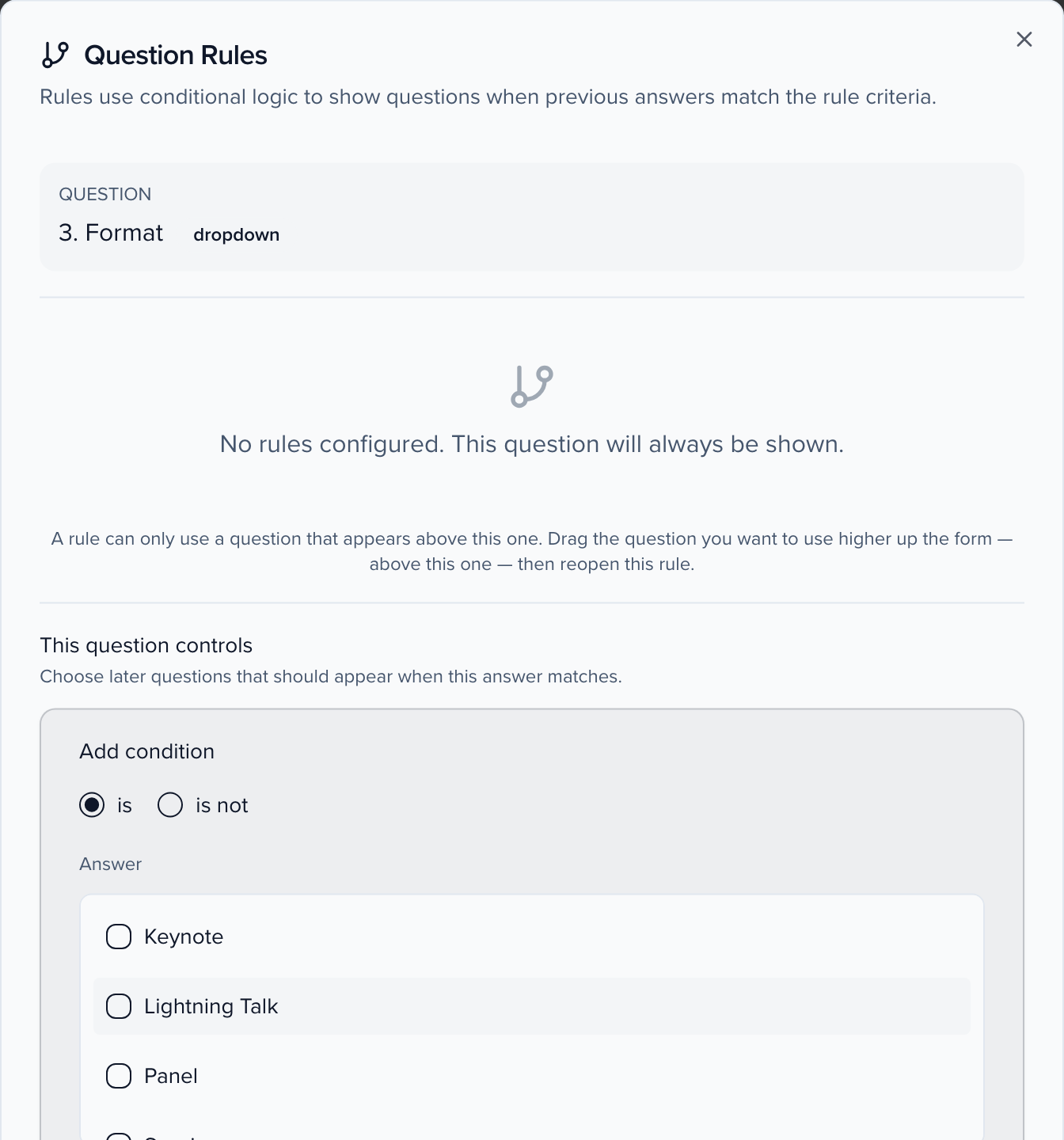
A question with no rules is always shown. A question with several rules is shown when any one of them matches.
Show or hide individual answer options
Section titled “Show or hide individual answer options”On a dropdown question, the dialog has a second tab, Answer option rules, that hides or shows individual answer options based on earlier answers. Options without rules are always shown. Build a rule once and copy it to other options from the option’s menu.
This works on the dropdowns whose answers come from Program settings too: Tags, Track, Format, Level and Language. The tab lists that catalog’s answers, so a renamed Track still shows its tracks. For example, to show only the tags that fit a track, open the rules on Tags and give each tag a rule such as Track is AI. A submitter who picks AI sees those tags plus any tag without a rule.
- If a submitter changes an earlier answer and a selected option no longer applies, it is cleared and they see a short notice.
- A rule that names an answer you later delete (for example, a removed track) is flagged in the dialog so you can review its conditions.
- Answer option rules are kept when you duplicate the form or clone the event.
- Rules apply on the submission form only. Admins and reviewers can still set any option.
Rules only show and hide
Section titled “Rules only show and hide”Question rules never write a value into another field. To set other fields on the same record when an answer is saved — a session room that sets capacity, a contact country that sets the point of contact — use an Assignment Field Rule. Use a Calculation Field Rule to write a number from other fields, or a formula field when that number should stay read-only.