

Create a portal for accepted speakers
Two ways to give accepted speakers their own experience. Pick by whether you want accepted speakers in a separate portal, or the same portal with tasks that only appear once they are accepted.
Option 1: A portal filtered on session status
Section titled “Option 1: A portal filtered on session status”The portal’s filters can read the status of a contact’s sessions directly, so the portal keeps itself up to date as you accept and decline.
- Open Program → Portals and click Create Portal. Give it a name, choose the Contacts portal type, and continue to Select Participants.
- Click Add filter and build two filters:
- Speaker — Is checked
- [Session] Session Status — Is — Accepted
- Click Done, check the table below the filters shows the people you expect, then Save Filters.
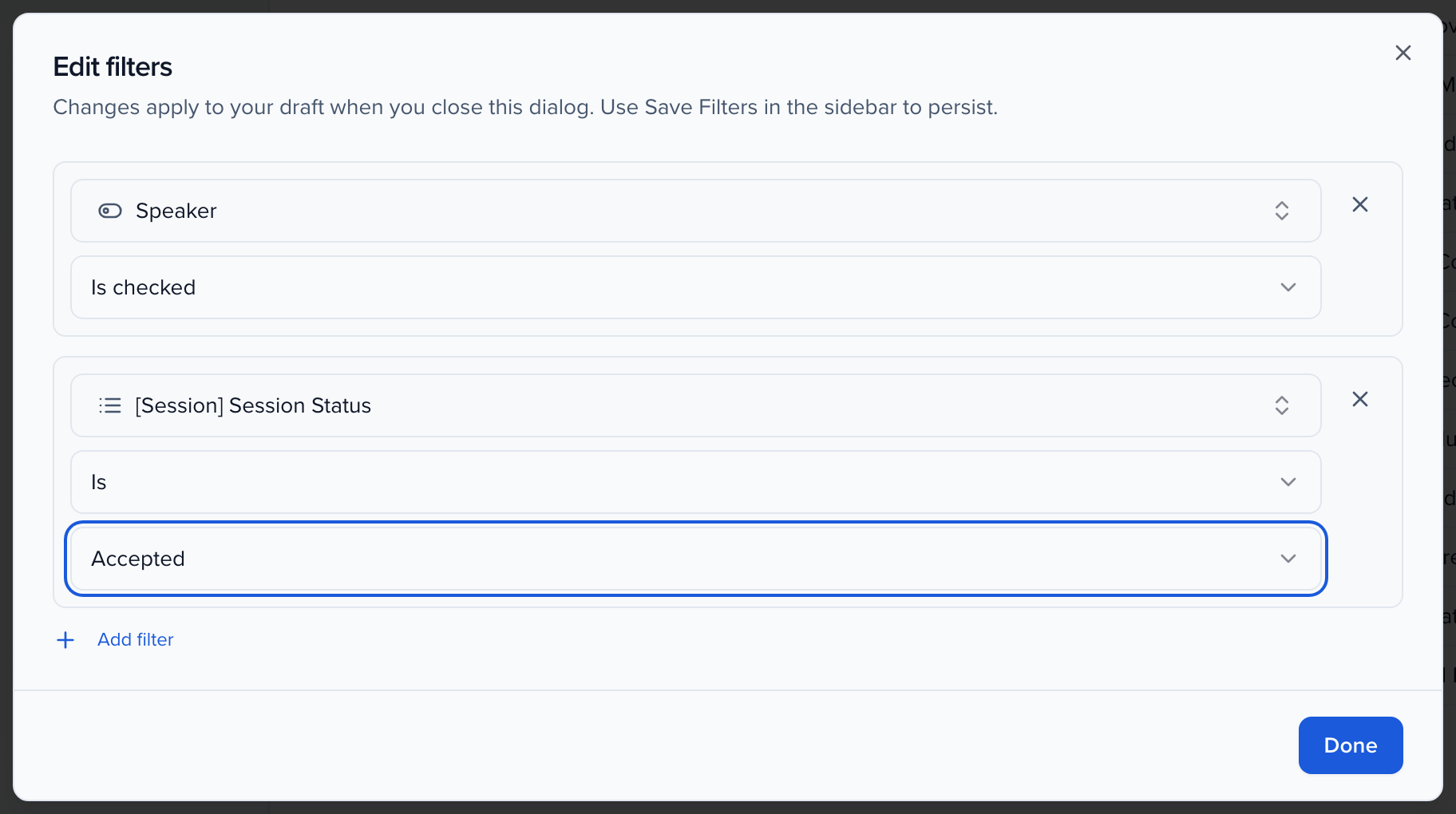
A contact matches when any session they speak on has the status Accepted (the list also offers Confirmed, Pending, Declined and the queue statuses, so the same pattern builds a pending-speakers portal). The moment you accept a session, its speakers move into this portal; nothing has to be flagged by hand. Because everyone belongs to exactly one portal, drag this portal above the general speaker portal on the Portals page so it wins the match — see order portals by priority.
Option 2: One speaker portal, tasks gated by acceptance
Section titled “Option 2: One speaker portal, tasks gated by acceptance”Keep a single portal for everyone with the Speaker role, and let the portal hide the work until a session is accepted.
- Create (or open) the Contacts portal filtered on Speaker — Is checked. It lists every speaker regardless of session status.
- On the Configuration step, turn Always Show Tasks off.
With that switch off, tasks, forms and file requests appear only to speakers whose session is accepted. A speaker whose session is still pending signs in, sees their submission, and gets no homework until the decision is made. Moderators, chairpersons and anyone without an accepted session see an empty task list. See Configuration in Portals 101.
Which one?
Section titled “Which one?”| You want | Use |
|---|---|
| Different welcome text, resources or branding for accepted speakers | Option 1 |
| Pending speakers to see their submission but not the tasks | Option 2 |
| The simplest setup | Option 2 — one portal, one switch |
If you were flagging accepted speakers with a custom checkbox field to drive a portal filter, replace it with the [Session] Session Status filter above; the checkbox had to be maintained by hand every time a session was accepted.