

Let participants see each other's details
A moderator often needs the speakers’ emails before the session; a chairperson wants to read the panel’s bios. The portal already shows who is on a session. How much more a participant can see is a per-portal choice.
What every portal user sees
Section titled “What every portal user sees”Open a session from the portal and the Participants tab lists everyone attached to it, grouped by role — speakers, moderators, chairpersons, sponsors and exhibitors — with their name and headshot. The tab appears whenever a session has participants; no setting is needed.
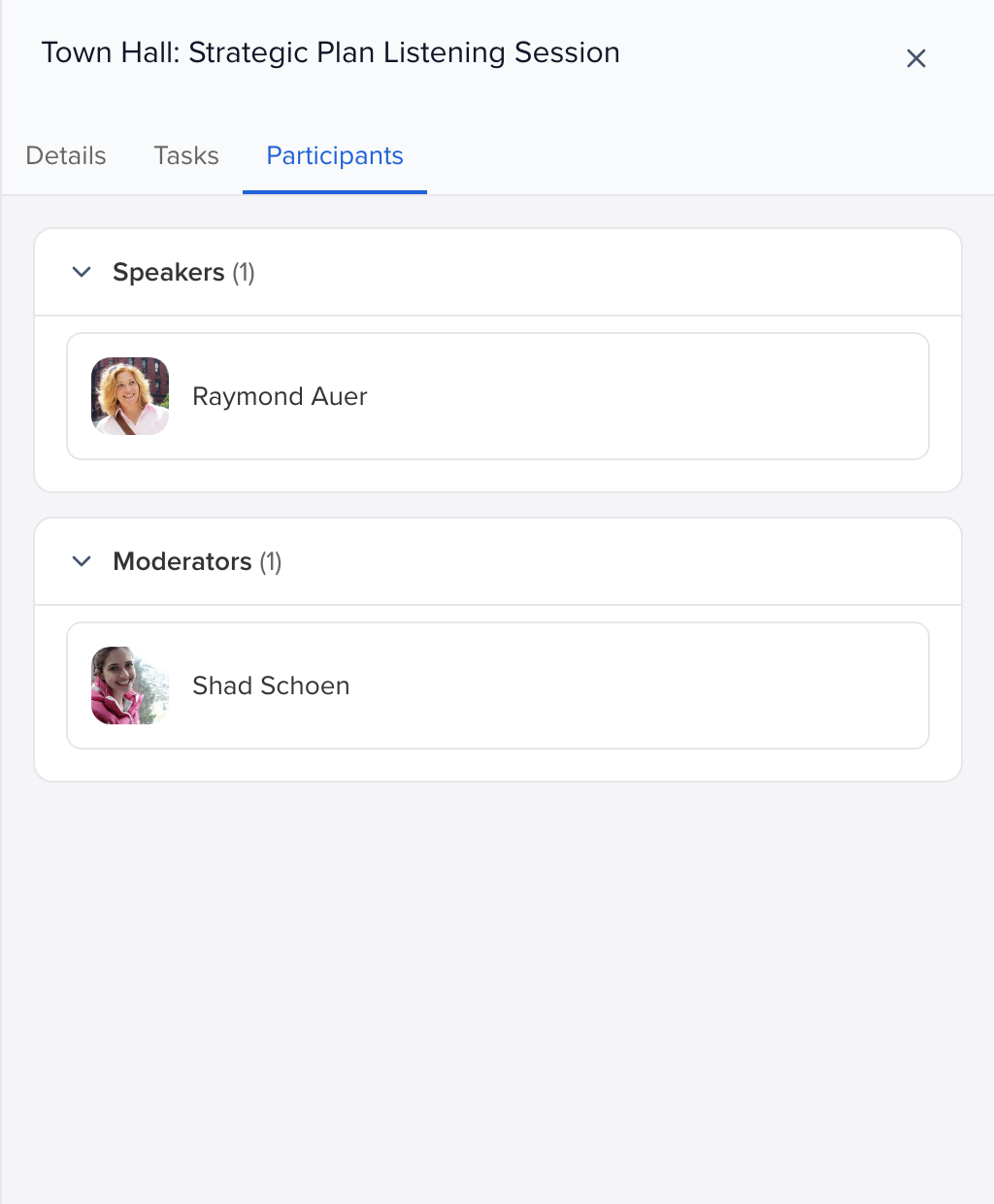
Names on this list are not clickable until you turn on the setting below.
Let them open a participant’s details
Section titled “Let them open a participant’s details”- Open Program → Portals, click the portal’s ellipsis (⋮) and choose Edit Settings.
- In the Configuration step, turn on Manage Related Submissions and Participants. Participants on the list become clickable and open a details view. A person’s own record has Details and Tasks sub-tabs; a co-participant’s has Details only.
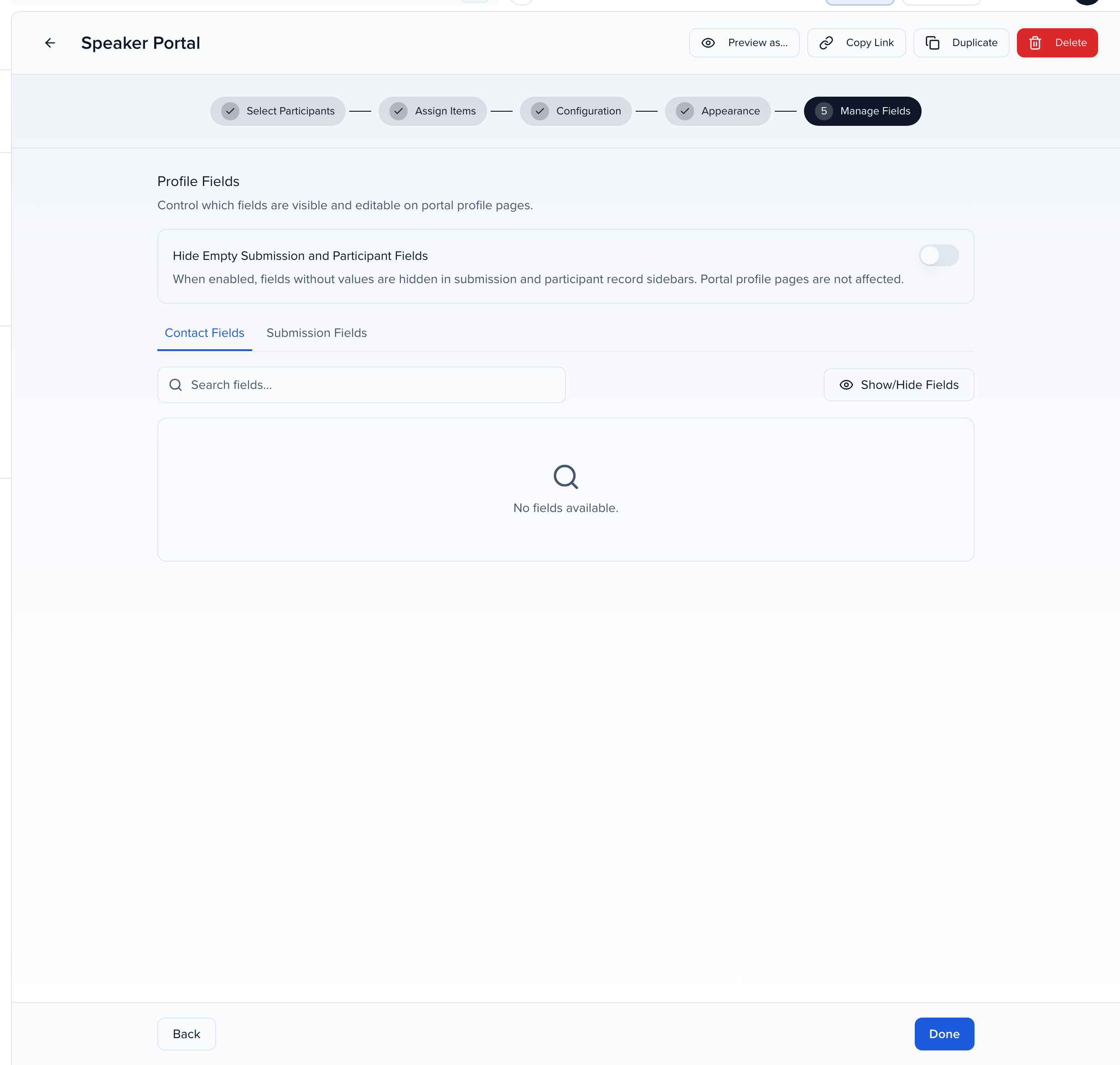
- Go to Manage Fields and open the Contact Participants tab (Group Participants for sponsor and exhibitor records). Show/Hide Fields chooses which fields appear on a co-presenter’s record — add Email, Phone, Biography or whatever the role needs, and leave out anything private.
- Switch Locked on for each field you expose. Locked fields are view-only; unlocked fields can be edited by any portal user who opens the record. We recommend locking all of them so people can read, not change, each other’s information.
- Save, then check the result with View portal as… as one of the participants.
What they see once it is on
Section titled “What they see once it is on”- The participant’s record shows the fields you exposed, in the order you set them.
- If Email is one of them, a mail icon appears under the name; clicking it opens a new message to that address.
- Tasks stay private: a portal user sees the Tasks sub-tab only on their own record, never on a co-participant’s, because tasks can hold promo codes and private instructions.
The same setting also lets portal users edit the session’s own fields, subject to the locks in the Submission Fields tab, and — with Add Participants to Submissions on — add new people to the session. See Portals 101 for the full list of Configuration settings.