

Session participant roles
Within Sessionboard, there are various roles that a contact can undertake based on their involvement with your event. Below, you will find more information on the various roles available to you within Sessionboard.
Session Submitter
Section titled “Session Submitter”-
Role: The person who submits the session proposal or abstract.
- The Session Submitter is created on pg 2. of the submission form.
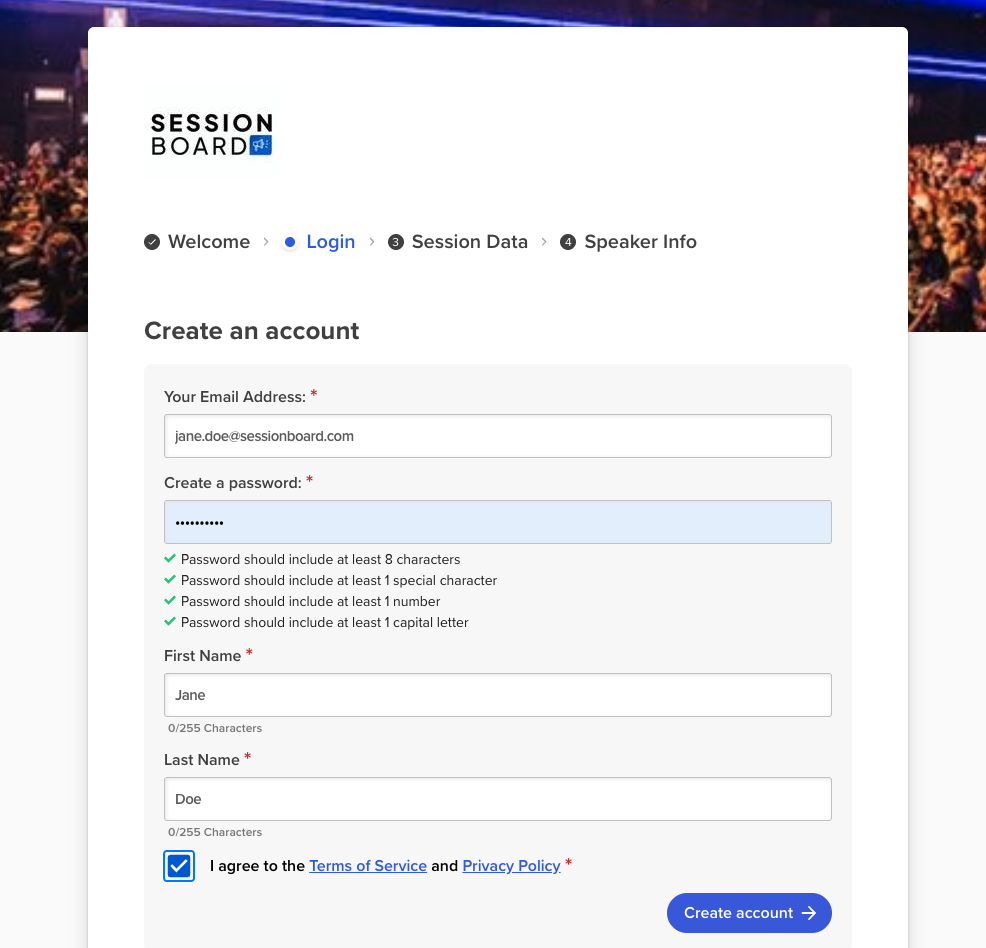
- The Session Submitter is created on pg 2. of the submission form.
-
Responsibilities: Provides initial session details (title, description, format, etc.).
-
Additional Notes:
- They may or may not participate in the session itself as a speaker.
- Admin users can create a contact and assign it as a Session Submitter to a session.
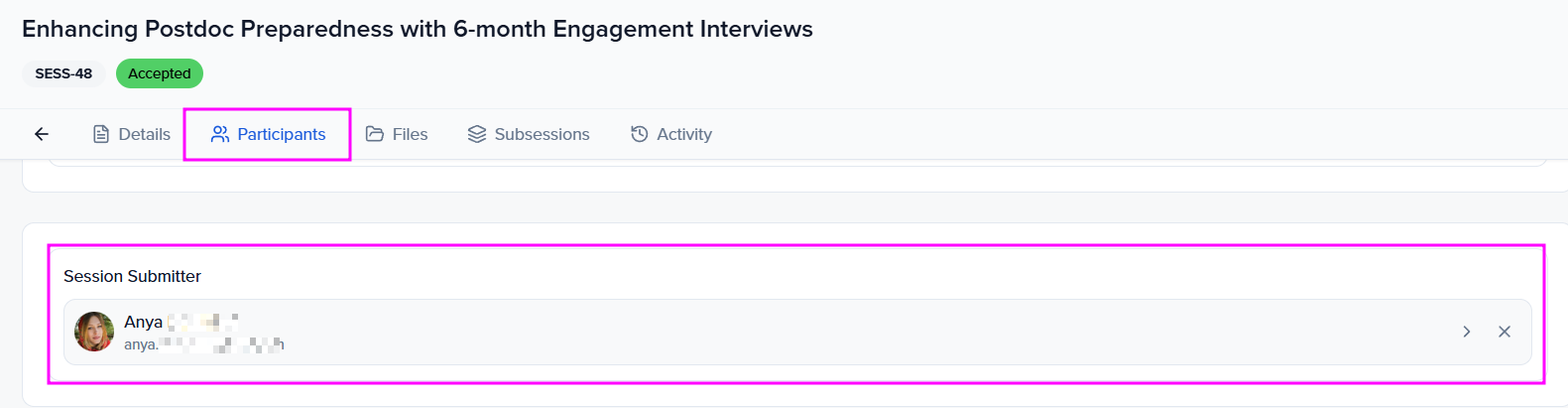
- Admins can send emails to the Session Submitter from either the Sessions or Contact module.
- Session Submitters can also be assigned additional tasks to complete.
Speaker(s)
Section titled “Speaker(s)”-
Role: A person who presents during the session.
-
Responsibilities: Delivers content, talks, or panel contributions.
-
Additional Notes:
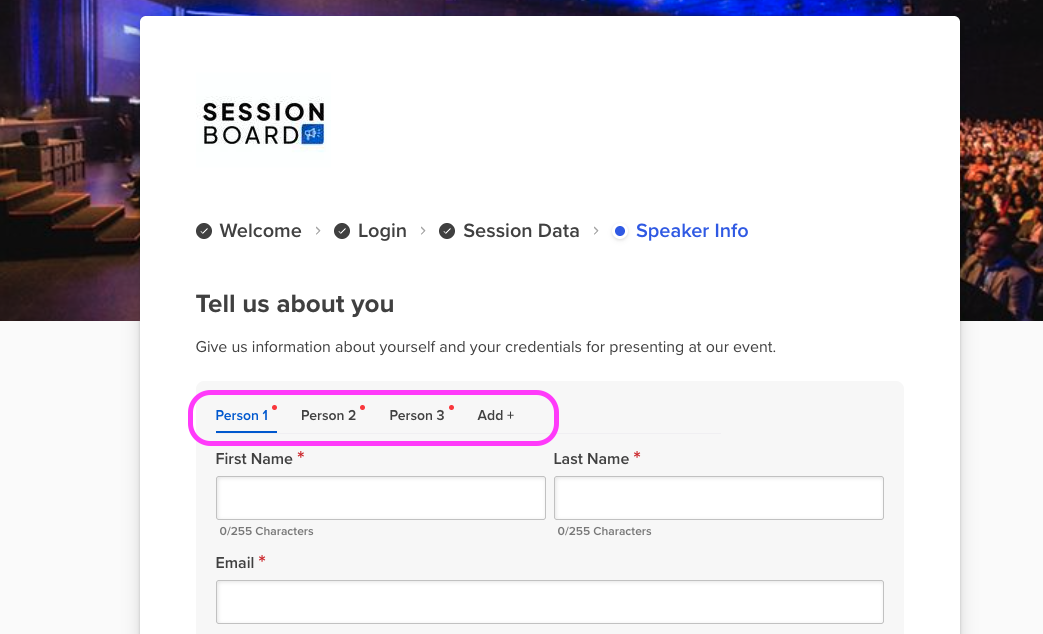
- There can be multiple speakers in one session. Speakers are created through the Session Submission Form on pg. 4.
- Admin users can create a contact and assign it as a Speaker to a session.
- Communications (emails or SMS messages) can be sent to all speakers or select individual speakers within a session.
- There can be multiple speakers in one session. Speakers are created through the Session Submission Form on pg. 4.
-
Speakers can be assigned tasks to complete.
Chairperson
Section titled “Chairperson”-
Role: Oversees the session from a leadership or organizational perspective.
-
Responsibilities: Ensures the session runs smoothly, may coordinate speakers, or ensure tasks are being completed by session participants.
-
Additional Notes:
- Often used in academic or formal conference settings; sometimes overlaps with moderator responsibilities, depending on the event.
- Event admins assign a contact as a Chairperson to a session. Submitters can add one only on a form that ticks Chairperson under Participant roles — most forms leave it unticked.
- A Chairperson can be located within the Contacts module. They will not exist within the Speakers module.
- Emails can be sent to Chairpersons from the Sessions module (select session(s) → Send → Send Emails → Who should receive this email → Chairperson / Participants / Everyone) or from the Contacts module.
- A Chairperson can be assigned tasks to complete.
Moderator
Section titled “Moderator”-
Role: Facilitates the session (i.e., Panel Discussion).
-
Responsibilities: Introduces speakers, keeps time, and manages audience Q&A or discussions.
-
Additional Notes:
- Event admins assign a contact as a Moderator to a session. Submitters can add one only on a form that ticks Moderator under Participant roles — most forms leave it unticked.
-
A Moderator can be located within the Contacts module. They will not exist within the Speakers module.
- Emails can be sent to Moderators from the Sessions module (select session(s) → Send → Send Emails → Who should receive this email → Moderators / Participants / Everyone) or from the Contacts module.
- A Moderator can be assigned tasks to complete.
Custom participant roles
Section titled “Custom participant roles”The three roles above are a starting point. When your program needs another part — a co-author on an abstract, a panelist, a discussant — add it under Program → Settings → Roles with Add → Add Role (program settings: Roles). Give it a singular and plural name, pick the Category it maps to (Speaker, Chairperson, or Moderator — that is how the role is represented in integrations and embeds), and choose whether Manage in Contacts gives it its own page under CRM.
Once the role exists it shows up in three places:
- Submission forms — in the form builder’s Participant Information step, under Participant roles, tick the role so submitters can add people in it, and set a Min and Max per submission (participant information).
- The session editor — the Participants tab gets a block for the role, so your team can add, order, and remove people in it the same way as speakers (assign them to a session).
- The portal — people added in a new role can sign in to the portal for their session, and are counted as active portal users.
Participant roles vs team roles
Section titled “Participant roles vs team roles”Sessionboard has two different things called a role, and they live in different places:
| Participant roles | Team roles | |
|---|---|---|
| Answers | Who is this person on a session? | What may this person do in the admin app? |
| Examples | Speaker, Chairperson, Moderator, Co-author | Admin User, Session Manager, Evaluator, Track Chair |
| Where they live | Program → Settings → Roles | Event Team → Permissions (and Org Settings → Team → Permissions) |
| Who holds them | Contacts, assigned on the session’s Participants tab or through a submission form | Team members, chosen when you Invite User |
| What they control | Which block a contact sits in, which portal they use, who an email to “Chairpersons” reaches | Permissions, field visibility, which statuses can be set, and an optional session filter |
A speaker is never a team member just because they are a speaker, and a Track Chair never appears on a session because they hold that team role. Custom team roles are covered in custom roles for the event team.