

iMIS
iMIS is the association management system from ASI. Connect Sessionboard to your iMIS site to keep member records up to date with what your members do in Sessionboard: the sessions they speak in, the reviews they complete, the events they attend and the awards they enter.
Sessionboard connects through ASI’s supported REST API, using a dedicated iMIS user that you create and control. It reads member status from iMIS so you can see it on speakers and reviewers. It also writes each person’s Sessionboard activity to their iMIS record, in panels your iMIS admin sets up.
How data flows
Section titled “How data flows”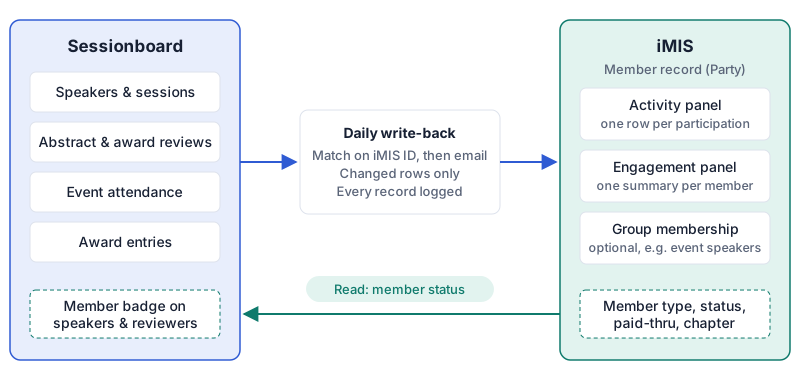
Sessionboard sends activity to iMIS once a day and reads member status back. It never changes membership fields in iMIS.
What syncs
Section titled “What syncs”Each object is turned on separately, and all of them start off.
Sessionboard to iMIS
Section titled “Sessionboard to iMIS”| Sessionboard | Where it goes in iMIS | What is written |
|---|---|---|
| Activity: Spoke, Reviewed, Attended, Award entry | A multi-row panel on the member, for example SB_Activity | One row per participation: activity type, title (session, review or award program), event, date, and a Sessionboard ID. Sessionboard uses the ID to update the same row instead of adding a duplicate. |
| Engagement summary | A single-row panel on the member, for example SB_Engagement | Times spoken, reviews completed, events attended, award entries, last activity date, and a link to the person in Sessionboard. |
| Groups (optional) | iMIS groups you name | Adds people to a group, such as “2027 Annual Meeting Speakers”, so you can use them in iMIS queries and communications. |
iMIS to Sessionboard
Section titled “iMIS to Sessionboard”| iMIS | Where you see it in Sessionboard |
|---|---|
| Member type, status, paid-thru date, chapter | On the person’s record, as a member badge on speakers, reviewers and guests. Sessionboard looks up only the people in your events, never your full membership list. |
How write-back behaves
Section titled “How write-back behaves”- Membership is never changed. Sessionboard does not change member type, status, join or paid-thru dates, chapter, dues or orders, and it never deletes iMIS records.
- People are matched before anything is written. Once linked, a person is matched on their iMIS ID. Anyone not yet linked is matched by email. Anyone who can’t be matched safely is skipped and logged. Sessionboard never guesses.
- The first run is a preview. You see every row that would be written before anything reaches iMIS.
- Only changed rows are sent. The daily run sends only rows that changed since the last write, one request at a time, within ASI’s API usage guidelines.
- Every run is logged. Each record is listed as created, updated, skipped or failed, with the reason.
- You control access. Sessionboard connects as an iMIS user you create. Disable that user in iMIS and the connection stops.
What you need to provide
Section titled “What you need to provide”- Your iMIS site URL: the address your staff use to sign in to iMIS, for example
https://members.yourassociation.org. - A dedicated iMIS user for Sessionboard: a user with the
RemoteServicerole. Don’t use a staff login. - The two panels on the member record: your iMIS admin creates the Activity and Engagement panels from the field list Sessionboard support sends you. If you already track this kind of activity in a panel, send us its name and fields and we map to it instead.
- Which objects to turn on: Activity, Engagement summary, Groups and member status are each turned on separately. If you use Groups, tell us the group names.
- How people are matched: iMIS ID or email, and whether the iMIS ID is already stored on your people in Sessionboard.
- Any requirements from ASI or your iMIS contract: some sites need an extra licence seat for an API user, an IP allowlist, or ASI’s Partner Integration Support Form. Your iMIS administrator or ASI support can confirm. We send our IP addresses and fill in the form if needed.
Connect iMIS
Section titled “Connect iMIS”iMIS is set up at the organization.
Open iMIS
Go to Apps in your organization and click iMIS.
Save the connection
Enter the iMIS Site URL, the Service account username and the Service account password for the user you created, then save the connection. Point it at your sandbox first if you have one.
Choose what syncs
Email support@sessionboard.com with your panel names, the objects to turn on and your matching rule. We set up the mapping and run the first preview with you.
Approve and go live
Check the preview against a few people you know. Once you approve, write-back runs daily. If you started on a sandbox, switch the connection to your live site.
Common questions
Section titled “Common questions”Does Sessionboard create new people in iMIS? Not by default. Activity is written only for people who already exist in iMIS. Anyone who can’t be matched is listed in the run log so your team can decide what to do.
Can staff edit the rows Sessionboard writes? Yes, but the next run overwrites a row when its source changes in Sessionboard. Keep your own notes in fields Sessionboard doesn’t write.
What happens if we disconnect? Everything already written stays in iMIS. Sessionboard stops sending updates.
Still having issues?
Section titled “Still having issues?”Email support@sessionboard.com with the connection name and the person or record that didn’t sync. Don’t send your iMIS password. If it may have been exposed, change it in iMIS and update the connection.