

Exhibitor intake form
The intake form is how exhibitors put themselves into Sessionboard. An exhibitor opens the link, fills in their company and their own details, and on submit the group and its primary contact are created in your event and the contact is in the portal. You set it up once under CRM → Exhibitors → Intake Form.
Set up the form
Section titled “Set up the form”Go to CRM → Exhibitors → Intake Form. The builder has four steps in the left rail; move through them with Next and click Save at the top right when you are done — nothing is published until you save.
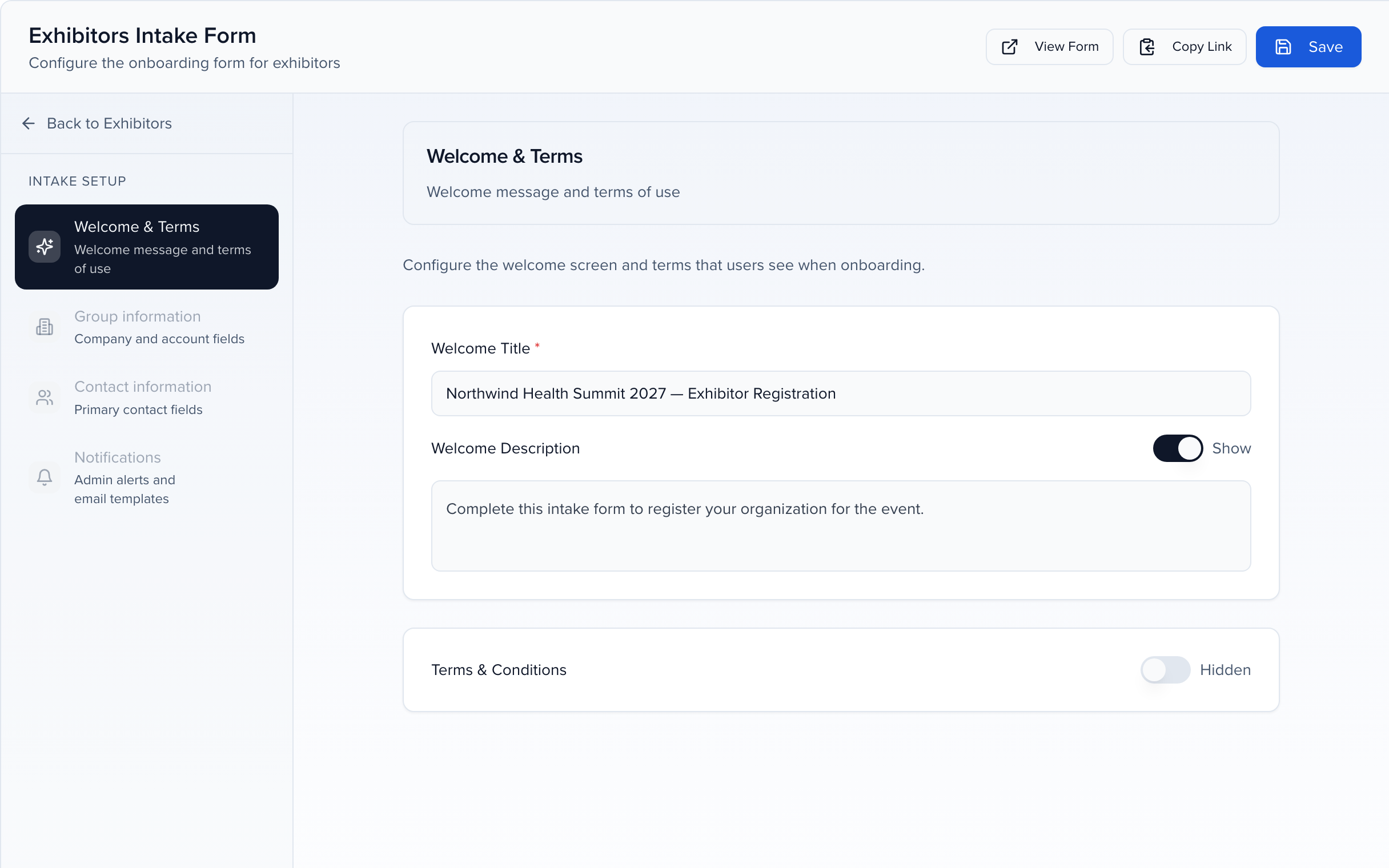
Welcome & Terms
What an exhibitor sees first. Set the Welcome Title, switch the Welcome Description on and write the short explanation under it, and switch Terms & Conditions on to require acceptance of your exhibitor terms before the form opens.
Group information
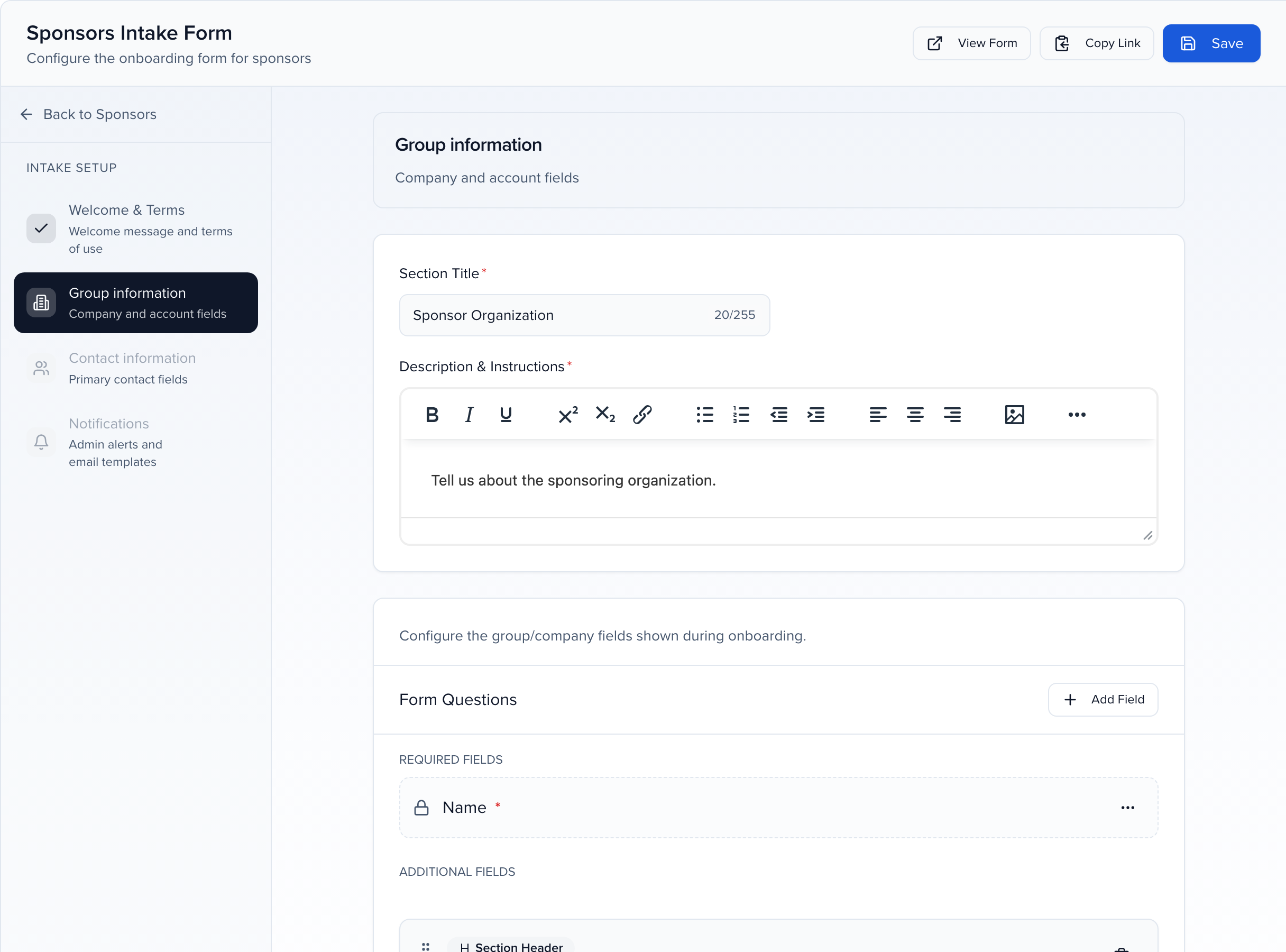
The company. Give the section a Section Title and Description & Instructions, then build the Form Questions. Name is always required; Add Field offers every group field on the event — Booth Number, Website, address, social links and any custom group field you have created — plus section headers to break the page up. Drag fields to reorder them and use the Required switch on each.
Contact information
The person filling the form in, who becomes the group’s primary contact. First Name, Last Name and Email are always required; add Job Title, Mobile Phone or any other contact field the same way.
Notifications
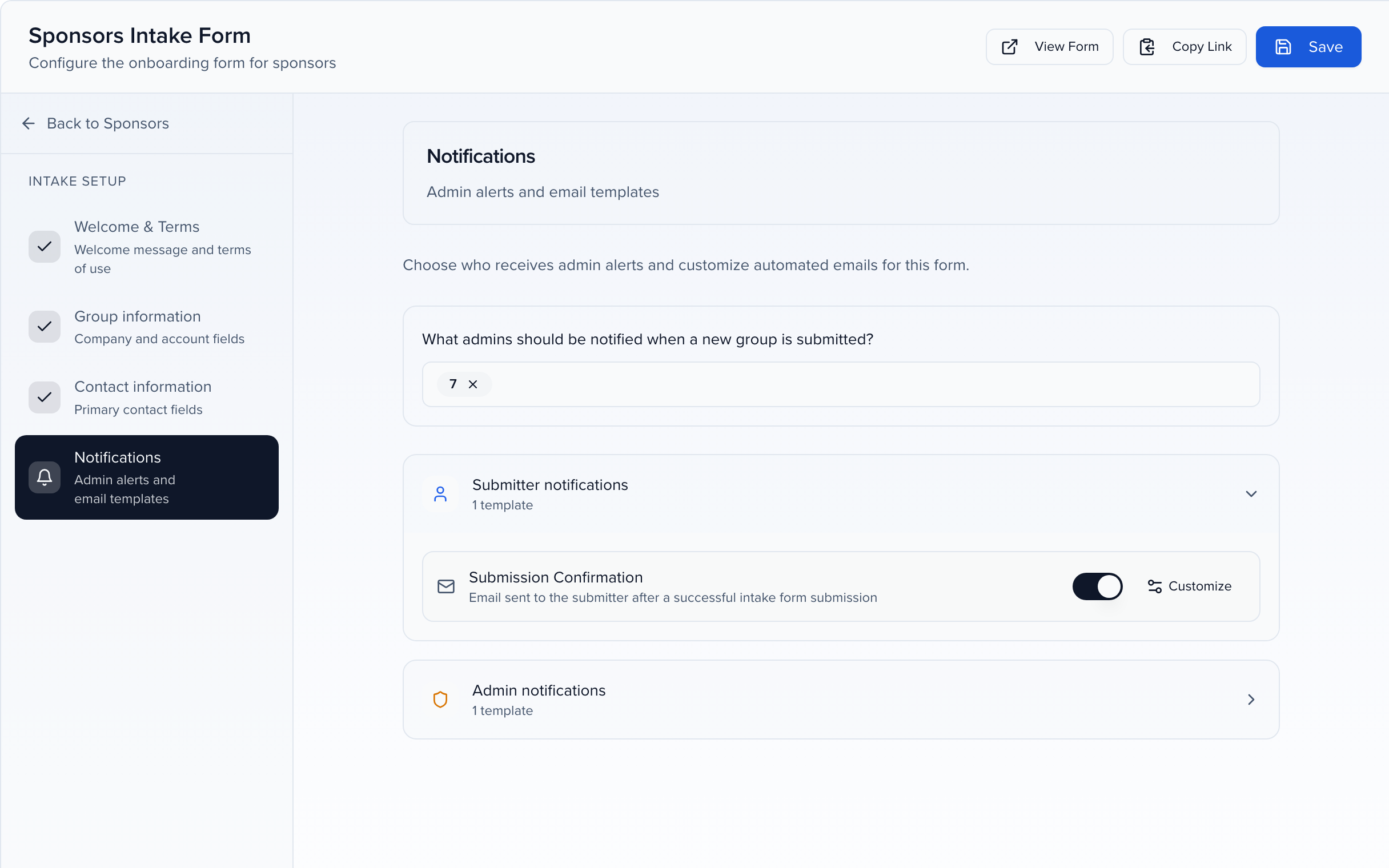
Who on your team hears about a new exhibitor, and what the exhibitor receives. Pick the admins under What admins should be notified when a new group is submitted?, then review the two templates: Submission Confirmation goes to the submitter (switch it off or Customize the wording) and the admin alert goes to the people you picked.
Share the form
Section titled “Share the form”Click Copy Link at the top of the builder and put the address in your exhibitor contract, booth confirmation email or exhibitor-services page. View Form opens it exactly as an exhibitor will see it. Each exhibitor who completes it creates one group and one contact — you never key in a confirmed exhibitor by hand.
After an exhibitor submits
Section titled “After an exhibitor submits”- The group appears on CRM → Exhibitors with the answers from Group information on its Profile tab, and the submitter on its CRM tab marked Primary.
- The submitter already has portal access. To add colleagues — booth staff, the marketing contact — open the group and use CRM → Add, then Actions → Manage Portal Access. See Create exhibitor groups & contacts.
- Booth graphics, logos, insurance certificates and staff lists are easier to collect afterwards as portal tasks, where you can chase each one — see Assign tasks.