

Send email from your own domain
Settings > Domains is where you set the address your emails come from, such as speakers@yourconference.org, instead of no-reply@notify.sessionboard.com. You choose the address, add a few DNS records at your domain provider (or send them to whoever manages your DNS), and the address starts sending the moment the records verify. For what changes once it is live, and for deliverability, see Add-on: custom email domain.
Why use it
Section titled “Why use it”Email that comes from your own domain lands in the inbox, carries your name, and passes your IT team’s SPF and DMARC checks — a shared Sessionboard address can do none of that for you. Setting up your domain is the single biggest deliverability fix available to you, and once Custom Sending Domain is on for your organization each address takes minutes rather than a support ticket: pick the address, hand the DNS records to whoever runs your domain, and Sessionboard checks them for you until they verify.
Where to find it
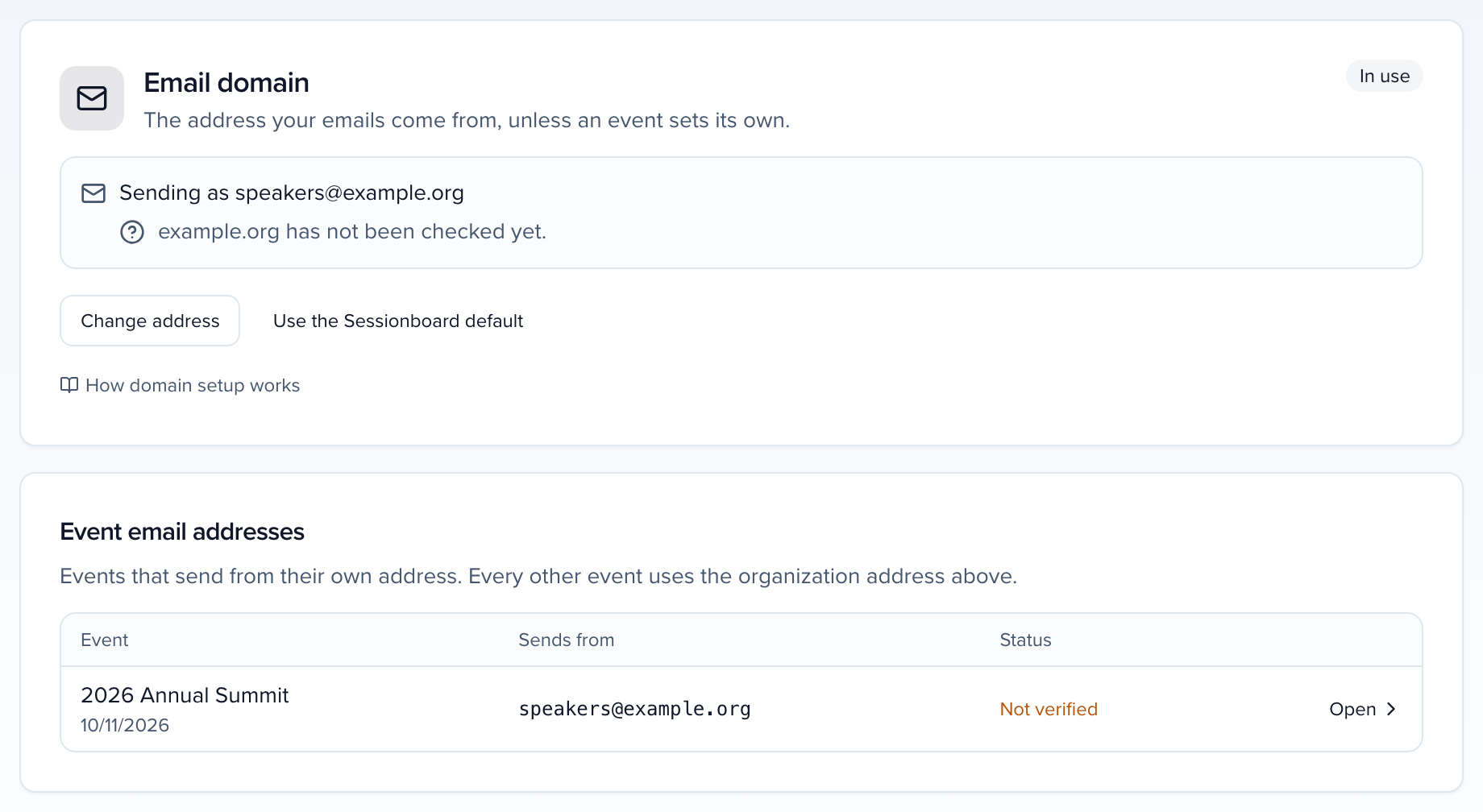
Section titled “Where to find it”Open Settings > Domains from your organization. The address you set here is the default for every event that does not set its own, for the emails your team composes and for portal sign-in links. Automatic notifications do not use it: see Which emails use which address. Below it, Event email addresses lists every event that sends from its own address, with its status and a link to that event’s Domains page. An event that uses the organization’s address is not listed, and the table is hidden when no event has its own.
You need the Update permission on organization settings.
Open the event, then Settings > Domains. An address set here is used for every email of this event, automatic notifications included. Without one, the emails your team composes for the event and its portal sign-in links come from the organization’s address, and automatic notifications come from no-reply@notify.sessionboard.com.
You need the Update permission on event settings.
If the page says Custom domains are not turned on, contact support@sessionboard.com.
Which emails use which address
Section titled “Which emails use which address”| Event has its own address | Event uses the organization address | |
|---|---|---|
| Emails your team composes: sends from the composer and campaigns | The event’s address | The organization’s address |
| Portal sign-in links | The event’s address | The organization’s address |
| Automatic notifications: reminders, assignment emails, message notifications, confirmations | The event’s address | no-reply@notify.sessionboard.com, with the event name as the sender name |
An event’s automatic notifications never fall back to the organization’s address. To send them from your domain, give that event its own address on its Domains page. Awards notifications are the exception: they belong to the awards program rather than an event, and send from the organization’s address unless a notification sets its own From (see Awards notifications).
Email domain
Section titled “Email domain”Choose the address
Enter the address under Send emails from and click Continue. Use an address on a domain your organization owns. It does not need its own inbox: replies go wherever your templates’ Replies sent to points.
Sessionboard checks the address before it sets anything up:
- Free email providers such as Gmail, Outlook.com or Yahoo cannot be authenticated. Use your organization’s domain.
- A domain that looks like a typo of a common one, such as gmial.com or yourconference.con, is caught here: the panel names the likely fix, and no records are created.
If the domain is already verified, for example by your organization or another of your events, the address is active straight away and you are done.
Add the DNS records
The panel lists the records to add at the DNS provider for your domain, each with a copy button. Next to each host is the short form, such as em1234 instead of em1234.yourconference.org. Most providers add your domain to whatever you type, so use the short form there.
- Add them as new records. Do not change your existing SPF, DKIM or MX records.
- If your provider offers a proxy (the orange cloud in Cloudflare), turn it off for these records.
Below the required records, an Optional row shows the domain’s DMARC record (_dmarc). When one is published it reads Found with its policy, such as p=reject; a subdomain covered by its parent’s record says so. When none is published it reads Not set and suggests v=DMARC1; p=none; with a copy button, because Gmail and Yahoo require DMARC for bulk senders. DMARC doesn’t affect verification and isn’t part of Copy instructions or Email to IT contact.
Do not manage DNS yourself? Use one of the hand-off buttons under the records:
- Copy instructions copies the records and step-by-step notes as plain text, ready to paste into Slack, Teams or a ticket.
- Email to IT contact sends the same instructions to up to five people, with an optional note, from Sessionboard. Replies come to you. The panel shows who the records were sent to and when.
- Open in my email app starts a message in your own email client with the instructions filled in.
Wait for verification
Sessionboard checks the records every 10 minutes for two weeks after you start, and emails the person who started the setup as soon as they verify. To check right away, click Check now. Each record shows Found or Not found.
New records can take up to an hour to appear. Until the domain verifies, your emails keep going out from the address you used before.
What the add-on covers
Section titled “What the add-on covers”Custom Sending Domain is about email. It covers the organization’s sending address, a separate address for any event, and the Send From field on email templates. Serving a Site from your own web address is separate: see Site domain, on the same page.
Send From and Reply To
Section titled “Send From and Reply To”The two addresses on an email follow different rules:
| Field | What it accepts |
|---|---|
| Send From | Only an address on your verified domain. Any name before the @ works, such as speakers@ or awards@, but an address on another domain is rejected. The field appears on an event’s email templates once that event has its own address. |
| Reply To | Any valid email address, on any domain — including a personal or shared inbox such as Gmail or Outlook. Replies go there, and it does not need to be verified. |
So to send from a Gmail or Outlook address, send from your verified domain and put that inbox in Reply To.
Reminders and other automatic emails
Section titled “Reminders and other automatic emails”Emails Sessionboard sends on its own for an event — such as the reminders evaluators get when their reviews are due in 7 days and in 1 day — go out from the address on that event’s Settings > Domains page, with the event name as the sender name. To change the address they come from, open the event’s Domains page and use Change address, or set up an address there if the event does not have its own.
Status
Section titled “Status”The badge at the top of the panel says where the setup is:
| Status | What it means |
|---|---|
| Not set up | No address is set here: emails send from the Sessionboard default address. |
| Organization address | Event pages only: the event has no address of its own. Emails your team composes and portal sign-in links come from the organization’s address, shown in the banner; automatic notifications come from the Sessionboard default address. |
| In use | An address support set up before Domains is sending. See Addresses set up before Domains. |
| Waiting on DNS | The records have been created and Sessionboard is waiting to see them. |
| Records not resolving | Sessionboard checked and some records are missing or have a typo. The rows marked Not found are the ones to fix. |
| Verified | Your domain is authenticated and emails are sending from your address. |
Addresses set up before Domains
Section titled “Addresses set up before Domains”If support set up your organization’s sending address before you could do it yourself, the organization’s Domains page shows Sending as your address, with a line underneath from Sessionboard’s hourly check of the domain:
| Line | What it means |
|---|---|
| yourconference.org is authenticated. Checked … | The domain is authenticated. Nothing to do. |
| yourconference.org has never been authenticated with SendGrid | The domain was never set up for sending, so your mail goes out without its own signature and receiving servers may reject it or file it as spam. Set it up on this page: click Change address, enter the same address, and add the DNS records as in Email domain. |
| yourconference.org is not authenticated with SendGrid | The domain was authenticated, but its records no longer check out, and mail from it is being rejected. Any failing records are listed underneath. Send them to whoever runs your DNS, or contact support. |
| SendGrid didn’t answer the last check of yourconference.org | The last check got no answer. It is retried every hour, so this usually clears on its own. |
| yourconference.org last checked … that is too long ago to rely on | The domain has not been checked for a long time. If it persists, contact support. |
| yourconference.org has not been checked yet | The first check has not run yet. |
Cancel a setup
Section titled “Cancel a setup”While a setup is Waiting on DNS or Records not resolving, click Cancel setup to stop it. Sessionboard stops checking the records and stops sending reminders, and emails keep going out from the address you used before. Records you already added do no harm: remove them, or start again later with the same address and they will still match.
A verified domain cannot be cancelled. To stop using it, see Go back to the default sender.
Change the address
Section titled “Change the address”Click Change address and enter the new one. An address on the same, already verified domain is active immediately. An address on a different domain needs its own records, and your current address keeps sending until the new domain verifies.
Go back to the default sender
Section titled “Go back to the default sender”- On the organization’s Domains page, Use the Sessionboard default sends from
no-reply@notify.sessionboard.comagain, for every event without its own address. - On an event’s Domains page, Use the organization sender makes the event use the organization’s address for the emails your team composes, and the Sessionboard default address for automatic notifications.
Your DNS records and the verified domain stay in place, so switching back is one click.
Site domain
Section titled “Site domain”The Site domain section connects web addresses such as awards.yourassociation.org for your Sites. You connect a domain here once, then choose which Site uses it in that Site’s Domain setting. A domain serves one Site at a time. Sessionboard issues and renews the HTTPS certificate.
Sessionboard staff turn this on: ask your customer success manager to turn on Site Domains for your organization, for an event, or both. Until it is on, the section shows a note to contact them.
Domains connected here belong to your organization. Any Site can use them: Global Sites, Awards Sites, Content Galleries, Learning Sites and every event’s Sites. The list also shows domains connected from an event, marked with the event’s name, so you can see every domain your organization owns in one place.
You need the Update permission on organization settings.
Domains connected here belong to the event, and only this event’s Sites can use them. Below them, This event’s Sites lists each of the event’s Sites with its Domain setting, so you can choose one of the event’s domains or one your organization has already connected.
Connecting a domain here needs Site Domains turned on for the event. Choosing one of the organization’s domains needs it turned on for the organization. You need the Update permission on the event’s settings or on organization settings.
Connect the domain
Enter the address under Domain and click Connect domain. Use a subdomain such as awards.yourassociation.org. A bare domain like yourassociation.org works only if your DNS host supports CNAME flattening (ALIAS or ANAME) at the root, and the page warns you when you enter one.
Add the DNS records
The domain opens with a CNAME record, and sometimes a TXT record, each with a copy button. Add them as new records at the DNS host for your domain. If you do not manage DNS yourself, use Copy instructions, Email to IT contact or Open in my email app to send the records to whoever does.
Wait for it to go live
The status reads Waiting for DNS, then Issuing certificate, then Active. Sessionboard checks every minute; click Check now to check right away.
Choose the Site
Open the Site and pick the domain in its Domain setting. See Choose a Site’s domain. You can choose a domain while it is still waiting for DNS: the Site stays on its Sessionboard address until the domain is active, then serves on it.
Each domain in the list says which Site uses it, or Not in use.
Remove a domain
Section titled “Remove a domain”Open the domain and click Remove domain. If a Site uses it, the dialog names the Site: it goes back to its Sessionboard address, and visitors on your domain see a “not connected” page until you connect it again. Deleting a Site keeps its domain connected, ready for another Site.
Still having issues?
Section titled “Still having issues?”If the records still show Not found a day after they were added, email support@sessionboard.com with the address you are setting up and a screenshot of the records as they appear at your DNS provider.