

Share your event card
When an event asks you to share that you’re speaking, exhibiting, sponsoring or attending, you get your own share page: a branded card with your name on it, a post written for you, and your own link. You don’t need an account or a password. Open it from the email the event sent you, the link on the event’s website, or Make it yours on a page that shows your card.
In pictures 1
Why use it
Section titled “Why use it”Telling your network you’ll be there is the easiest way to bring the people you’d want to meet. Your share page does the design and the writing for you: you check your name and photo, pick the words that sound like you, and post. Your link counts every person it brings, and some events reward the people who bring the most.
Make it yours
Section titled “Make it yours”The card fills itself in from what the event knows about you. Under Make it yours you can change it, and the card updates as you type:
- Name prefix (for example Dr.) and Credentials after your name (for example MD, PhD). Your card prints them as “Dr. Maya Chen, MD”. They show when your card prints your name.
- Your name, company and title, when your card prints them.
- Background, when the event offers a choice of backgrounds.
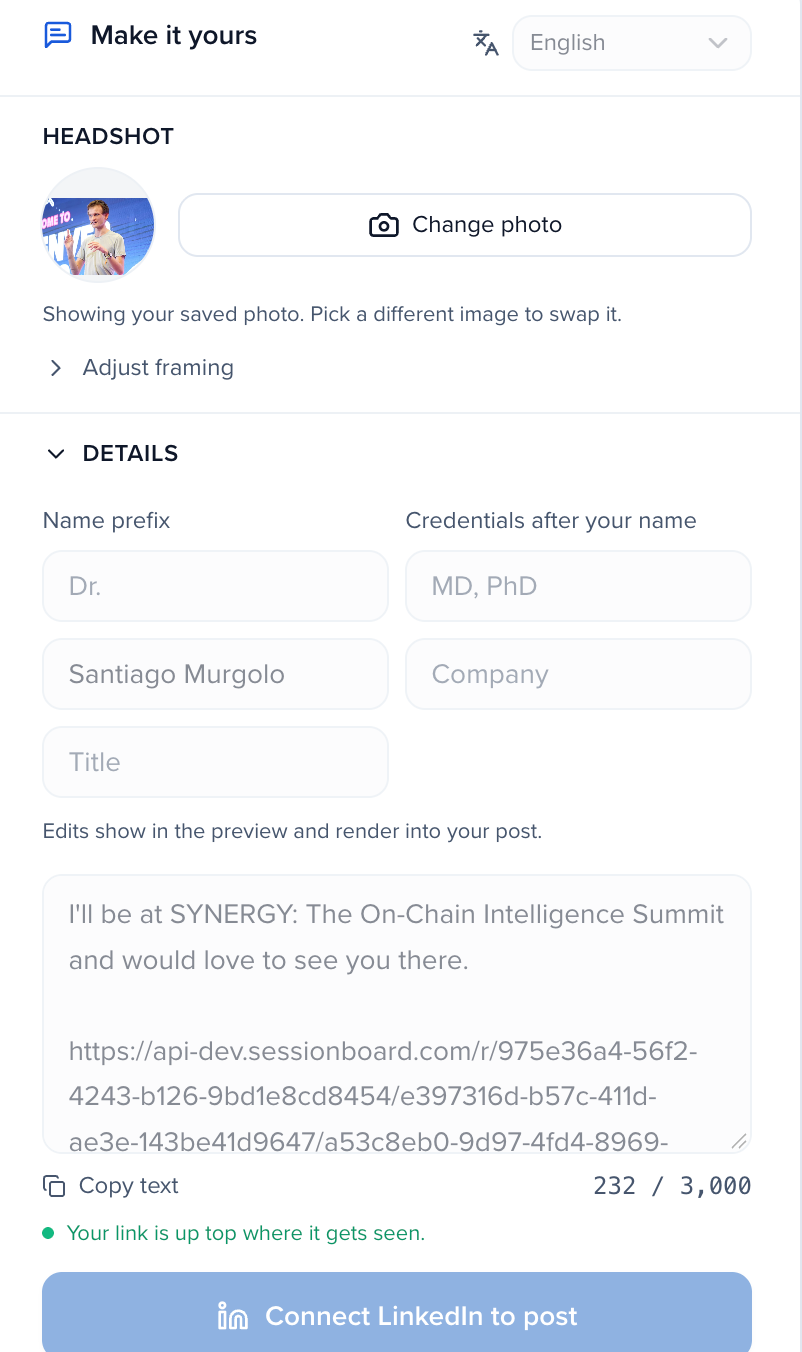
Add and frame your photo
Section titled “Add and frame your photo”Click Change photo (or the empty photo slot) and pick an image. While it uploads, Frame your photo opens: drag the photo, or use the arrow keys, to place your face in the frame, and use the slider or + and − to zoom. The move buttons do the same without dragging. Click Use this framing. Your card, your downloads and the image that shows when your link is shared all use the same framing. To change it later, open Adjust framing.
Until you add a photo, your card shows your initials, or your company’s logo on a company card.
Pick a post
Section titled “Pick a post”Your share page writes your post for you in three tones: Excited, Professional and Short, plus the event’s own wording. Pick the tab you like and edit the text; your link is already in it, near the top where feeds don’t cut it off. When the event wrote its own versions, you see those instead.
Post to LinkedIn
Section titled “Post to LinkedIn”Click LinkedIn and choose how your post goes out:
- Post with your photo (recommended) — your card posts as an image with your message. The first time, you sign in to LinkedIn in a new window and allow Sessionboard to use your name and profile photo and to post for you. Then you see the post exactly as it will appear, and nothing is posted until you press Post. The connection lasts until it expires or you disconnect it.
- Just share the link — LinkedIn opens its own share box with your link and its preview. Your message is copied so you can paste it.
If you close the LinkedIn window before you finish signing in, nothing is connected; Share the link on LinkedIn is still there.
On a company card, the post goes out through LinkedIn’s own share box from whoever is signed in to LinkedIn.
Share it somewhere else
Section titled “Share it somewhere else”Every channel the event turned on has its own button: X, Facebook, WhatsApp, LINE, Instagram, WeChat, email, copy link and the QR code. Each one hands out your link marked with the channel, so the event can see where people came from.
- Share… — on a phone, opens your phone’s own share menu, with your card attached when your phone allows it.
- Email a colleague — enter up to five email addresses and an optional note. Sessionboard emails them your card and your link. Their addresses aren’t kept or added to any list, and the same person is invited at most once a week.
Download your card
Section titled “Download your card”Click Download and pick a size:
| Size | Pixels | For |
|---|---|---|
| Square | 1080 × 1080 | LinkedIn and Instagram feed |
| Link preview | 1200 × 628 | Link previews and X |
| Stories | 1080 × 1920 | Instagram and LinkedIn Stories |
Each size keeps your name, photo and framing. An animated card downloads as Download animation (MP4).
See your results
Section titled “See your results”Your results shows what your link has done: “Your link brought N people”, with your clicks and registrations. When the event offers a reward, each one shows your progress — for example “2 more to unlock it”, then Unlocked — and a contest shows when it ends and your position. If the event shows a leaderboard, it lists first names only, with you marked. When you unlock a reward, the event emails you.
Languages
Section titled “Languages”Your share page, card and post follow the event’s language: English, French, German, Spanish or Arabic. An Arabic page reads right to left, and English names and links keep their own order.
Do I need a Sessionboard account?
No. The link in your email signs you straight in. Keep it to yourself: anyone with it can open your share page.
My link stopped working
Links last 90 days and stop when the event ends the campaign. Ask the event for a new one, or open the event’s signup link again and enter the same email: you’ll be emailed your link.
Who is this email from, and how do I stop it?
The email comes from the person at the event who asked you to share, “via Sessionboard”, and replying reaches them. Its footer says why you got it. Unsubscribe opens a page where you can stop emails about this campaign, or all Advocacy emails from that organization. Nothing changes until you choose.
Does Sessionboard post anything without asking?
No. With Post with your photo, nothing goes out until you press Post.