

Live Transcribe Console for AV teams
The Live Transcribe Console is the AV crew’s view of your event. It shows the schedule by room, the speaker files for each session, and the transcription controls — all through a magic link, so nobody needs a Sessionboard account or onboarding on show day.
What each room needs
Section titled “What each room needs”Per room: a laptop with Chrome, a wired internet connection, the soundboard (or microphone) feed into the laptop’s audio input, and one crew member assigned to start and stop each session. Nothing is installed; the Console runs in the browser. The full checklist is in Live Transcribe.
Give your crew access
Section titled “Give your crew access”There are two kinds of link, and the difference matters.
| Named invite | Direct magic link | |
|---|---|---|
| Lasts | 30 days | 30 minutes |
| Created from | Transcribe → Invites | Emailed on request |
| Best for | Crew you know in advance | Someone who needs in right now |
Both links are reusable until they expire, so a crew member can close the tab and come back.
Create named invites
Go to Marketing → Transcribe → Invites and create one per crew member or per room.
Limit it to their sessions (optional)
Turn on Limit to specific sessions and add filters — room, track, day, status, or any session field. The dialog shows how many sessions currently match.
Send the link
Share it however you already communicate with the crew. On first open they enter their email, which is what attributes activity to a person.
They open Live Transcribe Console
The link goes straight to the event’s Live Transcribe Console. No password, no account.
Crew can also request a link themselves, but only if their email is already known to the event — from a previous link, an existing Live Transcribe Console user record, or a role with Live Transcribe Console permission. This stops the request form becoming a way in for anyone.
Limiting a link to certain sessions
Section titled “Limiting a link to certain sessions”By default an invite covers the whole event. On a multi-room show that usually isn’t what you want: the Hall B crew has no reason to see Hall A’s schedule, files, or transcripts.
Turn on Limit to specific sessions when you create or edit an invite, and build filters the same way you would for a session embed — for example Room is Hall B, or Track is Clinical and Day is March 4. A rule can hold several values — Track is any of Clinical, Surgical matches sessions in either track.
Everything that link reaches is then limited to the matching sessions: the schedule, the room list, session files, the transcriptions list, session recaps, and live capture itself. A session outside the scope is simply not there, even by direct link.
The one thing a narrowed link cannot open is the whole-event report in Recaps — it draws on every captured session, so it stays with people who can see the whole event.
The invite list shows a filter badge with the current match count, so you can see at a glance which crews are narrowed and to how much.
What the crew sees
Section titled “What the crew sees”- Schedule — sessions by room and day. Open one for its detail view.
- Files — the speaker materials attached to each session, downloadable directly.
- Transcriptions — the transcript for a session, live or completed.
- Mission control — for operators with an admin login, when enabled.
A session’s detail view puts the AI summary, participants, and presentation files on the left, with the transcription controls and live transcript on the right. The Participants card groups people by their session role, such as Panelist or Moderator, and lists each person once, under the role they hold on the session.
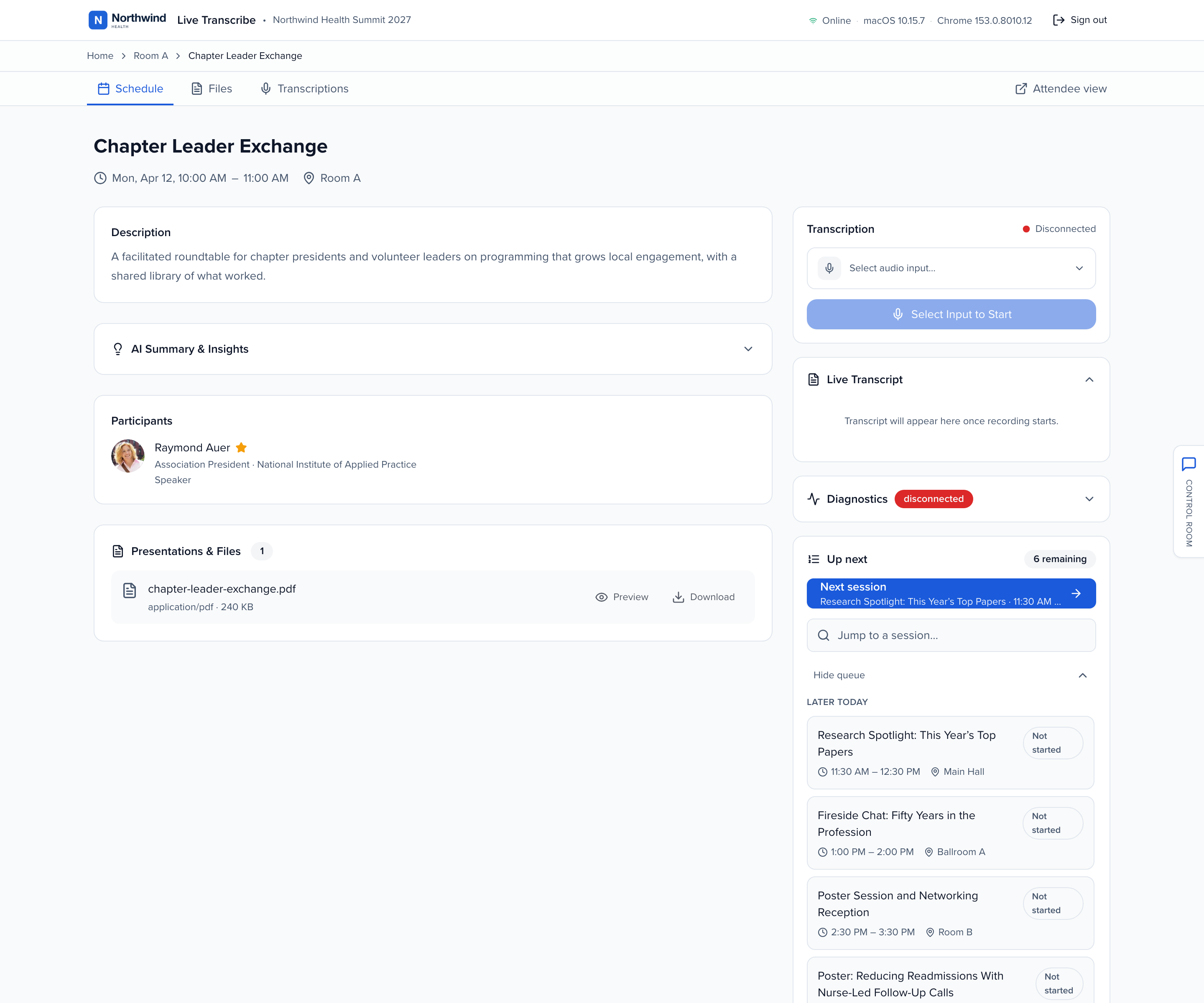
From here they start and stop transcription with the same controls described in Live Transcribe. After they pick an audio input, a level meter shows whether the feed is live. Test input runs a short transcription that is not saved to the session.
The Up next panel on the same view moves the crew from one session to the next without going back to the schedule:
- Next session opens the session most likely to be worked next, with its title and start time on the button. The queue is ordered by the sessions remaining in the same room, chronologically, then the rest of the day’s sessions in other rooms. Withdrawn sessions never appear in it. The badge shows how many remain.
- Show queue expands the full ordered list, grouped by the current room and Other rooms, with a badge on sessions already transcribed.
- Jump to a session… searches every session in the event, on any day and in any room, so the crew can open one that is not next in line.
A running transcription is never abandoned by a jump. If the crew uses Next session or the queue while transcribing, a Transcription in progress dialog asks them to stop it first; Stop & leave stops the transcription and then moves on.
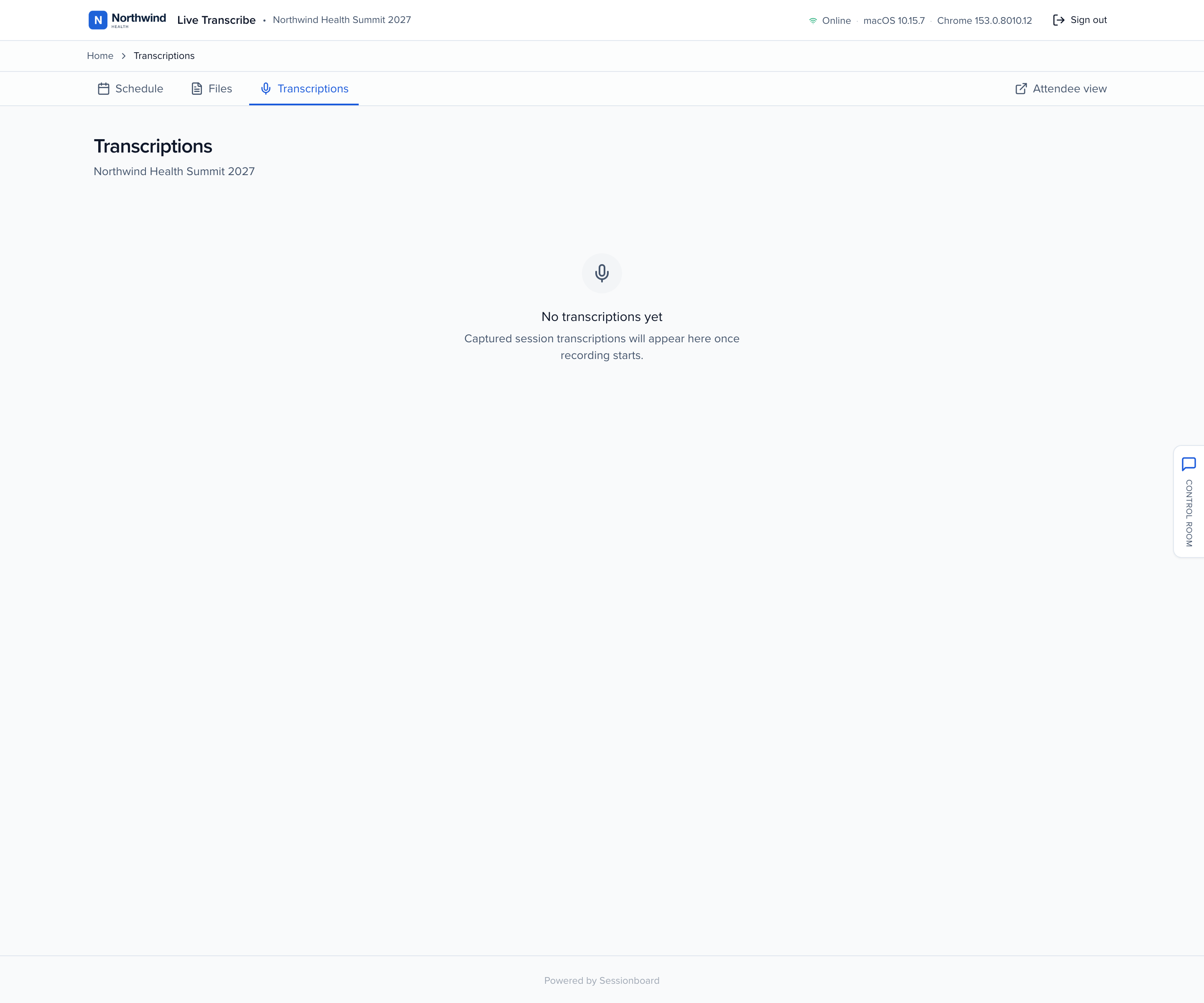
The Transcriptions tab collects every captured session for the event in one list.
Multi-room events
Section titled “Multi-room events”Two optional settings under Transcribe → Settings change how larger events run.
Room Console gives each room its own page, meant to sit open on the room’s computer. It listens for remote start and stop commands. The input meter and Test input control work the same as on a session: prove the soundboard is patched in, without writing to a session.
Mission Control gives one operator a view of every room at once, with remote start and stop plus an operator chat. It needs an admin login rather than a magic link, and it needs Room Console enabled to be able to control rooms — turning it on by itself will prompt you about that.
Does the AV team need Sessionboard accounts?
No. Magic-link access is the whole point — no accounts, no onboarding, no licences.
Can I revoke access?
Yes. Named invites expire after 30 days. To cut access off now, open Marketing → Transcribe → Invites, click … on the invite and choose Revoke. The link stops working, and every console or Ready Room station already signed in with it is signed out: it goes back to the sign-in screen at its next check, within about 30 seconds. Other invites keep working, and so do admins signed in with their own Sessionboard login.
Can admins use Live Transcribe Console?
Yes, your normal admin login works, which is useful for previewing what the crew will see.
The crew says their link doesn't work.
Check which kind it was. Direct magic links last 30 minutes; named invites last 30 days. Issue a named invite if they need standing access.
Links can be opened more than once until they expire, so “I already clicked it” is not the cause — and sending someone a fresh link no longer invalidates the ones in their earlier emails.
Related
Section titled “Related”- Live Transcribe — setup, capture, and what happens afterwards
- Media library — where the captured content lands