

Add questions and quizzes
A question can go anywhere in a course. Where you put it decides what it counts for:
- On a lesson, it’s a knowledge check. Learners answer, see whether they were right and why, and carry on. Nothing is counted.
- On a quiz, it’s graded. The quiz has a pass mark, and passing it is what completes the quiz and counts toward the course, its credit and any certification.
Each question shows which it is in its corner: Knowledge check · not counted or Graded.
Why use it
Section titled “Why use it”The Sessionboard Learning course builder lets you write, arrange and publish interactive courses without leaving your event workspace. Quizzes, branching scenarios, video checkpoints and written-answer questions are all authored in one place, so your team can build rigorous, credit-bearing learning experiences alongside your program content. The question bank keeps your best questions reusable across courses, and the scoring queue gives reviewers a clear workflow for grading open-ended responses.
Add a question
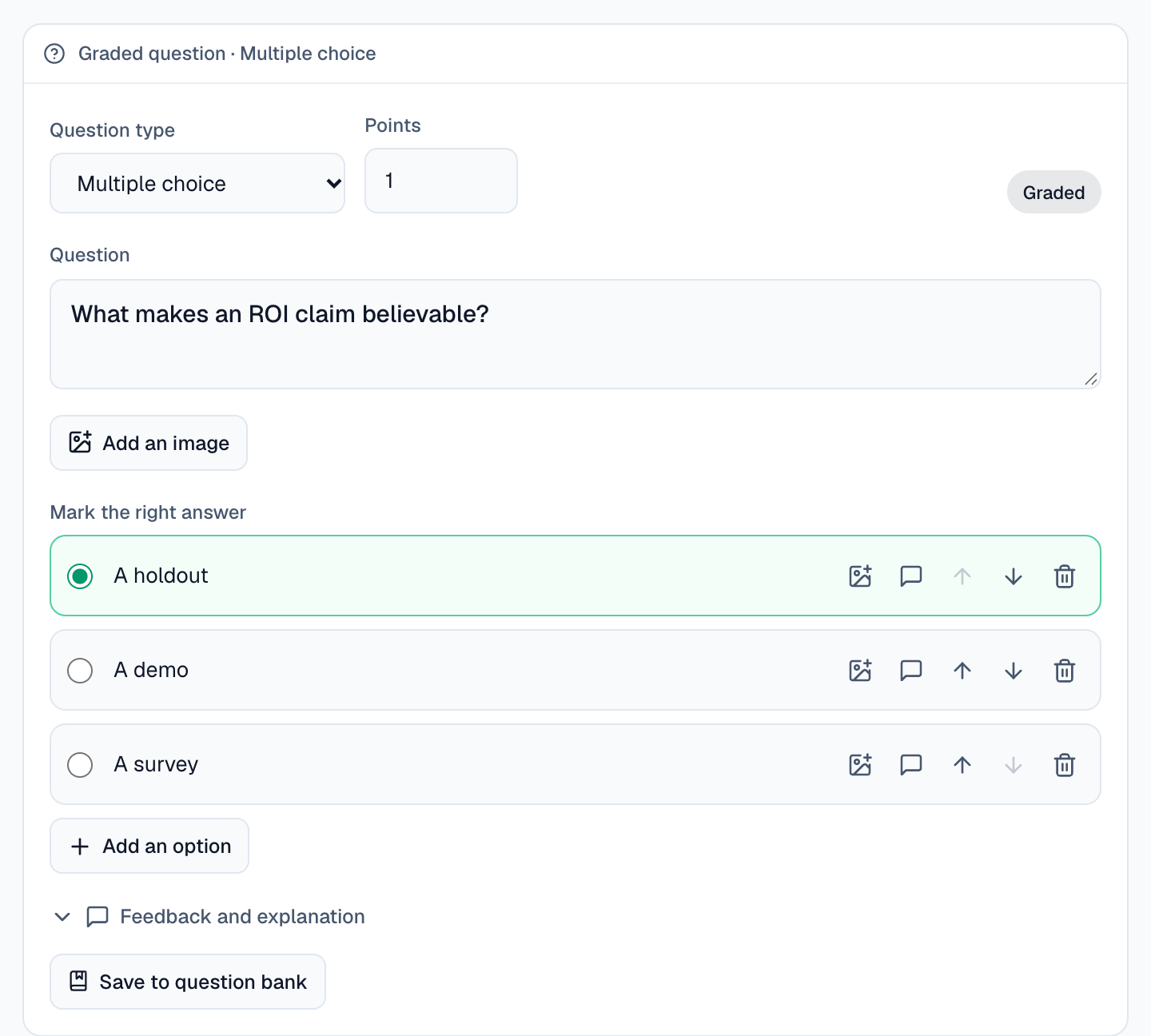
Section titled “Add a question”Type / on a lesson or quiz and pick a question type, or select Question and change its type later. Write the question, mark the right answer and set its Points.
Question types
Section titled “Question types”| Type | What the learner does | How it’s marked |
|---|---|---|
| Multiple choice | Picks one option | One right answer |
| Select all that apply | Picks several options | Every right option, nothing else; or partial credit |
| True or false | Picks true or false | Right or wrong |
| Short answer | Types a word or phrase | Matched to the answers you accept, with or without case |
| Written answer | Writes an essay | A person scores it in a graded quiz (see Score written answers and files) |
| Fill in the blanks | Types, or picks from a list, the missing words | Each blank; or partial credit |
| Matching | Connects each item to its pair | Each pair; or partial credit |
| Put in order | Moves steps into sequence | The whole order; or partial credit |
| Sort into groups | Drags items into categories | Each item; or partial credit |
| Number | Types a number | Within the tolerance you set |
| Rating scale | Picks a point on a scale (a Likert scale, 1 to 10) | Never scored |
| Click on the image | Clicks a spot on a picture | Inside one of the areas you mark |
| File upload | Hands in a file | A person scores it in a graded quiz |
| Poll | Gives an opinion | Never scored; learners see how others voted |
Every type can be answered from the keyboard, including Put in order, Matching and Click on the image.
Feedback and explanations
Section titled “Feedback and explanations”Open Feedback and explanation on a question to add:
- When they’re right and When they’re wrong: a sentence learners see after answering.
- A note on a single option, shown when a learner picks it.
- Explanation: why the answer is right, shown after answering.
- Hint (shown before answering).
- Give partial credit on types made of parts, and Shuffle the options on choice questions.
A question can carry an image, and so can each option of a choice question.
Quiz settings
Section titled “Quiz settings”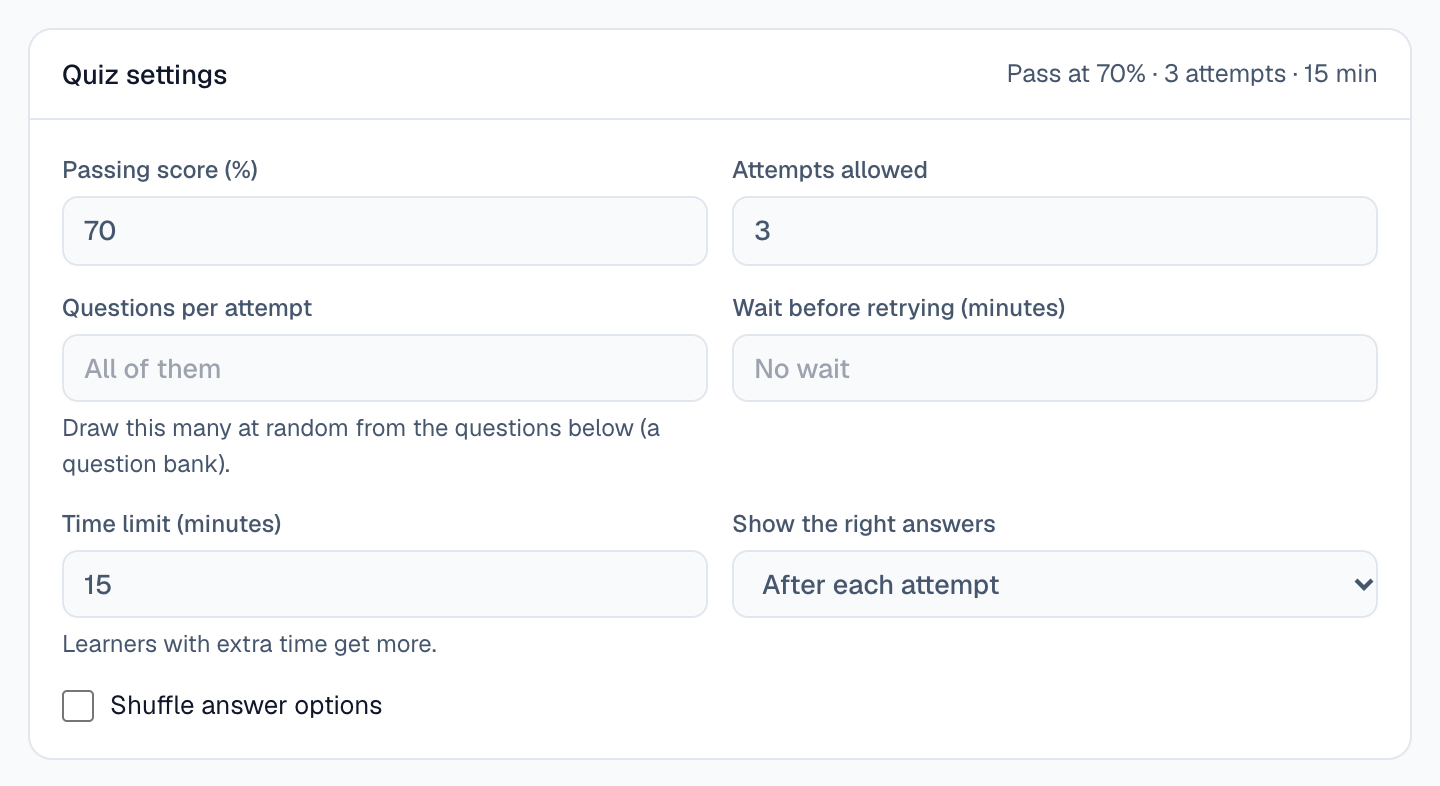
Open Quiz settings above a quiz’s questions:
| Setting | What it does |
|---|---|
| Passing score (%) | The score that passes the quiz. |
| Attempts allowed | Leave empty for unlimited. |
| Questions per attempt | Draw this many at random from the quiz’s questions on each attempt. |
| Wait before retrying (minutes) | Time a learner waits after a failed attempt. |
| Time limit (minutes) | See Time a quiz and give extra time. |
| Show the right answers | After each attempt, Only after passing, or Never (right or wrong only). |
| Shuffle answer options | Shows each learner the options in a random order. |
To draw from questions you keep across courses, add Questions from the bank to the quiz. See Reuse questions with the question bank.
Let the assistant write questions
Section titled “Let the assistant write questions”On any lesson, select Draft questions. Questions are written from what the lesson says and what its videos say. Choose How many and where to Put them: In a new quiz after this lesson, or Here, as knowledge checks. Then select Write questions.
The questions land in your draft. Read and edit each one before you publish.