

Import questions from another LMS
Questions you already wrote in another learning platform come straight into your question bank. Every question in the file is listed first, ready or with what’s wrong with it, and nothing is added until you say so.
Why use it
Section titled “Why use it”Rewriting a question library by hand is the slowest part of moving to a new learning platform. Importing brings years of quiz questions across in minutes, and the check before anything is added shows exactly which questions need a fix, in your own language, so nothing broken reaches a learner.
Import a file
Section titled “Import a file”Open the import
In the course builder, select Question bank, then Import.
Add the questions
Drop the file on the panel or select Choose a file. You can also paste the questions into Or paste the questions. Files can be up to 1 MB and 500 questions.
Tag them
Under Tag every imported question, add the tags quizzes will draw these questions by. A GIFT category or a CSV Tags column adds its own tags as well.
Check the questions
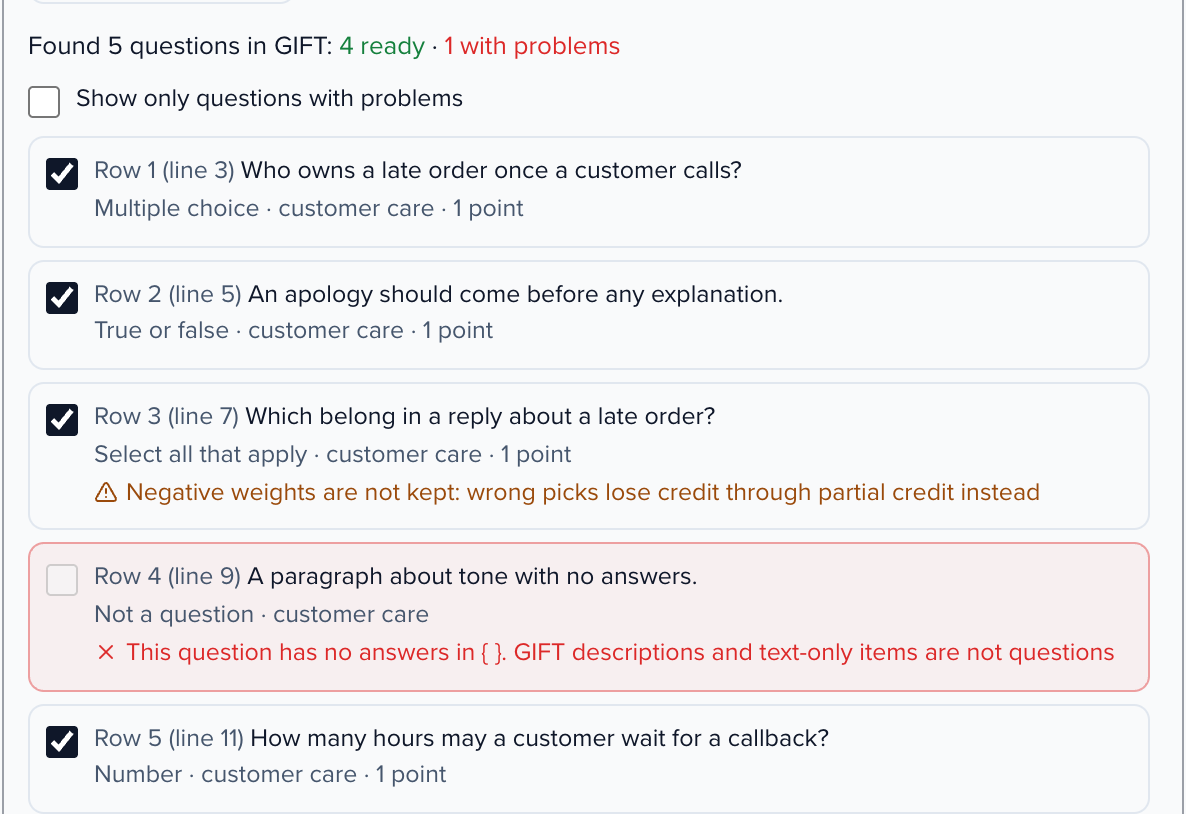
Select Check the questions. The panel says how many questions it found, how many are ready and how many have problems, and lists every one with its type, tags and points. Problems, notes and the reasons a question was left out are written in the language you use Sessionboard in.
Import
Untick any question you don’t want, then select Import. If some questions have problems, tick Import the rest and leave out the questions with problems first: nothing is left out without you agreeing to it.
When the import finishes, the panel says how many questions were added and lists every question that wasn’t, with the reason.
Formats
Section titled “Formats”| Format | Where it comes from | What it holds |
|---|---|---|
| GIFT | Moodle, TalentLMS, Docebo and most LMSs that export questions as text | Multiple choice, select all that apply (with weights), true or false, short answer, fill in the blank, matching, number, written answer, feedback, categories |
| Aiken | Moodle, TalentLMS and simple quiz tools | Multiple choice, with one right answer (or several, written ANSWER: A, C) |
| CSV | Any spreadsheet | One question per row, read from its header row |
Leave Format on Detect it unless the panel guesses wrong.
CSV columns
Section titled “CSV columns”The first row names the columns. Only a question column is required; the others are read when they are there, in any order:
| Column | Also read as | What to put in it |
|---|---|---|
| Question | Question text, Prompt, Stem | The question |
| Type | Question type | Multiple choice, multiple response, true/false, short answer, fill in the blank, essay, numeric, matching, ordering, poll |
| Option A … Option J | Answer 1 … , Choice 1 … , A … J | One option per column |
| Correct | Correct answer, Answer key | A letter (B), several (A, C), the option number, or the answer’s text |
| Points | Score, Marks | A number |
| Tags | Category, Topic | Tags separated by semicolons |
| Explanation | Feedback, Rationale | Shown after answering |
You can also mark a right option by starting it with *, or with Correct 1 … columns set to 1 or yes. For a fill-in-the-blank question, mark each blank with ___ and put the answers in Correct, separated by semicolons. For matching, write each option as left -> right.