

Add labeled graphics, processes, timelines and sorting activities
Interactive blocks sit anywhere in a lesson. Type / and pick one from the Interactive group. Labeled graphics, processes and timelines are not scored: they are for learners to explore. A Sorting activity is a question, so it is graded when you put it on a quiz. To check what learners know, use a question.
Labeled graphic
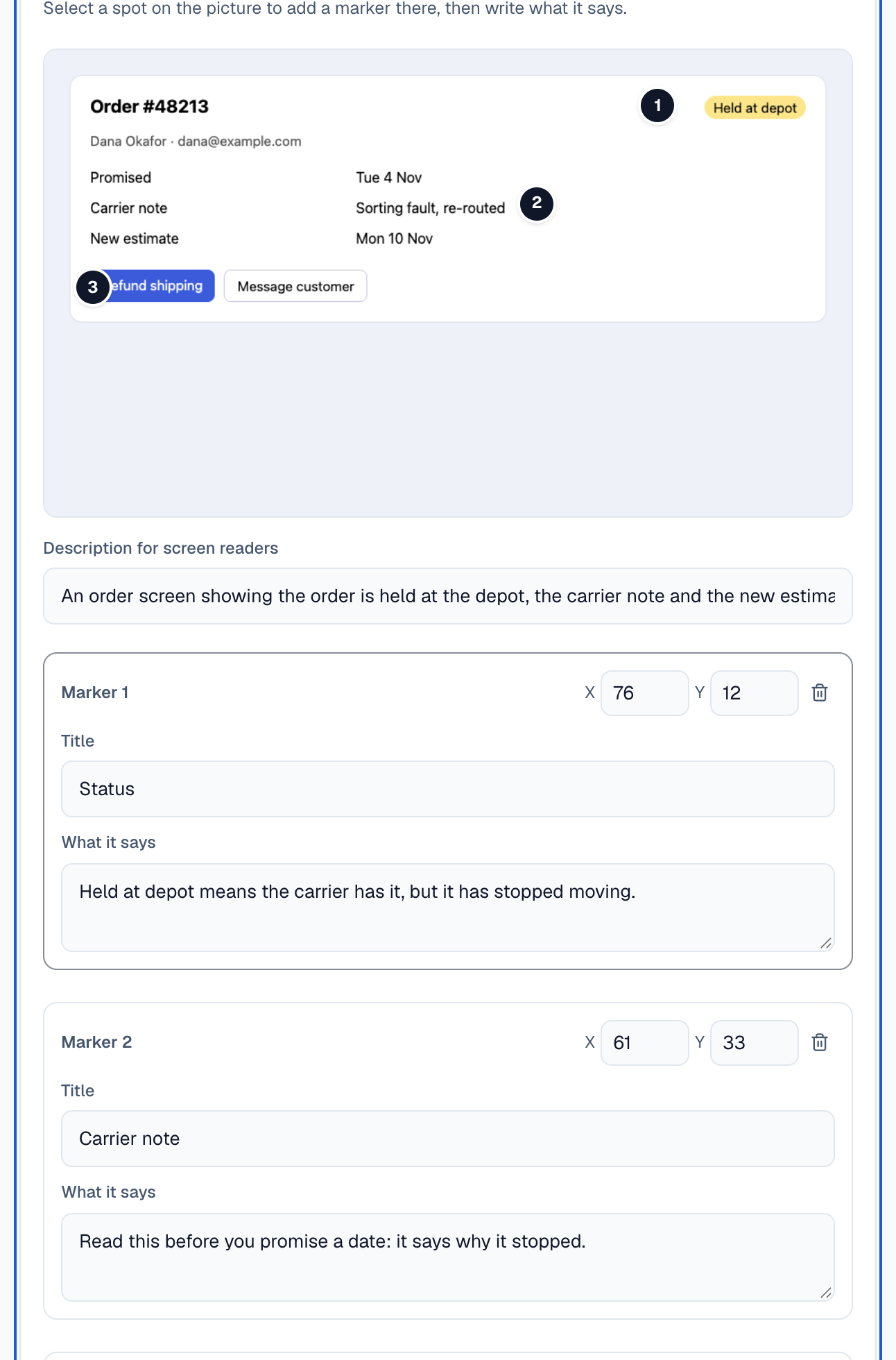
Section titled “Labeled graphic”A picture with numbered markers. Learners select a marker to read what it points at, and see how many they’ve opened.
Add the picture
Drop a picture on the block (JPG, PNG, WebP or GIF, up to 15 MB) and describe it under Description for screen readers.
Place the markers
Select a spot on the picture to put a marker there. You can also select Add a marker and type its position in X and Y (percent of the picture’s width and height).
Write each marker
Give each marker a Title and What it says.
Markers are buttons learners can reach with the keyboard and a screen reader, and the text opens under the picture, so nothing covers it on a phone.
Process
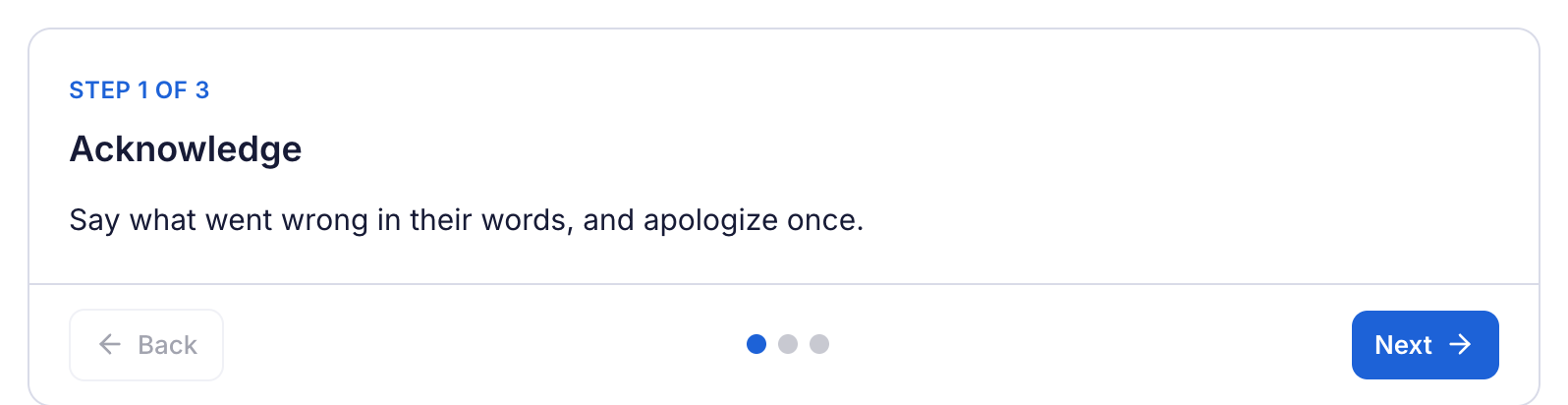
Section titled “Process”Steps learners go through one at a time, with Back, Next and a dot for each step. Give each step a Title, its Text and, if you like, a picture. Use Add a step and the arrows to add and reorder steps.
Timeline
Section titled “Timeline”Dated events from top to bottom. Each event has a Date (any text, such as 2019 or March 2024), a Title, Text and an optional picture.
Sorting activity
Section titled “Sorting activity”Cards learners sort into groups. Sorting activity adds a Sort into groups question with its own groups and cards: name the groups, write the cards and say which group each belongs to. Learners drag the cards (or use the keyboard), and the answer is checked on Sessionboard’s servers, like any question. On a lesson it’s a knowledge check; on a quiz it’s graded.