

Make a course from a recording
A course is written from the recording’s transcript: lessons, checkpoint questions in each video and a final quiz. You accept, edit or reject every question before anything is published.
Draft the course
Section titled “Draft the course”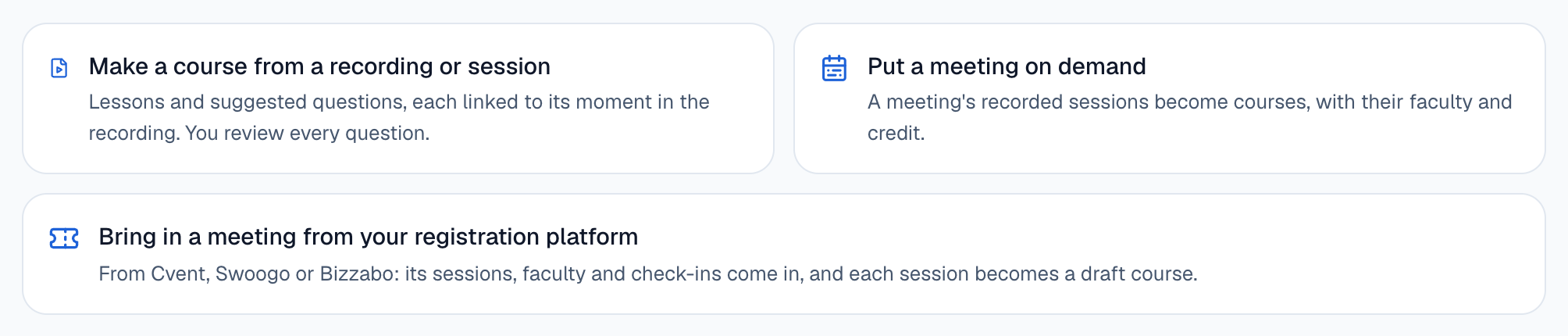
Start from a recording
Go to Courses and select Make a course from a recording or session. New course on Home goes to the same place.
Pick the videos
In Create a course from video, choose up to 10 videos. A video needs a transcript first; one without shows no transcript yet.
Describe the course
Fill in Course title and Who it’s for. Choose whether to Award a certification on completion and how many Questions in each video (0 to 3).
Draft it
Select Draft the course. The draft opens while the assistant reads the transcript.
No recordings yet? Select Upload a recording, then paste a YouTube or Vimeo link, upload a video or audio file, or bring one in from your webinars (Zoom, Goldcast or ON24).
Review the questions
Section titled “Review the questions”Each question shows the moment in the video it comes from and whether it is a Checkpoint or part of the Final quiz. For each one, select Accept, Edit or Reject.
Set the credit
Section titled “Set the credit”If the course carries credit, choose the credit type and use Less credit and More credit. The draft shows the arithmetic: 60 minutes of content allows 1 credit, in the steps your credit type uses. You set the number; the assistant never does.
Publish
Section titled “Publish”Select Approve and publish. The button stays off until you have decided every question. Once published, learners see the course on your learning site.