

Launch a campaign
A campaign puts your speakers, guests, sponsors, exhibitors, team or attendees to work for an event: sharing it, posting, recording a short video, or following up. You get the whole campaign on one page, check it, then launch.
Why use it
Section titled “Why use it”Your speakers, sponsors and attendees each reach people you can’t. Each one gets a card, a post and their own tracked link, so you see who brought in each registration. You can email them their kits, or skip the emails and share a link or an embed on your own site.
Kinds of campaign
Section titled “Kinds of campaign”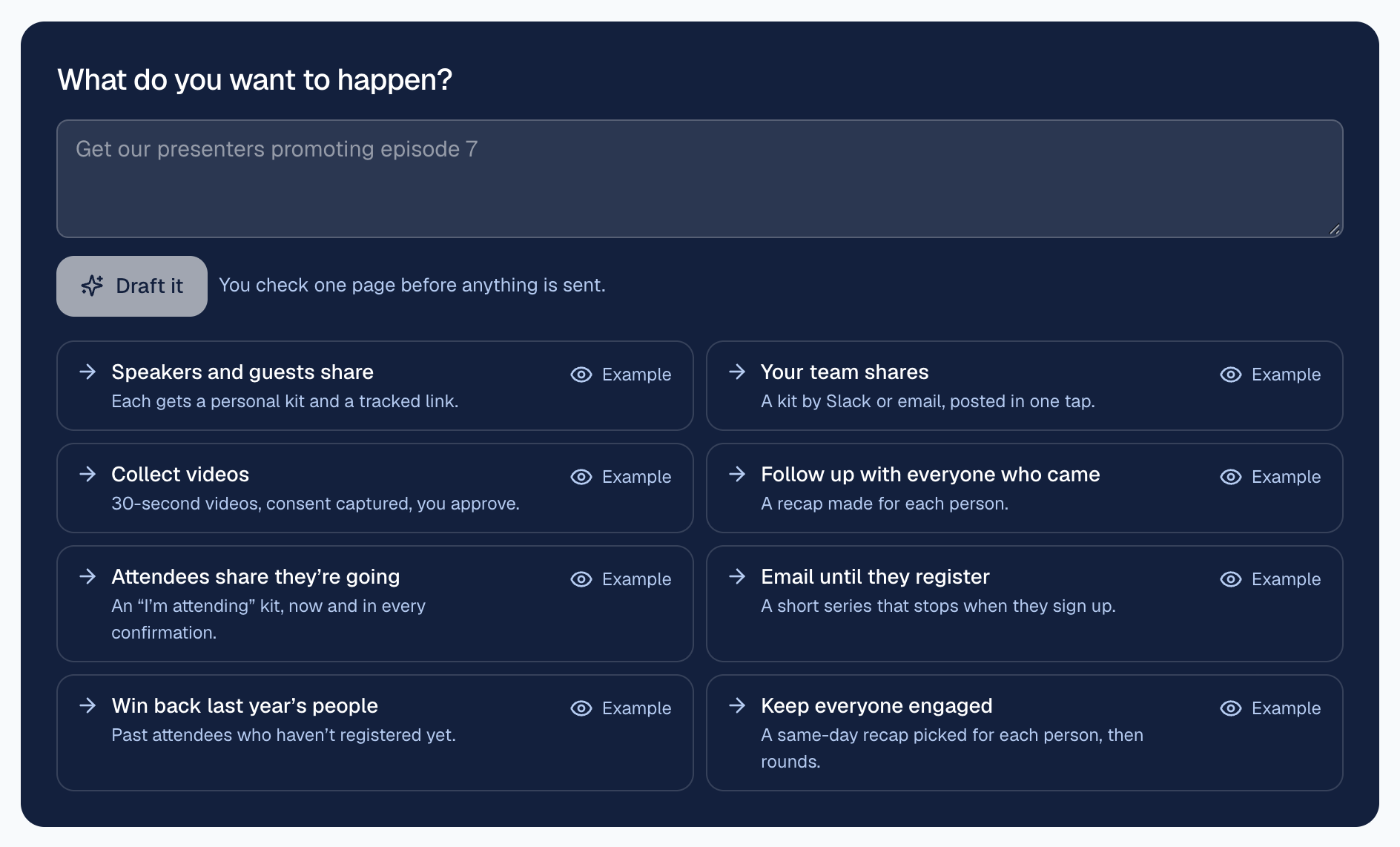
- Speakers and guests share
- Your team shares
- Collect videos
- Follow up with everyone who came
- Attendees share they’re going
- Email until they register
- Win back last year’s people
- Keep everyone engaged
Your team shares appears once Your team sharing is in your Marketing, and Collect videos once Video testimonials is. Add them from Add to Marketing; both are on every plan.
Draft and launch
Section titled “Draft and launch”Say what you want
Go to Campaigns. Under Start a campaign, type what you want to happen and select Draft it, or pick one of the kinds above.
Check the page
The draft shows Which event, Send to, What (subject and message), Link, When and an optional Reward: a personal promo code, a prize for the top sharers, a reward for everyone who brings a number of people (for example “Bring 3 people: we’ll save you a front-row seat”), or a leaderboard. Change anything, then select Save changes.
Launch
Select Launch, then Yes, launch it. You stay on the campaign, and a line tells you what to do next.
You can’t launch with unsaved changes. You also can’t launch with nobody to send to, unless you chose to share it yourself (below).
Email the kits, or share it yourself
Section titled “Email the kits, or share it yourself”Speakers and guests share and Attendees share they’re going ask how the campaign goes out, under Who:
- Email each one their kit: each person gets their card, post and tracked link in one email.
- I’ll share a link or embed: every kit and tracked link is made, but nobody is emailed. You send the link yourself or put it on your site.
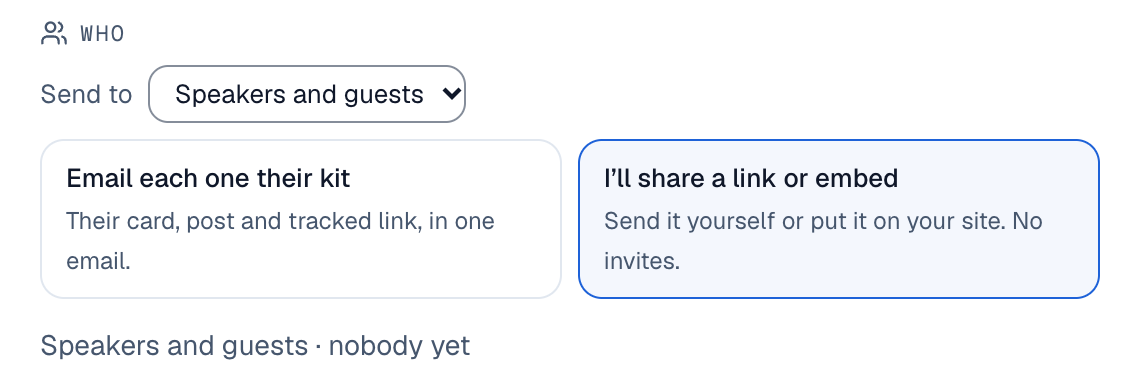
With I’ll share a link or embed you can launch with nobody in Who yet. After launch the campaign says “Nobody was emailed: share the link or embed below.” For Attendees share they’re going, everyone who registers from then on still gets the “I’m attending” kit in their confirmation email.
Share it yourself
Section titled “Share it yourself”A launched share campaign has a Share it yourself card, whichever way it went out:
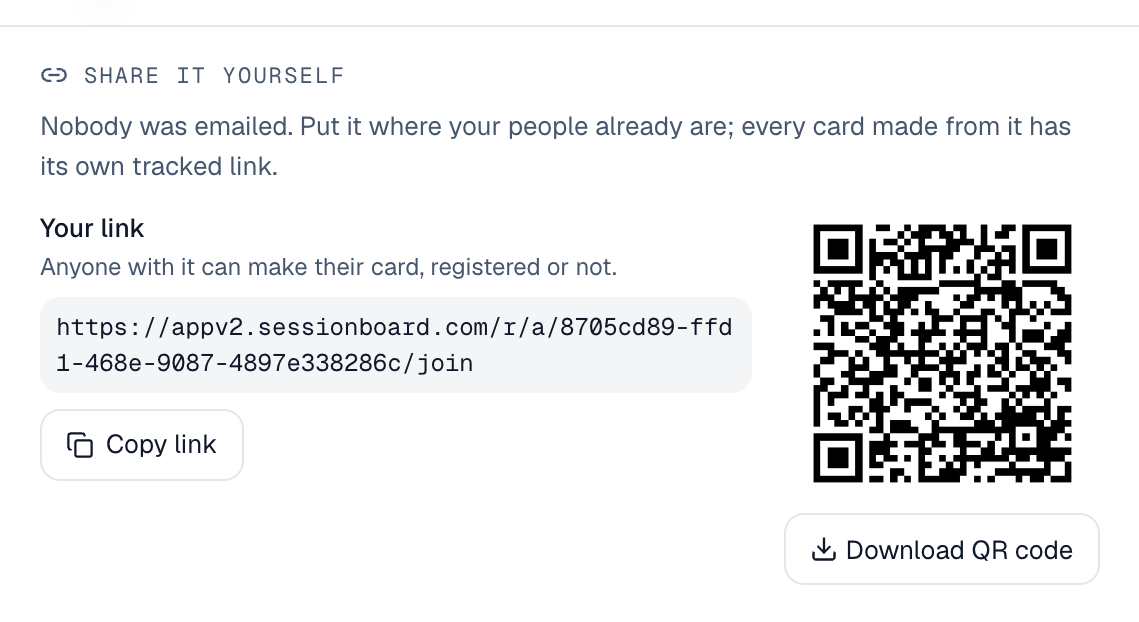
- Your link (attendee campaigns you share yourself): anyone with it can make their “I’m attending” card, registered or not. Select Copy link, or Download QR code to print it.
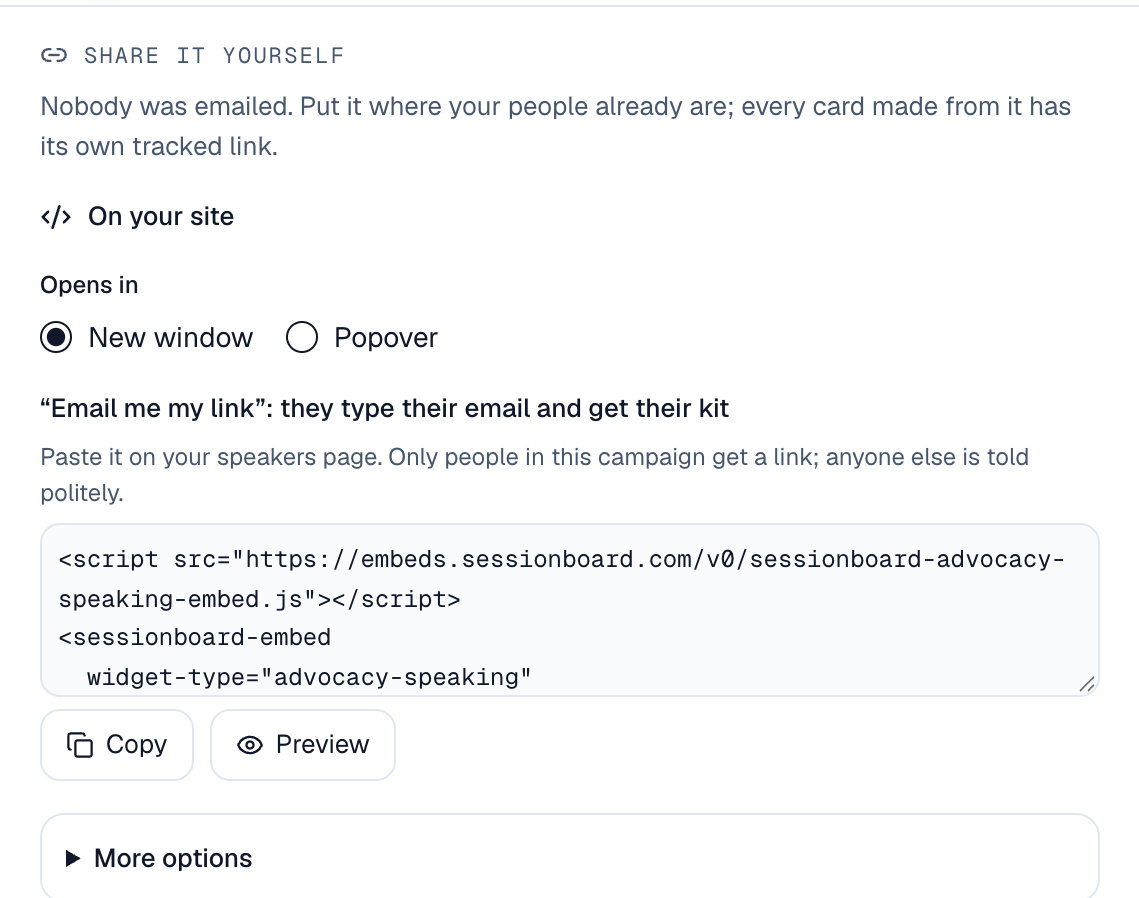
- On your site: a snippet to paste on your website. For speakers, sponsors and exhibitors it is an “Email me my link” form: they type their email and get their kit. Only people in the campaign get a link. For attendees it is a sign-up form for your registration confirmation page.
- Opens in: New window or Popover. With Popover you can also tick Open automatically when the page loads.
- Preview shows the real embed with sample values. Nothing you do there is saved.
- More options (speaker campaigns) has a snippet for one person’s own card.
On an attendee campaign you share yourself, the card starts with Your link and its QR code:
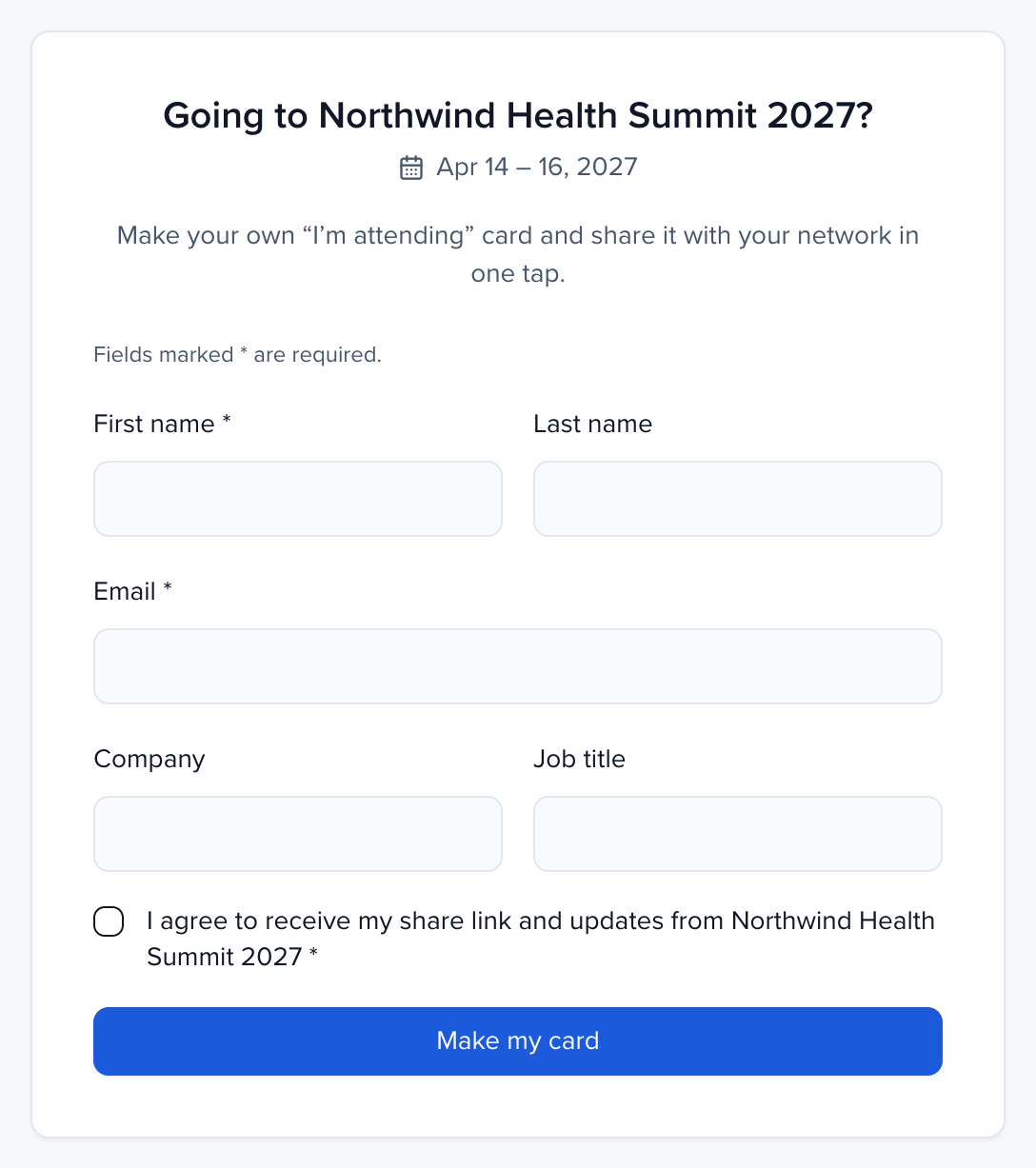
Anyone who opens the link fills in a short form and selects Make my card:
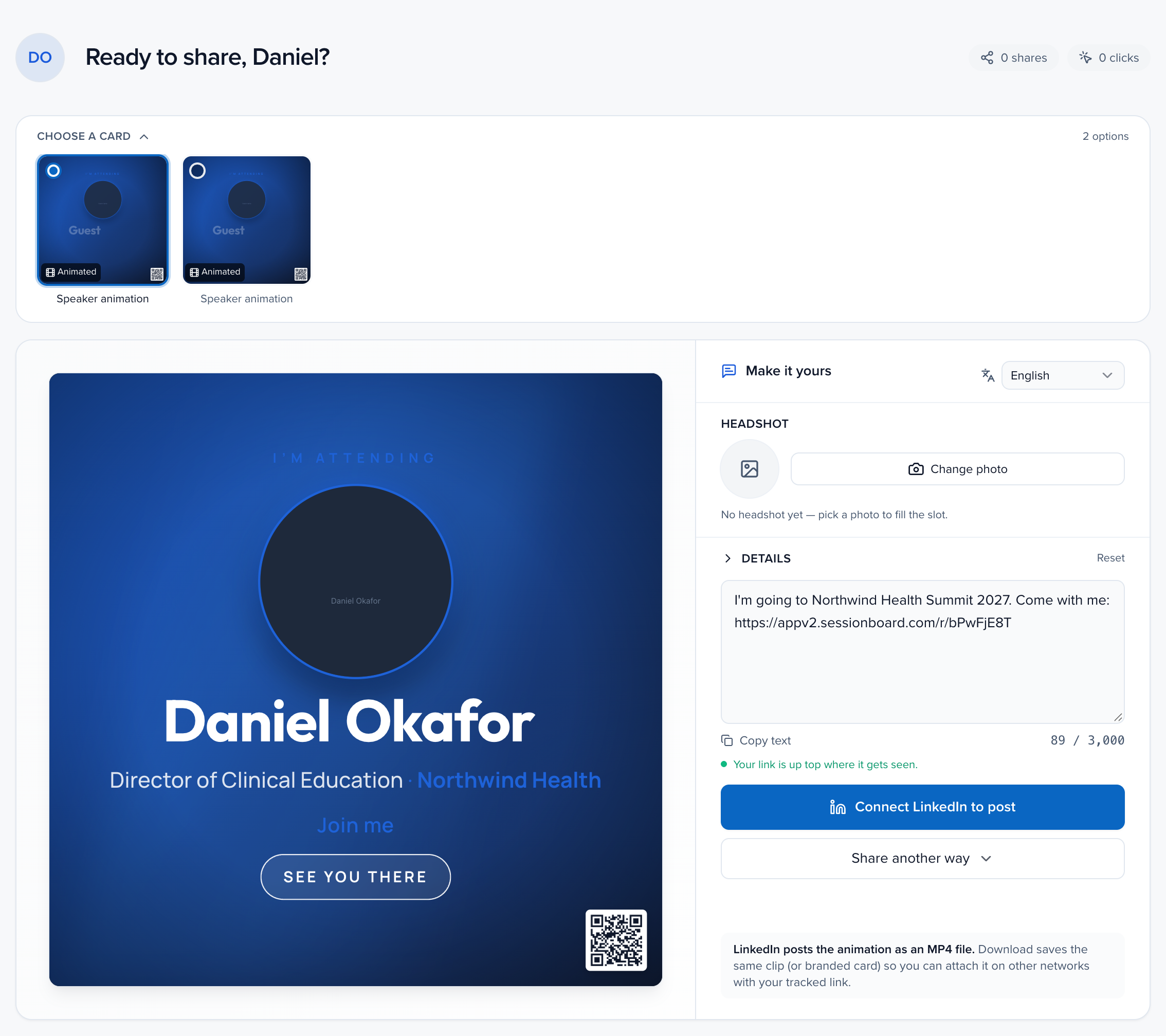
They land on their own share page, with their “I’m attending” card, Make it yours (headshot and the post text with their tracked link), Connect LinkedIn to post and Share another way:
Sponsors and exhibitors
Section titled “Sponsors and exhibitors”In Speakers and guests share, you can pick Sponsors or Exhibitors under Who instead of speakers. Their cards read “Proud sponsor of” or “We’re exhibiting at” your event, with Sponsor or Exhibitor under the company name.
What each person gets
Section titled “What each person gets”Each speaker’s kit has a post in their voice, their tracked link, their card and an animated card. Their kit page also lets them:
- Make it yours: add a name prefix (like “Dr.”) or credentials after their name (like “MD, PhD”), frame their photo, and pick a tone for the post: Excited, Professional or Short.
- Download their card in three sizes: Square, Link preview and Stories.
- Post to LinkedIn, or share another way, for example X, WhatsApp, email, a QR code or Email a colleague.
- See their own results: how many people their link brought, their clicks and registrations, and their place on the leaderboard if the campaign has one.
The kit page is also available in Arabic.
Archive or delete
Section titled “Archive or delete”- A draft you don’t want: select Archive. To bring it back, open Archived drafts from the archived link in Campaigns and select Restore.
- A launched campaign: select Delete, then Delete campaign. Its tracked links stop working and its results leave Campaigns. This can’t be undone. To keep the results, select Pause links instead.
While it runs
Section titled “While it runs”A running campaign shows a live feed, a Leaderboard and its results. A campaign nobody was emailed shows Shares, Clicks and Registrations. With a reward for bringing people, each speaker’s page shows how many they have brought so far (“1 of 3 so far”), it is met on its own when their link brings that many registrations, and the campaign shows how many have made it. Select Pause links to stop the links working for a while, and Resume links to start them again. A video campaign also offers a Venue kiosk link so people can record at the event.
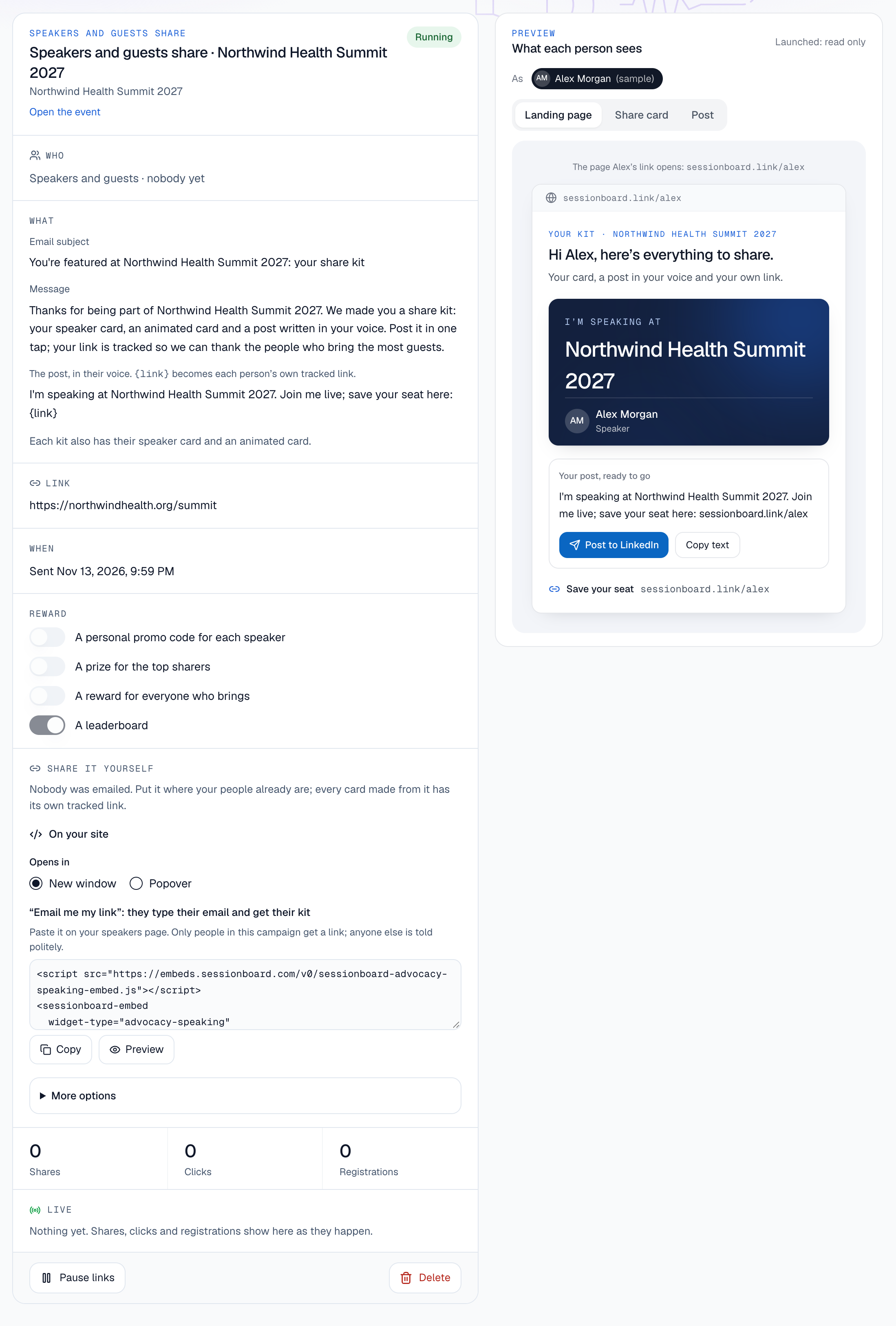
Campaign statuses are Draft, Running, Paused and Ended.
Your team on Slack
Section titled “Your team on Slack”If Slack is connected, your team’s kit arrives by Slack direct message. Anyone not on Slack gets the same kit by email.