

Add more to Sessionboard Marketing
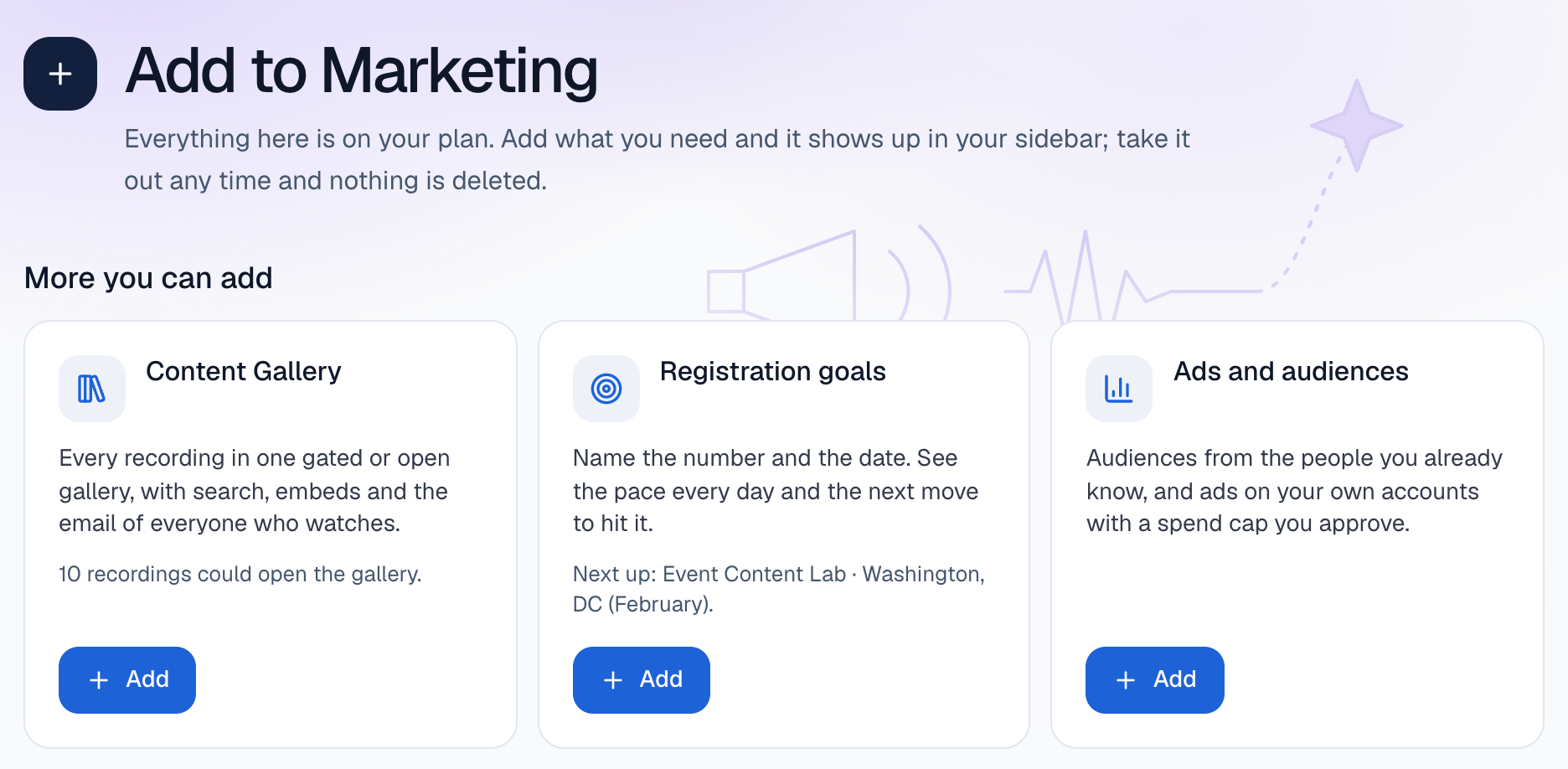
Sessionboard Marketing starts with what you came for, not with everything on. Add to Marketing lists the rest: 13 things you can add, each one a card that says what it does. Add one and it shows up in your sidebar. Every one is on every plan, so adding costs nothing.
Why use it
Section titled “Why use it”A new organization sees only the sections it needs, so the first week is about one job done well rather than ten menus. When you’re ready for the next thing, such as a podcast from your recordings or a dinner series, it is one click away and already on your plan.
What’s always in your sidebar
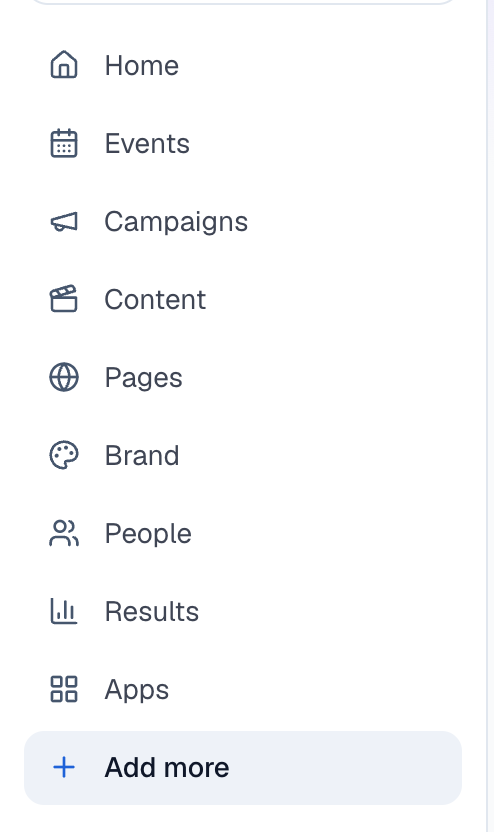
Section titled “What’s always in your sidebar”Home, Events, People, Results and Brand are always there. Campaigns, Goals, Content, Pages and Apps take their place in the list once you’ve added something that lives there. Add more, after the last section, opens Add to Marketing.
What you can add
Section titled “What you can add”| Add | What it does | Where it shows up |
|---|---|---|
| Speakers and sponsors sharing | Everyone on stage and every sponsor gets their own card, post and tracked link, and you see who brought in each registration. | Campaigns |
| Your team sharing | Your sales, membership and comms teams post in one tap from Slack or email, each with their own link. | Campaigns, as the Your team shares campaign |
| Video testimonials | Speakers, customers and attendees record 30 seconds in the browser; you approve the best and share them. | Campaigns, as the Collect videos campaign |
| Webinars | Bring in webinars from your own Zoom, Goldcast, ON24 or Teams, fill them, and show the recording as a scheduled replay. | Events, as Webinar and Series under Add an event |
| Field events | Dinners, roadshows and meetups: the invite list, approvals, reminders, check-in and who came. | Events, as In-person event under Add an event |
| Event pages | A page for each event in your brand and on your domain, with registration and a sign-up form. | Pages |
| Content Gallery | Every recording in one gated or open gallery, with search, embeds and the email of everyone who watches. | Pages, and its tile on Content |
| Clips and posts | Recordings in: captioned clips, reels, quote cards, a post pack and a recap out, in your brand. | Content |
| Podcast | Every session as a podcast episode, with a feed for Apple and Spotify and counted downloads. | Content, as the Podcast tile |
| Newsletter | A newsletter written from your sessions and clips, sent to the people who signed up. | Content, as the Newsletter tile |
| Registration goals | Name the number and the date. See the pace every day and the next move to hit it. | Goals |
| Ads and audiences | Audiences from the people you already know, and ads on your own accounts with a spend cap you approve. | Goals |
| Apps | Connect your webinar tool, registration, CRM, Slack and Canva, and bring every speaker and attendee in. | Apps |
Webinars stay on the tool you already use: Sessionboard brings them in, fills them and works with the recording afterwards. It doesn’t run the webinar itself.
Add something
Section titled “Add something”Select Add more in the sidebar. Under More you can add, each card says what it does, often with a line about your own organization, such as how many recordings are ready for clips. Select Add on a card. It moves to In your Marketing, and its section appears in the sidebar straight away.
Choices inside a section follow what you’ve added, too. Add an event offers Webinar and Series once you add Webinars, and In-person event once you add Field events. Content shows the Podcast, Newsletter and Content Gallery tiles once each is added, and Campaigns offers Your team shares and Collect videos once you add Your team sharing and Video testimonials.
Remove something
Section titled “Remove something”Under In your Marketing, select Remove on the card, then Remove again to confirm. It leaves your sidebar, and that’s all: nothing is deleted.
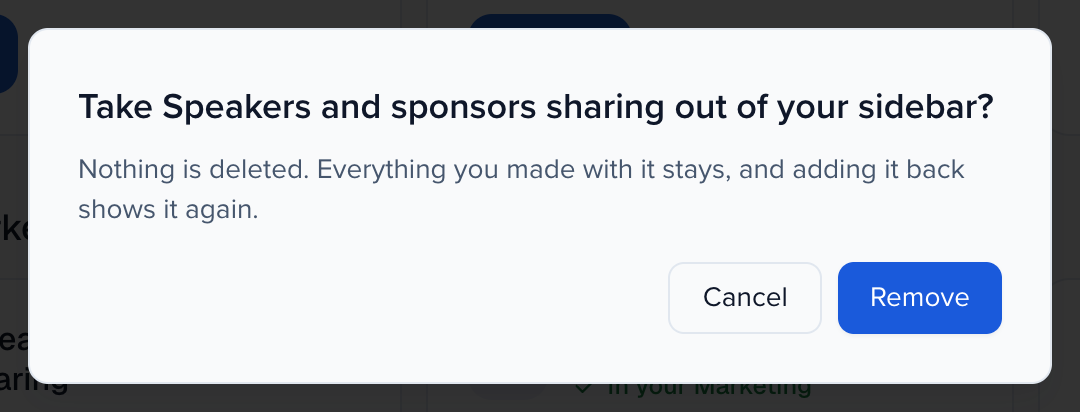 Pages, campaigns, episodes, contacts and results you made with it stay, and adding it back shows everything again.
Open a page you haven’t added
Section titled “Open a page you haven’t added”A link to a section you haven’t added, from an email, Ask or a teammate, still opens the page in full. A line at the top says it isn’t in your sidebar yet, with a button to add each part that lives there and See everything you can add.

Ask can add it for you
Section titled “Ask can add it for you”Type “Add Podcast to Marketing”, “Start a newsletter” or “Add webinars” into Ask. Ask says what it adds and that it’s on your plan, then adds it once you say yes.
If you ask for something that belongs to a part you haven’t added, for example “Turn my recording into a podcast” without Podcast, Ask tells you which one it is, adds it with your OK and then does what you asked. See Get things done with Ask.
Nothing is ever blocked
Section titled “Nothing is ever blocked”What you’ve added only decides what your sidebar shows. It never stops anything from working. When you or your tools use a part you haven’t added, through the Sessionboard API, a connected AI assistant or Ask, it’s added to your sidebar for you.
Sessionboard keeps a record of every add and remove: what changed, who made the change, and whether it came from Add to Marketing, Ask or the API.