

Invite reviewers and assign nominations
Reviewers score the nominations assigned to them on the program’s scorecard, once each. You can invite and assign them while nominations are still open. They can start scoring when nominations close.
Invite reviewers
Section titled “Invite reviewers”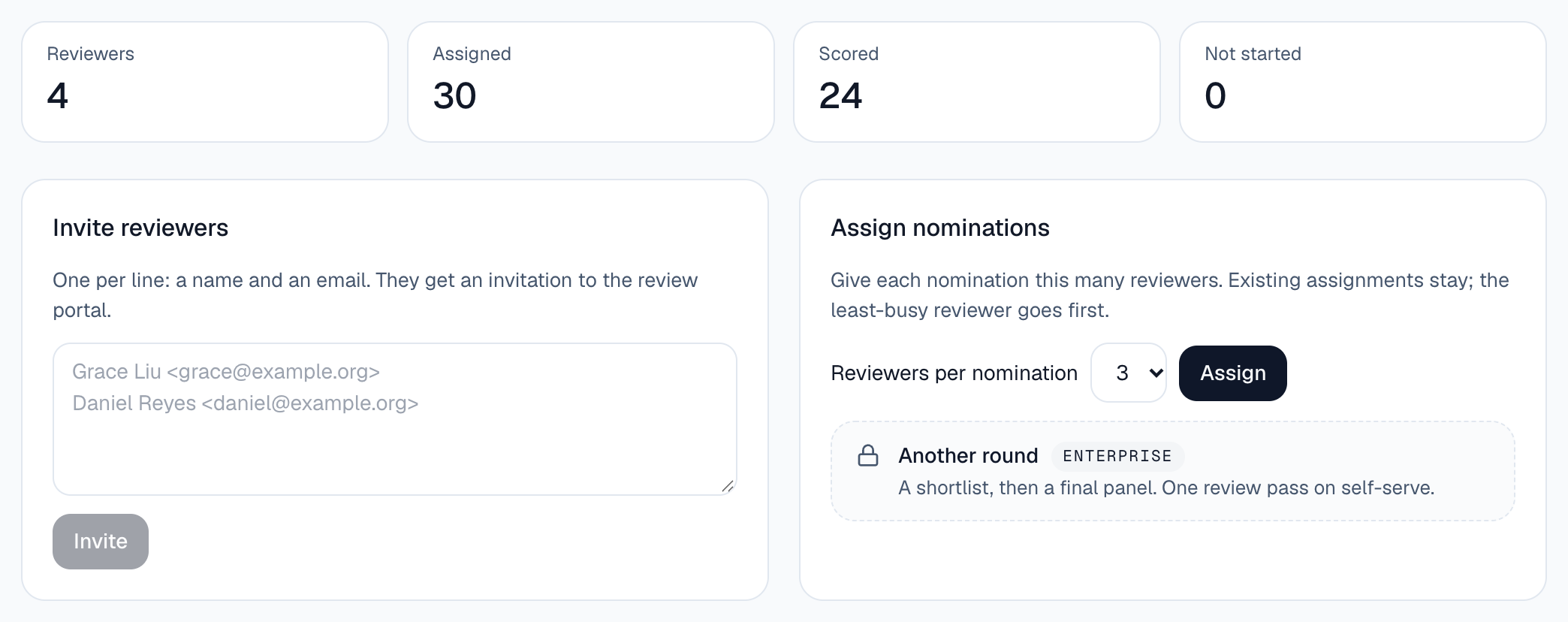
Open Review
Go to Review. If you have more than one program, choose it from Program.
Paste names and emails
Under Invite reviewers, paste one reviewer per line: a name and an email, for example Grace Liu <grace@example.org>. You can invite up to 50 at a time.
Send the invitations
Select Invite. Each reviewer gets an email invitation.
Assign nominations
Section titled “Assign nominations”Choose how many reviewers per nomination
Under Assign nominations, pick Reviewers per nomination, from 1 to 5.
Assign
Select Assign. Sessionboard gives each nomination to the reviewers with the fewest assignments first and tells you how many new assignments it made.
Assigning again later keeps every existing assignment and only adds what is missing, so you can assign again after more nominations arrive.
Follow progress
Section titled “Follow progress”The tiles show Reviewers, Assigned, Scored and Not started. The reviewers table shows how many each person has scored. Nominations by average score ranks every nomination with its category, number of scorecards and average.
To nudge reviewers who haven’t finished, ask: “Remind reviewers who haven’t finished.” Ask shows exactly who it will email, and sends when you select the button on that card. It then says how many went out (Sent 4 of 5 reminders). A reviewer reminded in the last 24 hours is skipped, and one that didn’t go through is tried again automatically. See Get things done with Ask.
Hide names from reviewers
Section titled “Hide names from reviewers”On Review, turn on Hide nominator and nominee names from reviewers. Reviewers then score each nomination without seeing who nominated whom: names, emails, phone numbers and organizations are hidden in their view. You still see everything.
- Blind review is included in every plan.
- You can turn it on or off at any time. It changes what reviewers see from then on.
Summarize what the reviewers said
Section titled “Summarize what the reviewers said”In Nominations by average score, select Summarize on any nomination with a scorecard. Ask reads the reviewers’ comments and writes a short summary, then lists the main points with the names of the reviewers who made each one. Under it, What each reviewer wrote shows every comment as written.
You can also ask: “Summarize the reviews for Ana Duarte.”
- Only the reviewers’ written comments are summarized. Scores are never changed.
- Reviewers who abstained are left out.
- Summaries are included in every plan.
- If AI is turned off for your organization, you see each reviewer’s comments without a summary.
What reviewers see
Section titled “What reviewers see”Reviewers sign in to your public awards page with a link sent by email and open My Reviews. Before nominations close, the review shows as upcoming and not yet open. Once it opens, they pick a nomination and fill in the scorecard. Each nomination is titled with the nominee’s name.
A reviewer with a conflict of interest selects Abstain instead of scoring. An abstention counts as done in your progress numbers, and the nomination’s average uses only the scorecards that were filled in.