
Sessionboard Awards is an add-on feature. If your organization doesn't have access yet or you'd like to learn more about pricing, please contact support@sessionboard.com.
In this article:
- Where to find Sites
- Creating a new site
- Site URL & slug
- Landing page & login
- Branding & Generate Branding
- Organization Portal
- Available Programs
- Custom Pages & privacy notice
- What submitters see
- Next steps
Where to find Sites
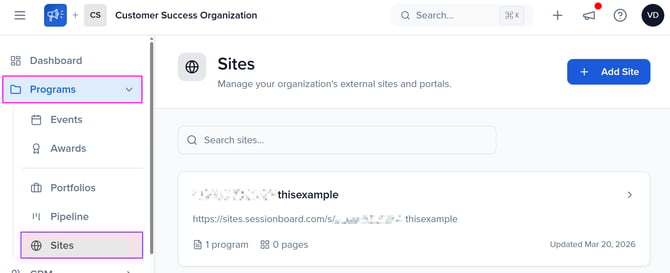
Sites is where you create and manage the public-facing portals that submitters use to access your awards programs. You will find it under Programs → Sites in the left-hand navigation.
The Sites page displays all of your organization's portals in a searchable list. Each entry shows the site slug, the number of programs published on that site, the number of custom pages, and the date it was last updated.
Tip: Sites serve both Awards programs and Pipeline Interest Forms. A single site can host both program types simultaneously, so you may not need a separate site for each. See Speaker Interest Pipeline (Interest Forms) for details on publishing interest forms.
Creating a new site
Click the + Add Site button in the top-right corner of the Sites page. This creates a new site portal and opens the site editor, where you'll configure everything from the URL and branding to login methods and available programs.
The site editor has a top toolbar with two key buttons:
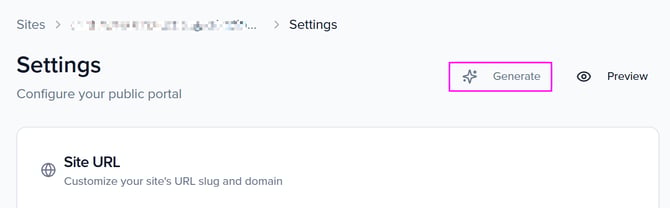
- Generate (sparkle icon) — Opens the Generate Branding tool, which can automatically extract colors, logos, and text from any website to apply to your portal.
- Preview — Opens your site's live URL in a new tab so you can see exactly what visitors will experience.
Below the toolbar, the settings page is organized into collapsible sections: Site URL, Landing Page & Login, Organization Portal, Available Programs, User Information, Privacy Notice, and Custom Pages.
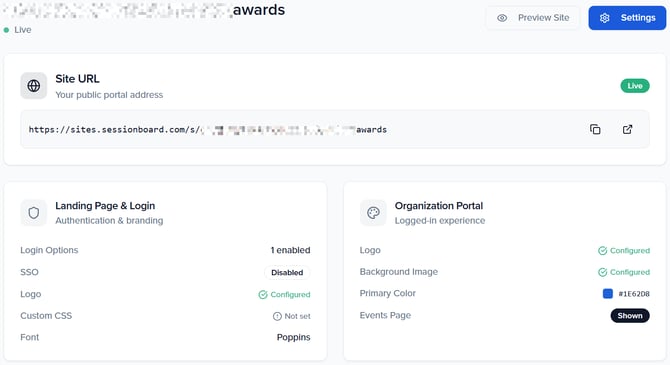
The site overview page also includes a Quick Actions row at the bottom with shortcut buttons — Edit Login Options, Customize Branding, Manage Pages, and Configure SSO — that jump directly to the settings section.
Site URL & slug
The Site URL section at the top of the settings page controls how people access your portal.
- Site Name — An internal label for this site (e.g., "ACME Awards Portal"). This is not shown publicly and is only visible to your admin team on the Sites list page.
- Site Slug — The public URL path for your portal. This appears at the end of your site URL:
https://sites.sessionboard.com/s/your-slug. You can customize the slug to something meaningful, such asawardsor2026-grants. The slug has a maximum of 100 characters.
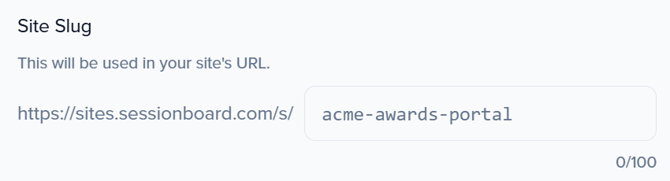
All Sessionboard sites are hosted at sites.sessionboard.com. The organization portion of the URL is set automatically based on your organization, and the slug is the only part you customize.
Note: Choose your slug carefully — it becomes part of the public link you share with submitters. Keep it short, descriptive, and easy to type.
Landing page & login
The Landing Page & Login section controls what visitors see when they first arrive at your site — before they log in.
Title & subtitle
Set a Title and Subtitle for your landing page. The title appears prominently on the portal's public-facing page as the main heading, and the subtitle appears directly below it. Use these to communicate what your program is about and invite people to participate.
Login methods
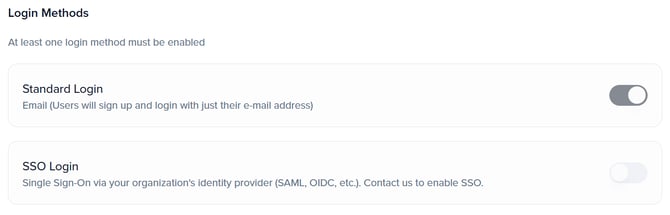
At least one login method must be enabled. There are two options:
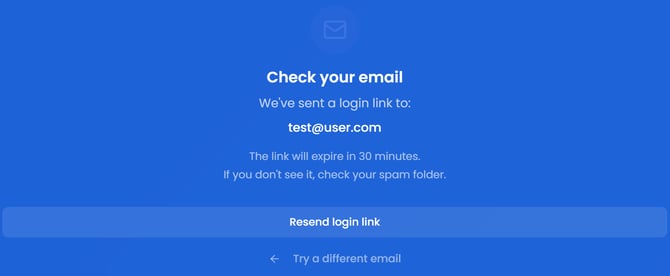
- Standard Login — Submitters enter their email address and receive a login link (sometimes called a magic link). The link expires after 30 minutes. No password is required — they simply click the link in their email to access the portal. This is the default method and is enabled by default.
- SSO Login — Single Sign-On via your organization's identity provider (SAML, OIDC, etc.). This option is available by request — contact Sessionboard support to enable SSO for your organization.
Branding & Generate Branding
The branding settings let you customize the look and feel of your portal so it matches your organization's visual identity.
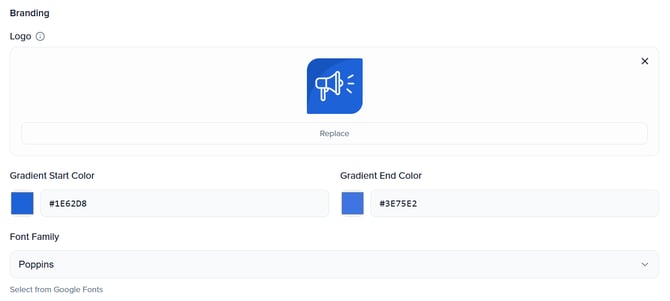
Branding settings
- Logo — Upload your organization's logo. Accepted formats: PNG or SVG, recommended size 400×160px, maximum ~500KB. This logo appears on both the landing page and the logged-in portal.
- Gradient Start Color & Gradient End Color — The two colors used for the gradient background on your landing page. Set these to match your brand colors for a polished look.
- Font Family — Choose any font from Google Fonts. The default is Inter.
Generate Branding
Instead of configuring branding manually, you can use the Generate Branding tool to automatically extract branding elements from any website. Click the Generate button (sparkle icon) in the top toolbar to open the dialog.
Enter the URL of your organization's website and click Generate. Sessionboard will scan the page and extract colors, logos, and text to populate your portal's branding fields automatically. This is particularly useful for getting started quickly — you can always fine-tune the generated values afterward.
Advanced customization
For more control, expand the Advanced section under Landing Page & Login to add custom HTML, CSS, and JavaScript to your portal. This is available for organizations that need pixel-perfect control over their site's appearance beyond what the standard branding options provide.
Keep in mind, this is only intended for advanced expert users. We do not suggest using custom code without developer help, as it can break styles and existing functionality if not applied correctly.
Organization Portal
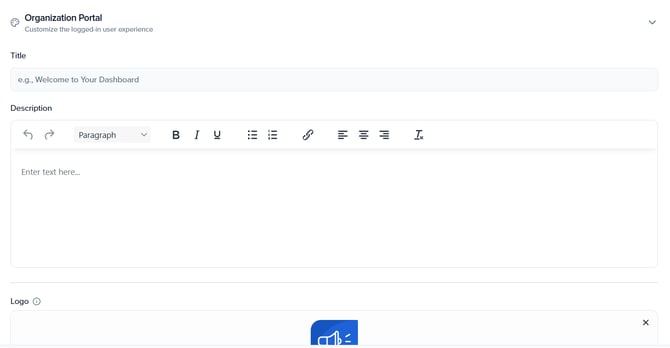
The Organization Portal section controls the logged-in experience — what submitters see after they sign in and complete their profile setup.
- Title — The heading displayed on the portal's home page after login (e.g., "Welcome to Your Dashboard").
- Description — A rich-text area where you can add introductory content, instructions, or announcements for logged-in users. This appears on the portal home page below the title.
- Logo — A separate logo upload for the logged-in portal (same specs as the landing page logo: 400×160px, PNG/SVG, ~500KB).
- Background Image — An optional background image for the portal. Recommended size: 1920×800px, JPG or PNG format, maximum ~2MB.
Show "Events" Page
If your organization uses Sessionboard for both Events and Awards, you can toggle on the Show "Events" Page option. When enabled, this adds a My Events section to the logged-in portal sidebar, allowing users to view events they are associated with.

Available Programs
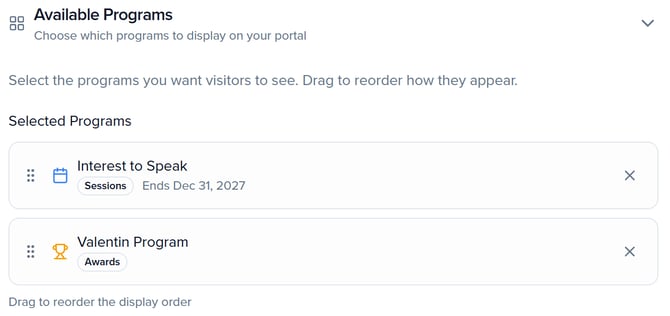
The Available Programs section determines which programs are published on your site and visible to visitors.
Click the section to expand it, then select the programs you want to display. Selected programs appear in a list with drag handles — use these to reorder how programs appear on the portal. Visitors will see them in the order you set. Click the × next to a program to remove it from the site.
Each program entry shows its name, type badge (Awards or Sessions), and end date if one is configured. A single site can host a mix of program types — for example, you might publish two Awards programs alongside a Speaker CRM Interest Form on the same portal.
Tip: Only programs that are currently open or upcoming will appear as available options. If you don't see a program in the list, check that it has been launched and its submission window is still active.
User Information
Below Available Programs, the User Information section defines the required fields that new users must complete when they first register on your portal. The required fields are First Name, Last Name, and Email. These fields are fixed and cannot be removed or changed.
Custom Pages & privacy notice
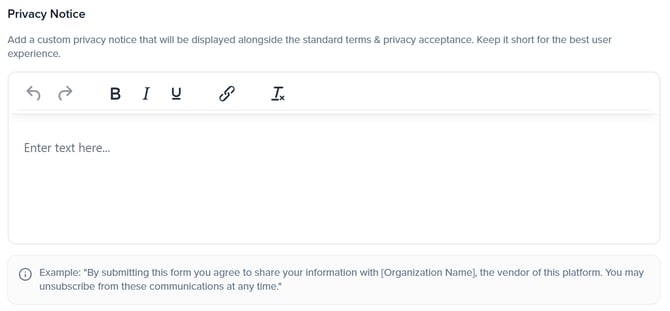
Privacy Notice
The Privacy Notice section lets you add a custom consent message that appears alongside the standard terms and privacy acceptance during user registration. Use the rich-text editor to add your organization's data-processing or privacy disclosure language. Keep it concise for the best user experience.
On the registration screen, submitters will see a checkbox reading "I agree to the terms and conditions and privacy policy" — your custom privacy notice content appears alongside this.
Custom Pages
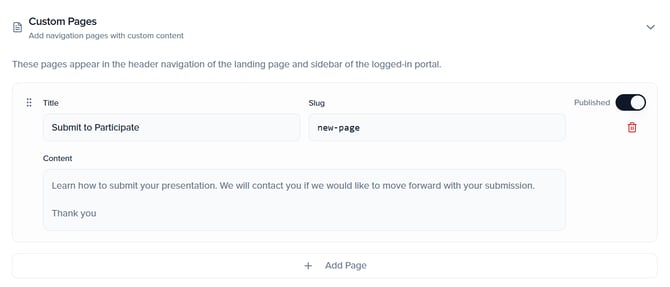
The Custom Pages section allows you to create additional content pages for your portal — such as FAQs, eligibility guidelines, or sponsor information. These pages appear in the header navigation of the public landing page and in the sidebar of the logged-in portal.
Click + Add Page to create a new page. Each custom page has:
- Title — The page name that appears in the navigation.
- Slug — The URL path for the page.
- Published — A toggle to control whether the page is visible to visitors.
- Content — A rich-text editor where you can add the page content.
You can create multiple pages and toggle each one on or off independently.
What submitters see
Once your site is configured and programs are published, here is what submitters experience when they visit your portal.
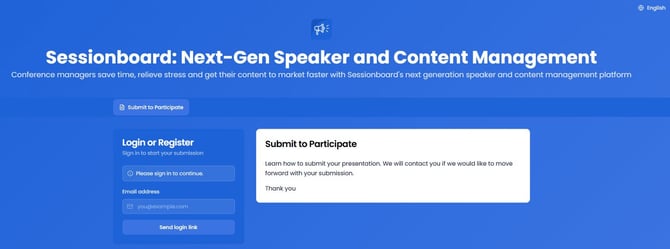
Landing page
Visitors see your branded landing page with the gradient background, logo, title, and subtitle you configured. The page displays a Submit to Participate button and a Login or Register section where visitors enter their email address to receive a login link. If you have published custom pages, they appear as navigation links in the header.
First-time registration
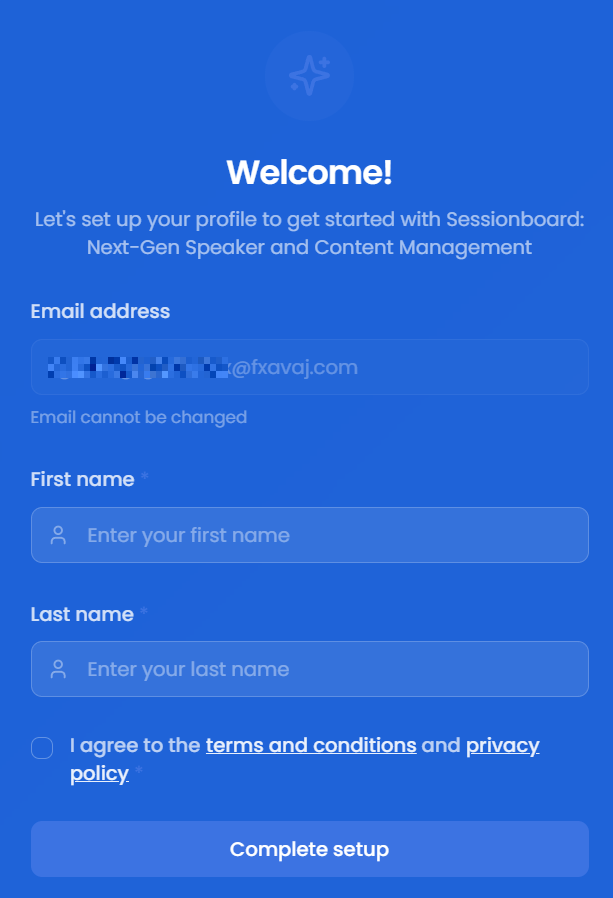
When a new user clicks the login link from their email for the first time, they are taken to a Welcome screen to set up their profile. The screen displays the required fields (First Name, Last Name) with their email pre-filled and locked, along with the terms and privacy policy checkbox. After completing setup, they enter the logged-in portal.
Logged-in portal
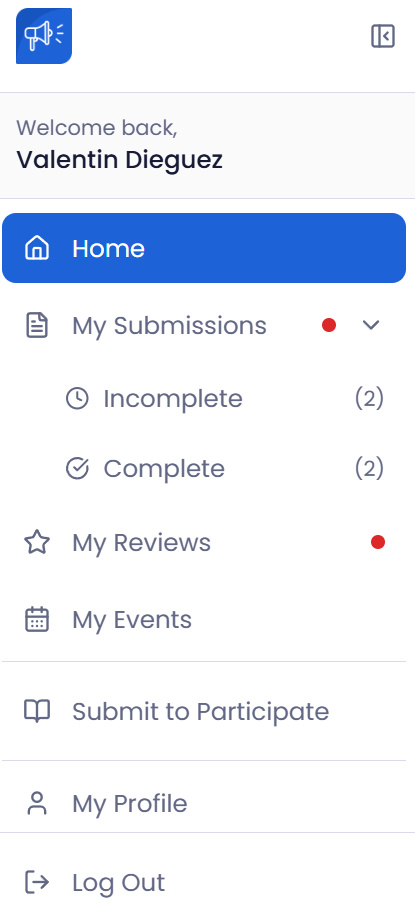
After logging in, submitters see a sidebar with the following navigation:
- Home — The portal home page with your welcome title, description, and background image.
- My Submissions — Expandable section showing Incomplete and Complete submissions with counts.
- My Reviews — Visible if the user is also a reviewer for any program.
- My Events — Visible only if the Show "Events" Page toggle is enabled in settings.
- Submit to Participate — Lists the open programs available for new submissions.
- My Profile — User profile management.
- Log Out
Tracking and continuing submissions
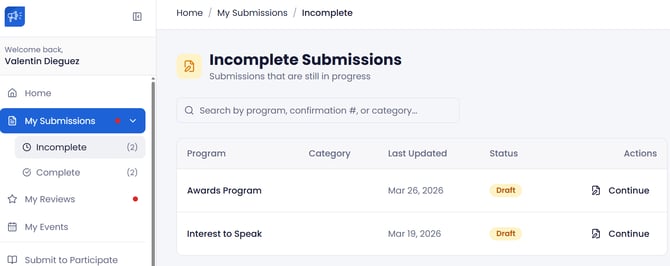
The My Submissions section is where submitters manage their entries across all program types on the portal — including both awards programs and interest forms. Submissions are split into two views:
- Incomplete — Submissions that have been started but not yet submitted. Each row shows the program name, category, last updated date, a Draft status badge, and a Continue button to resume where they left off.
- Complete — Submissions that have been successfully submitted. Submitters can use this view to track the status of their entries.
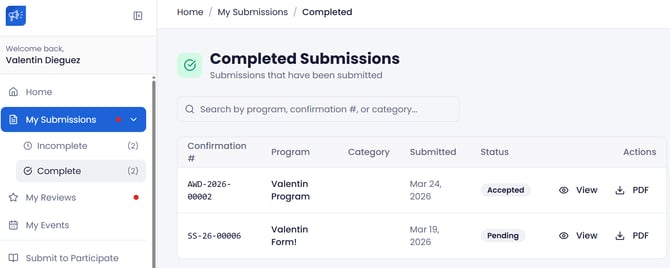
Submitters can search across their submissions by program name, confirmation number, or category. Because a single portal can host both awards programs and interest forms, all submission types appear together in the same list — making it easy for submitters to manage everything from one place.
Next steps
With your site configured, continue building out your awards program:
- Getting Started with Sessionboard Awards — Return to the setup overview to review the 7-step program wizard and other configuration options.
- Awards Notifications & Email Templates — Configure the automated emails your submitters receive, including the Submission Confirmation that includes a link back to your portal.
- Managing Submissions, Reviewers & Rounds — Once submissions start arriving through your site, manage the evaluation lifecycle.
- Awards Pricing, Payments & Invoices — If your programs charge submission fees, configure pricing and payment collection.
- Speaker Interest Pipeline (Interest Forms) — Learn how to publish Pipeline Interest Forms on the same site alongside your awards programs.
Tip: Use the Preview button in the site editor toolbar to review your portal before sharing the link with submitters. This opens the live site URL so you can verify branding, login flow, and published programs all look correct.