
Sessionboard Awards is an add-on feature. If your organization doesn't have access yet or you'd like to learn more about pricing, please contact support@sessionboard.com.
In this article:
- Where to find notification settings
- How notifications work
- Submitter notifications
- Reviewer notifications
- Admin notifications
- Customizing email templates
- Best practices
- Next steps
Where to find notification settings
Notification settings for your awards program are available in two places:
- During initial setup: Notifications is the final step of the program setup wizard, appearing as the final screen after you complete the other 7-step configuration (Identity → Categories → Form Builder → Pricing → Rounds → Winners → Managers).
- After setup: From your Program Dashboard, click Settings → Edit Settings and navigate to the Notifications section in the left sidebar.
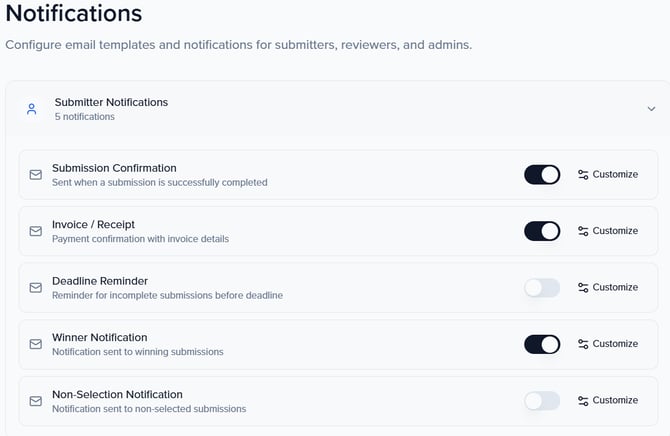
Tip: You can configure notifications at any point — during initial setup or after your program is live. We recommend reviewing your notification settings before opening your program for submissions to ensure submitters and reviewers receive the right communications from the start.
How notifications work
Sessionboard Awards includes built-in email notifications that are sent automatically when specific events occur in your program — such as a new submission being received, a reviewer being assigned, or a winner being selected.
Each notification type has:
- A toggle switch to enable or disable that notification. When disabled, the email will not be sent even if the triggering event occurs.
- A Customize button to open the email template editor, where you can modify the subject line, body content, and formatting of that specific notification.
Notifications are organized into three groups: Submitter Notifications (emails sent to people who submit entries), Reviewer Notifications (emails sent to people who evaluate submissions), and Admin Notifications (emails sent to program managers and administrators).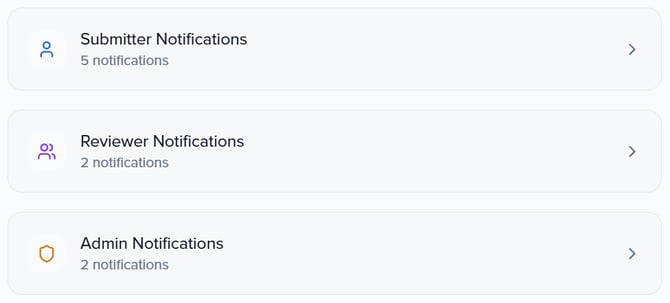
Submitter notifications
Submitter notifications are emails sent to the people who create and submit entries in your awards program. These keep applicants informed about the status of their submission throughout the program lifecycle.
Submission Confirmation
Sent automatically when a submitter successfully completes and submits their entry. This email serves as a receipt confirming their submission was received. If your program collects payment upon submission, the confirmation email is typically sent after the payment is processed.
Invoice / Receipt
Sent when a payment transaction is completed. This notification provides the submitter with a record of their payment, including the amount charged and the associated submission. This notification is particularly relevant for programs that charge submission fees.
Deadline Reminder
Sent to submitters who have started but not yet completed their submission as the deadline approaches. This helps reduce incomplete submissions by prompting applicants to finalize their entries before the submission window closes.
Winner Notification
Sent to submitters whose entries have been selected as winners. This is the notification that formally communicates the good news to award recipients. You can customize this template to include details about next steps, ceremony information, or any actions the winner needs to take.
Non-Selection Notification
Sent to submitters whose entries were not selected as winners. This email allows you to respectfully communicate the outcome and, if desired, thank participants for their entries and encourage them to apply again in the future.
Note: Winner and Non-Selection notifications are not sent automatically when a winner is tagged. They are triggered when you choose to send them, giving you control over the timing of announcements.
Reviewer notifications
Reviewer notifications are emails sent to the people assigned to evaluate submissions in your program. These notifications help manage the review process and keep evaluators informed of their responsibilities.
Review Invitation
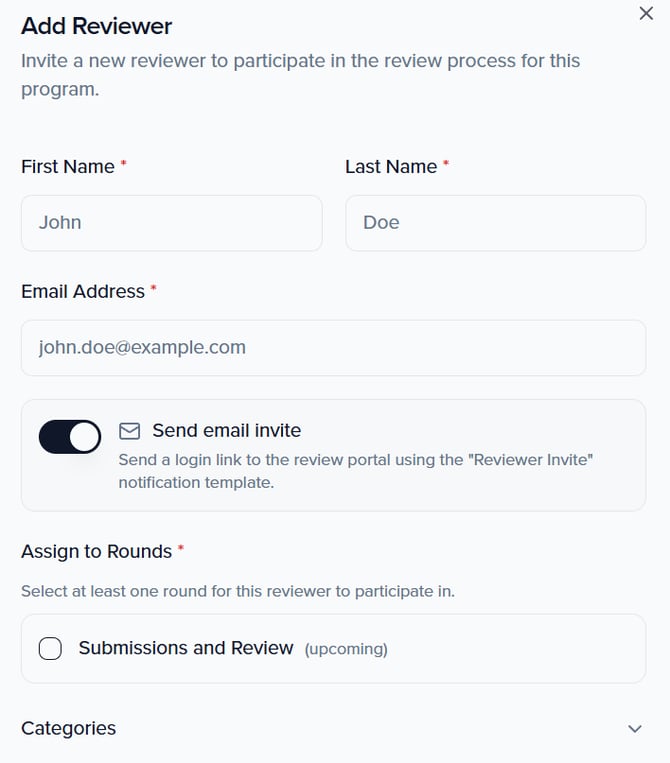
Sent when a new reviewer is added to your program with the Send email invite toggle enabled. This email provides the reviewer with a login link to access the review portal, along with information about the program and their role. When adding a reviewer from the Reviewers page, you will see the option to send this invite as part of the Add Reviewer dialog.
Reviewer Deadline Reminder
Sent to reviewers who have outstanding, incomplete reviews as a round deadline approaches. This helps ensure reviews are completed on time and reduces the need for manual follow-up from program administrators.
Tip: When adding reviewers, the Send email invite toggle in the Add Reviewer dialog uses the Reviewer Invite notification template. If you want to customize the welcome message reviewers receive, edit this template before adding your first reviewer.
Admin notifications
Admin notifications are emails sent to program managers and administrators to keep them informed about activity in their program.
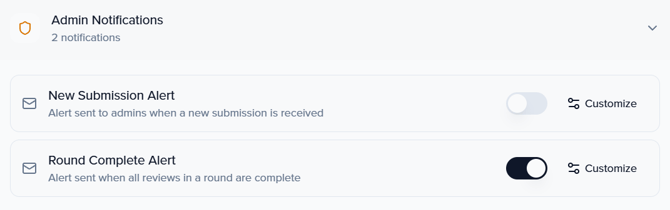
New Submission Alert
Sent to program administrators when a new submission is received. This helps admins stay aware of incoming entries without needing to log in and check the dashboard manually. For high-volume programs, you may choose to disable this notification to avoid inbox overload.
Round Complete Alert
Sent when all assigned reviews for a submission or round have been completed. This alerts administrators that the evaluation is finished and the program is ready to move to the next stage — whether that is advancing finalists, selecting winners, or closing a round.
Customizing email templates
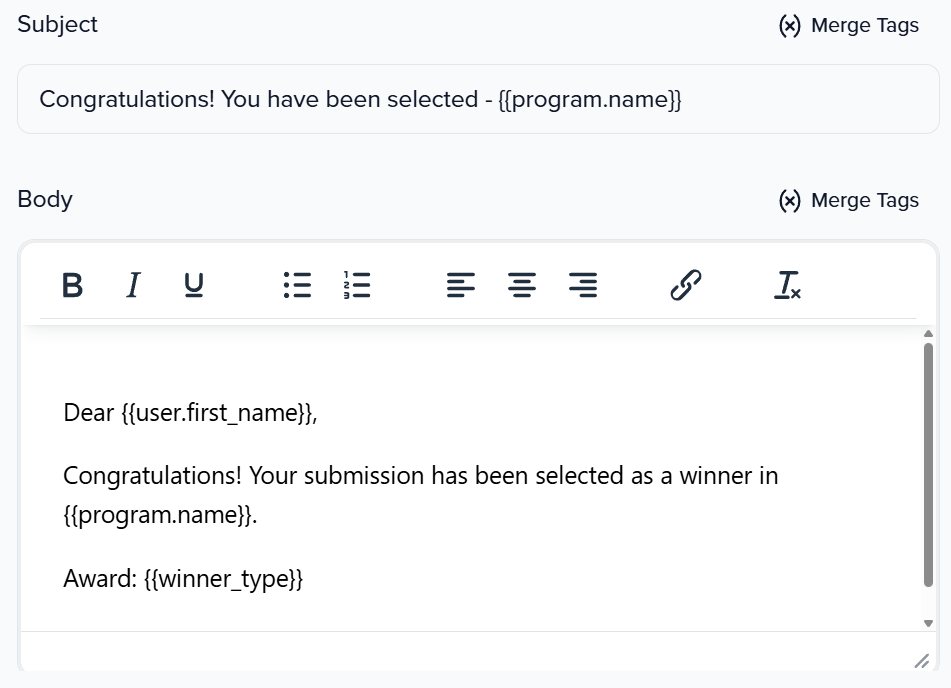
Every notification in Sessionboard Awards uses a pre-built email template that you can customize to match your organization's voice and branding. To edit a template, click the Customize button next to any notification on the Notifications settings page.
When customizing a template, you can modify:
- Subject line — The email subject the recipient will see in their inbox.
- Email body — The main content of the email, including text, formatting, and layout.
- Merge tags — Dynamic placeholders that are replaced with real data when the email is sent (e.g., the submitter's name, program name, or submission details).
Note: Customizations apply only to the current program. If you create a new program, it will start with the default notification templates. You will need to customize templates again for each new program.
Default templates
Each notification comes with a default template that includes standard messaging and appropriate merge tags. The defaults are designed to work out of the box for most programs. If you prefer not to customize, simply leave the defaults in place and ensure the notifications you need are toggled on.
Enabling and disabling notifications
Each notification has a toggle switch on the Notifications settings page. Toggle a notification off to prevent it from being sent, even if the triggering event occurs. Toggle it back on at any time to re-enable it.
This is useful when you want to temporarily pause certain communications — for example, disabling the Deadline Reminder while you extend a submission window, or holding off on Winner Notifications until you are ready to make a public announcement.

Best practices
- Review templates before launching: Customize your Submission Confirmation and Reviewer Invite templates before opening your program. These are the first emails your participants will receive and set the tone for the entire experience.
- Coordinate winner announcements: Disable Winner and Non-Selection notifications during the judging process. Only enable and send them when you are ready to announce results — this prevents accidental early notifications.
- Use deadline reminders strategically: Keep Deadline Reminders enabled for both submitters and reviewers. These automated nudges significantly reduce incomplete submissions and late reviews.
- Keep admin notifications manageable: For programs expecting a high volume of submissions, consider disabling the New Submission admin notification to avoid inbox overload. You can always monitor submissions through the Program Dashboard instead.
- Test before going live: If possible, submit a test entry to your own program to preview the automated emails submitters will receive. This lets you verify that templates, merge tags, and formatting look correct before real applicants see them.
Next steps
With notifications configured, continue building out your program:
- Managing Submissions, Reviewers & Rounds — Learn how to track incoming submissions, assign reviewers, configure scoring, and manage evaluation rounds.
- Setting Up Your Awards Site — Publish a branded portal where submitters can log in, submit entries, and track their status.
- Awards Pricing, Payments & Invoices — Configure submission fees and review your Invoice / Receipt email template alongside pricing settings.
Tip: Notifications work hand-in-hand with other features. For example, the Invoice / Receipt email ties into your Pricing configuration, and the Reviewer Invite email is triggered when you add reviewers to your program. Review the related articles above to see how these features connect.