
This guide only applies for organizations with Speaker CRM enabled.
Have questions or want to receive pricing for the Speaker CRM?
Contact support@sessionboard.com.
What are Interest Forms?
Interest Forms are a capability inside Speaker CRM that lets you collect speaker and session interest year-round,not just during Call for Papers windows.
Through a customizable Interest Form, you can collect in two modes: Sessions & Speakers (to capture session proposals along with speaker details) or Speakers Only (to capture speaker contact information and profiles without session details).
Submissions are automatically stored in Speaker CRM and surface as entries in the new Speaker CRM: Pipeline, where your team can move prospects through your sourcing workflow.
Key benefits
- Continuous pipeline — Collect interest throughout the year, not just during CFP cycles
- Centralized data — All submissions go directly into Speaker CRM. No spreadsheets, no imports, no external tools
- Two collection modes — Choose "Sessions & Speakers" to collect session proposals with speaker info, or "Speakers Only" to collect speaker contacts and profiles without session details
- Multi-event support — Speakers can indicate interest in one or more upcoming events
- Integrated with the Pipeline — Every submission lands in the Pipeline so your team can immediately triage, research, and advance prospects through stages
Interest Forms vs. Submission Forms (SSF)
Interest Forms and Speaker Submission Forms (SSF) serve different purposes:
| Interest Forms | Submission Forms (SSF) | |
|---|---|---|
| Level | Organization-level | Event-level |
| Purpose | Collect interest across one or multiple events year-round | Collect session submissions for a specific event |
| Where data lives | Speaker CRM (flows into the Pipeline; can be assigned to events when ready) | Directly inside the event |
| When to use | Year-round pipeline building, early-stage interest capture | Active Call for Papers / session submission period |
Accessing Interest Forms
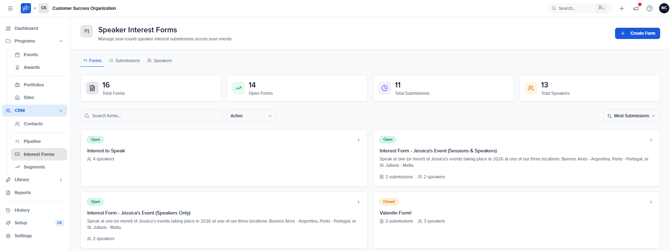
Navigate to your Organization Dashboard > CRM > Interest Forms in the left sidebar. You'll see three tabs:
- Forms — All your Interest Forms with status, submission counts, and speaker counts
- Submissions — All submissions across all forms
- Speakers — All speakers who have submitted interest
The dashboard at the top shows Total Forms, Open Forms, Total Submissions, and Total Speakers.
Creating an Interest Form (5-step wizard)
Click + Create Form in the top right corner. This opens a 5-step setup wizard.
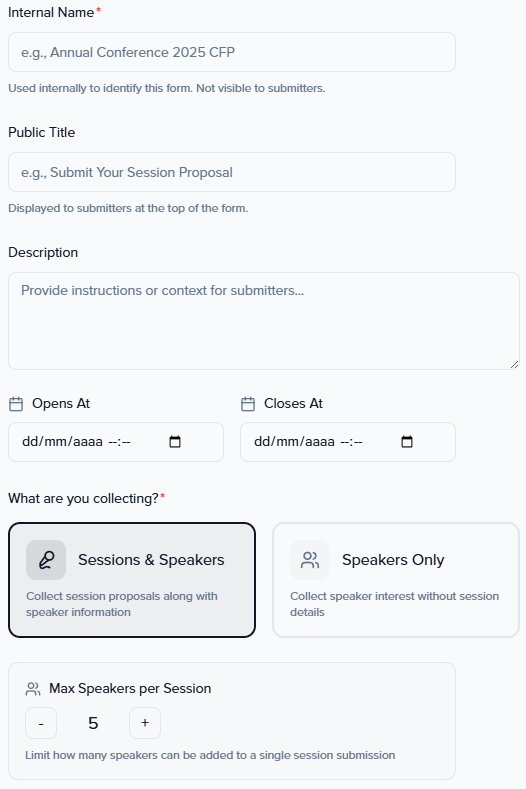
Step 1: Form Details
Configure the basic settings for your form:
- Internal Name — Used to identify the form internally (not visible to submitters)
- Public Title — Displayed to submitters at the top of the form (e.g., "Submit Your Session Proposal")
- Description — Instructions or context shown to submitters
- Opens At / Closes At — Define the submission window. The form will automatically close on the Closes At date
- What are you collecting? — Choose one:
- Sessions & Speakers — Collect session proposals along with speaker information
- Max Speakers Per Session — Limit the number of speakers for sessions
- Speakers Only — Collect speaker interest without session details
- Sessions & Speakers — Collect session proposals along with speaker information
Step 2: Events
Select which events speakers can indicate interest in. Submitters will choose from these events when filling out the form.
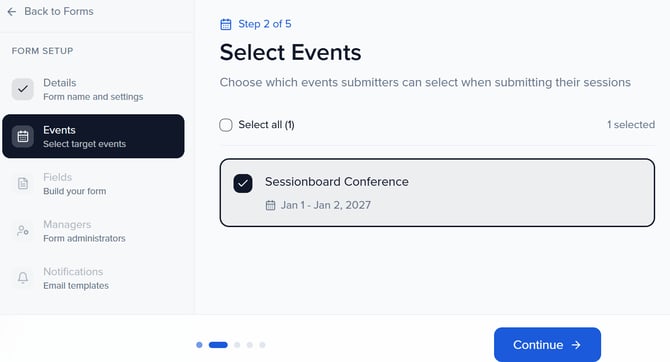
Only future-dated events can be selected. You cannot create Interest Forms for events that have already passed.
Step 3: Form Fields
Build your form by configuring what information to collect.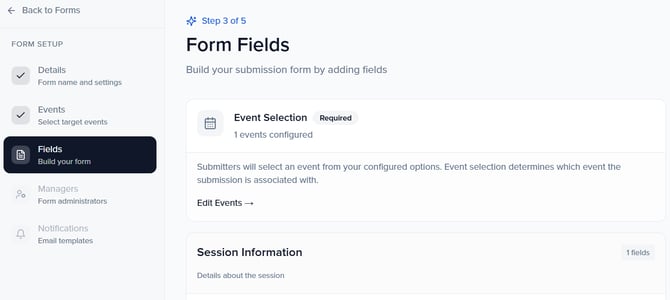
The form has two main sections:
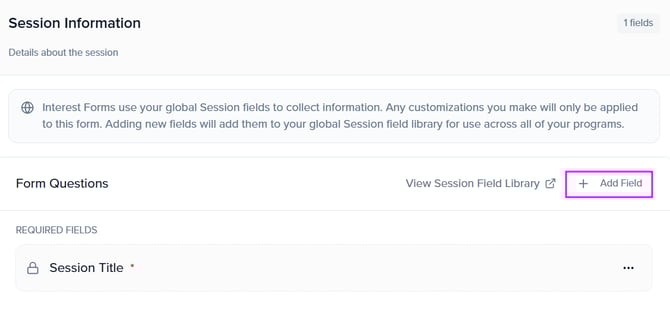
Session Information (Sessions & Speakers mode only)
- Session Title is required by default
- Click + Add Field or View Session Field Library to add more session fields
- Fields are pulled from your global Session field library — any new fields you add here will also be available across all your programs
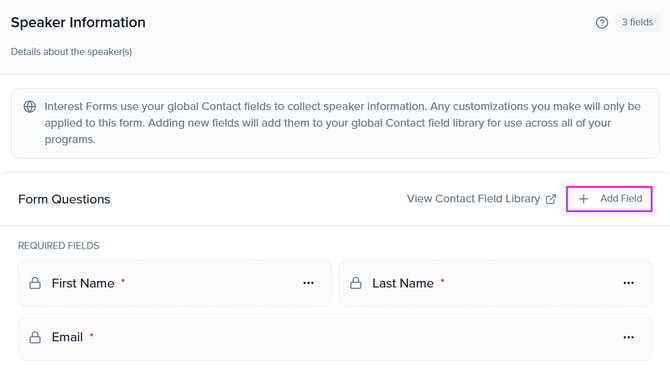
Speaker Information
- First Name, Last Name, and Email are required by default
- Click + Add Field or View Contact Field Library to add more speaker fields
- Fields are pulled from your global Contact field library
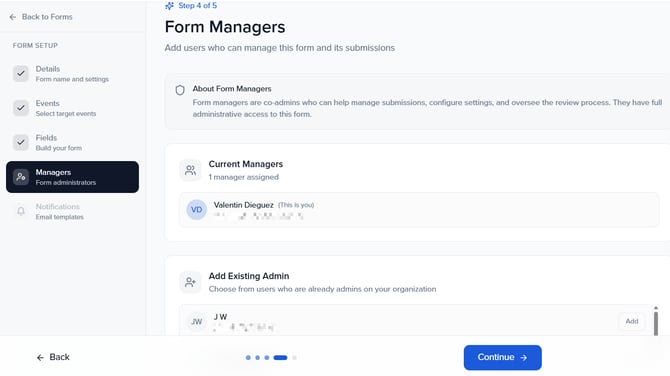
Step 4: Managers
Assign co-admins who can help manage this form. Form Managers have full administrative access to manage submissions, configure settings, and oversee the review process for this specific form.
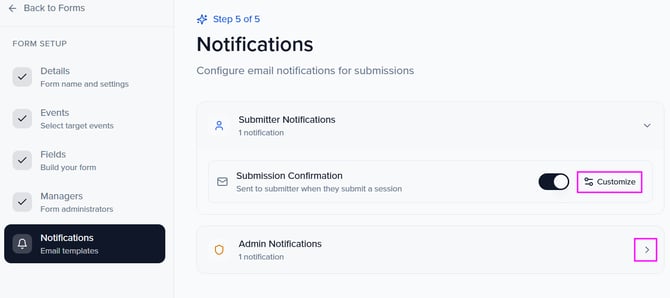
Step 5: Notifications
Configure email notifications for submissions. There are two types:
- Submitter Notifications — A Submission Confirmation email sent to the speaker when they submit. Enabled by default. Click Customize to edit the sender name, subject, and body
- Admin Notifications — An email sent to administrators when a new submission is received. Can also be customized
Publishing Your Form via Sites
Once your form is created, you need to publish it on a Site so speakers can access it.
- Go to Programs > Sites in the left sidebar
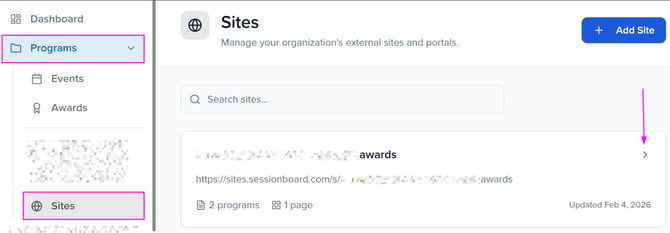
- Open your Site and navigate to Settings

- Under Available Programs, find your Interest Form a and select it

- It will appear under Available Programs — once selected, you can drag to reorder how programs appear on the portal
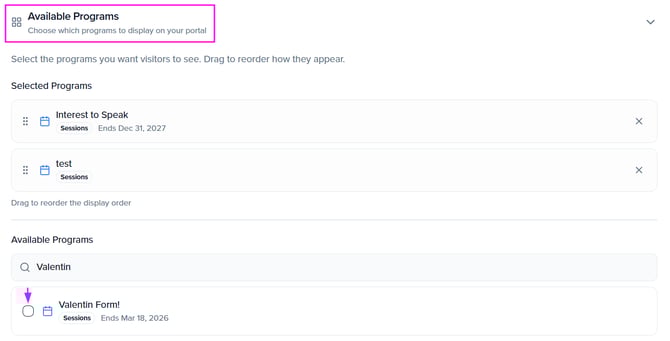
- Once done, save changes
Your Interest Form will now appear as an Open Program on your Site for speakers to access.
The Speaker Experience
When a speaker visits your Site and logs in, they will see:
- Open Programs — All published Pipeline Interest Forms appear here with submission windows and a Start Submission button
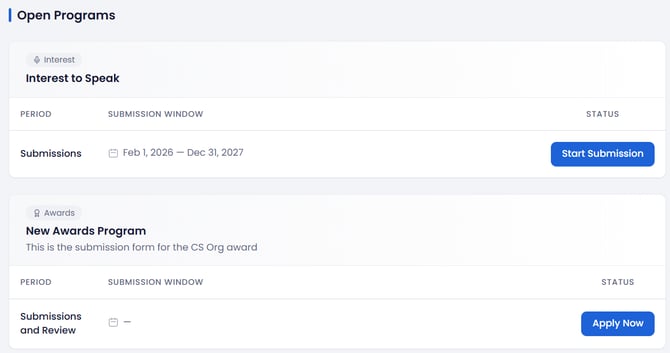
- Submission form — A 2-step flow (Submission → Confirmation):
- Select Events — The speaker chooses which upcoming events they're interested in
- Session Information — Session title and any additional fields (if Sessions & Speakers mode)
- Speaker Information — Name, email, and any additional fields you configured
- Confirmation — After submitting, the speaker receives an on-screen confirmation and an email
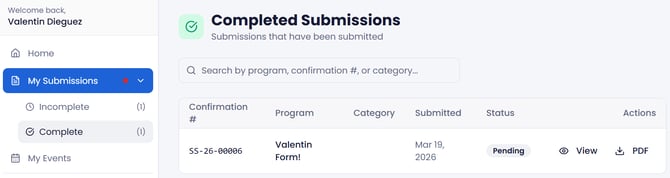
Speakers can also track their submissions via My Submissions in the portal sidebar.
Managing Submissions
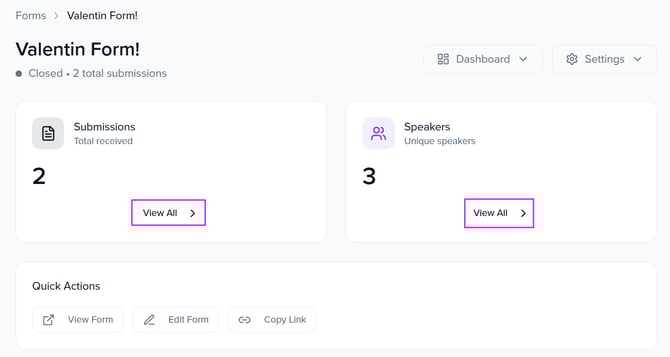
Click on any form in the Interest Forms list to open its dashboard. From here you can see:
- Submissions — Total received, with a View All link to see details
- Speakers — Unique speakers who submitted, with a View All link
Quick Actions
- View Form — Preview the form as a speaker would see it
- Edit Form — Return to the form setup wizard
- Copy Link — Get a direct link to share the form
Moving data to events
Submissions are stored in Speaker CRM. When you're ready to bring speakers into a specific event, you can seamlessly move submission data to your target events from the Pipeline — linking speakers and session proposals directly into your event programming.
How Submissions Flow Into the Pipeline
Every submission to an Interest Form is automatically created as an entry in your Speaker CRM: Pipeline, a kanban-style workflow that lets your team move prospects through stages such as Identified, Researching, Approved, Contacted, Interested, Confirmed, Future Fit, and Declined.From the Pipeline you can:
- Move prospects between stages with drag-and-drop
- Open a card to review the original submission, stage history, activity, and scouting reports
- Manually enroll additional speakers that did not come through a form
- Assign prospects to a specific event when they're ready to be programmed
For full details on managing the Pipeline, see Speaker CRM: Pipeline.
Key Things to Know
- Multiple submissions: Speakers can submit multiple proposals to the same form
- Auto-created contacts: Submitted speakers are automatically added as contacts in Speaker CRM
- Form closing: Forms close automatically based on the Closes At date you set in Step 1
- Global field libraries: Pipeline Interest Forms use your global Session and Contact field libraries — new fields added in one form are available across all programs
- Future events only: You can only select future-dated events when configuring which events speakers can choose from
- Sites required: To make the form accessible to speakers, it must be published on a Site via Manage Pages
- Auto-enrolled in the Pipeline: Every new submission appears in the Pipeline (Identified stage by default) so your team can start working it immediately