
In this article:
- Tracking submissions
- Understanding evaluation rounds
- Adding reviewers
- Assignment rules
- Scoring & voting configuration
- Managing individual submissions
- Blind review
- Winner tags & selection
- Next steps
Tracking submissions
Once your program is open and accepting entries, all incoming submissions appear in two places: the Program Dashboard and the organization-level Submissions tab.
Program Dashboard
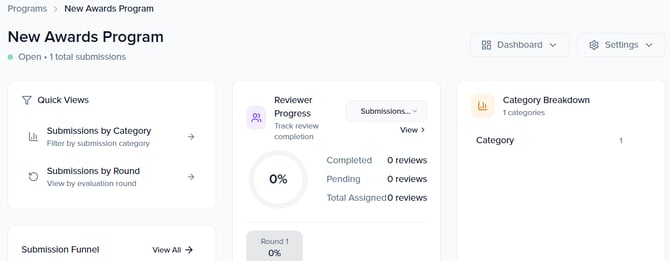
The Program Dashboard is your central hub for a single program. When your program has no submissions yet, the dashboard displays an empty state with a prompt to share your submission form link or configure review rounds. For programs in Open status, you will see two action buttons: View Submission Form (to preview the form applicants see) and Configure Rounds (to set up evaluation rounds).
As submissions come in, the dashboard shows submissions grouped by round. From here, you can navigate to Rounds, Reviewers, and other management areas using the dropdown menus at the top of the page.
Organization-level Submissions view
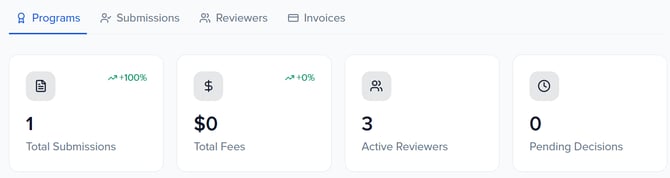
For a cross-program view, navigate to Programs → Awards and click the Submissions tab. This shows submissions across all of your awards programs in one place. The Awards hub also displays four summary metric cards at the top of the page:
- Total Submissions — The total number of submissions received across all programs.
- Total Fees — The combined submission fees collected across your programs.
- Active Reviewers — The number of reviewers currently assigned to active rounds.
- Pending Decisions — Submissions still awaiting a final decision.
Submission details within a round
When viewing a specific round via Awards Program → Dashboard → Rounds, submissions are listed in a table with the following columns: Submitter, Status, Category, Reviews (number of completed reviews), Avg Score, and Promoted (whether the submission has been advanced to the next round). This view gives you a clear picture of where each submission stands in the evaluation process.

Understanding evaluation rounds
Evaluation rounds are the stages your submissions move through during the review process. You can configure as many rounds as needed — from a single review round to a multi-stage pipeline with different reviewer panels and scoring criteria at each stage.
Round types
When creating a new round, you choose one of two types:
- Submission + Review — A round that accepts new submissions and includes a review period. This is typically your first round, where applicants submit entries and reviewers begin evaluating them.
- Review Only — A round that only includes evaluation, with no new submissions accepted. Use this for subsequent rounds where you are reviewing entries that advanced from a previous round (e.g., a finalist review stage).
The round type cannot be changed after creation, so choose carefully when setting up a new round.
Round settings
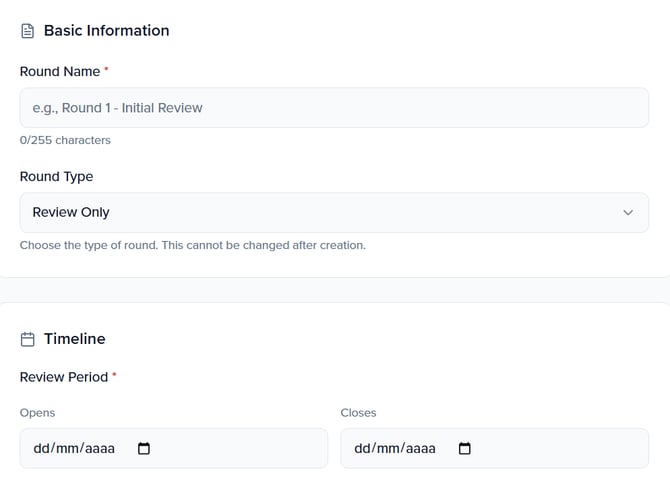
Each round has the following configuration:
- Round Name — A descriptive name for the round (e.g., "Round 1 - Initial Review" or "Finalist Review"). Maximum 255 characters.
- Round Type — Submission + Review or Review Only (set at creation, cannot be changed).
- Timeline — An Opens and Closes date to define the review window. Reviewers can only submit evaluations during this period.
- Reviewer Instructions — Rich text field where you can provide guidelines and context for reviewers participating in this round.
Round detail view
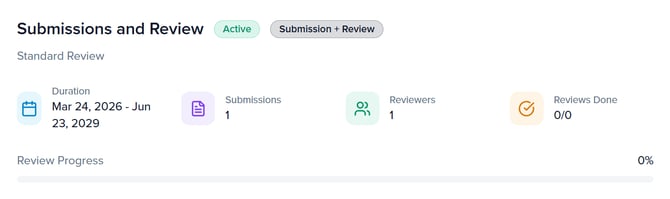
Once a round is created, its detail page displays key metrics: the round Duration, number of Submissions, number of Reviewers, Reviews Done (e.g., 0/0), and the overall Review Progress percentage. A Review dropdown button provides quick access to reviewer management actions: Add Reviewer, Assign Reviewers, View Reviewers, and Reviewer Tags.
Managing multiple rounds
All rounds for a program are listed on the Evaluation Rounds page, accessible from the Program Dashboard via the Rounds dropdown. Each round card shows its name, status (e.g., Active), type badge (Submission + Review or Review Only), start and end dates, reviewer count, and submission count. Click Add Round to create additional evaluation stages.
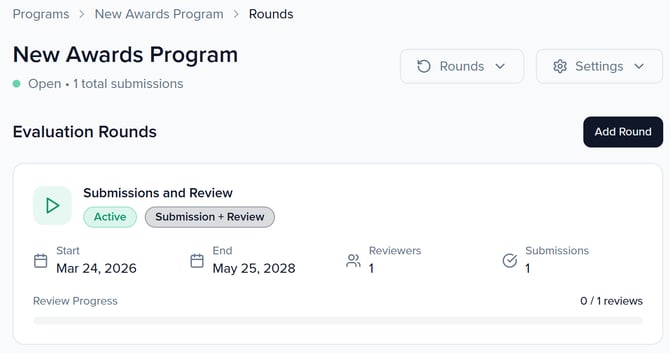
Tip: Rounds are managed from the Program Dashboard, not the setup wizard. During initial program setup, the Rounds step (Step 5 of 8) displays your configured rounds and links you to Program Dashboard → Rounds for editing. You can add, edit, or remove rounds at any time after saving your program.
Adding reviewers
Reviewers are the people who evaluate and score submissions in your program. You can add reviewers from the program-level Dashboard → Reviewers page or directly from a round's detail view using the Review → Add Reviewer dropdown.
The Add Reviewer dialog
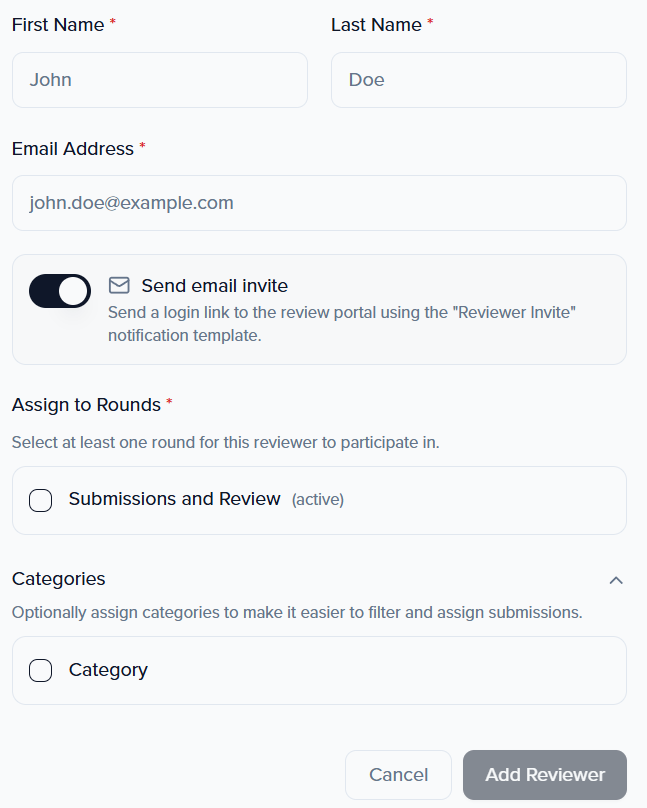
When adding a new reviewer, you provide the following information:
- First Name and Last Name (required).
- Email Address (required) — Used to send the reviewer their login credentials.
- Send email invite toggle — When enabled, the reviewer receives an automatic email with a login link to the review portal, using the Reviewer Invite notification template. You can customize this template in your Notifications settings.
- Assign to Rounds (required) — Select at least one round for the reviewer to participate in.
- Categories (optional) — Assign categories to make it easier to filter and assign submissions to this reviewer.
Reviewer Tags
Reviewer Tags let you label reviewers with specific skills or specialties (e.g., "Technical Expert," "Industry Veteran") to simplify filtering and assignment. You can manage tags from the Reviewer Tags page, accessible via the Reviewers page or the round detail view's Review dropdown. Click + Add Tag to create a new tag.

Organization-level Reviewers view
For a cross-program view of all reviewers, navigate to Programs → Awards and click the Reviewers tab. This page shows four summary metrics: Total Reviewers, Active Reviewers, Reviewer Groups, and Average Completion Rate.
Assignment rules
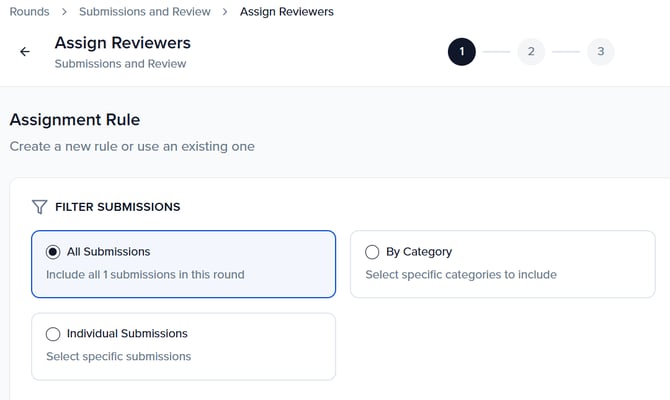
Assignment rules define which submissions each reviewer receives for evaluation. When you click Assign Reviewers from a round's Review dropdown, you configure two components: how to filter submissions and how to distribute them among reviewers.
Filtering submissions
The first step is deciding which submissions to include in the assignment. You can filter using one of three options:
- All Submissions — Include every submission in the round.
- By Category — Select specific categories to include (e.g., only "Lifetime Achievement" entries).
- Individual Submissions — Search for and select specific submissions manually.
Assignment logic
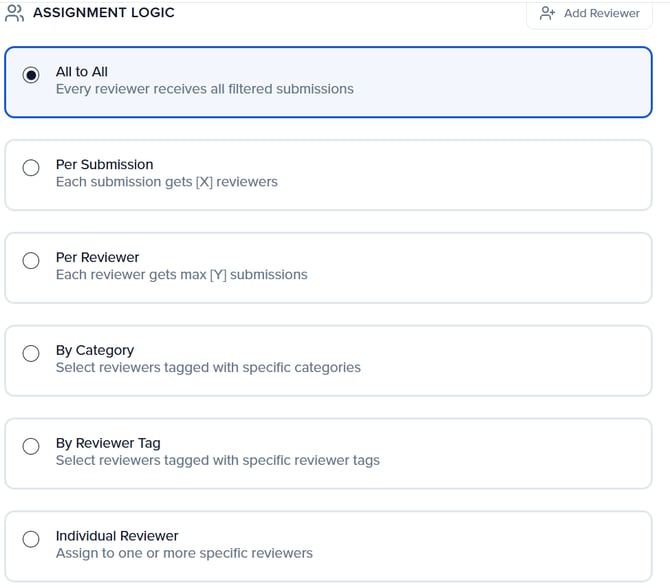
The second step determines how filtered submissions are distributed to reviewers. There are four distribution methods:
- All to All — Every reviewer receives all filtered submissions. Best for small programs or rounds with a manageable number of entries.
- Per Submission — Each submission gets a set number of reviewers (e.g., 3 reviewers per submission). The system distributes submissions evenly.
- Per Reviewer — Each reviewer gets a maximum number of submissions (e.g., each reviewer evaluates up to 10 entries).
- By Category — Select reviewers tagged with specific categories.
- By Reviewer Tag — Select reviewers tagged with specific reviewer tags.
- Individual Reviewer — Manually assign submissions to one or more specific reviewers.
Impact preview
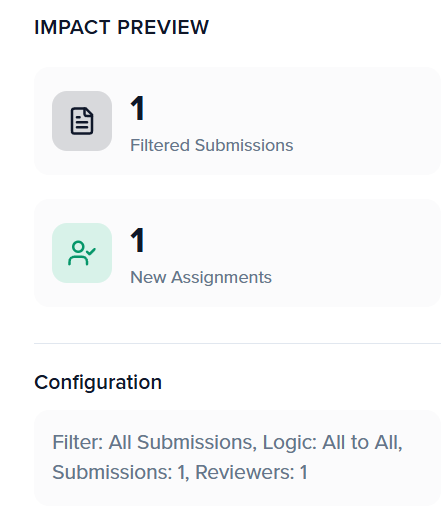
Before finalizing an assignment, the Impact Preview section shows you exactly what will happen: the number of Filtered Submissions matching your criteria and the number of New Assignments that will be created. Review this carefully before confirming to ensure the distribution matches your expectations.
Scoring & voting configuration
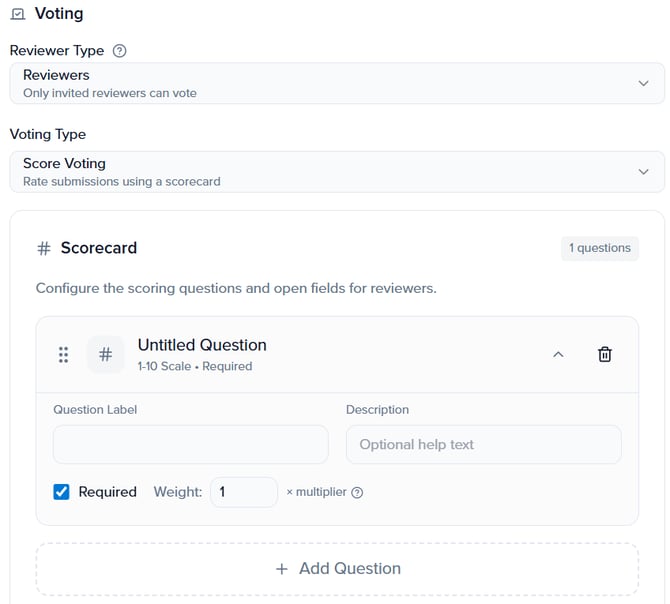
Each round can include a scoring rubric that reviewers use to evaluate submissions. The scoring configuration is set up in the round settings under the Voting section.
Reviewer type
The Reviewer Type determines who can evaluate submissions. The default is Reviewers, which means only invited reviewers can vote. Community Voting, which allows broader audience participation, is coming soon.
Voting type
The Voting Type defines how reviewers rate submissions. Score Voting lets reviewers rate submissions using a configurable scorecard.
Building a scorecard
The scorecard is a set of questions that reviewers answer for each submission they evaluate. To build your scorecard, add questions from the available types:
- 1-3 Scale — Rate on a 1 to 3 scale.
- 1-5 Scale — Rate on a 1 to 5 scale.
- 1-10 Scale — Rate on a 1 to 10 scale.
- Numeric Score — Custom minimum and maximum values.
- Custom Dropdown — Custom options with assigned point values.
- Free Text — Open-ended comments and feedback (not scored).
- File Upload — Allow reviewers to upload supporting documents.
You can also add a Separator to visually divide sections of your scorecard. The scorecard is configured per round, so different evaluation stages can use different scoring criteria.
Tip: Design your scorecard before adding reviewers. A well-structured rubric with clear criteria makes the review process more consistent and reduces the need for back-and-forth with your evaluation panel.
Managing individual submissions
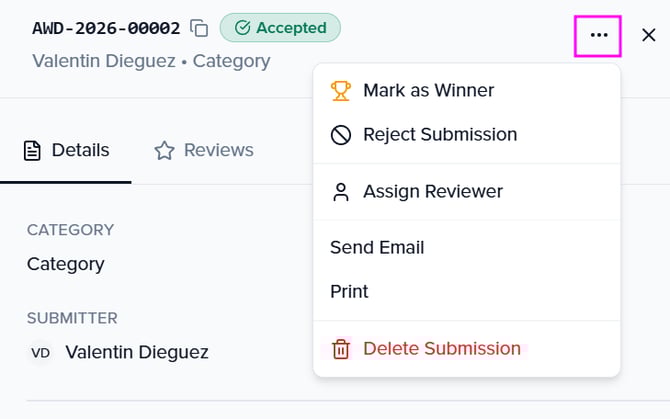
Clicking on any submission opens its detail view, which shows the submission ID (in the format AWD-YYYY-NNNNN), the current status badge (e.g., Pending Payment), the submitter's name, and the assigned category. The detail view has tabs for Details and Reviews, letting you inspect submission content and reviewer feedback side by side.
The three-dot menu (···) at the top right of the submission detail gives you the following actions:
- Mark as Winner — Opens the winner tagging flow (see below).
- Reject Submission — Marks the submission as rejected and removes it from the active review queue.
- Assign Reviewer — Assigns a specific reviewer directly to this submission.
- Send Email — Sends a manual email to the submitter from within the platform.
- Print — Opens a print-friendly view of the submission.
- Delete Submission — Permanently removes the submission from the program.
Blind review
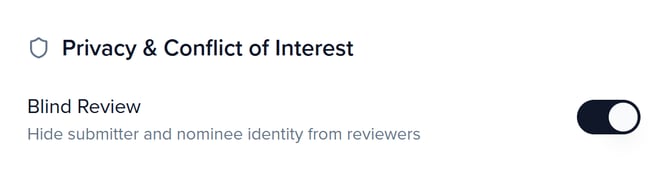
For programs that require anonymous evaluation, Sessionboard Awards include a Blind Review option. When enabled, this setting hides submitter and nominee identity from reviewers, ensuring evaluations are based solely on the content of the submission.
To enable Blind Review, navigate to your program's settings under Privacy & Conflict of Interest and toggle the Blind Review switch on. The description reads: "Hide submitter and nominee identity from reviewers."
Note: Blind Review hides identity information from the reviewer's evaluation interface. Program administrators can still see full submitter details from the Program Dashboard. Enable this setting before your review round begins to ensure consistent reviewer experience.
Winner tags & selection
Winner Tags are the labels you assign to winning submissions — such as "Award Recipient," "Runner Up," or "Honorable Mention." These tags are configured during program setup (Step 6: Winners) or at any time from your program settings.
Creating winner tags
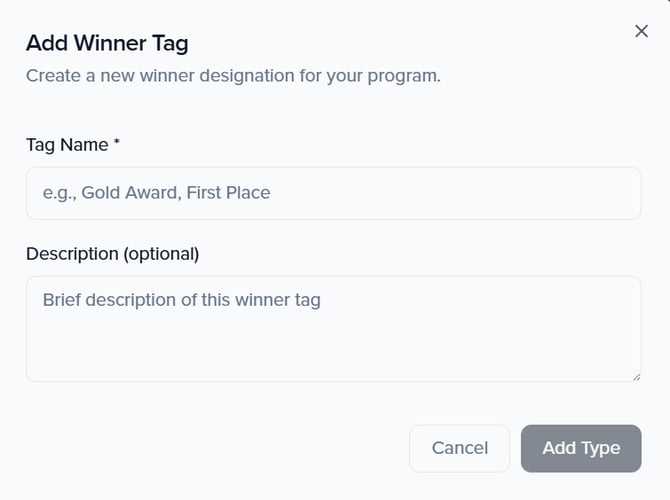
To create a new winner tag, click Add Winner Tag on step 6 of the program wizard. Each tag requires a Tag Name (e.g., "Gold Award," "First Place") and an optional Description explaining the designation. You can create as many tags as your program needs — for example, a primary winner, runners up, and honorable mentions.
Applying winner tags
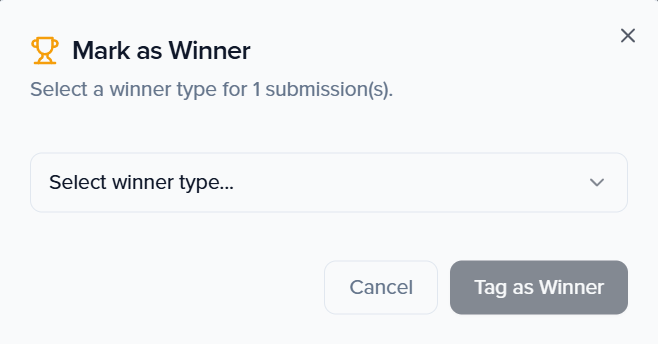
Once evaluation is complete and you are ready to select winners, open a submission's detail view and click the three-dot menu (···) → Mark as Winner. This opens the Mark as Winner modal, where you select a winner type from the dropdown (e.g., "Award Recipient," "Runner Up," "Honorable Mention") and click Tag as Winner.
Note: The winner type dropdown is populated by the Winner Tags you configured in Step 6 of the setup wizard. If the dropdown is empty or missing the option you need, go to your program settings → Winners and add the appropriate tags before proceeding.
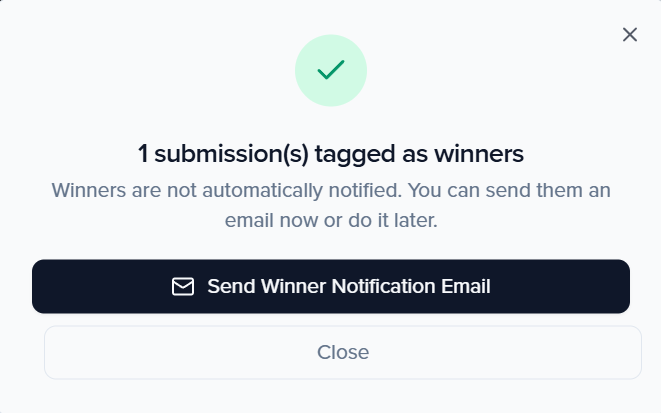
After tagging, a confirmation screen appears: "X submission(s) tagged as winners." It also displays an important reminder: "Winners are not automatically notified. You can send them an email now or do it later." You will see two options:
- Send Winner Notification Email — Sends the Winner Notification email immediately using the template configured in your Notifications settings.
- Close — Dismisses the confirmation without sending the notification, allowing you to send it manually at a later time.
Award winners are automatically synced to the Sessionboard Speaker CRM, building a searchable database of recognized talent for future programming.
Tip: Before tagging winners, make sure your Winner Notification and Non-Selection Notification email templates are finalized in your Notifications settings. The confirmation screen gives you the option to send immediately — so it is best to have the template ready before you start tagging.
Next steps
With submissions, reviewers, and evaluation rounds in place, explore these related guides:
- Setting Up Your Awards Site — Publish a branded portal where submitters can log in, submit entries, and track their status.
- Awards Notifications & Email Templates — Configure the automated emails that submitters and reviewers receive throughout the evaluation lifecycle.
- Awards Pricing, Payments & Invoices — Set up submission fees and manage payment collection alongside the review process.