
Sessionboard Awards is an add-on feature. If your organization doesn't have access yet or you'd like to learn more about pricing, please contact support@sessionboard.com.
- Where to find Awards
- Creating a new program
- The 8-step setup wizard
- Your program dashboard
- Program statuses & lifecycle
- Managing existing programs
- Next steps
Where to find Awards
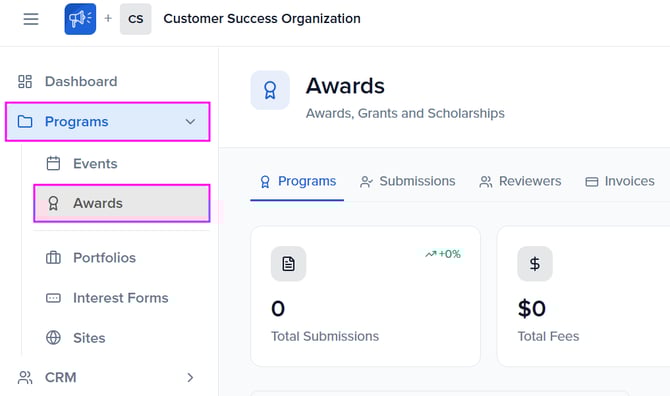
On your Organization Dashboard, click Programs → Awards to open the Awards hub. From here you can see all of your programs at a glance, along with high-level stats for total submissions, total fees, active reviewers, and pending decisions.
The Awards hub also includes global tabs across the top — Programs, Submissions, Reviewers, and Invoices — so you can manage operations across all programs without opening each one individually.
Creating a new program
Click the + New Program button in the top-right corner of the Awards hub. This launches the guided setup wizard, which walks you through every part of your program configuration in eight steps. You can save your progress and return at any time — programs are created in Draft status until you explicitly launch them.
Tip: You can run multiple awards programs simultaneously from the same organization. Each program has its own form, categories, pricing, reviewers, and notifications — so you can manage an annual awards program and a separate grants program side by side.
The 8-step setup wizard
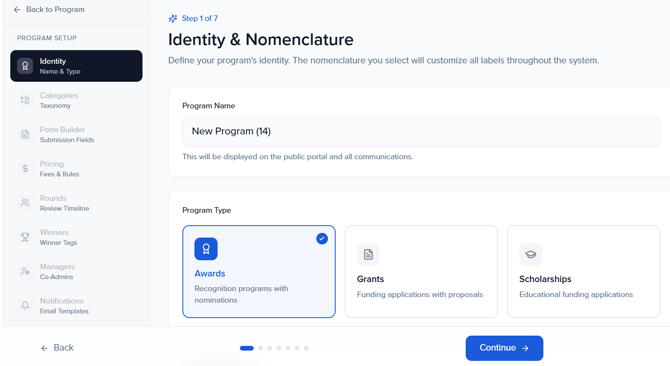
The setup wizard guides you through the core configuration for your program. Each step focuses on one area, and a sidebar on the left shows your progress. You can navigate between steps freely — nothing is final until you click Launch Program at the end.
Step 1: Identity & Nomenclature
This is where you define what your program is and how it will be labeled throughout the system.
Program Name — The name that will appear on the public portal and throughout the admin interface. Choose something descriptive (e.g., "2026 Excellence in Innovation Awards").
Program Type — Select the type that best matches your use case. This determines the default terminology used across the platform:
- Awards — Recognition programs with nominations. Uses terms like "Nominator," "Nomination," and "Nominate."
- Grants — Funding applications with proposals. Uses terms like "Applicant," "Application," and "Apply."
- Scholarships — Educational funding applications. Uses terms like "Applicant," "Application," and "Apply."
Program Description — Describe the purpose and eligibility criteria. This is internal-facing and helps your team keep track of what each program is for.
Dynamic Labels — After selecting a program type, a Dynamic Labels Preview appears at the bottom of the page. These labels control the terminology used across your program's forms, portal, and notifications. Each label is editable (click to change):
- Person submitting — e.g., "Nominator" (max 20 characters)
- Single entry — e.g., "Nomination" (max 20 characters)
- Action button — e.g., "Nominate" (max 15 characters)
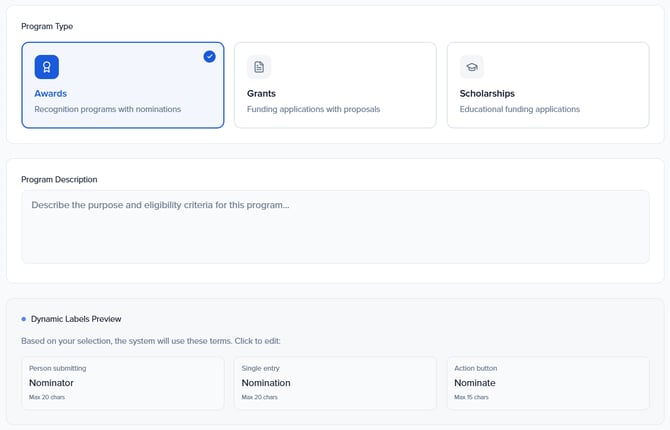
Tip: Dynamic labels are a powerful way to make the platform feel native to your program. If your organization calls submissions "entries" or "applications," change the labels here and the terminology will update everywhere — forms, portal, emails, and admin screens.
Step 2: Categories
Categories define the taxonomy for your program. They help organize submissions and can be linked to specific pricing rules or reviewer rules later in the process.
Click + Add Category to create your first category. For each category, you can set a Category Name and a Description/Instructions field that provides category-specific guidance for submitters.
Categories support up to two levels of nesting: Parent → Child → Grandchild. Use the + Sub button on any category to add a sub-category beneath it. Categories can also be reordered by dragging, and repositioned using the arrow controls.
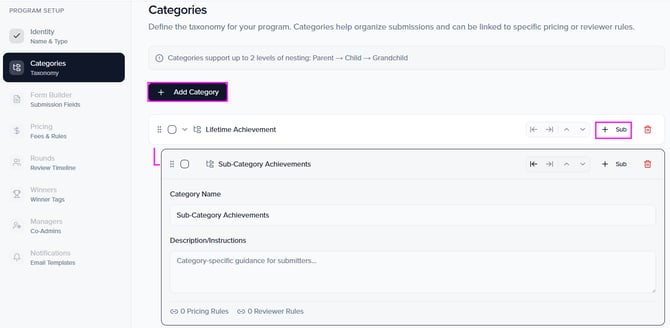
Note: Each category shows a count of linked Pricing Rules and Reviewer Rules at the bottom. These links are configured in the Pricing and Rounds steps respectively — but thinking through your category structure now will make those steps easier.
Step 3: Form Builder
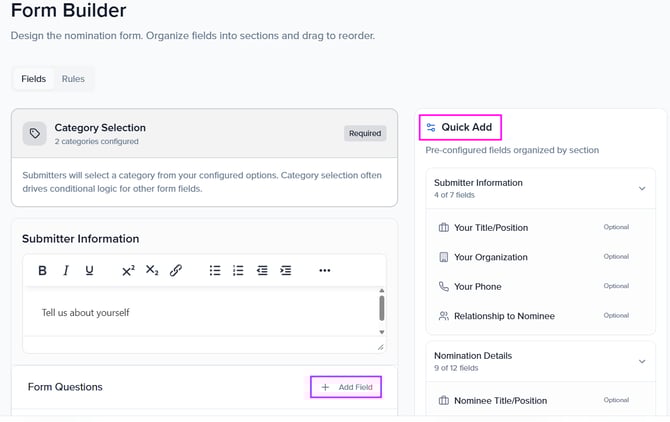
The Form Builder is where you design the submission form that applicants or nominators will fill out. This step is covered in its own dedicated guide — see Building Your Awards Submission Form — but here is a quick overview of what you will configure:
- Sections — The form is organized into sections: Category Selection, Submitter Information, Nomination Details, and Form Questions. Each section can have its own fields and instructions.
- Standard fields — A Quick Add panel on the right provides pre-built fields (Nominee First Name, Last Name, Email, Title/Position, Organization, Department, Phone, Nomination Statement, Impact & Achievements, Supporting Documents, CV/Resume, Website/Portfolio). Required fields are flagged if missing.
- Custom fields — Add additional fields using field types like text, long text, dropdown, checkbox, date, email, file upload, and more.
- Field options — Each field can be customized with a custom label, placeholder text, help text, required/optional status, and conditional question rules.
- Form Rules — Under the Rules tab, you can set combined character or word limits across multiple text fields.
Step 4: Pricing
If your program charges a fee for submissions, this is where you configure it. Pricing is covered in detail in Awards Pricing, Payments & Invoices, but the wizard step includes:
- When to Collect Payment — Choose Do Not Collect Payment (free submissions) or Upon Submission (payment is collected when the submitter completes their entry).
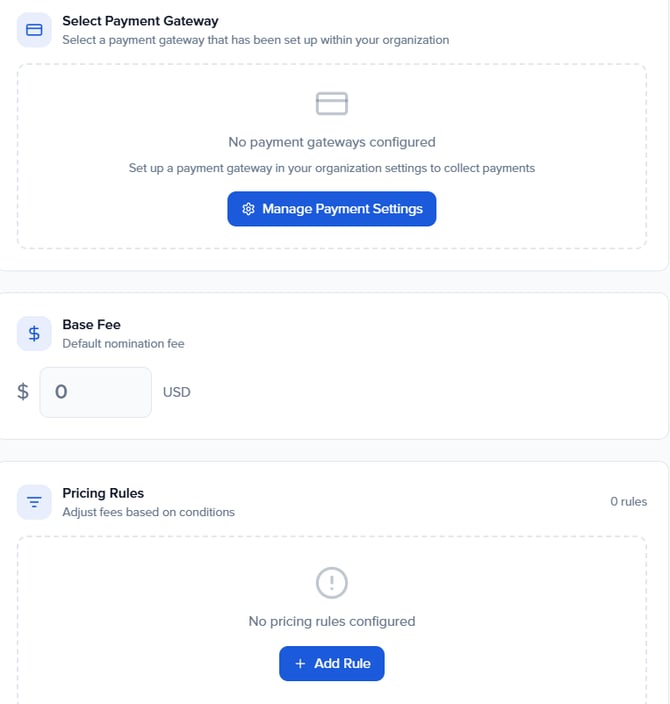
- Payment Gateway — Select a payment gateway that has been configured under your organization's payment settings. If none is configured yet, click Manage Payment Settings to set one up.
- Base Fee — The default fee charged for every submission (e.g., $50 USD).
- Pricing Rules — Adjust fees based on conditions (e.g., charge a different fee for a specific category or early-bird pricing).
- VAT Rules — Apply tax rules to the overall total in a submitter's cart.
- Promo Codes — Create discount codes that applicants can enter at checkout.
Tip: If your program is free, select "Do Not Collect Payment" and skip this step. You can always enable payments later by editing the program settings.
Step 5: Rounds
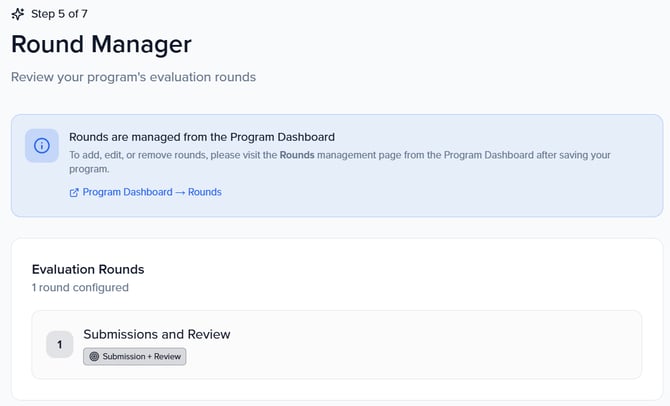
Rounds define the evaluation timeline for your program. A default round called "Submissions and Review" is created automatically. This step in the wizard shows your configured rounds, but detailed round management happens from the Program Dashboard after saving.
There are two round types:
- Submission + Review — Accepts new submissions and allows reviewers to evaluate them during the same period.
- Review Only — No new submissions accepted; reviewers evaluate existing entries (useful for finalist rounds or secondary review stages).
For each round, you will configure a name, timeline (open/close dates), reviewer instructions, voting settings, and a scorecard. Rounds are covered in full in Managing Submissions, Reviewers & Rounds.
Step 6: Winners
Winner Tags let you define the types of recognition your program will award. After reviews are complete, you will use these tags to designate submissions as winners.
A Quick Add panel on the right provides common presets you can add in one click: Award Recipient, Gold, Silver, Honorable Mention, Finalist, First Place, and Runner Up. You can also create custom tags using the + Add Winner Tag button, which lets you set a Tag Name and an optional Description.
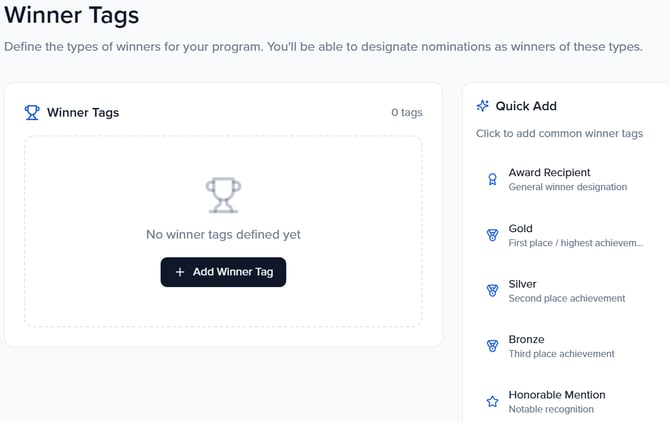
Tip: You can add or edit winner tags after launch. Don't worry about finalizing every tier now — you can adjust as your review process evolves.
Step 7: Managers
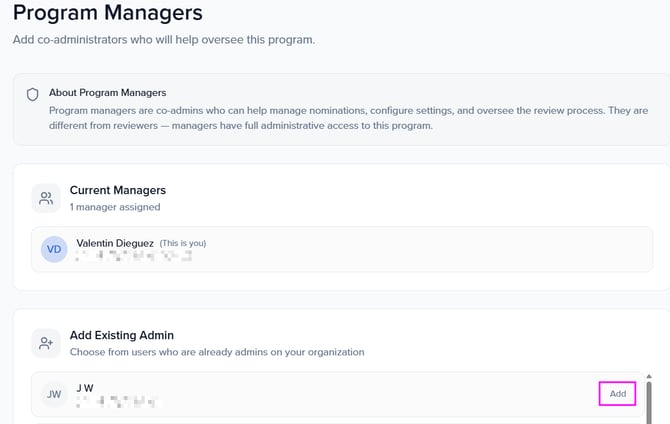
Program Managers are co-administrators who help maintain your program. Unlike reviewers (who evaluate submissions), managers have full administrative access to the program — including managing submissions, configuring settings, and overseeing the review process.
You can add managers in two ways:
- Add Existing Admin — Choose from users who are already admins in your organization.
- Invite New User — Send an invite to someone who is not yet an admin.
Step 8: Notifications
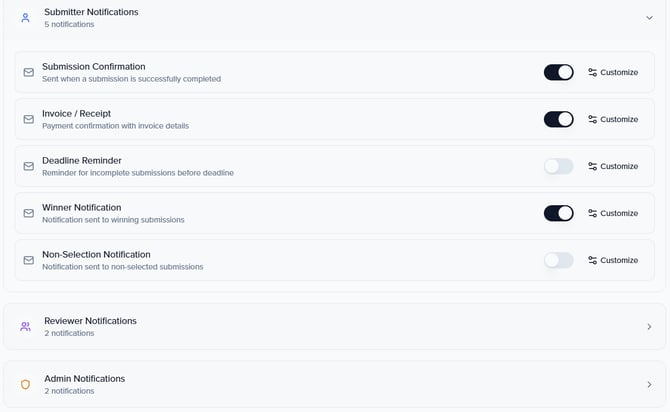
After completing the eight wizard steps, you will land on the Notifications screen. This is where you configure the email templates that are sent automatically throughout your program's lifecycle. Each notification type has a Customize button to edit its content.
The available notification templates are:
- Submitter Notifications — Submission Confirmation, Invoice / Receipt, Deadline Reminder, Winner Notification, Non-Selection Notification
- Reviewer Notifications — Sent when reviewers are invited or assigned
- Admin Notifications — Alerts for program managers
Notifications are covered in full in Awards Notifications & Email Templates.
Once you are satisfied with your notification settings, click Launch Program to finalize the wizard and create your program. Your program will be created in Draft status — it will not accept submissions until you explicitly open it.

Your program dashboard
After completing the wizard, you land on your Program Dashboard. This is the operational hub for your program, showing the program name, current status, and total submission count at the top. Two dropdown menus in the top-right give you quick access to key areas:
- Dashboard dropdown — Jump to Dashboard, Submissions, Rounds, or Reviewers.
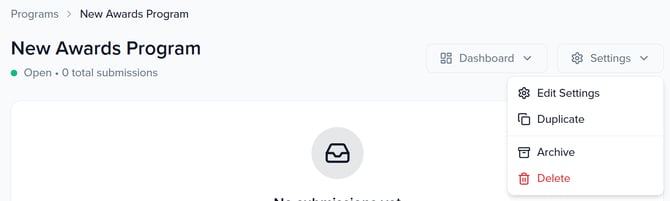
- Settings dropdown — Access Edit Settings, Duplicate, Archive, or Delete.
If your program has no submissions yet, the dashboard displays a Configure Rounds button to set up your evaluation timeline. Once your program is open, a View Submission Form button also appears so you can preview what submitters will see.
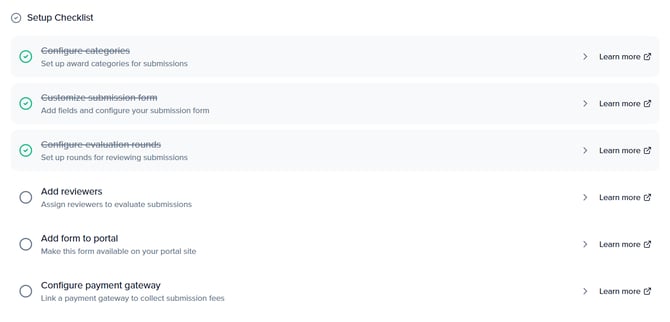
Setup Checklist
Below the main dashboard area, a Setup Checklist helps you track what is left to configure before going live. The checklist includes tasks like configuring your submission form, customizing email notifications, setting up pricing, and adding your form to a site. Click the right arrow > to go to that specific section.
Program statuses & lifecycle
Every program has a status that determines whether it is accepting submissions and visible to the public:
- Draft — The program has been created but is not yet live. Use this status while you are still configuring settings, building your form, and testing. No submissions are accepted.
- Open — The program is actively accepting submissions. Submitters can access the form through your site or a direct link.
- Archived — The program is no longer active. Existing data is preserved for reference, but no new submissions are accepted.
Note: Programs start in Draft status after the wizard completes. Before opening your program to submissions, make sure your form, pricing, notifications, and site are fully configured. Use the Setup Checklist on your Program Dashboard to track progress.
Managing existing programs
From the Awards hub (Programs → Awards), you can see all of your programs in a searchable, filterable list. Use the filters at the top to narrow by year or status.
To manage an individual program, click its card to open the Program Dashboard. From there, use the Settings dropdown in the top-right corner to:
- Edit Settings — Reopen the setup wizard to modify any step (identity, categories, form, pricing, rounds, winners, managers, or notifications).
- Duplicate — Create a copy of the program. Useful for running the same awards program annually, duplicate last year's configuration and update the details.
- Archive — Mark the program as archived. Data is preserved but no new submissions are accepted.
- Delete — Permanently remove the program and all associated data.
Next steps
With your program created, here is the recommended order for getting fully set up and ready to launch:
- Building Your Awards Submission Form — Design the form your submitters will fill out, including fields, sections, conditional logic, and validation rules.
- Awards Pricing, Payments & Invoices — Configure submission fees, payment gateways, VAT rules, promo codes, and invoice tracking (skip if your program is free).
- Awards Notifications & Email Templates — Customize the automated emails for submission confirmations, reviewer invites, winner announcements, and more.
- Managing Submissions, Reviewers & Rounds — Set up evaluation rounds, add reviewers, configure scorecards and assignment rules, and manage submissions through the review pipeline.
- Setting Up Your Awards Site — Publish a branded portal where submitters can log in, complete their entries, and track their status.
Tip: We recommend completing your form and pricing configuration before setting up notifications and your site. This ensures all confirmation emails and portal pages reference accurate submission details and fees.