
Sessionboard Awards is an add-on feature. If your organization doesn't have access yet or you'd like to learn more about pricing, please contact support@sessionboard.com.
In this article:
- When to charge for submissions
- Setting up a payment gateway
- Configuring the base fee
- Pricing rules (conditional fees)
- VAT rules
- Promo codes
- Managing invoices
- Next steps
When to charge for submissions
Not every awards program requires a submission fee — but for those that do, Sessionboard lets you configure pricing directly within the program setup wizard (Step 4: Pricing) or later through Settings → Edit Settings on your Awards Program Dashboard.
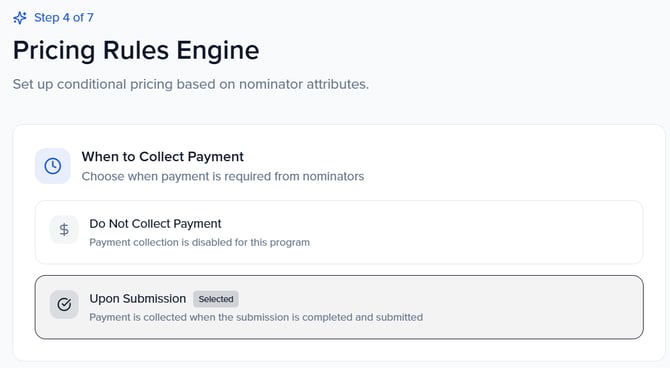
The first choice you will make is When to Collect Payment. There are two options:
- Do Not Collect Payment — Submissions are free. The rest of the pricing configuration is skipped entirely. You can always enable payment collection later by editing your program settings.
- Upon Submission — Payment is collected at the time the submitter completes and submits their entry. The submitter must complete payment before the submission is finalized.
Tip: If you are unsure whether to charge, you can leave pricing disabled during initial setup and enable it later. Changing from free to paid will only affect new submissions — existing submissions are not retroactively charged.
Setting up a payment gateway
Before you can collect payments, you need a payment gateway connected to your organization. This is configured at the organization level, not per program — so once set up, any awards program in your organization can use it.
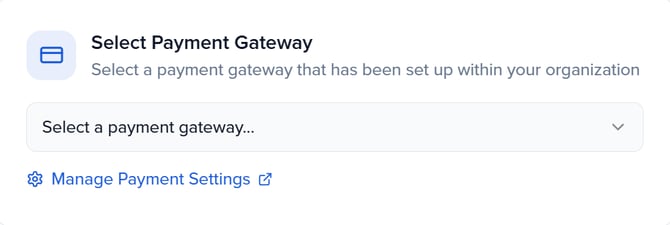
If no payment gateway is configured yet, the Pricing step will display a prompt with a Manage Payment Settings button. Clicking this takes you to your organization's payment settings, where you can connect a gateway.
Once a gateway is available, select it from the Select Payment Gateway dropdown in the Pricing step. The selected gateway will process all transactions for this program.
Supported payment gateways
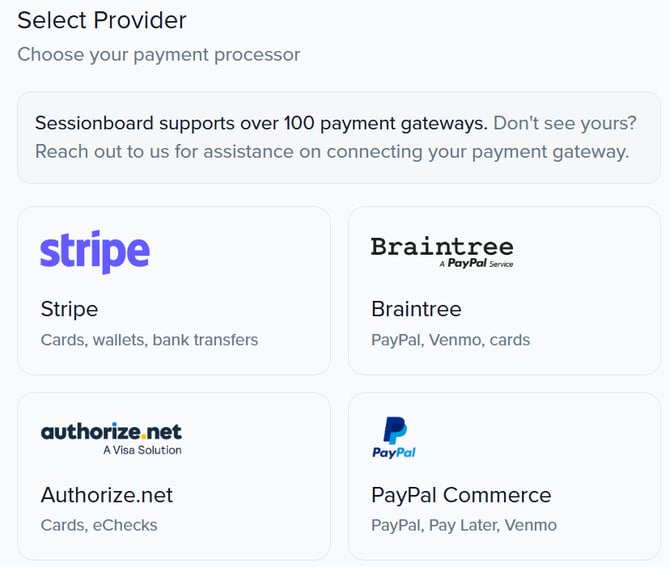
Sessionboard supports over 100 payment gateways. When adding a new gateway, you can choose from the following featured providers:
- Stripe — Cards, wallets, and bank transfers.
- Braintree — PayPal, Venmo, and cards.
- Authorize.net — Cards and eChecks.
- PayPal Commerce — PayPal, Pay Later, and Venmo.
For the full list and to make sure your preferred payment gateway is supported, please access:
If your preferred gateway is not listed, reach out to the Sessionboard team for assistance connecting it.
Adding a payment gateway
To add a new payment gateway, navigate to your organization's payment settings via Settings → Payment Settings → Add Gateway. The setup follows a guided process:
- Step 1 — Select Provider: Choose your payment gateway from the available provider cards.
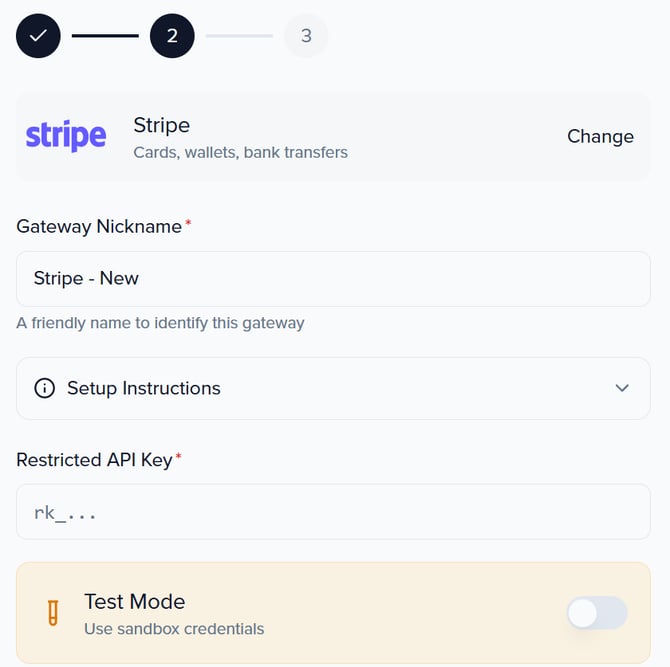
- Step 2 — Configure: Enter a Gateway Nickname (a display name to help you identify this gateway, e.g., "Stripe - Awards"), paste your Restricted API Key from your gateway provider, and optionally enable Test Mode to use sandbox credentials for testing before going live. Expandable setup instructions are available on this screen if you need help locating your API key.
- Step 3 — Finalize: Review your configuration and complete the setup.
Configuring the base fee
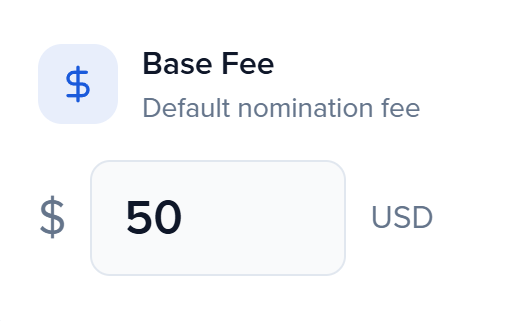
The Base Fee is the default fee charged for every submission in this program. It appears at the top of the pricing configuration and is set as a fixed dollar amount (e.g., $50 USD).
To set or change the base fee, enter the amount in the Base Fee field. This fee applies to all submissions regardless of category or other conditions — think of it as the starting price before any pricing rules adjust it.
If your program is free, leave the base fee at $0 (or select "Do Not Collect Payment" in the step above).
Pricing rules (conditional fees)
Pricing Rules let you adjust the submission fee based on specific conditions. This is useful for scenarios like category-based pricing, early-bird discounts, or tiered fees based on submission attributes.
To add a pricing rule, click + Add Rule in the Pricing Rules section. Each rule follows an If / then structure: select a field, set a condition (e.g., "Selected Category is Lifetime Achievement"), then define how the fee should change. The action can be one of three types:
- Set fee to — Overrides the base fee entirely with a specific dollar amount for matching submissions.
- Add — Adds a fixed amount on top of the base fee.
- Subtract — Reduces the base fee by a fixed amount (useful for discounts tied to specific conditions).
Pricing rules are evaluated in order and applied on top of (or in place of) the base fee, depending on how you configure them.
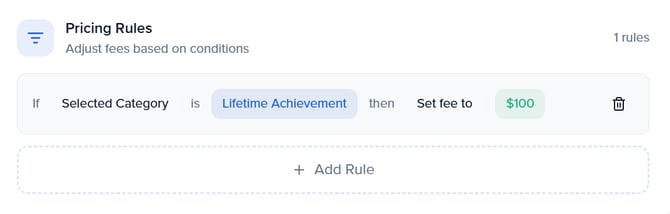
Tip: Categories can be linked to pricing rules. If you set up your categories in Step 2 of the wizard, you can reference them here to create category-specific pricing — for example, charging different fees for different award tiers or grant types.
VAT rules
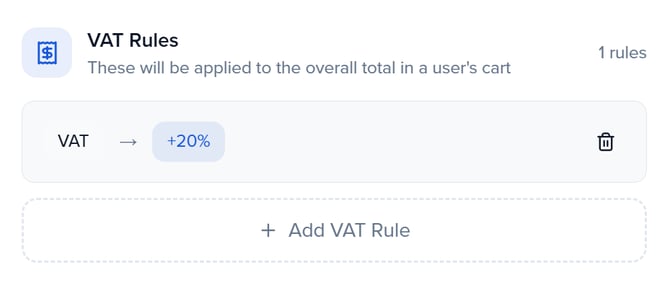
If your organization needs to collect tax on submission fees, use the VAT Rules section to configure tax rates. VAT rules are applied to the overall total in a user's cartafter the base fee and any pricing rules have been calculated.
Click + Add VAT Rule to create a new rule. Each rule requires a Label (e.g., VAT, GST, Sales Tax), a Type, and an Amount. The type can be either:
- Add additional % — Applies a percentage-based tax on top of the total (e.g., +20%).
- Add flat fee — Adds a fixed amount to the total regardless of the submission fee.
Note: VAT rules are optional. If your organization is not required to collect tax on submission fees, you can skip this section entirely.
Promo codes
Promo codes give you the ability to offer discounts to specific submitters. When a promo code is active, applicants can enter it at checkout to receive a reduced fee.
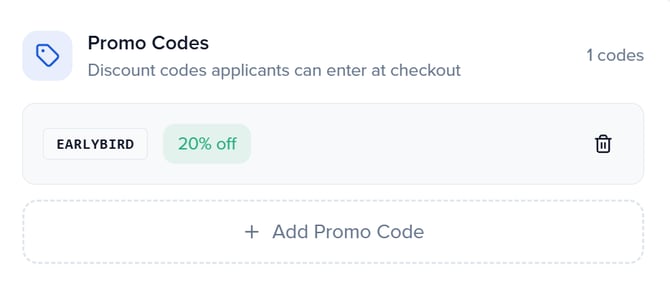
To create a promo code, click + Add Promo Code in the Promo Codes section at the bottom of the Pricing step. Enter a Code (the text string applicants will type at checkout, e.g., EARLYBIRD), select a Type, and set an Amount. The discount type can be:
- Percentage off — Reduces the submission fee by a percentage (e.g., 20% off).
- Flat amount off — Deducts a fixed dollar amount from the submission fee.
Tip: Promo codes are useful for offering complimentary submissions to sponsors, VIP members, or early-bird entrants. Create a unique code for each use case so you can track which discounts are being redeemed.
Managing invoices
Once your program begins collecting payments, all transactions are tracked in the Invoices tab. You can access invoices in two places:
- Program-level: From your Awards Program Dashboard, navigate to Dashboard → Invoices section to see transactions for that specific program.
- Organization-level: From Programs → Awards, click the Invoices tab to see transactions across all programs.
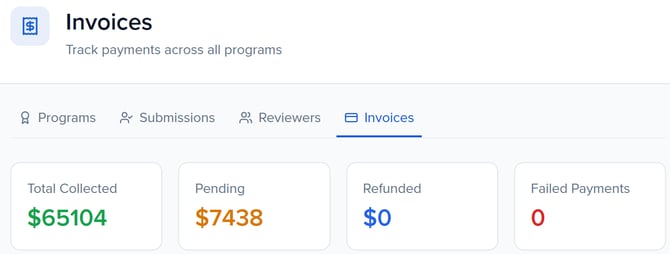
The Invoices view shows four summary cards at the top:
- Total Collected — The total amount of payments successfully received.
- Pending — Payments that have been initiated but not yet completed.
- Refunded — The total amount that has been refunded to submitters.
- Failed Payments — The number of payment attempts that did not succeed.
Below the summary cards, individual invoices are listed with details including the submitter, amount, payment status, and date.
Processing refunds
If a submitter needs a refund — for example, due to a duplicate submission or a withdrawn entry — you can process it from the Invoices section. Locate the invoice, and use the refund option to return the payment to the submitter. Refunded amounts are reflected in the Refunded summary card.
Note: Refunds are processed through the same payment gateway used to collect the original payment. Processing times depend on the gateway and the submitter's payment method.
Next steps
With pricing and payments configured, continue setting up your program:
- Awards Notifications & Email Templates — Customize the Invoice / Receipt email and other automated notifications that reference pricing and payment details.
- Managing Submissions, Reviewers & Rounds — Set up evaluation rounds, add reviewers, and manage the review pipeline.
- Setting Up Your Awards Site — Publish a branded portal where submitters can log in, pay, and track their submissions.
Tip: Before launching your program, we recommend previewing the full submission experience — including the payment checkout — to make sure fees, tax, and confirmation emails are all displaying correctly.