
- Configure Agenda Settings (Recommended)
- Create a Draft Agenda
- View a Draft Agenda
- Delete a Draft Agenda
- Frequently Asked Questions
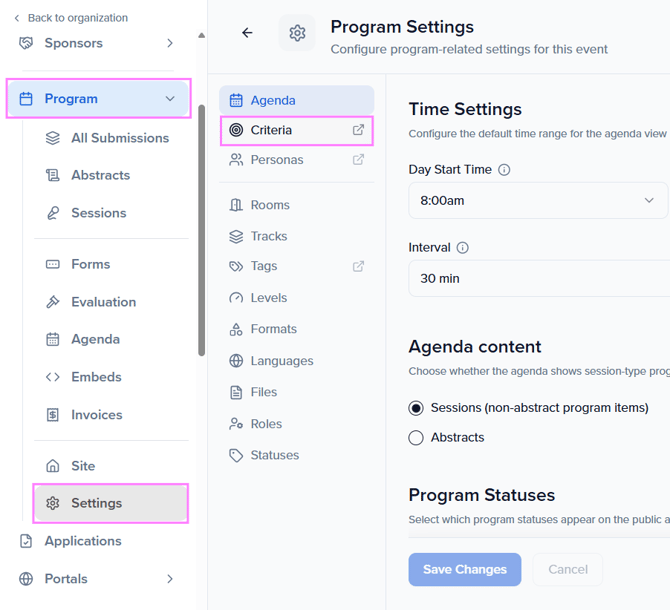
Configure Event Criteria (Recommended)
Why it helps: These become event-level defaults that auto-populate the Settings step of the Draft wizard, so you won’t have to recreate them each time. You can still adjust them per draft, and you’ll add Criteria later in the Rules step.
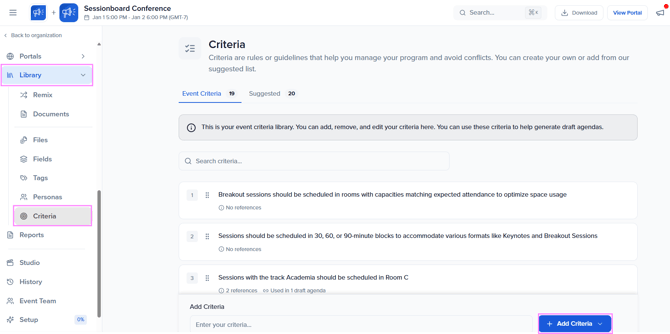
To configure event criteria,you can also navigate to Library → Criteria in the left sidebar.
Create a draft agenda
-
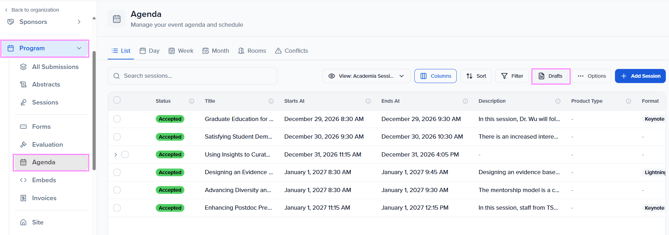
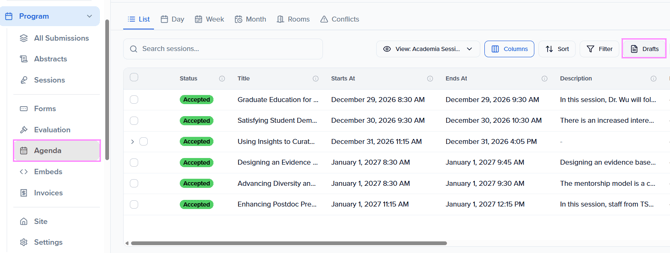
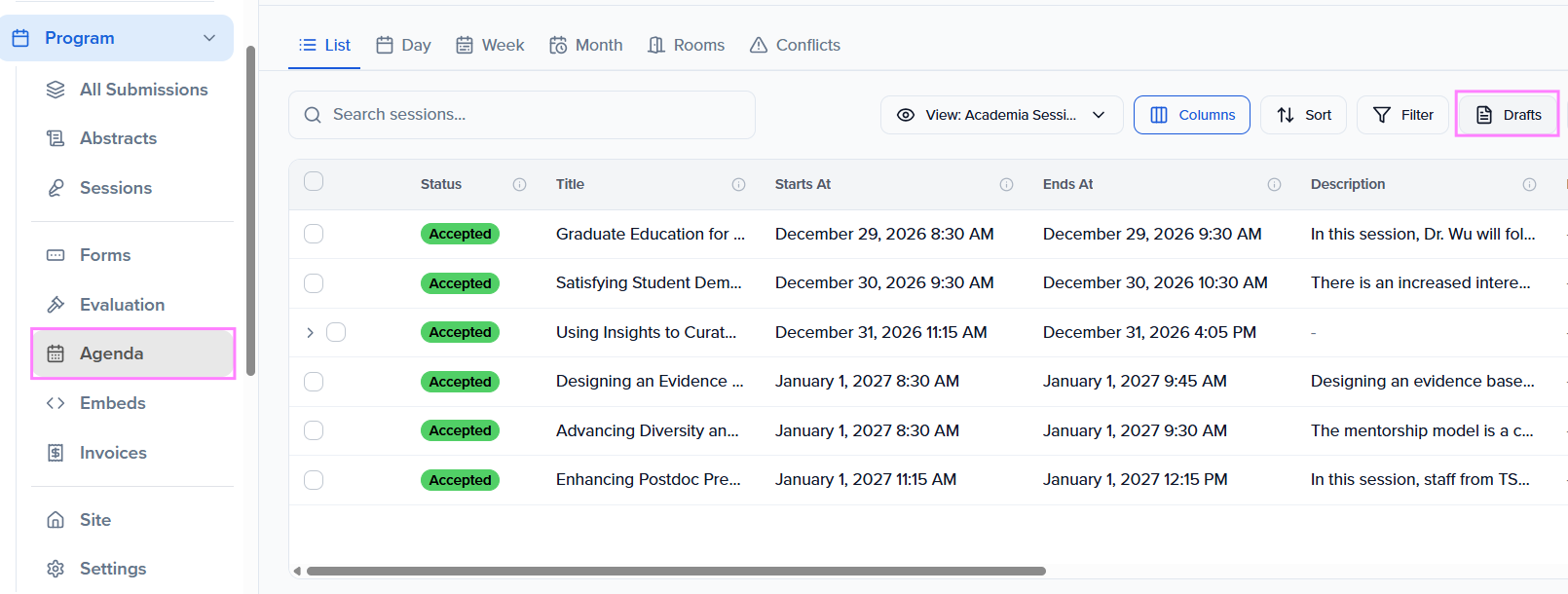
Go to Program → Agenda → Drafts and click Create New Draft. (see “Drafts” button in screenshot):
-
Setup: Confirm event dates, session count, and available rooms. Click Next.
-
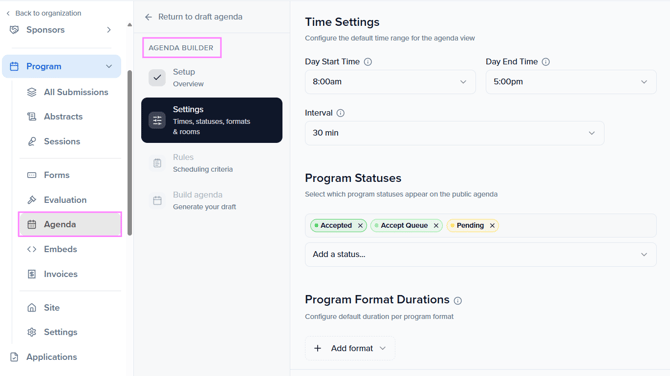
Settings:
-
Set Day Start/End Time.
-
Choose Session Statuses to include (e.g., Accepted, Accept Queue).
-
Optional: toggle Ignore Existing Times/Rooms if you want AI to fully reschedule.
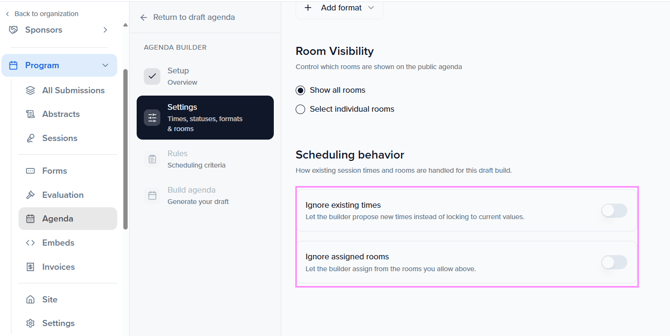
-
-
Pick rooms to use. Click Next.
-
Rules (Agenda Criteria): Add rules that guide scheduling. You can:
-
Type a rule and click Add Criteria, or
-
Add from Event Criteria or Suggested (AI-recommended) lists. (see Criteria screenshots):
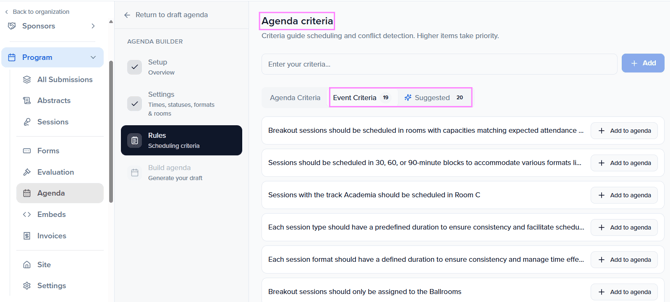
-
Tip: Reorder criteria to set priority; higher items win when rules conflict:
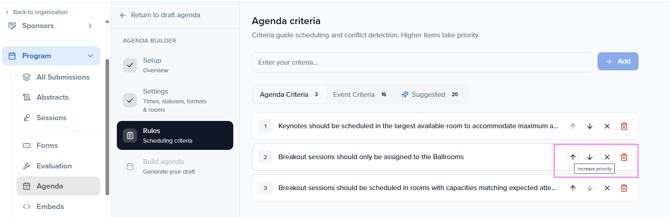
-
-
Click Next & Generate Schedule. You’ll see Agenda Generated when the draft is ready:
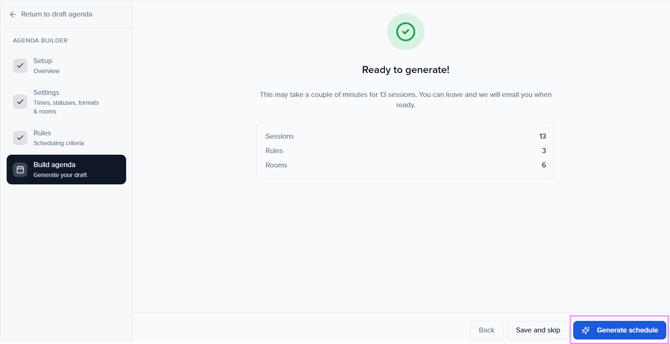
Choose Review Agenda or See What Changed: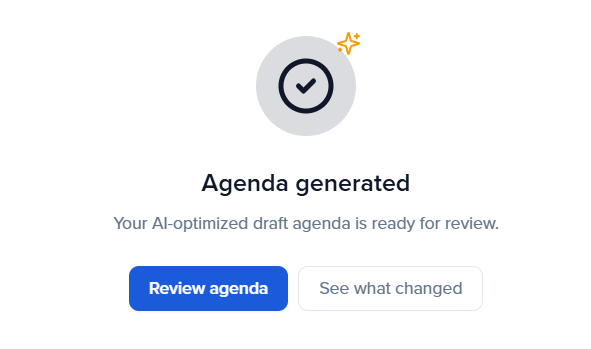
View & commit a draft agenda
-
Go to Program → Agenda → Drafts and open your draft:
-
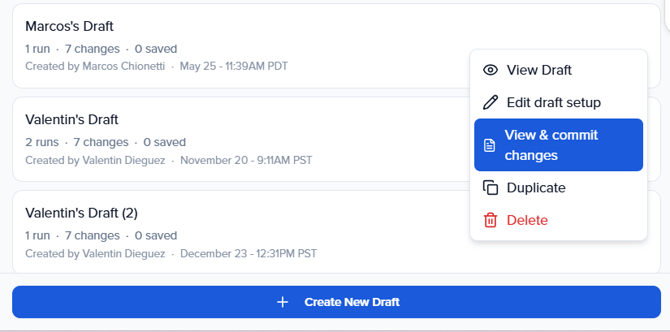
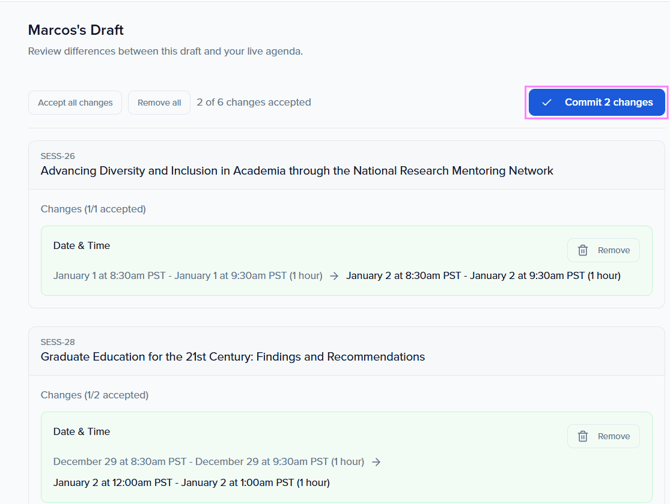
Click View & Commit Changes to compare the draft vs. your live agenda:
-
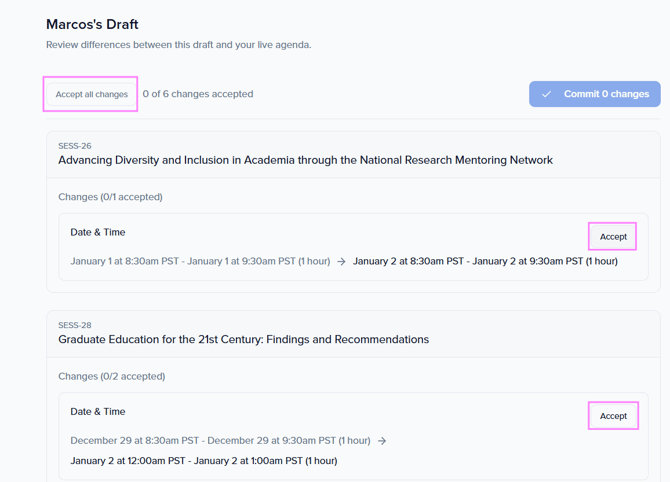
For each proposed change (time, room, etc.), click Accept, or Accept All Changes:
-
Click Commit Changes to publish the accepted updates to your agenda:
-
You can return to Edit Draft to re-run with different settings or criteria if needed.
-
Delete (or duplicate) a draft agenda
-
Go to Sessions → Agenda → Drafts:
-
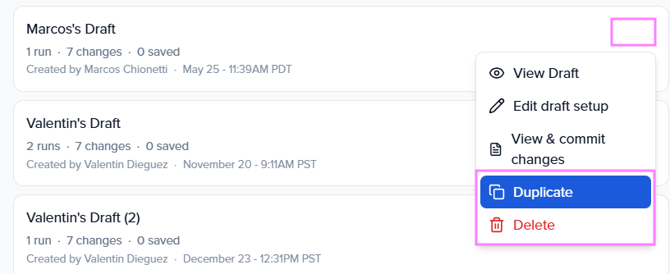
Click the ellipses ⋯ menu next to a draft and choose Delete (or Duplicate to keep a copy):
-
Deleting a draft does not affect your live agenda unless you’ve already committed changes.
-
Frequently Asked Questions
-
Why didn't the AI schedule all my sessions? The AI can only schedule sessions that match the statuses selected in the Settings step (e.g., Accepted, Accept Queue). Sessions outside those statuses, or sessions that conflict with your criteria, may be excluded. Try adjusting your status filters or reviewing your criteria for overly restrictive rules.
-
Does committing a draft overwrite my existing agenda? No. Committing only applies the changes you explicitly accept. You review each proposed change individually (or use Accept All) before anything is written to your live agenda. Unaccepted changes are ignored.
-
Can I run multiple drafts at the same time? Yes. You can create as many drafts as you need. Each draft is independent — you can compare different configurations side by side before committing any of them.
-
What happens if I delete a draft? Deleting a draft has no effect on your live agenda, as long as you haven't already committed changes from it. It simply removes the draft from your list.
-
Can I re-run a draft with different settings or criteria? Yes. From within any draft, use the Edit Draft option to re-run the AI with updated settings, rooms, or criteria without starting from scratch.
Who can I contact if I want more information?
For questions about enabling AI features, reach out at support@sessionboard.com
For privacy concerns, contact privacy@sessionboard.com