
📋 Note: The Program Site is part of the Enterprise Abstract Management feature set. To enable it for your event, contact support@sessionboard.com.
In this article:
What the Program Site centralizes
How forms and submissions work
Step 1 Access the Program Site
Step 2 Configure your site settings
Step 3 Configure reviewer access
What the Program Site centralizes
The Program Site brings all program interactions together in one place:
- Call for Papers forms
- Submission forms (abstracts or sessions)
- Awards forms
- Interest and pipeline forms
- Reviewer access (evaluation plans and rounds)
You can also surface forms from other events, making it a flexible, cross-event hub when needed.
How forms and submissions work
The Program Site does not recreate forms inside the platform. When a user clicks a form, it opens in a new window in its native interface, keeping the experience familiar, consistent, and low-friction. There is no need to rebuild or duplicate form logic.
All submissions are aggregated into a single unified view, regardless of which form they came from. Users can see submissions across interest forms, awards forms, and session or abstract submission forms, all in one place.
From this view, users can open any submission and be redirected to the original form to view their completed responses.
💡 Tip: This is especially powerful for events that run multiple submission forms or different workflows in parallel. Instead of sharing multiple links, the Program Site acts as one central hub for all entry points.
ℹ️ Note: The Program Site is optional. Teams can still use standalone form links, embed forms on their own website, or keep their existing process. The Program Site is an added layer of convenience, not a replacement.
Setting up your Program Site
Step 1
Access the Program Site
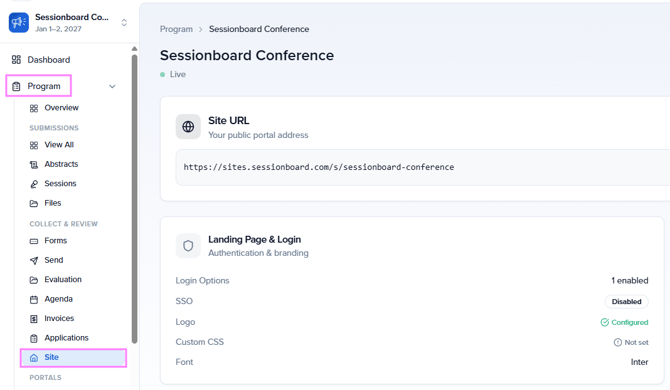
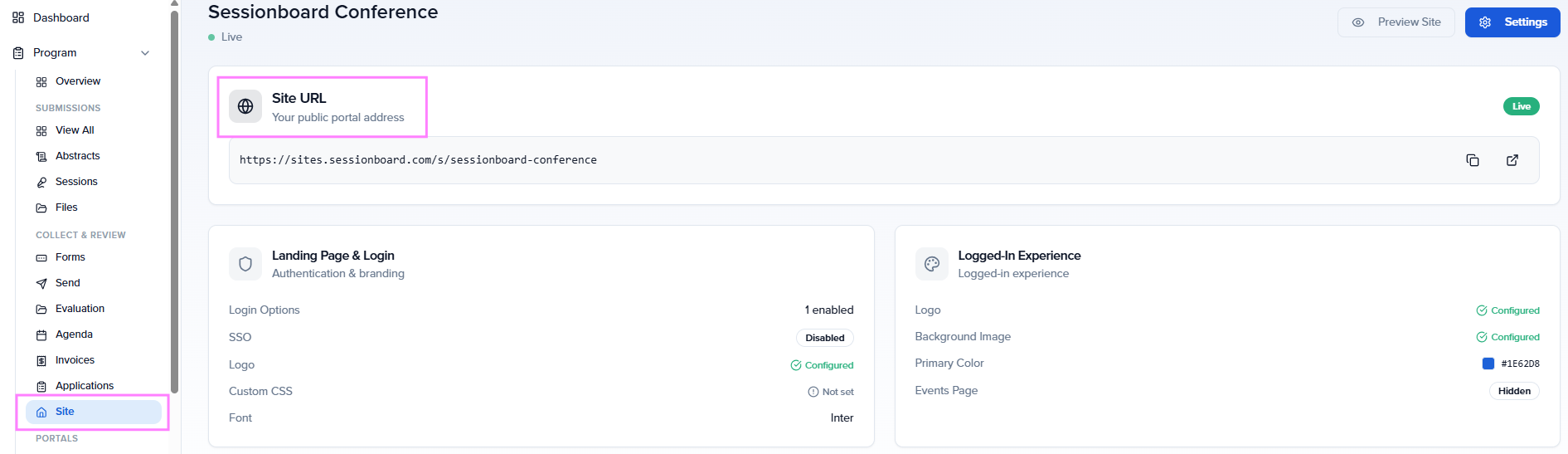
In your event, navigate to Program > Site.
Step 2
Configure your site settings
Click the Settings button in the top right corner of the Site overview to configure your Program Site. You can also use the Quick Actions panel at the bottom as shortcuts to jump directly to each section.
Settings is organized in four sections:
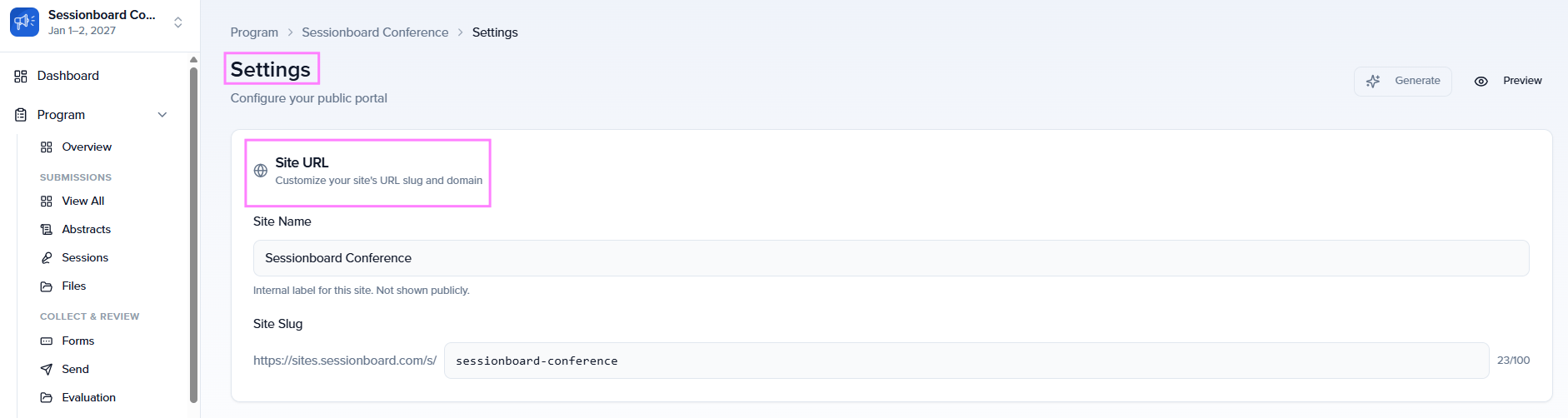
Site URL
Set the Site Name, an internal label not shown publicly , and the Site Slug, which defines your public portal address:
https://sites.sessionboard.com/s/[your-slug]
The slug supports up to 100 characters.
Landing Page & Login
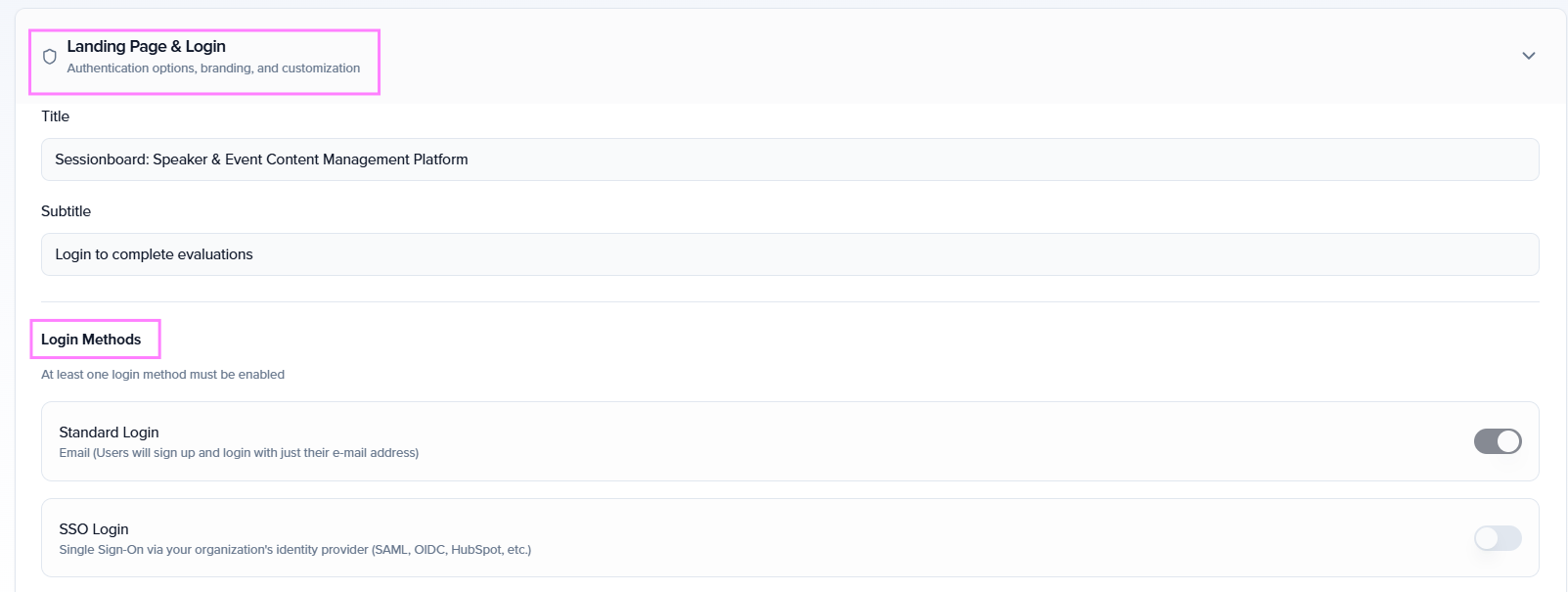
Controls everything participants see before logging in.
- Title and Subtitle: The headline and supporting text shown on the public landing page.
- Login Methods: At least one must be enabled at all times:
- Standard Login: Email-based. Users sign up and log in using just their email address.
- SSO Login: Single Sign-On via your organization's identity provider (SAML, OIDC, etc.). Contact Sessionboard to enable this for your account.
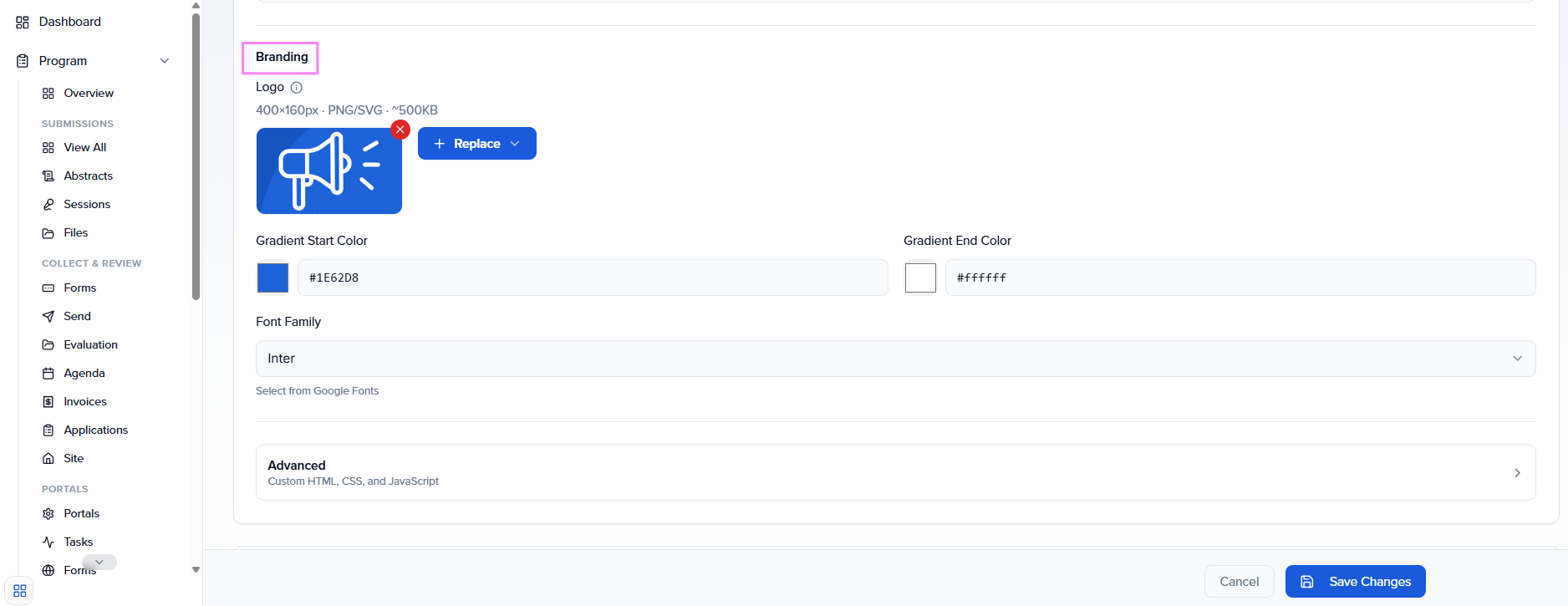
Branding:
- Logo: Displayed on the landing page.
- Gradient Start Color / Gradient End Color: The two colors forming the background gradient.
- Font Family: Choose any Google Font (default: Inter).
- Advanced: Add custom HTML, CSS, and JavaScript for deeper customization.
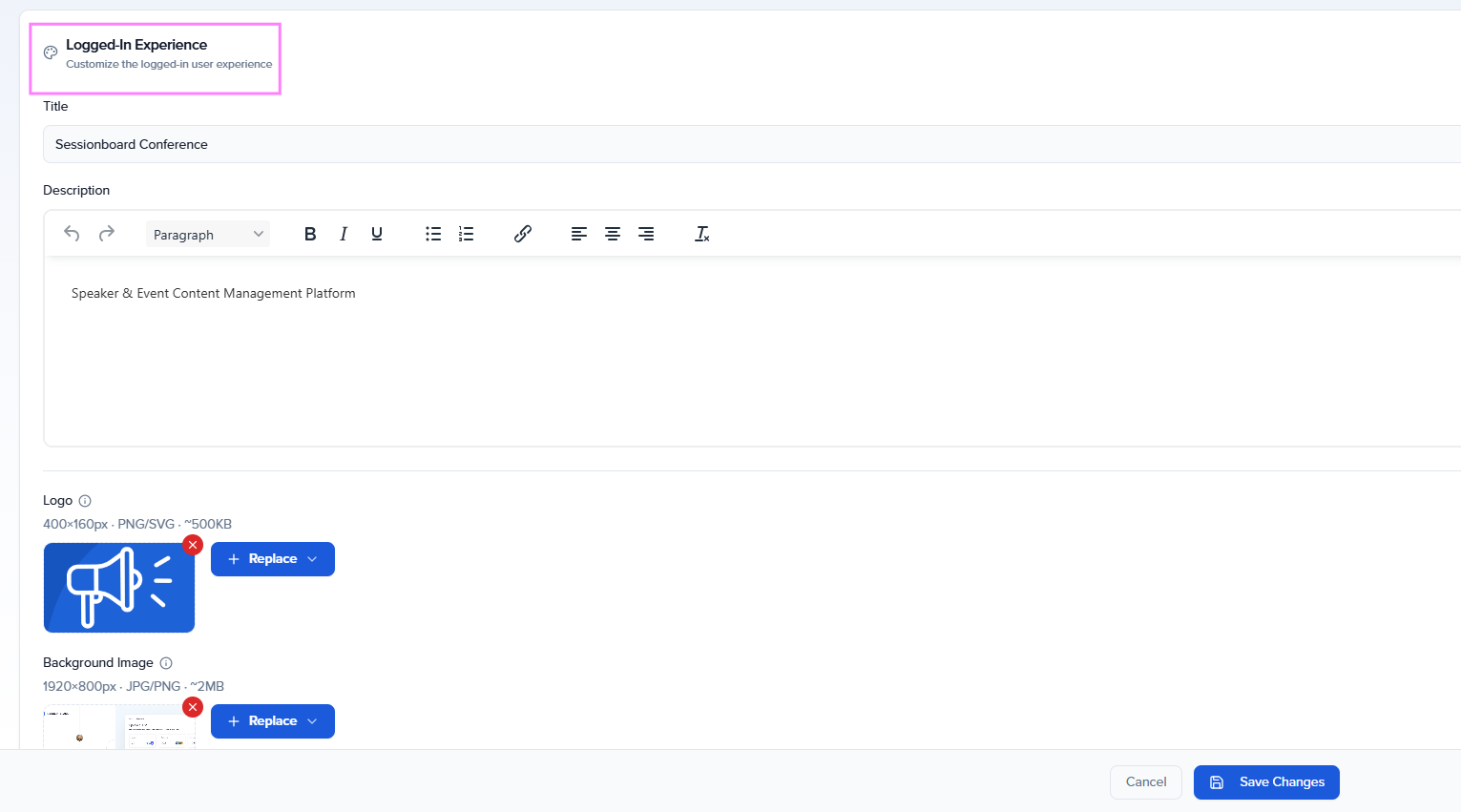
Logged-In Experience
Controls what participants see after logging in.
- Title and Description: A welcome message and rich-text content shown inside the portal.
- Logo: The logo displayed inside the portal (can differ from the landing page logo).
- Background Image: An image shown in the logged-in view.
- Font Family: Typography for the logged-in experience.
- Primary Color: Accent color used for section backgrounds throughout the portal.
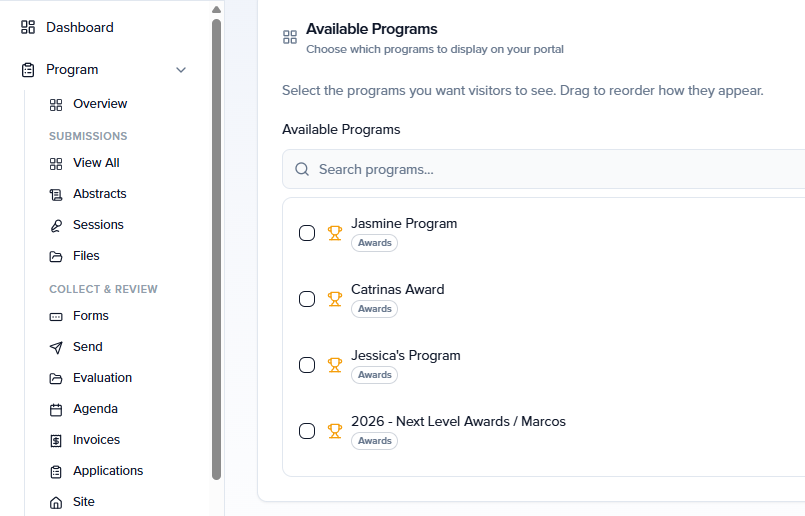
Available Programs
Choose which programs are visible to visitors on your portal. You can search across all programs in your organization, select which ones to display, and drag them to reorder their appearance.
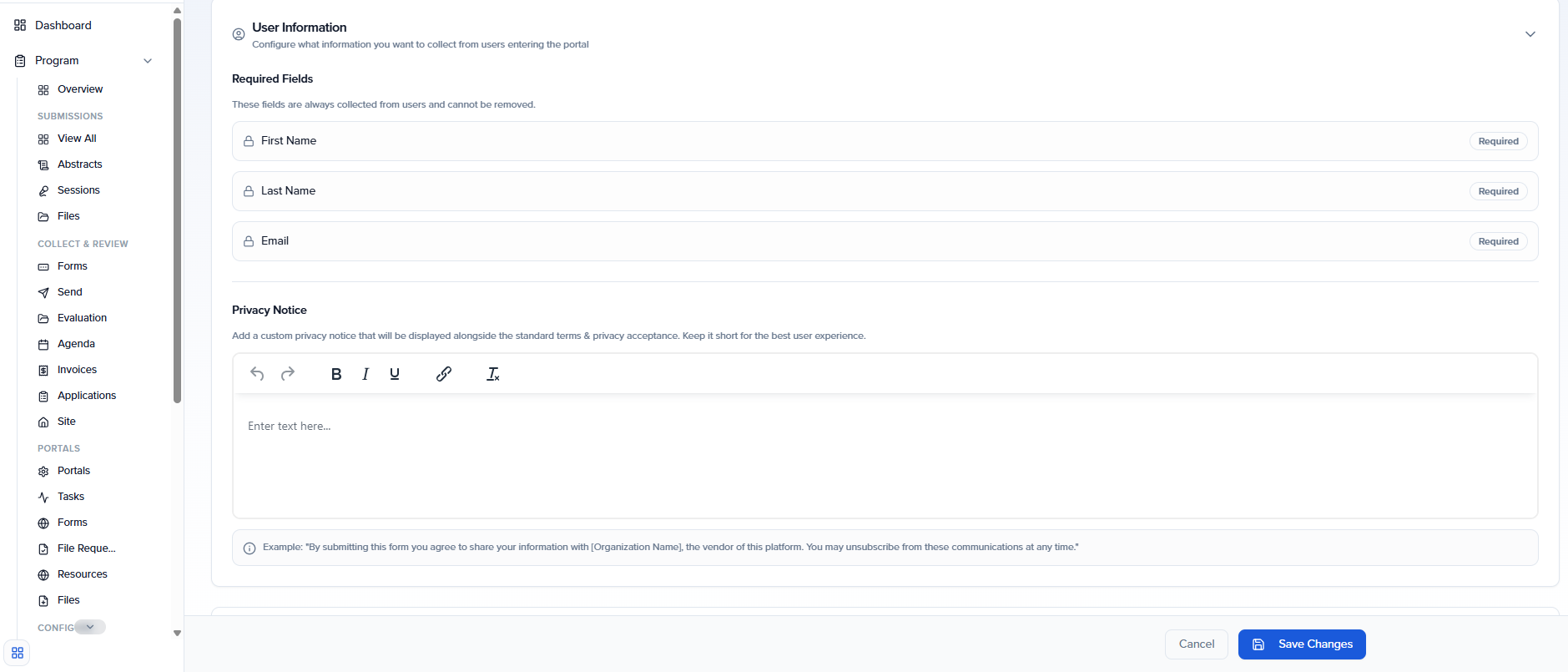
User Information
Configure what data is collected from users when they enter the portal.
- Required Fields: First Name, Last Name, and Email are always collected and cannot be removed.
- Privacy Notice: Add a custom privacy message that will be displayed alongside the standard terms and privacy acceptance. Keep it short for the best user experience. Example: "By submitting this form, you agree to share your information with [Organization Name], the vendor of this platform."
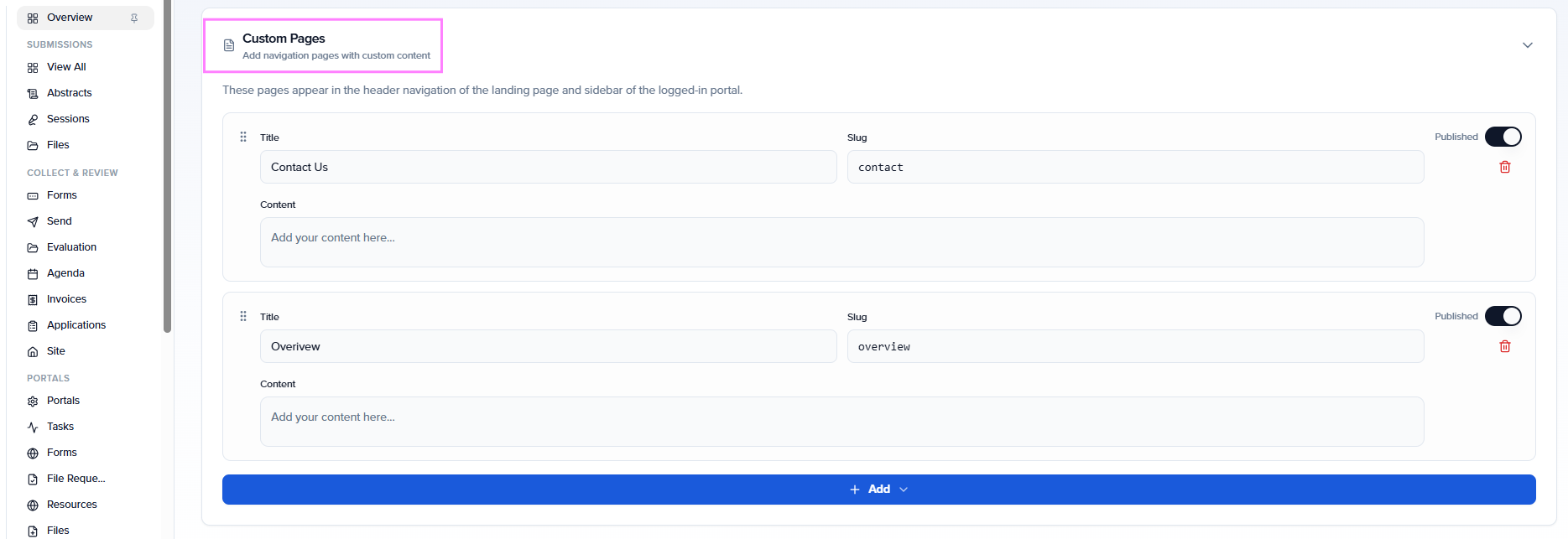
Custom Pages
Add custom navigation pages with your own content. These pages appear in the header navigation of the landing page and in the sidebar of the logged-in portal. Use + Add Page to create them. This is useful for FAQs, instructions, or any static content you want participants to access directly from the site navigation.
Step 3
Configure reviewer access
For evaluators, the Program Site becomes their main interface. Reviewers access it via a magic link sent from their evaluation plan; no admin account or platform onboarding is required.
Once logged in, reviewers can:
- See all assigned evaluation plans and rounds
- Track pending vs completed reviews
- Access all submissions they need to review
From within each submission, reviewers can:
- View submission details and participant information
- Access uploaded files
- Complete scorecards (ratings, written feedback, and more)
Admins control what metadata is visible to reviewers and which filters are available (for example: track, level, language, tags), ensuring reviewers get the right context without information overload.
⚠️ Important: Reviewers are granted access through their evaluation plan assignment, not through the Site settings directly. Make sure evaluators are added to their respective plans before sharing the site URL. Learn how to add evaluators to a plan.
Step 4
Share the site URL
Once configured, share the Program Site URL with your submitters and reviewers. This is the only link they need throughout the entire program lifecycle.
What each user sees
| User | Experience on the Program Site |
|---|---|
| Submitters | All available submission forms and a unified view of all past submissions across forms |
| Reviewers | All assigned evaluation plans, pending rounds, and submissions to review |
ℹ️ Note: Supported languages
The Program Site and evaluator experience are available in 5+ languages and are WCAG 2.1+ compliant, supporting diverse and international programs.
Need help? Contact us at support@sessionboard.com