
In this article
- What is Two-Factor Authentication?
- Why Your Account Now Requires 2FA
- What Happens When You Log In
- How to Set Up 2FA on Sessionboard
- Trusted Devices
- Recovery Codes
- Common Issues & FAQ
- Still need help?
What is Two-Factor Authentication?
Two-factor authentication (2FA) is a security method that requires two different ways to verify your identity before granting access to your account. Even if someone gets hold of your password, they still can't log in without the second step.
Think of it like your front door: a key alone can be copied, but a key plus a fingerprint scanner is much harder to bypass.
The two steps explained
- Something you know: your password.
- Something you have or are: a code sent to your email, a code from an authenticator app, or a passkey tied to your device (fingerprint, face ID, security key).
Why it matters: According to Microsoft, over 99.9% of compromised accounts did not have multi-factor authentication enabled. 2FA is one of the simplest, most effective ways to protect your account.
Why Your Account Now Requires 2FA
Sessionboard handles sensitive event, speaker, and attendee data. To protect that information (and your account), your event organizer has enabled 2FA as a requirement. You will need to set it up before you can continue using the platform.
All users can also choose to enable 2FA on their own for extra security, even when it is not required.
What Happens When You Log In
After entering your password, Sessionboard will prompt you to verify your identity. You'll see a screen with your available methods and can choose which one to use.
Available verification methods
| Method | How it works | Setup required? |
|---|---|---|
| Passkey | Uses your device's biometrics (Face ID, Touch ID, Windows Hello) or a hardware security key. No code to type. | Yes (one-time setup) |
| Authenticator app | Generates a 6-digit code every 30 seconds via an app like Google Authenticator, Authy, or 1Password. | Yes (one-time setup) |
| Email code | A one-time code is sent to your registered email address. Valid for 10 minutes. | No, available to all users automatically |
Never share your login code. Sessionboard staff will never ask for your 2FA code. If someone does, it's a phishing attempt.
How to Set Up 2FA on Sessionboard
Step 1: Go to your Security Settings
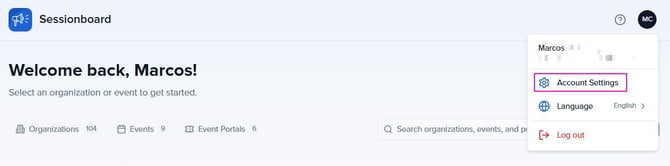
- Log in to your Sessionboard account.
- Click your profile icon in the top-right corner.
- Go to Account Settings.
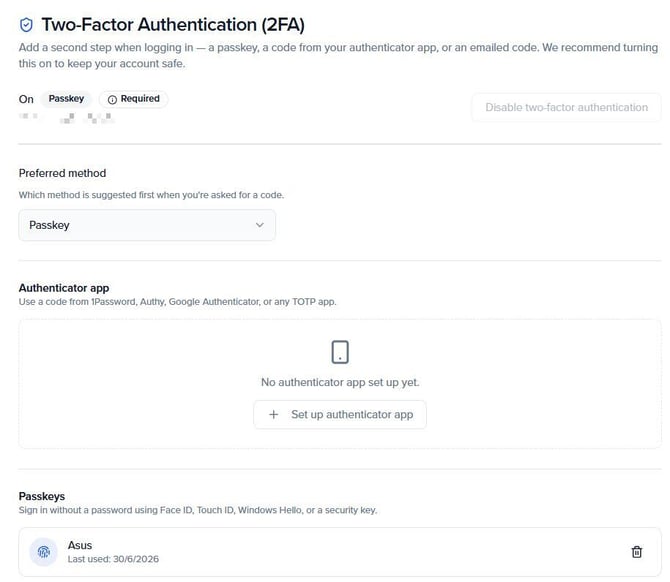
- Scroll to the Two-Factor Authentication (2FA) section.
Step 2: Set up a Passkey (Recommended)
Passkeys are the most secure and convenient option: no codes to type, just your fingerprint or face.
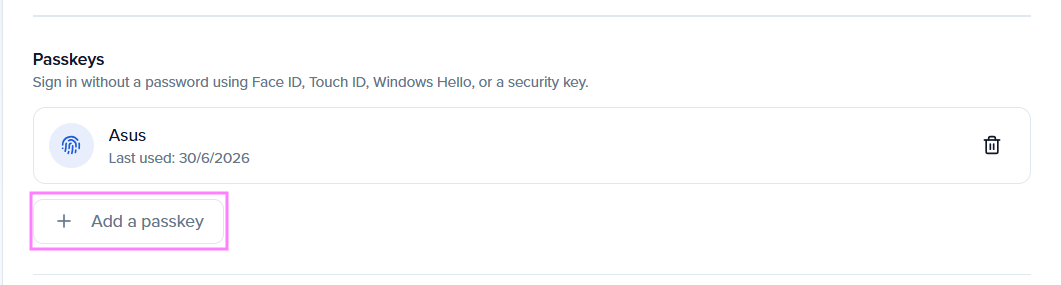
- Scroll to the Passkeys section.
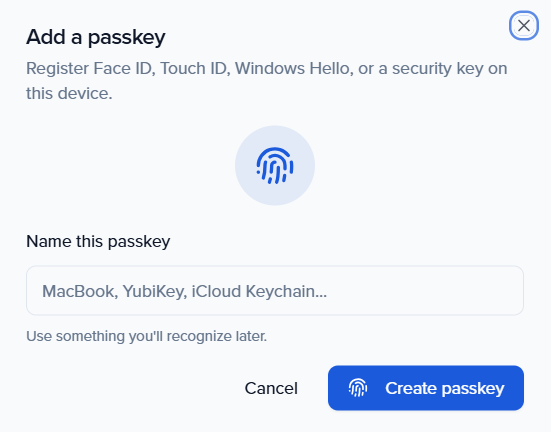
- Click + Add a passkey.
- Follow your device's prompt (fingerprint scan, Face ID, Windows Hello, or security key).
- Once enrolled, your device will appear in the list with its name and last-used date.
Step 3: Set up an Authenticator App (Optional but recommended as backup)
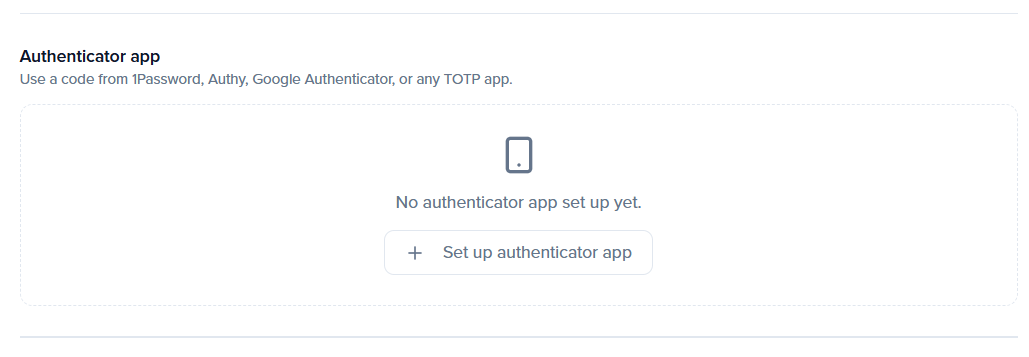
Use 1Password, Authy, Google Authenticator, or any TOTP app. These generate a 6-digit code that refreshes every 30 seconds, which is more secure than SMS.
- Scroll to the Authenticator app section.
- Click + Set up authenticator app.
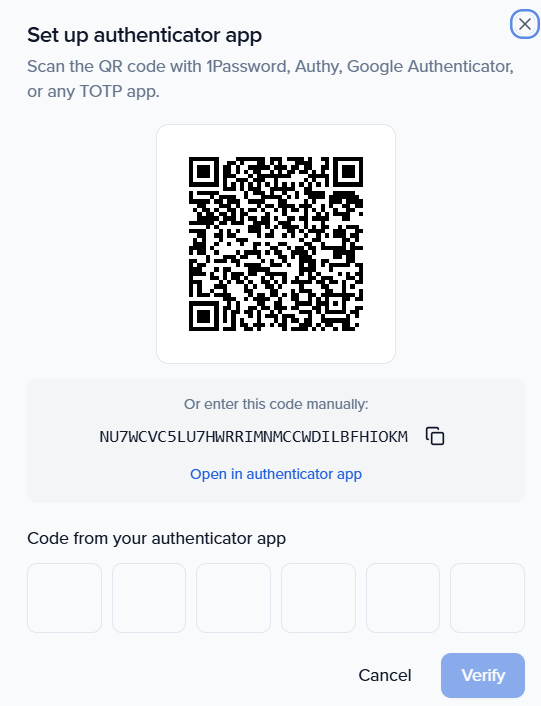
- Open your authenticator app and scan the QR code shown on screen.
- Enter the 6-digit code to confirm the setup.
Tip: Set up at least two methods (e.g., passkey + authenticator app) so you always have a backup if you lose access to one device.
Step 4: Set your Preferred Method
- Under Preferred method, click the dropdown.
- Select your preferred option: Passkey or Authenticator app.
- This will be suggested first every time you log in.
How to confirm 2FA is active
After setup, your 2FA status will show as On at the top of the section, along with your enrolled method (e.g., Passkey) and the enrollment date.
Trusted Devices
When logging in, you can check Devices that can skip the second factor for 30 days to skip the 2FA prompt on that device for the next 30 days. This is useful for your personal computer or phone, where you log in regularly.
Tip: Don't trust shared or public computers. Only use this option on your own private devices.
Recovery Codes
Recovery codes are a set of one-time-use backup codes that let you access your account if you lose all your 2FA devices. Think of them like a spare key, store them somewhere safe and offline.
How to generate your recovery codes
- Go to Account Settings
- Scroll to the Recovery codes section.
- Click to generate your codes.
- Save them immediately (in a password manager, a printed sheet in a secure place, or an encrypted file). Do not store them in your email or in Sessionboard.

Important: Each recovery code can only be used once. If you use them all or lose them along with your devices, you'll need to contact support to recover your account.
Common Issues & FAQ
I'm not receiving the email code
Check your spam or junk folder. The code is valid for 10 minutes. If you still don't receive it, try logging in again to request a new code, or switch to your authenticator app or passkey if you have one set up.
My authenticator app code isn't working
Codes expire every 30 seconds. Wait for the code to refresh and enter the new one immediately. Also make sure your phone's clock is set to automatic/network time, since a time drift can cause TOTP codes to fail.
The "Disable two-factor authentication" option is grayed out
This means your event organizer has made 2FA mandatory for this event. You cannot disable it while the requirement is in place. Contact your event organizer if you have questions about this policy.
I lost access to my phone / authenticator app
If you saved your recovery codes, use one of them to log in. If you don't have recovery codes, contact support@sessionboard.com and we'll verify your identity and help you regain access.
Is 2FA the same as MFA?
2FA (Two-Factor Authentication) is a type of MFA (Multi-Factor Authentication). MFA can involve two or more factors; 2FA specifically uses two. Both terms are often used interchangeably, and Sessionboard's implementation satisfies both requirements.
Still Need Help?
If you're having trouble setting up 2FA or getting locked out of your account, our support team is here to help.
- 📧 Email: support@sessionboard.com
- 💬 Live chat: Available from your portal or Help Center
When reaching out, please include your registered email address and a brief description of the issue so we can assist you quickly.