
- Accessing your reviews
- My Reviews
- Filtering and searching submissions
- Reviewing a submission
- Completing the scorecard
- Tips for evaluators
- Frequently asked questions
Accessing your reviews
Your event administrator will add you as an evaluator through the event backend. Once added, you can access your review assignments by visiting the event's Program Site.
To get started:
- Open the Program Site URL shared by your event administrator.
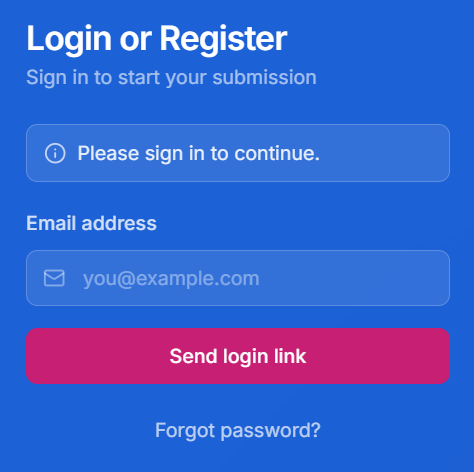
- On the Login or Register page, enter your email address and click Send login link.
- Check your inbox for the login link and click it to sign in.
No password or account setup is required. The login link gives you direct access to the portal, where you can navigate to your review assignments.
Tip: If your administrator shares the Program Site URL directly, you can bookmark it for quick access throughout the review period.
My Reviews
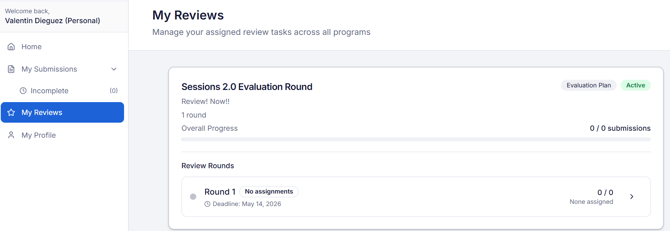
After signing in, click My Reviews in the left-hand navigation. This page displays all evaluation plans assigned to you across all programs, with the heading "Manage your assigned review tasks across all programs."
Each evaluation plan card shows:
- Plan name and status badge (Active or closed).
- Number of rounds in the plan.
- Overall Progress and submission count (e.g., "0 / 0 submissions").
- Review Rounds listed underneath, each with its own assignment count and deadline.The round view
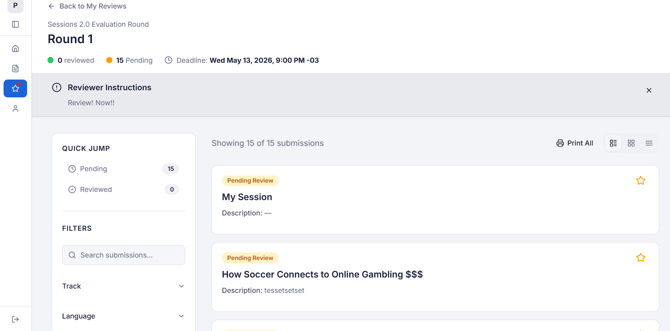
Click on an open plan to enter the round view. At the top of the page, you will see:
- ← Back to My Reviews link to return to your plan list.
- Round name (e.g., "Round 1").
- Status counts: how many submissions you have reviewed and how many are pending.
- Deadline: the date and time by which your reviews must be submitted.
- Reviewer Instructions: a banner with guidance from your administrator on what to focus on during this round. Click it to expand the full instructions.
Below the header, your assigned submissions are listed as cards. Each card shows the submission title, a short description, and a status badge (Pending Review or Reviewed).
Note: You can only submit reviews while the round is open. Once the deadline passes, you will not be able to submit or modify your evaluations for that round.
Filtering and searching submissions
The left sidebar helps you navigate your assigned submissions quickly.
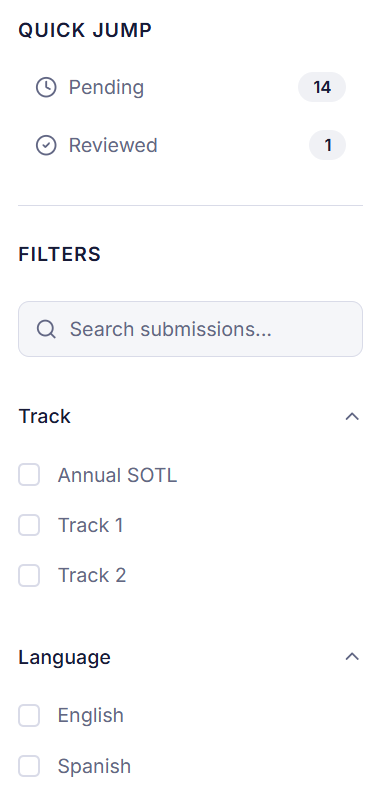
Quick Jump
At the top of the sidebar, Quick Jump shows counts for:
- Pending: submissions still waiting for your review.
- Reviewed: submissions you have already scored.
Click either label to jump directly to that group.
Filters
Below Quick Jump, the Filters section lets you narrow the submission list, for example:
- Search submissions: type a keyword to find a specific submission by title or content.
- Track: filter by submission track (e.g., "Annual SOTL," "Track 1," "Track 2").
- Language: filter by submission language (e.g., "English," "Spanish").
Note: The available filter options depend on how your administrator configured the evaluation plan. You may see different fields depending on the event.
Reviewing a submission
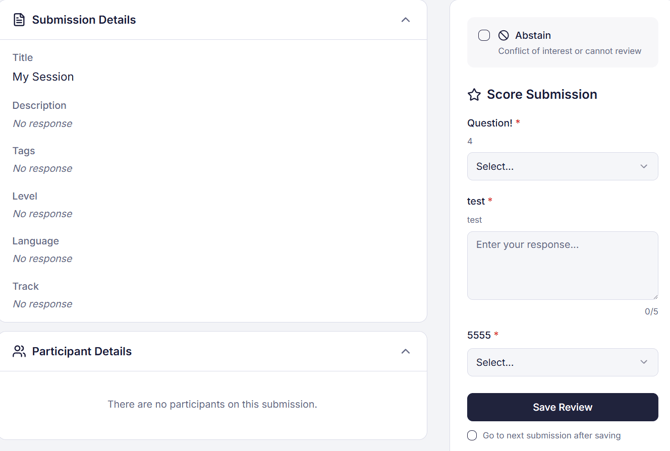
Click on any submission card to open the review view. The page is split into two sections:
Left side: Submission Details
The left panel displays the submission information your administrator has made visible for this round. This may include fields like Title, Description, Tags, Level, Language, Track, and any other custom fields. Below the submission fields, a Participant Details section shows the people associated with the submission (unless anonymized review is enabled).
Right side: Score Submission
The right panel contains the scorecard for this submission. Depending on how your administrator configured the round, the scorecard may include:
- Dropdown questions: select from predefined options.
- Text fields: enter written feedback or comments.
- Rating scales: score on a numeric range (e.g., 1 to 5, 1 to 10).
- File uploads: attach a document such as a marked-up manuscript.
Required questions are marked with an asterisk (*).
Completing the scorecard
After filling out the scorecard questions, you have two options at the bottom of the right panel:
- Save Review: saves your scores and comments for this submission
- Go to next submission after saving: check this option to automatically move to the next pending submission when you click Save Review
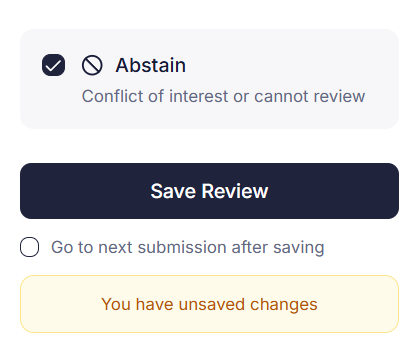
If you have unsaved changes, a yellow "You have unsaved changes" banner appears to remind you to save before navigating away.
Abstaining from a review
If you have a conflict of interest or cannot review a particular submission, select the Abstain option at the top of the scorecard. This marks the submission as abstained and skips it from your pending count. The label reads "Conflict of interest or cannot review."
Tip: You can return to any submission you have already reviewed and update your scores, as long as the round is still open. Navigate back through your submission list and click on the reviewed submission to make changes.
Tips for evaluators
- Read the Reviewer Instructions first: each round may have different criteria and focus areas. Review the instructions banner at the top of the round view before you start scoring.
- Be consistent: apply the same standards across all submissions. If you are unsure about a rating, refer back to the round instructions.
- Use the text fields: written comments help administrators make decisions and can provide constructive feedback to submitters. Even brief notes explaining your rating are valuable.
- Check your deadline: the round deadline is displayed at the top of the round view. Plan your time so you can complete all assigned reviews before it closes.
- Use Quick Jump: click "Pending" in the sidebar to focus on the submissions that still need your review.
- Bookmark your Program Site: you can return to your evaluations at any time by visiting the same Program Site URL and signing in again.
Frequently asked questions
-
Can I change a submitted evaluation?
-
Yes, as long as the round is still open. Return to the submission through your round view and update your scorecard. Once the round closes, evaluations are locked and cannot be modified.
-
-
What does "Abstain" do?
-
Selecting Abstain marks the submission as skipped due to a conflict of interest or an inability to review. It removes the submission from your pending count and notifies your administrator that you did not score it.
-
-
Can submitters see my ratings or comments?
-
No. Evaluator ratings and comments are visible only to event administrators. They are not shared with submitters unless the administrator explicitly chooses to do so.
-
-
Can I see other evaluators' scores?
-
No. Each evaluator's review is independent and private. You will not see scores or comments from other evaluators assigned to the same submission.
-
-
What if some submission fields show "No response"?
-
This means the submitter did not fill in that field, or the field was optional on the submission form. Focus your evaluation on the fields that have content.
-
-
I did not receive the login link. What do I do?
-
Check your spam or junk folder. If the link is not there, return to the Program Site login page and click Send login link again. If you continue to have issues, contact your event administrator.
-
-
Do I need to install anything?
-
No. The evaluator interface runs entirely in your web browser. Any modern up-to-date browser (Chrome, Firefox, Safari, Edge) will work.
-