
⚠️ For advanced and expert users. API tokens give programmatic access to your organization's event data. They're meant for technical users building integrations, connecting AI assistants, or syncing Sessionboard data with external systems. Before generating a token, we recommend reviewing our full API documentation: apidocs.sessionboard.com/introduction. It covers authentication, rate limiting, MCP, webhooks, and the SbQL query language in depth.
In this article
What you can do with an API token
What you can do with an API token
API tokens let you:
- Sync your event data with external systems (CRMs, BI tools, custom dashboards)
- Build custom integrations using the Sessionboard Public API
- Connect AI assistants (Claude, ChatGPT, and other Model Context Protocol–compatible clients) to your Sessionboard organization so they can query and act on your event data in natural language
- Run scheduled or programmatic reports through SbQL
💡TIP- Before you start
- Tokens are generated at the organization level, not per event. Each token has access scoped to your org. You must be an organization administrator to generate, edit, or revoke tokens.
- Tokens are sensitive. Treat them like passwords — never share them in public channels, never commit them to source control, and store them in a secrets manager or environment variable.
How to generate an API token
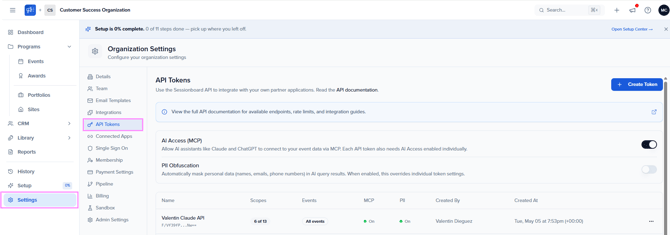
1. Open Organization Settings
Log in to the Sessionboard admin dashboard and click Organization Settings in the sidebar.
2. Go to API Tokens
In the Organization Settings menu, select the API Tokens section.
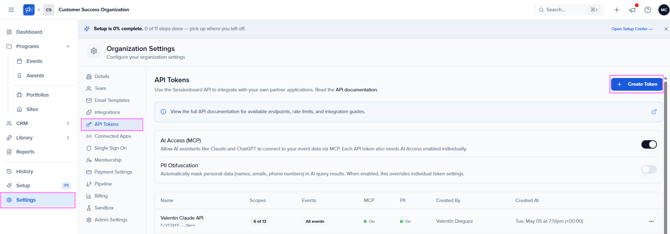
3. Generate a new token
Click Generate Token. You'll be asked for:
- A descriptive name: e.g."Tableau dashboard." This helps you identify the token later when reviewing or revoking it.
- Scopes: see the next section.
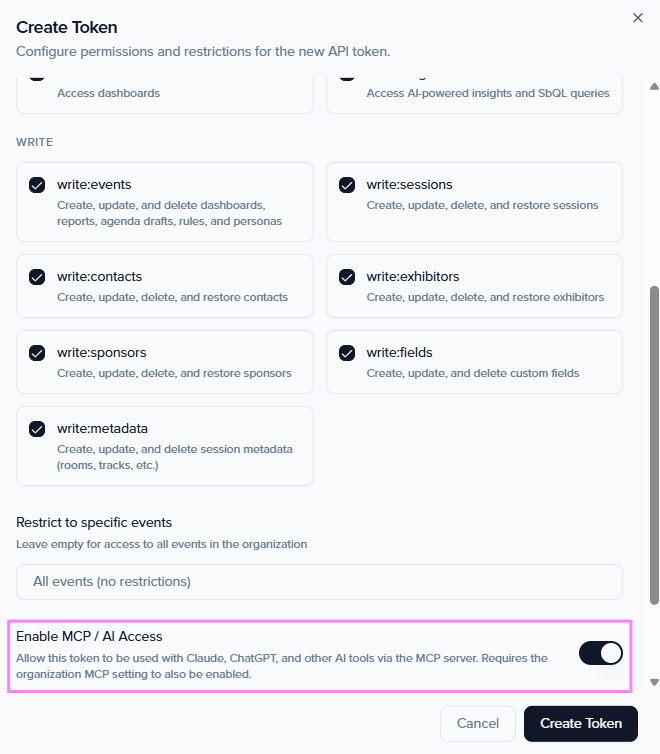
- MCP Access: toggle this on if the token will be used by an AI assistant (Claude, ChatGPT, etc.) via Sessionboard's MCP server.
- Hide PII (Personally Identifiable Information): recommended. See the dedicated section below.
- Event restrictions (optional) : limit the token to specific events instead of your whole organization.
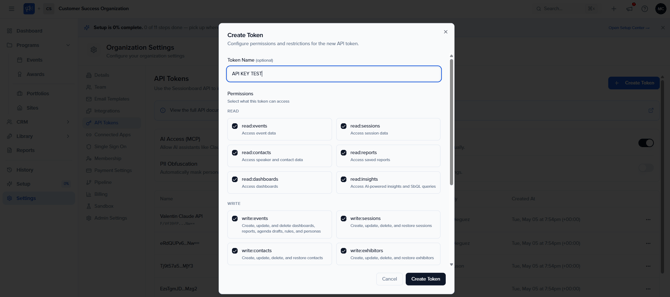
4. Choose token scopes
API tokens use scopes to control what the token can read or write. Grant only the scopes your integration actually needs.
| Scope | What it does |
|---|---|
| Default (read access) | Read-only access to events, sessions, speakers, contacts, sponsors, and exhibitors. Granted automatically to every token. |
| read:insights | Required for Insights endpoints, SbQL queries, and any MCP / AI assistant connection. |
| write:sessions | Allows creating and updating sessions. |
| write:contacts | Allows creating and updating contacts. |
| write:events | Allows managing event-level configuration (rules, dashboards, reports, drafts). |
| write:metadata / write:fields | Allows managing rooms, tracks, tags, formats, levels, languages, statuses, and custom fields. |
| write:exhibitors / write:sponsors | Allows managing exhibitor and sponsor records. |
📌 Note: If you don't know which scopes you need, start with the default read access and add write scopes only when you have a clear use case for them.
5. Enable Hide PII (recommended)
Sessionboard includes a Hide PII (Personally Identifiable Information) setting that obfuscates personal contact data when the token is used.
- Enabled (default and recommended): Email addresses are returned as
j***@a***.com, phone numbers as***-***-4567, and similar masking applies to other personal fields. - Disabled: Full PII is returned in API responses.
We strongly recommend leaving Hide PII enabled, especially for tokens used by AI assistants or any third-party integration. It protects your speakers' and contacts' personal information from being exposed in logs, AI conversation histories, or downstream systems.
You can toggle Hide PII per token, so different integrations can have different obfuscation rules depending on what they need to do.
6. Copy the token immediately
🔒 Note: copy your token now. When you click Generate, the full token value is displayed only once. After you close the dialog, the full token is hidden for security and cannot be retrieved again. Copy it immediately and store it in a secure location (a password manager, secrets vault, or environment variable). If you lose it, you'll need to generate a new one.
This is intentional behavior, we never store the full token in a way that can be displayed back to you, so even Sessionboard staff can't recover it for you.
Using your token
Include the token in the x-access-token header on every API request. Example:
curl -X GET https://public-api.sessionboard.com/v1/events \
  -H "x-access-token: YOUR_TOKEN"
Use https://public-api.sessionboard.com for US-hosted organizations and https://public-api-eu.sessionboard.com for EU-hosted organizations.
💡TIP- For full endpoint documentation, request and response schemas, and code samples in JavaScript and Python, see the API Reference.
Connecting AI assistants (Claude, ChatGPT, and other MCP clients)
Sessionboard supports the Model Context Protocol (MCP), an open standard developed by Anthropic that lets AI assistants securely query and act on external data. You can connect Claude Desktop, Claude Code, ChatGPT, or any MCP-compatible client to your Sessionboard organization so the AI can answer questions about your data, build reports, and (with write scopes) make changes on your behalf.
How it works
You have two paths to connect:
- OAuth (recommended for most clients) : When you connect an MCP-compatible AI client to Sessionboard, the client walks you through an OAuth authorization flow automatically. You don't need to generate a token manually; the OAuth flow handles authentication for you. This is the easiest path for browser-based clients like Claude Desktop or ChatGPT.
- Manual API token: If your client doesn't support OAuth (or you prefer manual control), generate an API token following the steps above. Make sure to enable the MCP Access toggle and grant the read:insights scope. Add write scopes (e.g.,
write:sessions) only if you want the AI to make changes.
Configuring your AI client
For AI clients that accept a remote MCP server URL, point them to:
- US region:
https://mcp.sessionboard.com/mcp - EU region:
https://mcp-eu.sessionboard.com/mcp
The MCP server exposes 27 tools covering search, read, and write operations. You can ask the AI things like "How many sessions are accepted for our 2026 conference?", "Show me the top 10 speakers by session count," or "Create a new track called 'AI & Machine Learning.'"
Prerequisites for MCP access
Before MCP requests will succeed, three things must be true on your account:
- AI features must be enabled for your organization. Contact Sessionboard support or your account manager if you're not sure.
- MCP access must be enabled on your organization (a separate feature flag).
- MCP must be enabled on the API token, with the read:insights scope (and any write scopes you need).
If any of these are missing, MCP requests will return a 403 Forbidden error.
For full MCP details: available tools, prompt templates, security model, and example conversations ,see the MCP Server documentation.
Security and best practices
- Hide PII by default. Leave the Hide PII toggle on unless you have a specific reason to expose full personal data.
- Scope tokens narrowly. Generate separate tokens for separate integrations and grant only the scopes each one actually needs. A read-only Tableau dashboard doesn't need write scopes; a sync job that only updates sessions doesn't need write access to contacts.
- Restrict to specific events when possible. If a token only needs access to one event, scope it that way rather than giving it organization-wide access.
- Rotate tokens periodically and revoke them as soon as an integration is decommissioned or a team member leaves.
- Never commit tokens to source control or share them in chat. If a token is compromised, revoke it immediately from the API Tokens settings page and generate a replacement.
- Audit log. All API calls are recorded with source, method, response time, and token ID. Organization administrators can review this log at any time.
Managing and revoking tokens
From the Organization Settings → API Tokens page you can:
- Rename a token
- Edit its scopes, MCP access, event restrictions, and Hide PII setting
- Revoke a token immediately (any integration using it will stop working)
Revoking a token cannot be undone. If you need to give the same integration access again, generate a new token and update the integration's configuration with the new value.
Rate limits and caching
The Sessionboard API enforces rate limits to ensure fair usage. Build your integration to handle 429 Too Many Requests responses with exponential backoff. Some endpoints (individual session retrieval and session search) are cached for 3 minutes, so changes you make in Sessionboard may take up to 3 minutes to appear in API responses. Webhook notifications are not subject to this cache and are delivered in real time.
For full details, see Rate Limiting.
Need help?
- Full API documentation: apidocs.sessionboard.com/introduction
- Authentication reference: apidocs.sessionboard.com/authentication
- MCP Server reference: apidocs.sessionboard.com/insights/mcp-server
- Rate limiting: apidocs.sessionboard.com/rate-limiting
If your integration isn't behaving as expected after following this guide, reach out to your Sessionboard account manager or support team and include the token name (never the token value) along with the error message you're seeing.
Need help? Contact us at support@sessionboard.com