
In this article:
- "You do not have access to this portal" error
- Portal tasks assigned but not visible to the user
- Cannot submit forms through the portal
- "View Portal As" not working or redirecting incorrectly
- Portal filters aren't picking up speakers or participant count shows 0
- Portal invitations aren't being received
"You do not have access to this portal" error
Symptoms
Speaker or participant clicks portal link → gets "You do not have access to the portal for this event" when logging in → other speakers accessing the same portal fine
Why it happens
It almost always means the email used to log in does not match the Portal Username on the contact's record. In Sessionboard, the Email field and the Portal Username are separate fields. The portal checks the Portal Username, not the Email field. If someone is trying to log in with their email address but their Portal Username is a different email (or blank), they'll be blocked.
Fix (Admin Side)
- Go to the contact's record in Sessionboard
- Check if the Email field is correct:
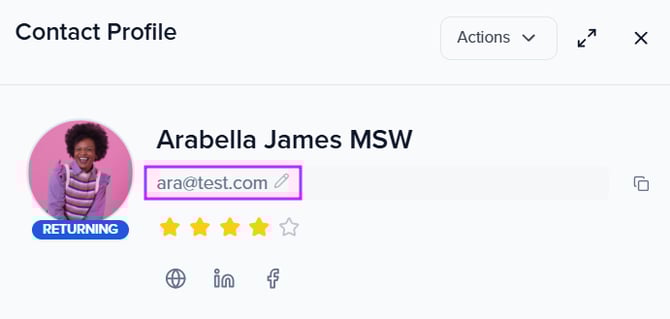
- Double-check their Portal Username field at the bottom of the contact record:
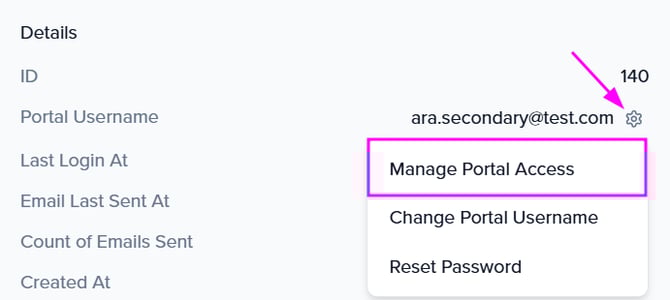
- Make sure the Portal Username matches the email the person is using to log in
- If the Portal Username is blank or different, update it to match
- Confirm the contact is assigned to the correct portal (Portals > Edit Criteria) and is in the participant list there.
- Ask the speaker to try logging in again using the correct URL
- You can get the portal URL from Portals > Copy Link.
See the KB article Updating a Contact's Email Address vs. Portal Username for more details on how these two fields work.
Portal tasks assigned but not visible to the user
Symptoms
Admin assigns a task to a contact through the contacts module → task appears correctly on the admin side under their profile → but it doesn't show up on the user-facing portal when the user logs in
Why it happens
Tasks must be assigned through a portal that the user is actually a participant of. If the task was assigned to the contact record but the contact isn't in the portal's participant list (or is in a different portal), the task won't appear for them. Additionally, if the portal filters don't include the contact, the task won't surface.
Fix
- Confirm the contact is in the correct portal:
- Method 1: Contacts > Columns > Assigned Portal > Apply Changes. Double-check your contact assigned portal.
- Method 2: Check the portal filters (Portals > Edit Criteria), make sure the contact matches the filter criteria and is listed (e.g. role, group)
- Verify the task is assigned to the correct portal (Portals > Edit Tasks)
- Try "View Portal As" from the contact's profile to see what they see
- In rare situations where everything looks correct and changes aren't updated, you can try:
- Remove, save, and re-add the portal filters
- Remove, save, and re-assign the task
Cannot submit forms through the portal
Symptoms
Portal user tries to submit a form task → gets an error or the submit button doesn't work → admin has already extended the due date but the issue persists
Why it happens
Extending a due date on an existing form doesn't always refresh the submission window for users who already have the form open. The form may also have validation errors the user can't see, or the portal task status may be stuck.
Fix
- Confirm the form's due date has been properly saved (re-open tasks for that specific portal via Portals > Edit Tasks, and verify the date)
- Make sure the task is assigned for all needed portals inside your Portals module.
- Common case: You assign the task only in 1 portal; other portals are missing it.
- Make sure the due date has been updated for all needed portals inside your Portals module.
- Common case: You update the task due date only in 1 portal; other portals are still past due date.
- Ask the user to log out, clear their browser cache, and log back in
- Check if the form has required fields that the user hasn't filled in
- Try "View Portal As" the affected user to reproduce the issue
- If the issue persists, contact support@sessionboard.com with the event name, portal name, and the affected user's email
"View Portal As" not working or redirecting incorrectly
Symptoms
Admin clicks "View Portal As" on a contact → gets an error retrieving portal data, or the portal loads blank
Why it happens
This typically happens with newly added contacts whose portal record hasn't fully propagated, or when the contact's portal configuration has an error.
Fix
- Access their contact record, scroll down & check that the contact's Portal Username field is populated:
- Try accessing from another browser, such as Google Chrome; many times, browser extensions or a different configuration might be breaking a Sessionboard element.
- If the error says "error getting portal tasks" or "error retrieving portal data," contact support@sessionboard.com — most of the time, this is a visual bug only, and speakers are still able to access their tasks, and the portal loads correctly from their end.
Portal filters aren't picking up speakers or participant count shows 0
Symptoms
Portal shows 0 participants even though speakers are assigned to sessions
Why it happens
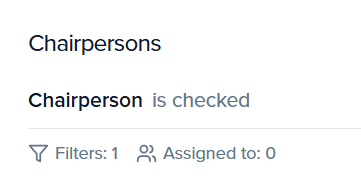
Portal participants are populated by portal filters, not session assignments. If your portal filters (e.g. "Role = Speaker") don't match the contacts, or if contacts haven't been added to the event yet, the count will be 0.
Fix
- Remove, save & re-add the portal filters to force an update on the list
- Review the portal filter logic — if using multiple conditions, keep in mind they'll need to match all conditions in order to be selected
- Go to the portal configuration and review the filter criteria (Portals > Edit Criteria)
- Confirm that the contacts you expect match those filters from the Contacts module
- Check that the contacts have been added to the event (not just the CRM) by adding them via Contacts > Add Contact button
- If using role-based filters such as Speaker, Moderator, or Chairperson, verify that the role is assigned to their session record
Portal invitations aren't being received
Symptoms
Admin sends portal invitations → users report never receiving them
Fix
- Check the email address on the contact's record — typos are the most common cause
- Verify the contact's Portal Username and communication email are both correct and up to date — go to the contact record and confirm both fields reflect the address the user expects to receive email at
- See the KB article Updating a Contact's Email Address vs. Portal Username for more details on how these two fields work.
- Ask the user to check spam/junk folders, especially for
no-reply@sessionboard.com - Verify the invitation was actually sent: go to History > Emails and search for the contact
- If using a corporate email, the user's IT team may need to whitelist sessionboard.com
- Common cause: corporate/work email has a strong firewall and isn't delivering email properly; custom email protection, such as Outlook Protection, Cisco IronPort, etc.
- Re-send the invitation once again
- Contact support@sessionboard.com with the email address having issues if you're unable to fix it after these steps.
Still having issues?
Contact support@sessionboard.com with:
- Event name
- Portal name
- The affected user's email
- A screenshot of the error
- What steps you've already tried