
In this article:
- "All records valid" but the import still fails
- Date/time fields fail after editing in Google Sheets
- Existing field data is getting overwritten or wiped
- "Session Friendly ID" field — what is it and where does it come from?
- Importing session times and rooms from Excel
- Custom fields not appearing during import mapping
"All records valid" but the import still fails
Symptoms
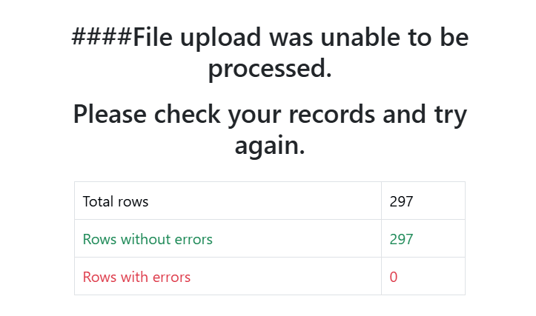
Validation shows 0 invalid records and green checkmark → click Continue → "File upload was unable to be processed. Please check your records and try again." → no records imported
Why it happens
Validation checks field formatting, but not all backend constraints (duplicate detection, file size, temp system issues). Clean validation ≠ successful write.
Fix
- Reduce file size — Sessionboard supports max 1,000 records per import. Split into smaller files
- Check for special characters — open CSV in a text editor, look for
",&,<,>in field values- While these were recently allowed, some of these might still cause issues when reading the file.
- Re-export the template — download a fresh template from the import screen, copy data into it
- Try a different browser — Chrome incognito or another browser
- If it persists, contact support with CSV attached + URL where you're importing + event name
Date/time fields fail after editing in Google Sheets
Symptoms
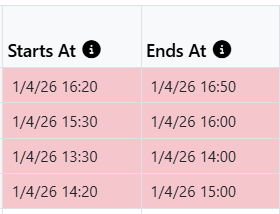
Export CSV → open in Google Sheets → edit → re-import → errors on all "Starts at" and "Ends at" fields. Dates look correct, but SB rejects them.
Why it happens
Google Sheets auto-converts date/time values. When re-exported, dates come out as e.g. 3/25/2026 9:00 AM instead of the required YYYY-MM-DD HH:mm format.
Fix
- Option A: In Google Sheets, select date columns → Format > Number > Custom date and time → delete current logic using the backspace key → use the UI to match the needed format:
YYYY-MM-DD HH:mm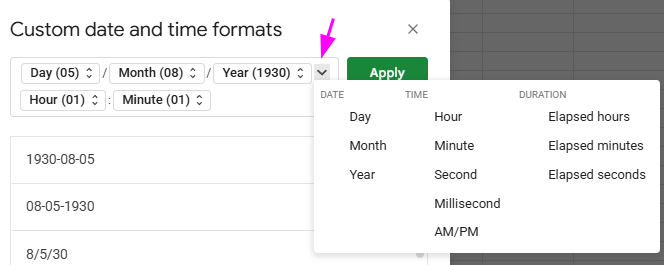
- Add Day > Click on Day > Day with leading zero, add a slash: '/', add Month, etc.
- This is how it needs to look before applying:
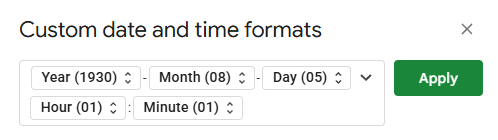
- Once done: File > Download as CSV
- Option B: Use Excel instead of Google Sheets — handles date formatting more predictably
- Option C: Skip re-import, use Bulk Edit directly (Sessions > select > Bulk Edit > Start/End Time)
Existing field data is getting overwritten or wiped
Symptoms
After import, fields not in your spreadsheet are blanked out. Descriptions and custom fields are now empty. Only meant to update dates.
Why it happens
SB maps every column to a field. If a field like Description is present but empty, it overwrites existing data. An empty column means "set this field to empty," it doesn't mean "do not update."
Fix
- Export existing data first — Sessions > Export. The file includes the Session Friendly ID column.
- Add column "Update record if already exists" set to
TRUEfor every row you want to update. Without this, SB may create duplicates. - Make your changes in the relevant columns.
- At the mapping screen, set "Ignore this column" for any column you're NOT intentionally changing.
- Proceed with import.
Always export a backup before importing updates: go to Sessions > Options > Export to download a full copy first.
"Session Friendly ID" field — what is it and where does it come from?
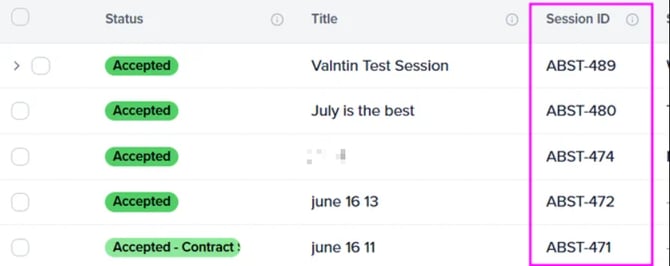
Session Friendly ID is an internal identifier SB uses to match CSV rows to existing session records.
- Importing new records? Leave Session ID blank — SB generates IDs automatically.
- Updating existing records? Use the Session ID from a previous SB export so the system matches the right record.
- Do NOT invent your own Session ID values — only use values from a Sessionboard export.
Importing session times and rooms from Excel
- Download the Sessions import template: Sessions > Import > Download Template
- Copy session data into template, matching column headers exactly
- Date format:
YYYY-MM-DD HH:mm(e.g.2026-03-25 18:00) - For Room/Location, use exact room name as it appears in event settings
- Phone numbers must include country + area code in the following format:
+1 (123)456-7891
- Save as .csv (UTF-8 encoding) as preferred instead of .xlsx
- At mapping step, use "Ignore this column" for any fields you're not setting
Custom fields not appearing during import mapping
Symptoms: You created custom fields in Sessionboard, but they don't appear as mapping options when importing a CSV.
Why: Custom fields must be added to your module's table view before they appear as import mapping options. If they're not visible in your Sessions, Contacts, or Speakers table, they won't show up during import.
Fix:
- Go to the relevant module (e.g. Contacts)
- Click the Columns button to manage visible fields

- Add your custom fields to the table view
- Re-download the import template via Import > Template — your custom fields will now be included as column headers
- Re-attempt the import
Before you import — checklist
- Export a backup of existing data first
- Use the Sessionboard-provided template on Options > Import > Template (not a custom spreadsheet)
- Date/time format:
YYYY-MM-DD HH:mm(e.g.2026-03-25 18:00) - Set "Ignore this column" for every field you're not intentionally updating
- Keep files under the 1,000 record limit per import
- Try to avoid special characters (
",&,<,>)- While these were recently allowed, some of these might still cause issues when reading the file.
- We suggest saving/exporting as
.csv(UTF-8 encoding), instead of.xlsx
Still having issues?
Contact support@sessionboard.com with:
- Your CSV/XLSX file attached
- The name of the event you're importing into
- A screenshot of the error message
- Which columns were you trying to update
- The direct URL where you're importing