
Sessionboard Awards is an add-on feature. If your organization doesn't have access yet or you'd like to learn more about pricing, please contact support@sessionboard.com.
In this article:
- What is an Awards Submission Form Builder, and what can it be used for?
- Sections
- Submitter Information
- Form Questions
- Standard fields
- Custom fields
- Field options
- Nomination Details
- Form Rules
- Next steps
What is an Awards Submission Form Builder, and what can it be used for?
The Awards Submission Form Builder is where you design the submission form that applicants or nominators will complete. In this step, you define what information you want to collect and how you want it presented.
With a Form Builder, you can:
- Add and organize fields into sections
- Collect Submitter Information
- Collect Nomination Details
- Collect different types of information (email, phone number, files, etc.)
- Customize field labels and instructions
- Set required fields
- Use question rules (conditional logic) to show or hide fields
Sections
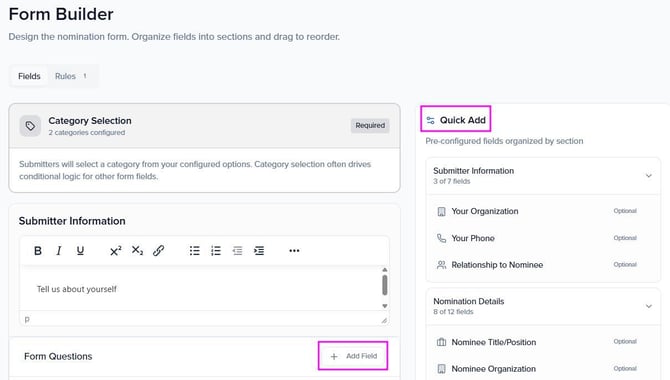
The form is organized into structured sections that guide submitters through the process. By default, these include:
- Category Selection
Allows submitters to choose the category they are applying or nominating for. - Submitter Information
Collects details about the person submitting the form. - Form Questions
Contains the main questions related to the submission. - Nomination Details
Focuses on the person, project, or organization being nominated. - Form Questions
Contains the main questions related to the nomination details.
Each section can include its own set of fields, along with instructions to provide context or guidance. Structuring your form into sections helps improve clarity and completion rates.
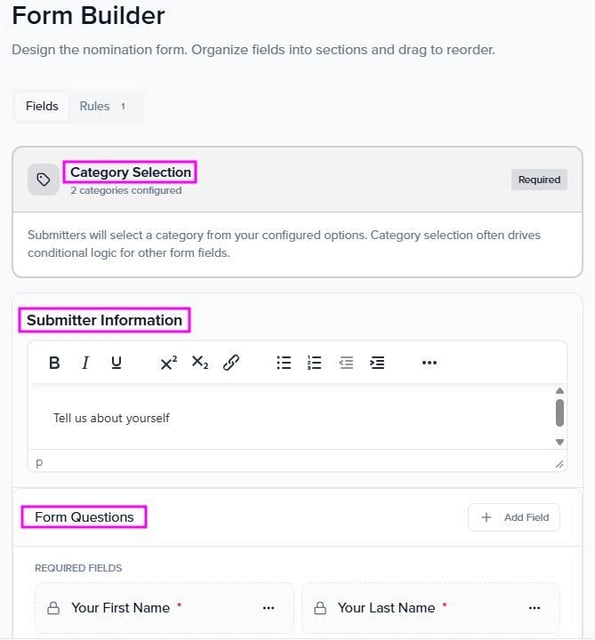
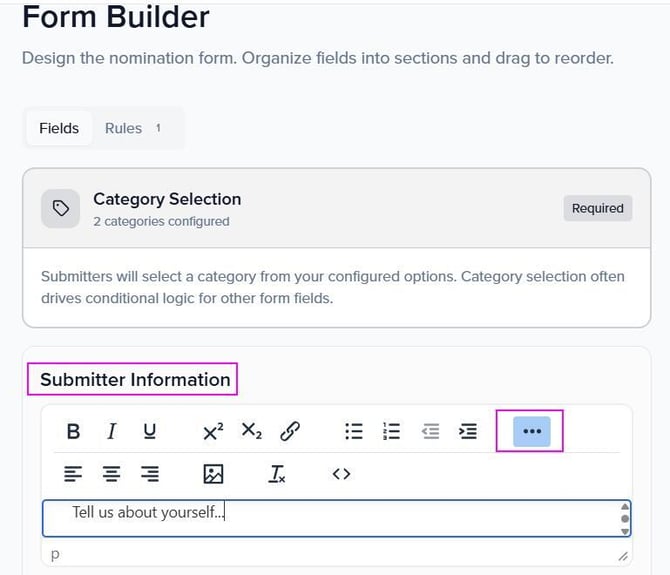
Submitter Information
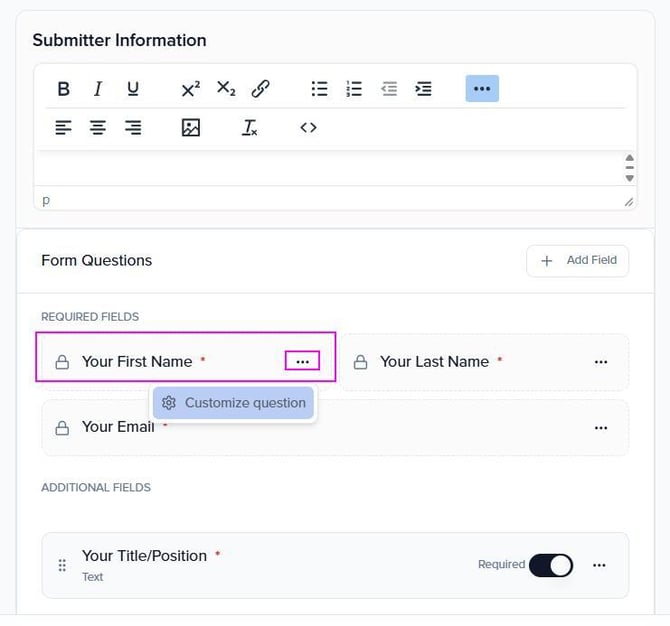
In the Submitter Information section, you can collect details from participants, such as name, email, company, or any information relevant to your program. This helps ensure you gather all the necessary data for reviewing and managing submissions effectively. You can also insert or edit images, as well as access the source code to further customize the content as needed.
Form Questions
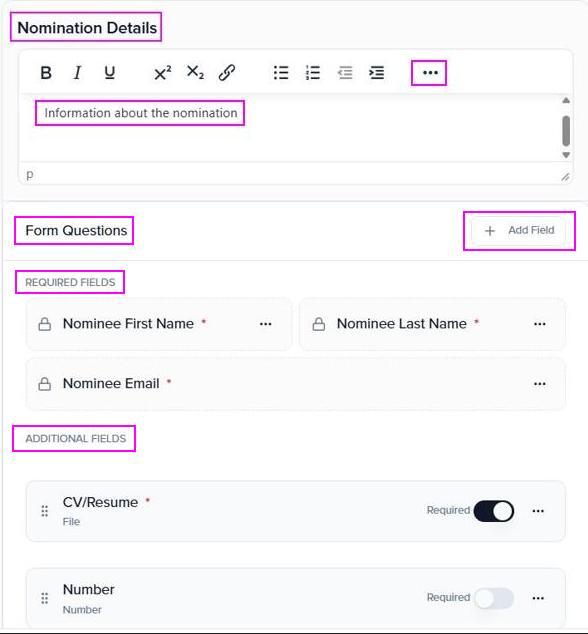
In the Form Questions section, you can set up the fields that submitters will complete in the form. This includes required fields, which must be filled out, and additional fields for collecting extra information. You can customize these questions based on the needs of your program.
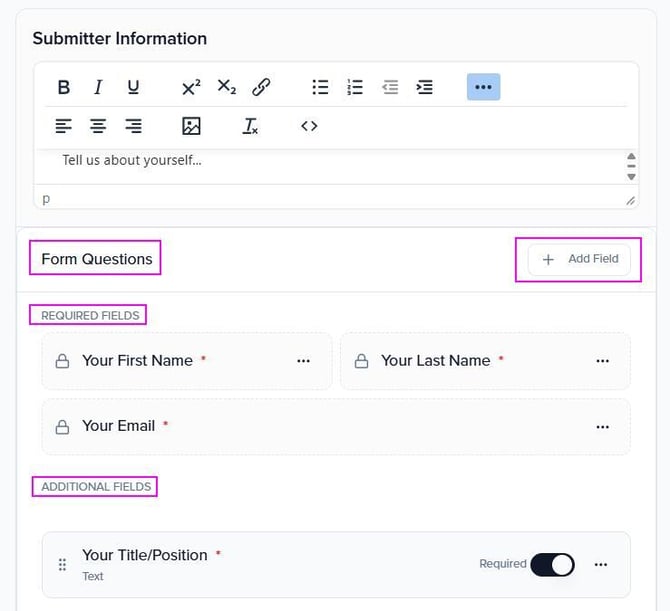
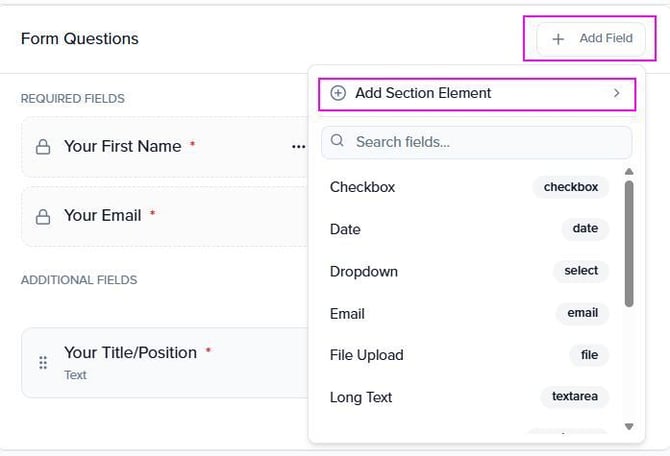
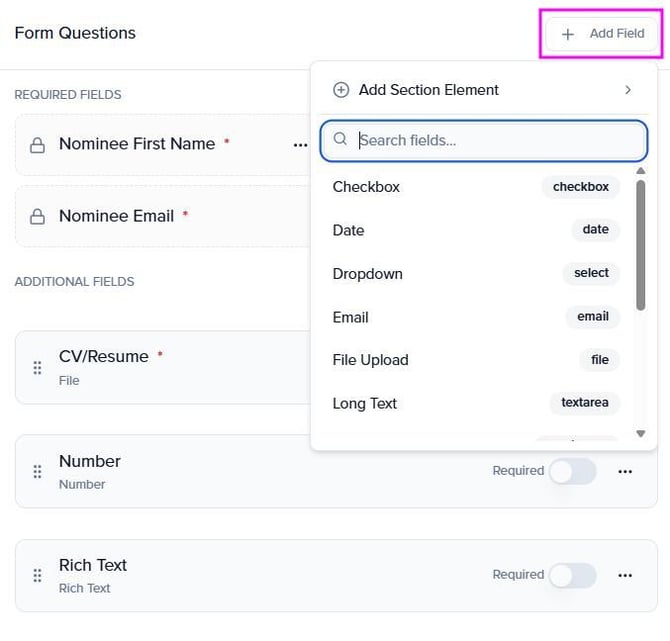
By selecting "+ Add Field", you can add more fields to your Form Questions. Additionally, you can include Section elements to insert a section header, add a divider line, or include a rich text box.
Standard fields
A Quick Add panel on the right-hand side provides a list of pre-built fields that you can easily add to your form.
Examples include:
- Nominee First Name
- Last Name
- Title/Position
- Organization
- Department
- Phone
- Nomination Statement
- Impact & Achievements
- Supporting Documents
- CV/Resume
- Website/Portfolio
Required fields are clearly indicated, making it easy to identify any missing essential information.
Custom fields
In addition to standard fields, you can create custom fields to capture information specific to your program.
Available field types include Checkbox, Date, Dropdown, Email, File upload, Long text, and more. This flexibility allows you to tailor the form to match your exact requirements.
Field options
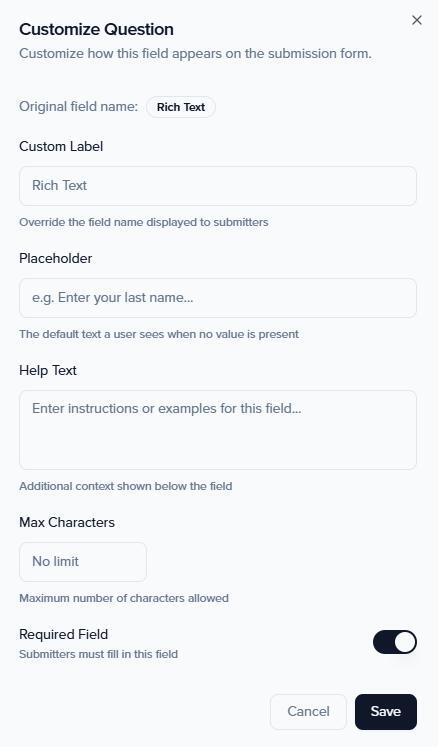
Each field can be customized to improve clarity and usability.
From here, you can configure:
- Custom label
Modify how the field name appears - Placeholder text
Add example or guiding text within the field - Help text
Provide additional instructions or context - Required field
Control whether the field must be completed - Question rules
Show or hide fields based on previous responses
These options help create a more intuitive and guided submission experience.
Nomination Details
In the Nomination Details, you can add and format introductory content or instructions related to the nomination. This section allows you to provide context, guidelines, or any relevant information for submitters. You can also format the text, insert images, and customize the content using the editor’s toolbar.
The Form Questions section works the same way as in the Submitter Information section. You can configure both required and additional fields, customize the questions, and tailor the form to collect the specific information needed for your nominations.
Form Rules
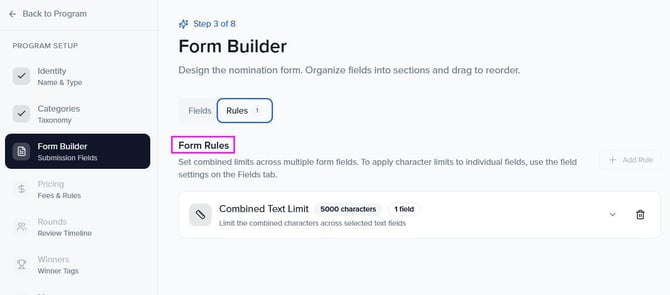
Under the Rules tab, you can configure limits that apply across multiple fields.
This includes setting combined character or word limits across selected text fields, which helps control the length of written responses.
Next steps
Once your form is configured, you can continue setting up your program:
- Pricing Rules Engine
Configure submission fees, payment settings, and any pricing rules or discounts. - Round Manager
Define the evaluation timeline for your program. A default round called "Submissions and Review" is created automatically. While this step provides an overview, detailed configuration is managed from the Program Dashboard after saving. - Winner Tags
Set up Winner Tags to define the types of recognition your program will award. - Program Managers
Program Managers are co-administrators who help maintain your program. - Notifications
Configure the email templates that are sent automatically throughout your program's lifecycle.
Tip: Before moving forward, preview your form from the submitter’s perspective to ensure all fields, instructions, and conditional logic are working as expected.