
Before you can assign a speaker, sponsor, and/or exhibitor to a session, they must be added as a contact within the Contacts module first.
NOTE: If you add a speaker within the Speakers module, the system, by default, will create the contact under the Contacts module first. Once you assign the contact to a session, the contact will then appear within the Speakers module.

How to add a contact
-
Within the Contacts module, select the "Add Contact" button at the top right-hand corner of the screen.

-
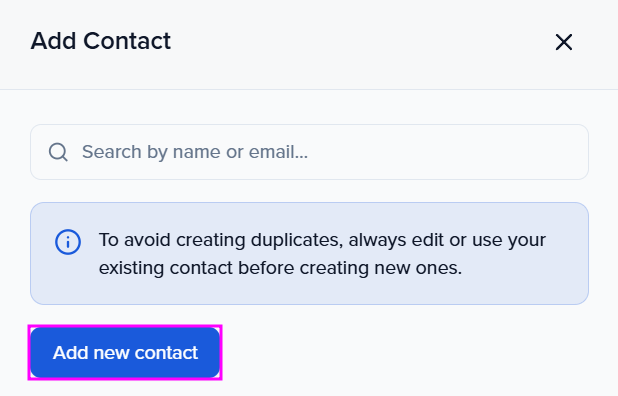
Select the "Add new contact" button in the pop-up window.
-
Add all of the contact's information (i.e. name, phone number, address).
-
NOTE: First name, last name, and email address are required.
-
-
Click "Create Contact" once complete
You can control which fields appear in the Add Contact modal (and their order) via Settings → Record Settings → Layouts.
How to delete a contact
-
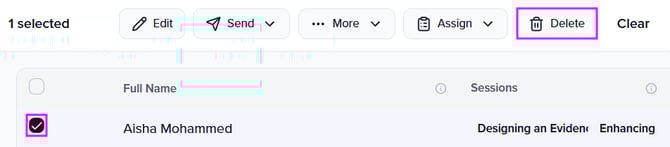
Within the Contacts module, select the box to the left of the contact record.
-
At the top of the page, select "Delete".
-
You will see a pop-up window that asks you to confirm whether you want to delete them from this event, OR from all events within your organization. Click your preferred option.
Note: This action can not be undone.