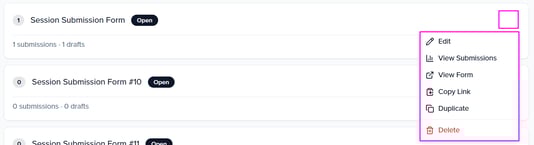
The Session Submission Form is the first interaction a submitter or speaker has with Sessionboard. It captures information about the session and speaker(s), and once submitted, creates records accessible to admins.
Teams can create up to 20 submission forms.
- How to Build a Submission Form
- Creating, Editing, & Managing Fields (Help Text, Field Label, Edit Fields & Question Rules/Conditional Logic)
- Additional Layout Tools (Section Headers, Rich Text Box, & Form Divider)
- Additional Form Actions (View Result, Duplicate Forms & Delete Forms)
How to Build a Submission Form
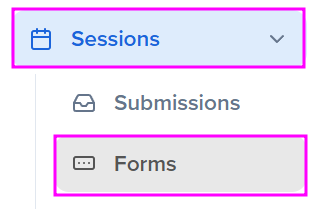
From your Sessions module, select the Forms button to access the Session Submission Forms.
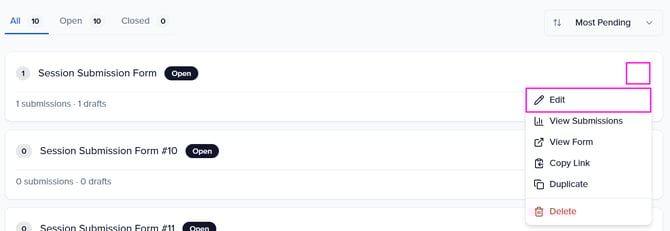
By default, Sessionboard creates an initial submission form that you can customize. Click the ellipsis (⋯) to see additional actions, then select Edit to start configuring your form.
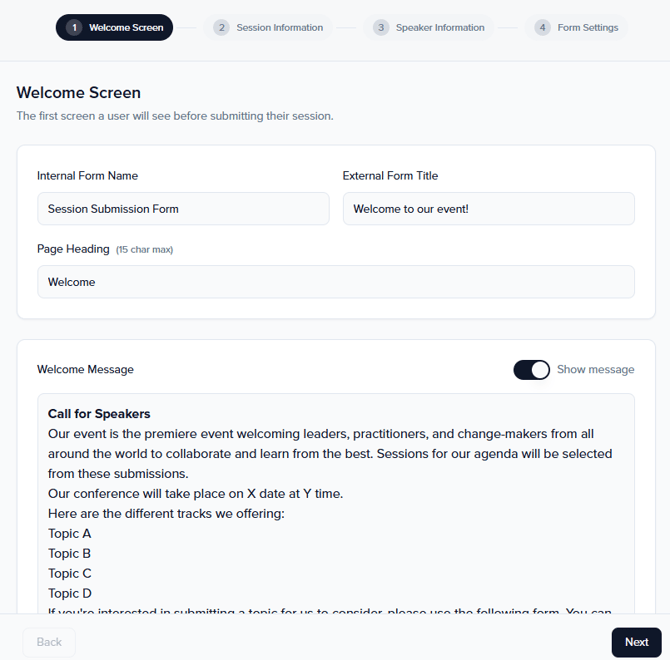
Edit the four sections of the submission form: Welcome Screen, Session Information, Speaker Information, and Form Settings.
-
Welcome Screen - Introduction to the event. This is the first screen a user will see when they access your submission form. Event admins can create a custom welcome message with basic text box functionality.
-
Session Information - Collect information about the submitted session by adding a page title, page description/instructions, and questions to collect data.
Page Heading is required and can not be deleted from the form.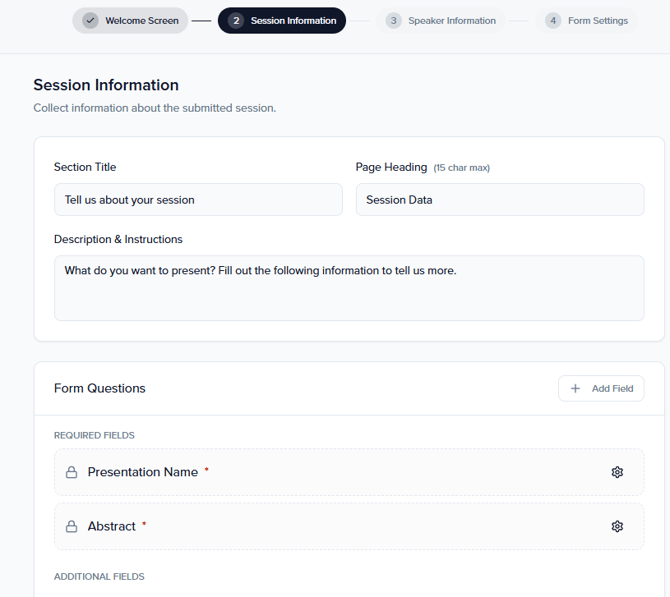
-
Speaker Information - Collect information for the session's speaker(s) by adding a page title, page description/instructions, as well as questions to collect data.
First Name, Last Name, and Email are required fields that can not be deleted from the form.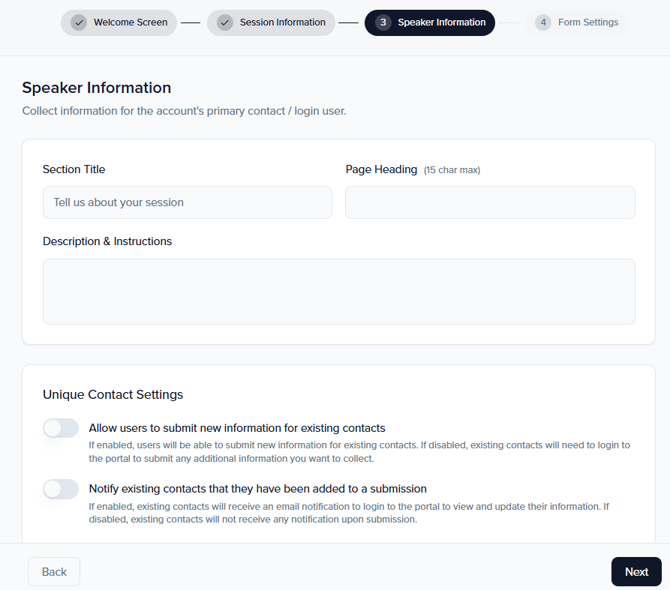
- Unique Contact Settings
- Allow Users to submit new information for existing contacts: If enabled, users will be able to submit new information for existing contacts. If disabled, existing contacts will need to log in to the portal to submit any additional information you want to collect.
- Notify existing contacts that they have been added to a submission: If enabled, existing contacts will receive an email notification to log in to the portal to view and update their information. If disabled, existing contacts will not receive any notification upon submission.
- Unique Contact Settings
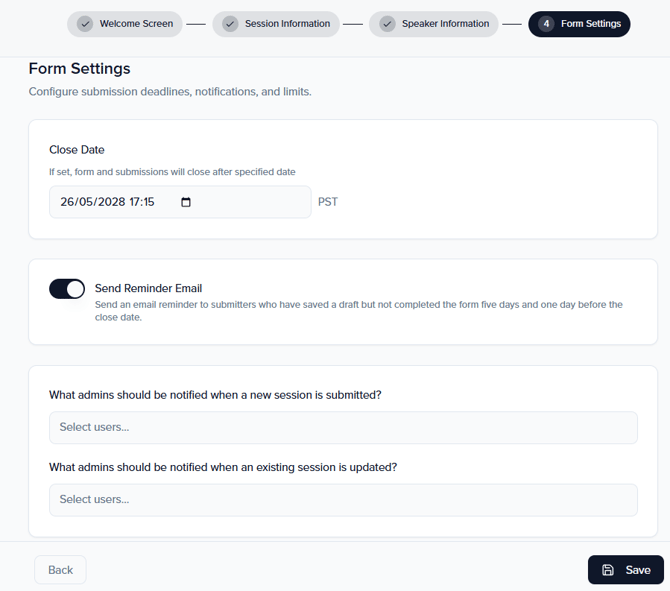
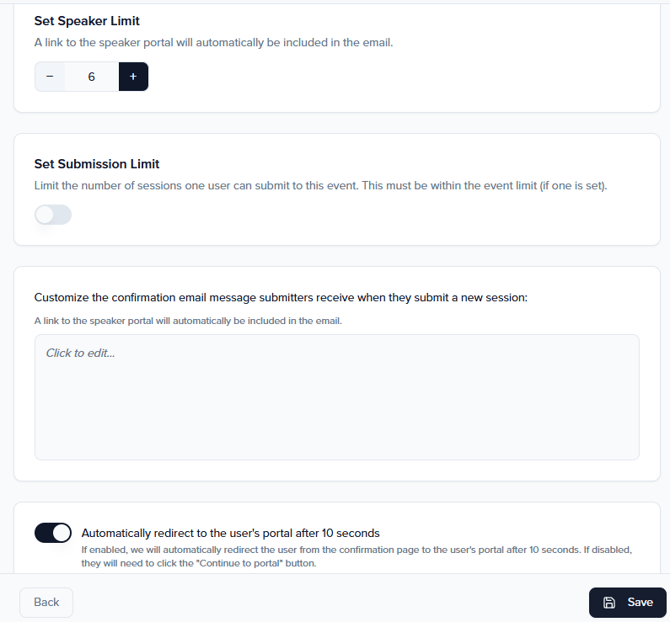
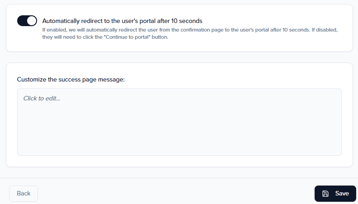
- Form Settings - The following settings can be applied to your form:
Creating, Editing, & Managing Fields
Creating Fields
Note: If your event will use Evaluation Plans, any field names you create will be visible to Evaluators when they review the submitted sessions.
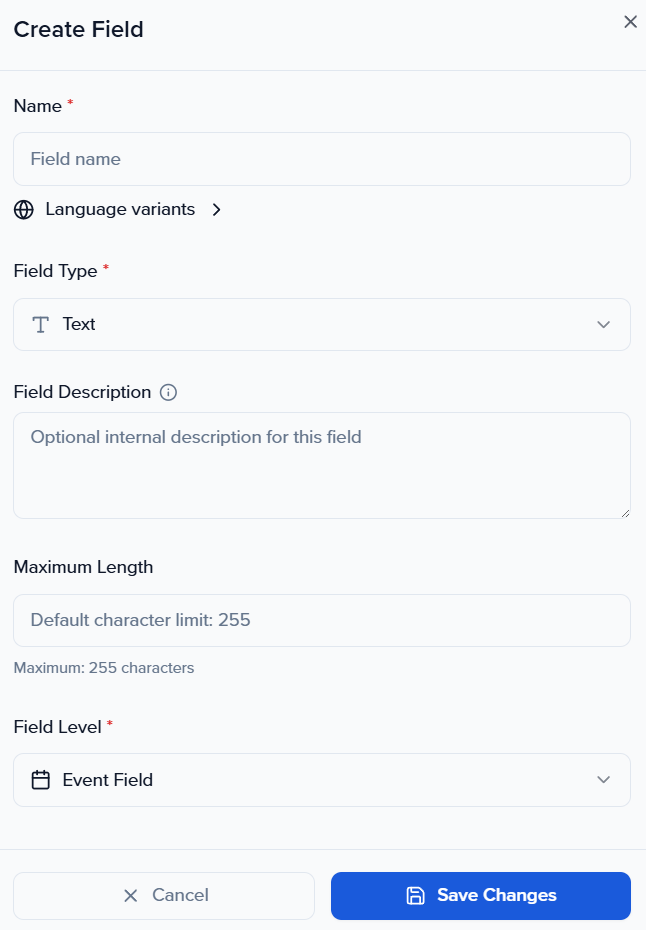
On the Session Information and Speaker Information pages, event organizers can add system fields or create custom fields to display on the form.
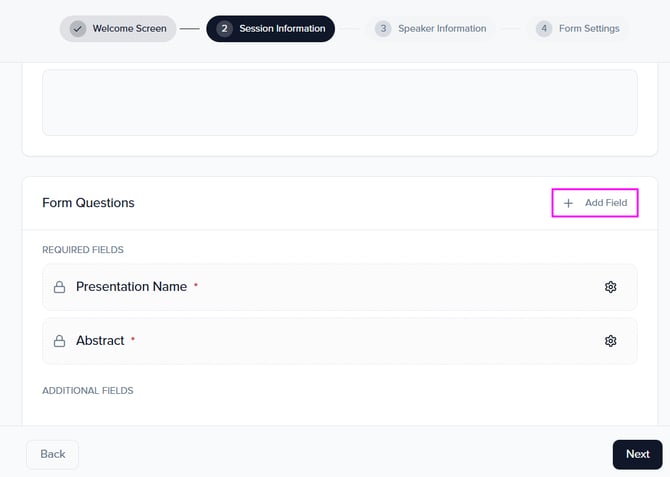
Click the Add Field button to view all the fields you can add.
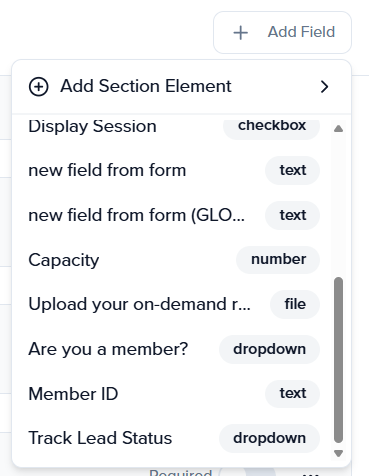
The Select Fields page displays all standard and previously created custom fields. Click them to add it to your form.
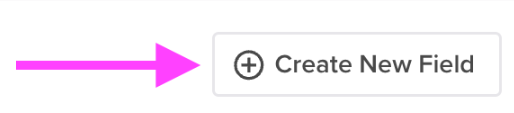
To add a new field, click the Create New Field button and follow the prompts to configure it.
🤔Things to Keep in Mind...
Editing, & Managing Fields
Once fields have been added to your form, select the ellipses within the Actions column to customize questions, use question rules (i.e., conditional logic), edit a field, or remove a field from your form.
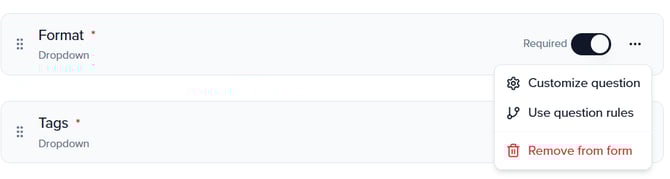
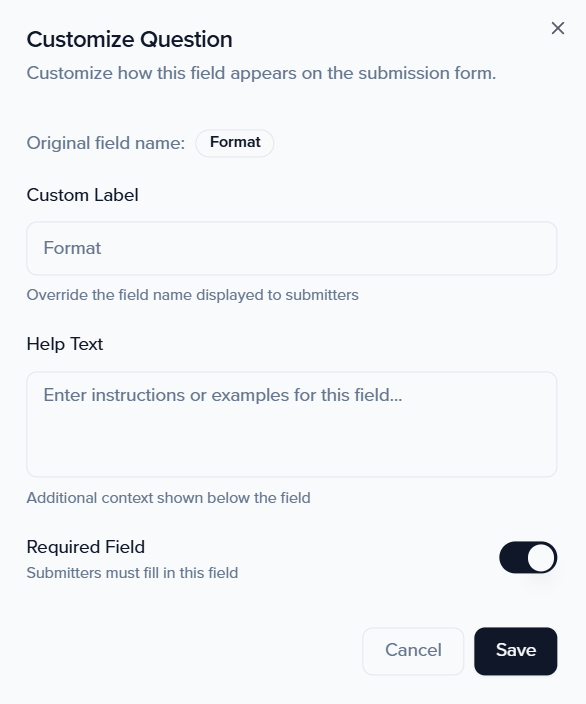
Customize Question
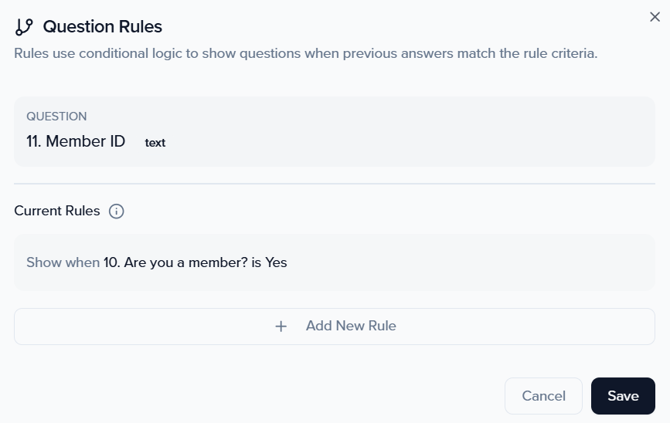
Use question rules
Use question rules (conditional logic) to create customizable forms that adjust based on the answers that your users provide to various questions. This allows you to use one form to intake multiple different types of sessions.
Question rules can only be used on the following field types:
-
Checkbox
-
Dropdown
-
Number
When using question rules, keep in mind the following:
-
Create and add all fields to your form, then save it before applying question rules.
-
Question rules should be applied to the question that is conditional.
A conditional question is a question that only appears based on the answer to a previous question. For example:
-
Q1: "Are you a member?"
-
Q2 (conditional): “Provide your Member ID” → This only appears if the answer to Q1 is “Yes.”
-
Additional Layout Tools
Hover between fields and click the blue + icon to insert a section header, add a divider line, or insert a rich text box.
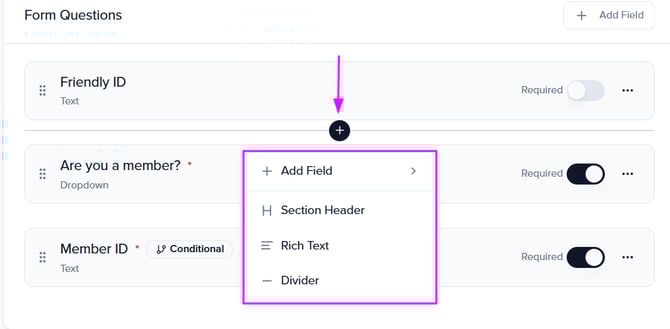
Section Header
Add a header between your fields to divide them based on similarity (Character Limit: 255)

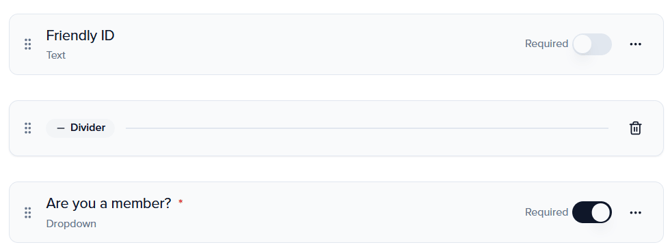
Form Divider
Insert a line/break into your form to divide your fields
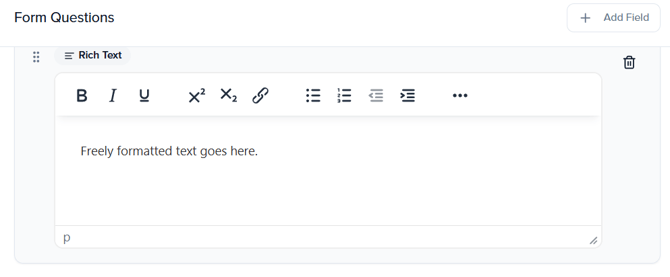
Rich Text Box
Add rich text to include images, hyperlinks, and additional text
From the ellipsis menu (⋯) next to a submission form, event organizers can access additional actions: