
In this article:
- Before You Begin
- Accessing Print Agendas
- Creating a New Print Agenda
- Available Templates
- Customizing Your Program
- AI-Powered Content Generation
- Previewing Your Document
- Export Options
- Sharing Your Agenda
- Permissions & Access
- FAQ & Troubleshooting
Before You Begin
Before using Print Agendas, make sure your event has the following in place:
- ✅ Accepted sessions
- ✅ Accepted speakers
- ✅ Basic event configuration completed (name, dates, time zone)
- ✅ Brand Kit configured , recommended for automatic branding (logo, colors, typography)
💡 Tip: Set up your Brand Kit in Settings → Branding before generating documents. This ensures your logo, colors, and fonts are applied automatically to every template.
Accessing Print Agendas
Print Agendas are available at the event level.
- Open your event.
- Navigate to Library in the left-hand menu.
- Select Documents.
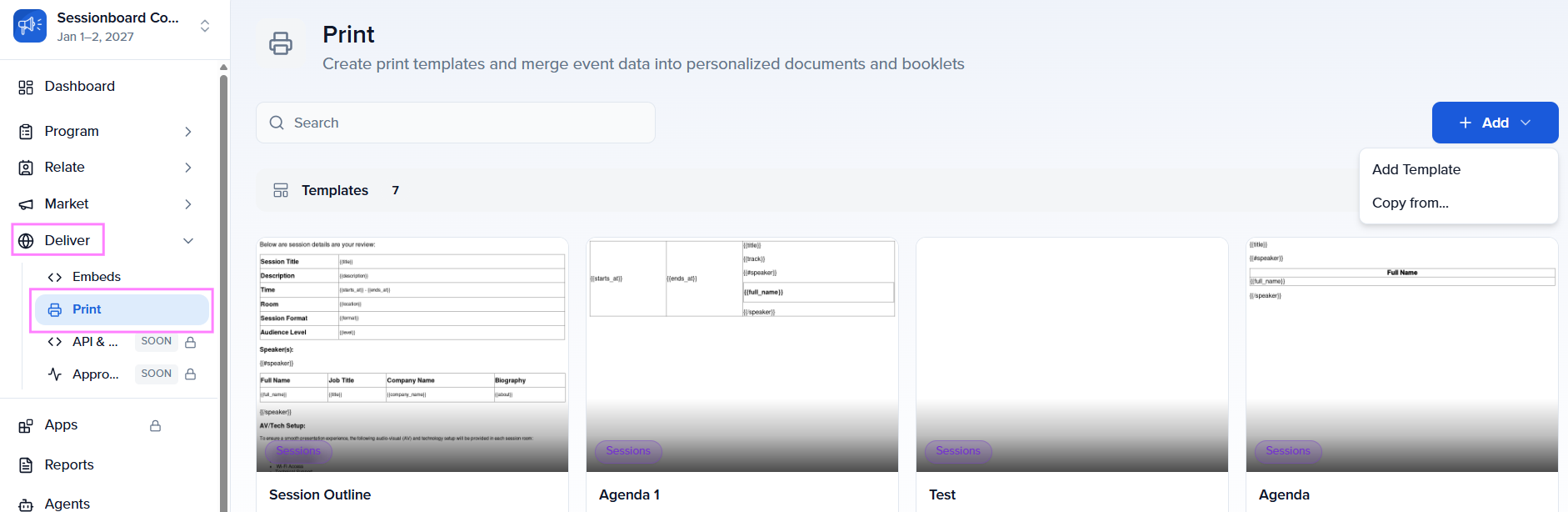
All previously created agenda and program templates for this event are listed here.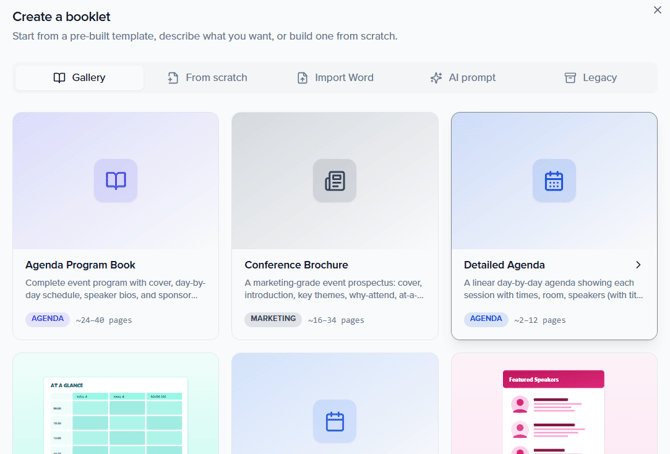
Creating a New Print Agenda
There are two ways to add a new document to your event.
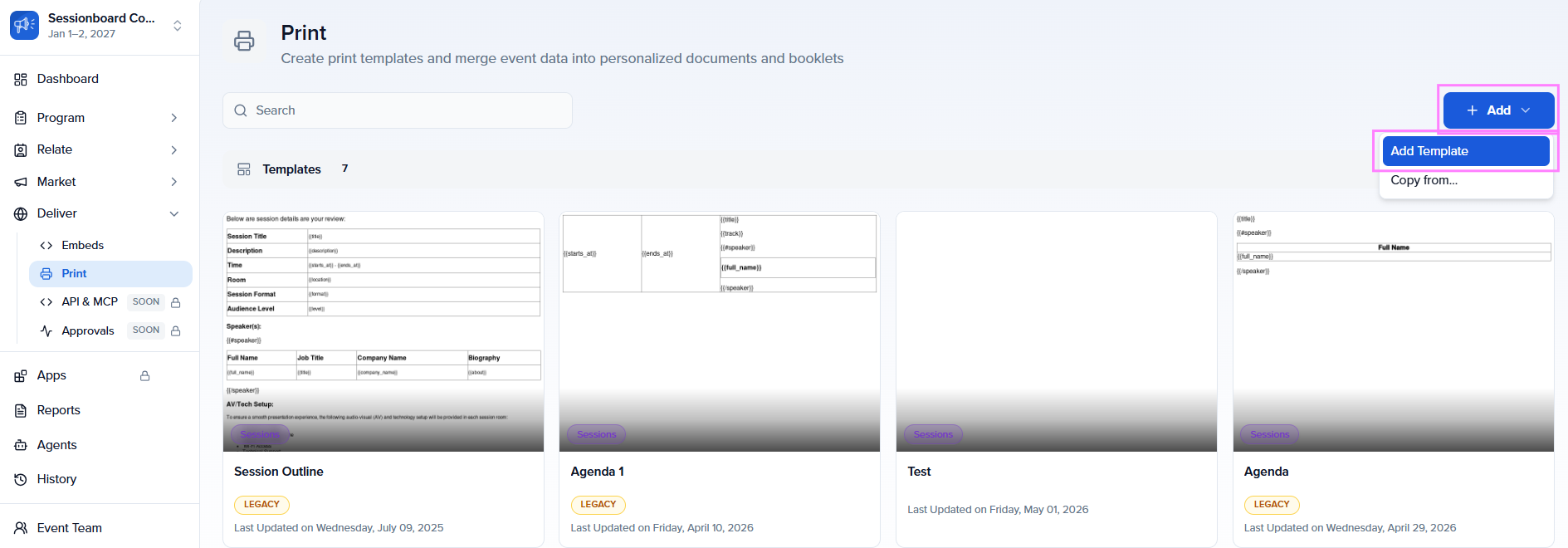
Option 1: Add Template
Click Add Template to create a new document from a predefined template. This is the recommended approach for most use cases.
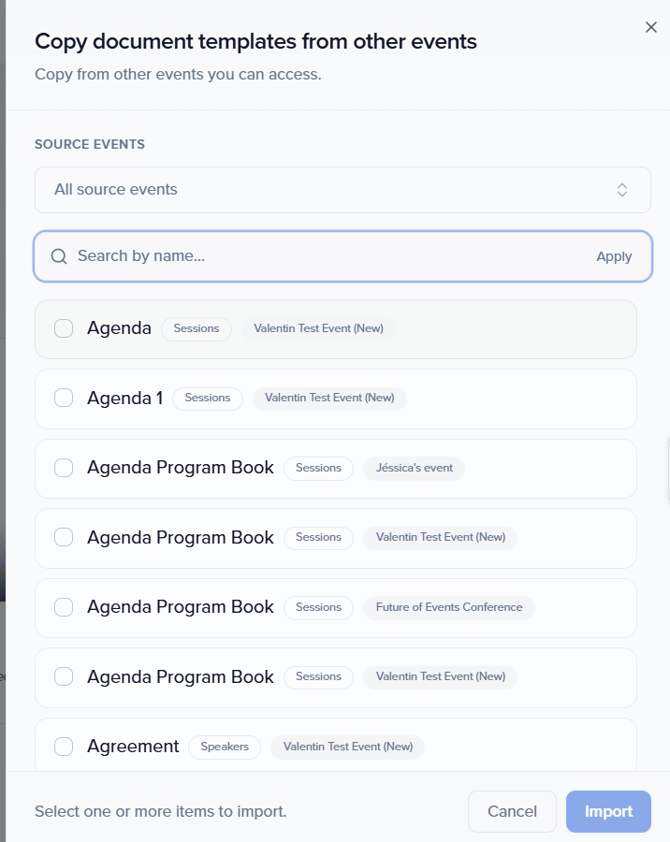
Option 2: Copy From Another Event
Click Copy From to reuse a template from another event in your organization. This option replicates the layout, branding, and configuration of an existing document, useful when running recurring events or maintaining consistency across your event portfolio.
Available Templates
Sessionboard provides six pre-built templates covering the most common event document needs.
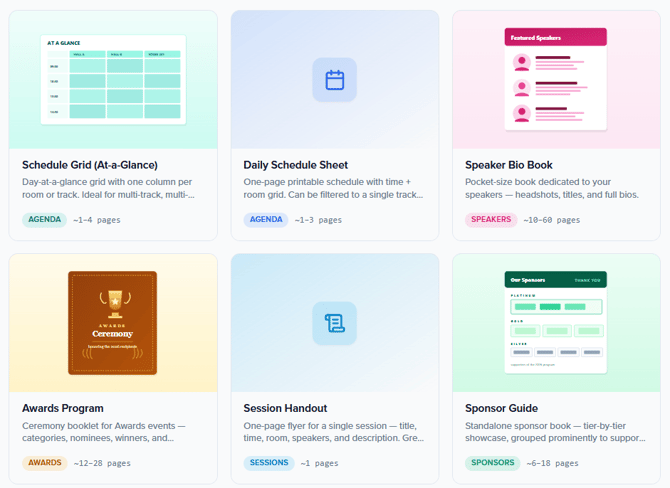
Program Book
A comprehensive event program that automatically pulls together the full schedule, speaker profiles, sponsor information, and event details. Best for distributing to all attendees as the official event guide. If your Brand Kit is configured, the generated document will automatically include your logo, brand colors, and typography.
Daily Schedule Sheet
A day-by-day agenda view showing sessions, rooms, tracks, and times. Ideal for on-site distribution to help attendees navigate the event schedule by day.
Session Handout
A per-session document that includes the session title, description, speaker bio, and supporting materials. Useful for distributing to session attendees before or during a presentation.
Speaker View
A personalized schedule document for individual speakers, showing their assigned sessions, times, rooms, and relevant event logistics. Use this for speaker kits or on-site speaker communication.
Awards Program
A formal awards ceremony program listing nominees, categories, presenters, and event flow. Designed for printed distribution at awards dinners or ceremonies.
Sponsorship Guide
A document that consolidates sponsor information, including logos, descriptions, and promotional content. Suitable for sponsor recognition sections within your program book or as a standalone handout.
Customizing Your Program
Every section of your document can be customized. Open the document editor after selecting your template to modify the layout, content, and presentation of each section.
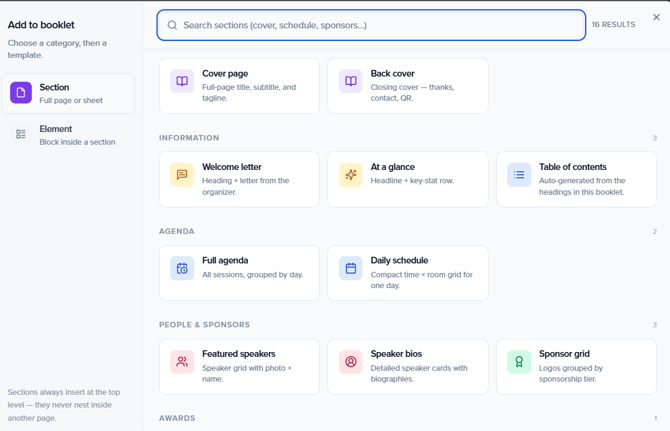
Cover Page
Create a custom cover with event name, date, location, and brand imagery. You can upload a custom cover image or use your Brand Kit background.
Welcome Section
Add a welcome letter, opening message, or event introduction from the organizer or keynote sponsor.
Speaker Pages
Configure how speaker information appears throughout the document — including headshot display, biography length, session associations, and social links.
Sponsor Pages
Include sponsor logos, descriptions, and tiered recognition sections. Content can be pulled automatically from your Sponsors module.
Agenda Layouts
Control how sessions, tracks, rooms, and time slots appear in the schedule. Choose between list view, grid view, or track-based layouts depending on your event format.
💡 Tip: Changes to session data, speaker information, or sponsors in your event will be reflected the next time you generate or refresh the document.
AI-Powered Content Generation
Print Agendas includes built-in AI capabilities to help you quickly generate and enhance document content.
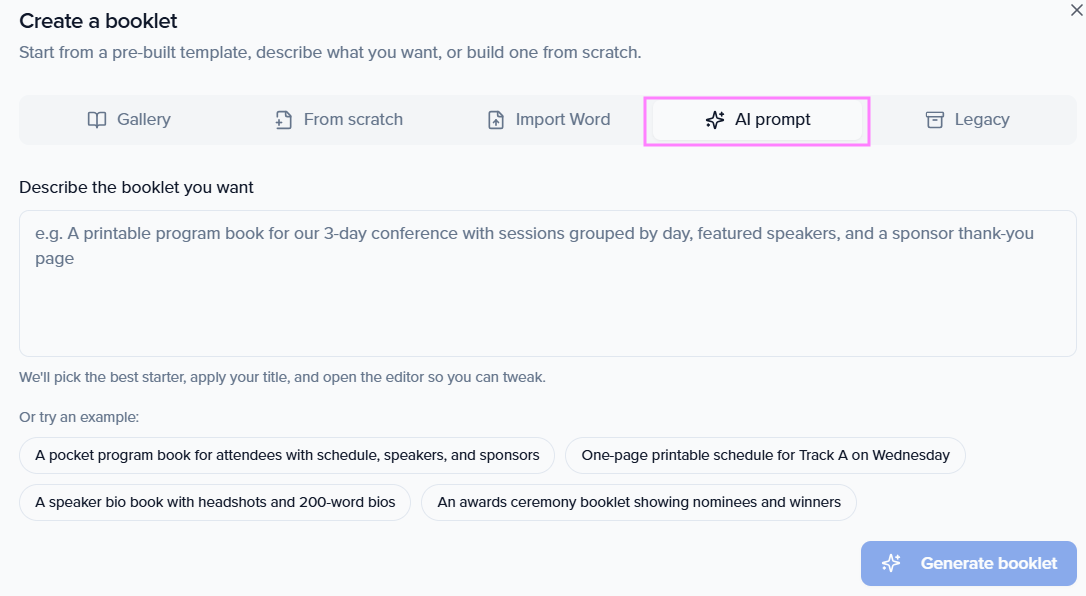
The AI can help with:
- Speaker biographies: Generate or rewrite bios based on available profile data
- Session descriptions: Polish or expand session abstracts for print
- Welcome letters: Draft opening messages based on event context
- Section introductions: Generate intro copy for agenda sections, sponsor tiers, or award categories
AI-generated content is fully editable before finalizing or exporting your document.
Previewing Your Document
Before exporting, preview the complete document to ensure everything looks correct.
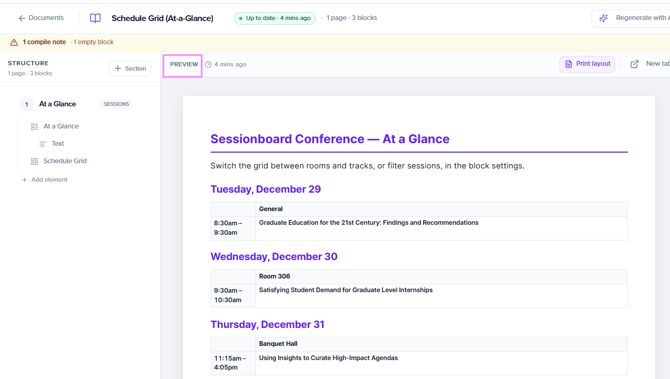
Two preview modes are available:
- Preview Mode: Review the content and layout in a readable format
- Print Layout View: See the final print-ready format with page breaks, margins, and print dimensions
Use Print Layout View before exporting to confirm that headers, footers, images, and page breaks appear exactly as intended.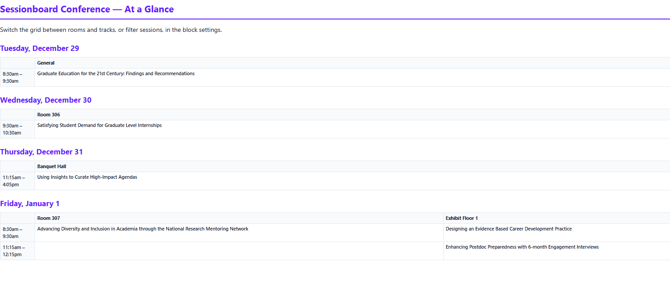
Export Options
Print Agendas supports three export formats to suit different distribution needs.
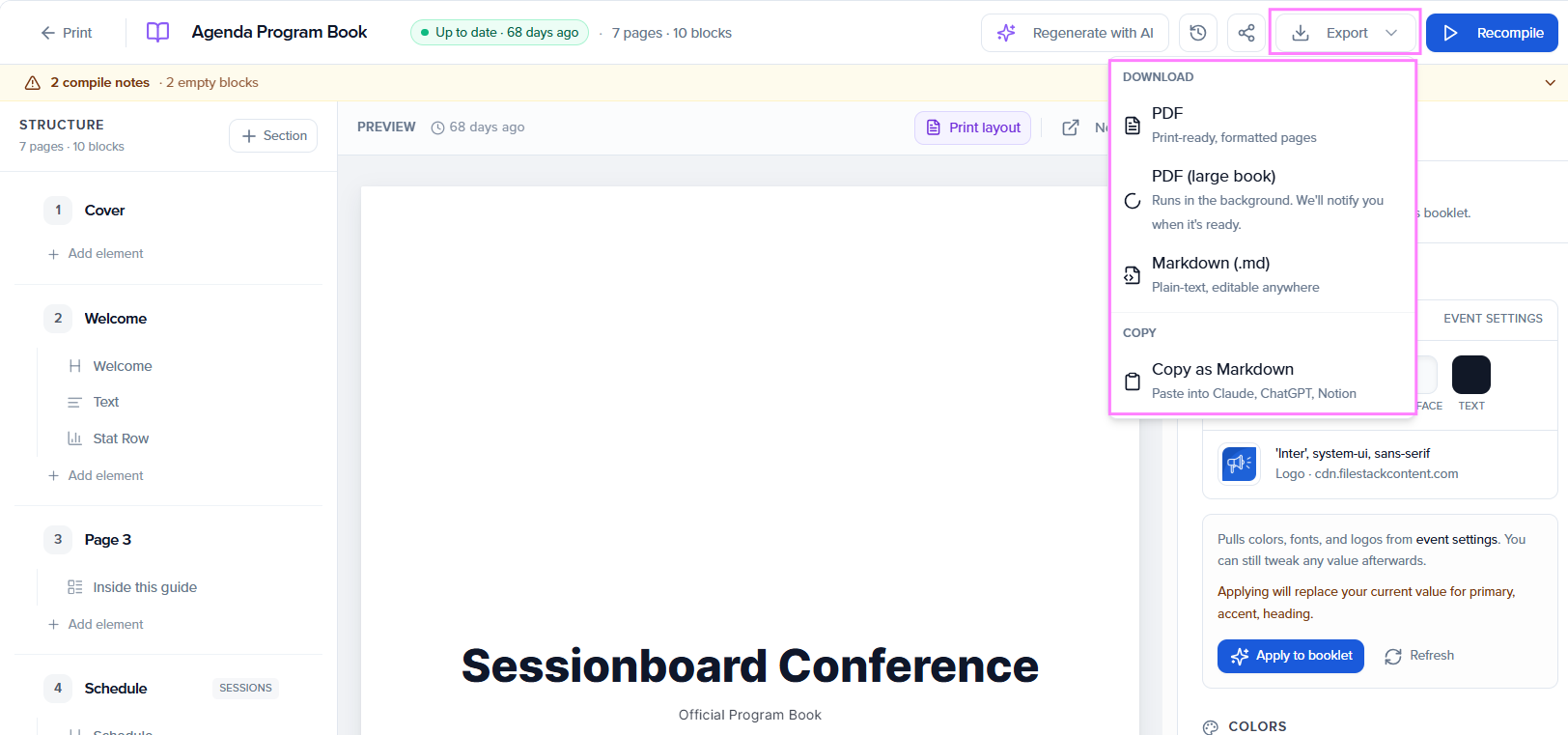
Standard PDF export, optimized for printing at typical sizes (A4 or Letter). Suitable for most use cases including session handouts, daily schedules, and speaker programs.
Large Book PDF
Optimized for larger events and extensive program books with many pages, larger images, or higher-resolution branding assets. Use this format when printing professional-grade booklets or multi-day conference programs.
Markdown
Exports the document content as a Markdown (.md) file. This format is designed for use with AI tools and content management systems, enabling additional editing, repurposing, and AI-assisted workflows in tools like ChatGPT, Claude, or Notion.
Sharing Your Agenda
In addition to exporting, you can share any agenda document via a public URL, no download required.
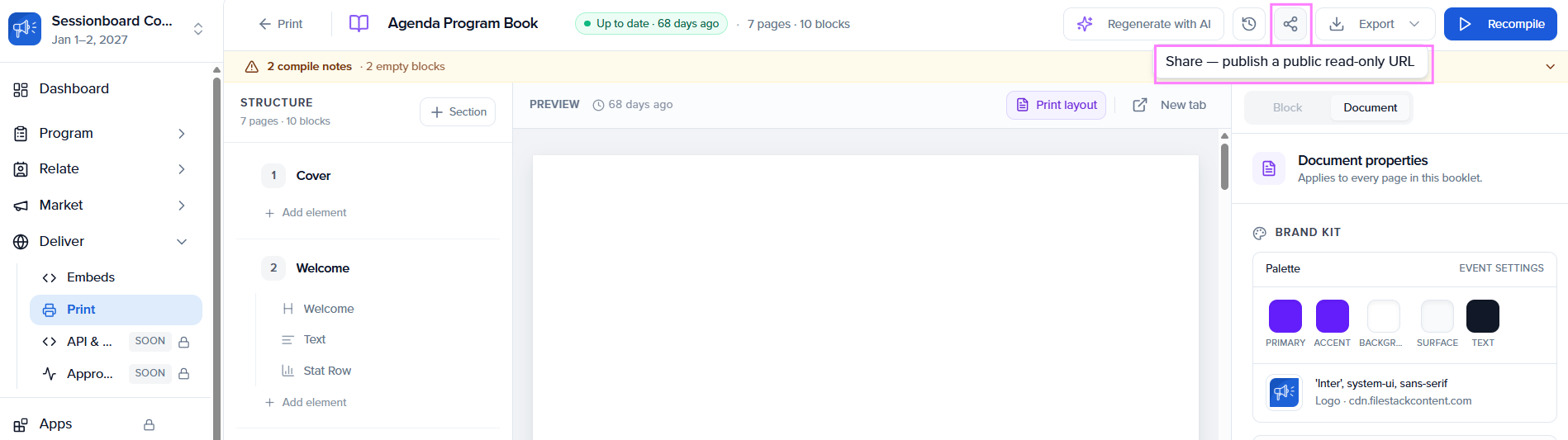
Shared documents are accessible to anyone with the link and always reflect the latest published version. This makes it easy to distribute schedules and program information to:
- Event attendees
- Speakers
- On-site staff
- Sponsors
- Other event stakeholders
💡 Tip: Use the public link in confirmation emails or your event website so attendees always have access to the most up-to-date schedule.
Permissions & Access
Print Agendas are available to team members with access to the Library module.
To manage permissions, go to Event Team → Permissions and select the relevant role. Under the Library section, confirm that Can view documents and Can manage documents are enabled as needed.
📌 Note: Print Agendas is an Early Access feature. Contact support@sessionboard.com to enable it for your account.
FAQ & Troubleshooting
My Brand Kit isn't applying to the generated document.What should I check?
Go to Settings → Branding and confirm your Brand Kit is fully configured with a logo, brand colors, and typography. Once saved, re-generate the document from the Documents section.
Session data in my document is outdated. How do I refresh it?
Open the document in the editor and click Regenerate (or use the AI refresh option). This pulls the latest session, speaker, and sponsor data from your event.
What's the difference between PDF and Large Book PDF?
Standard PDF is optimized for typical page sizes and is suitable for most documents. Large Book PDF is recommended for program books with many pages, high-resolution images, or professional print production requirements; it handles larger file sizes and complex layouts more reliably.
Can I use the same template across multiple events?
Yes. Use the Copy From option when creating a new document to import a template from any event in your organization. The layout, branding, and configuration are copied; the content is then populated from the new event's data.
Who can access the public share link?
Anyone with the link can view the shared document. There are no login or account requirements. The document always reflects the latest published version, so any updates you make are immediately visible to anyone with the link.
Can I export a personalized agenda for each speaker?
Yes. Use the Speaker View template to generate personalized schedules. You can generate one per speaker and export or share individually.